

Busy Indicator is a control that is added in Silverlight 3 Toolkit November 2009 Release. In this article we will see how to use it.
Creating the Silverlight Application
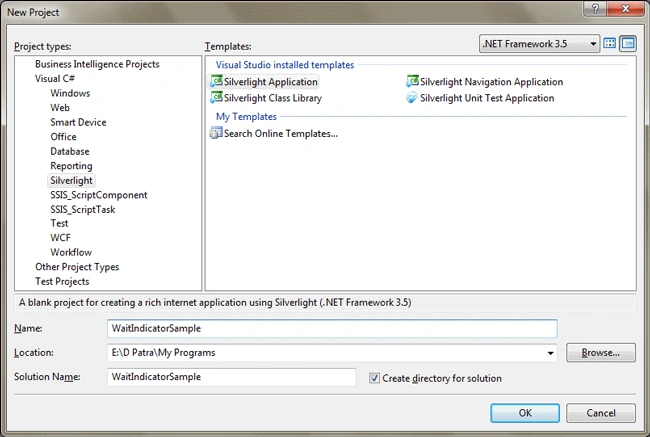
Fire up Visual Studio 2008 and create a Silverlight Application, name it as BusyIndicatorSample.
Open your application in Blend 3.
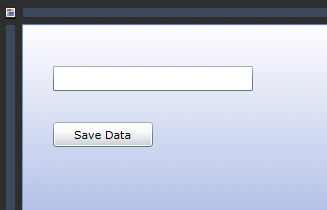
Add some controls to your application. I have added one Button and a TextBox control.
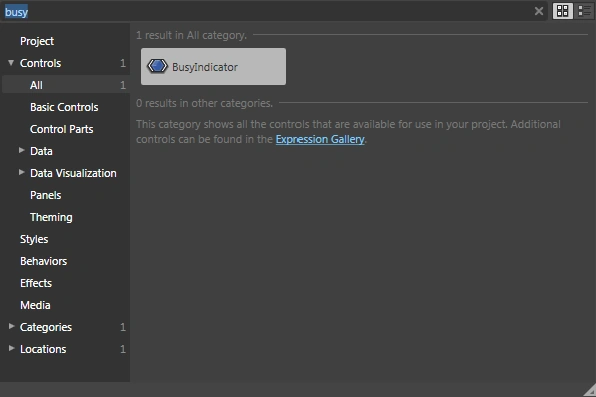
Now add a Busy Indicator Control to your application. Before adding it your application you need to take care of something:
- Always add the Busy Indicator as your last control in the order. In our case it's in the order
- TextBox
- Button
- BusyIndicator
- Always make the Busy Indicator's Horizontal and Vertical Alignment to Stretch so that it covers the whole Parent Panel. In our case it's Grid[LayoutRoot]
After adding it you can see several properties associated to it.
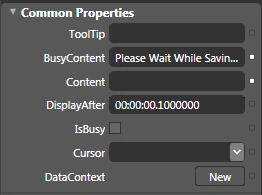
You can remove the Content and add your own message in BusyContent.
Now we will add some code in the Button Click event and we will see how it is effective to use BusyIndicator Control.
Name the BusyIndicator as BusyWindow.
<Button x:Name="btnLoad" Click="btnLoad_Click"
Height="25" HorizontalAlignment="Left" Margin="30,97,0,0" VerticalAlignment="Top" Width="100" Content="Save Data"/>
<TextBox Height="25" HorizontalAlignment="Left" Margin="30,41,0,0" VerticalAlignment="Top" Width="200" TextWrapping="Wrap"/>
<controlsToolkit:BusyIndicator x:Name="BusyWindow" Content="" BusyContent="Please Wait While Saving Data..."/>
private void btnLoad_Click(object sender, RoutedEventArgs e)
{
int busyDisplay = 3;
int delayDisplay = 500;
BusyWindow.DisplayAfter = TimeSpan.FromMilliseconds(delayDisplay);
BusyWindow.IsBusy = true;
ThreadPool.QueueUserWorkItem((state) =>
{
Thread.Sleep(busyDisplay * 1000);
Dispatcher.BeginInvoke(() => BusyWindow.IsBusy = false);
});
txtStatus.Text = "Data Saved";
}
Now run your application and type some text in the TextBox and then click on the Save Data Button.
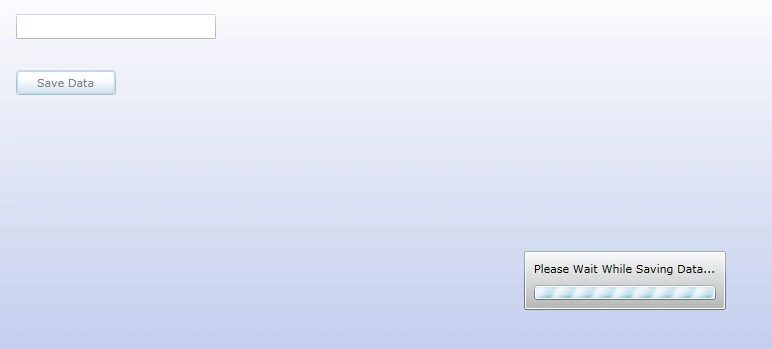
Now you would understand why we made the Alignment of BusyIndicator as Stretch. If you don't make it, the controls would be available for user to operate on.
Hope you like this article.
Will ReynoldsPosted Jun 29, 2010, 3:03 PM
If you could explain, in more detail, the threading that you used in this example that would be a great help! Thanks, Will
Edward JoellPosted Mar 22, 2010, 1:04 PM
I have silverlight tookit version 3.0 Jully 2009 loaded on my machine but there is no control in Blend called Busyindicator.
Raghuraman KanchiPosted Jan 19, 2010, 1:43 PM
Hey Diptimaya, Thanks for this write up. Simple and easy to use. Regards KRK