

Introduction
In this article, we are going to define a motion for a button in Android using Android Studio. It is a type of library that provides the motion for a button and also the given text. By using this, we can animate the button and also the text. This is one of the most widely-used Android libraries.
Step 1
Create a new project in Android Studio.
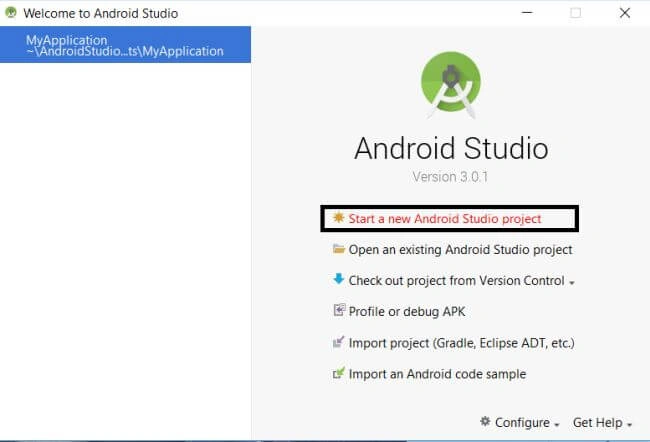
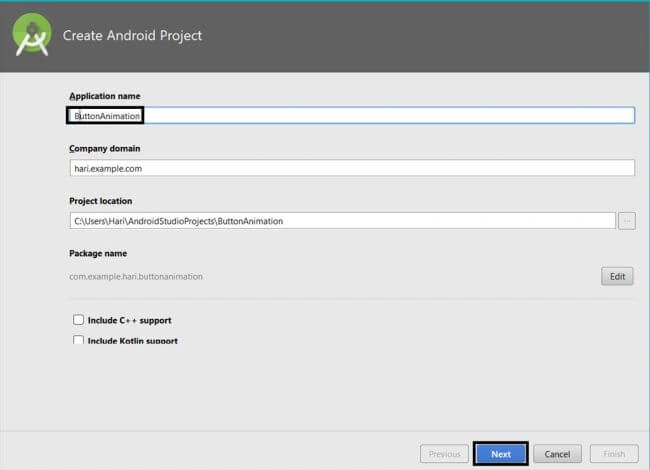
Give a name to the project and click "Next".
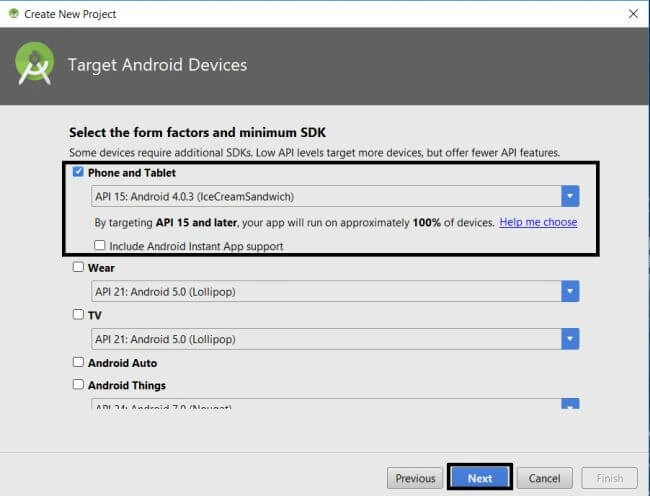
Select the "Phone and Tablet" option and click "Next".
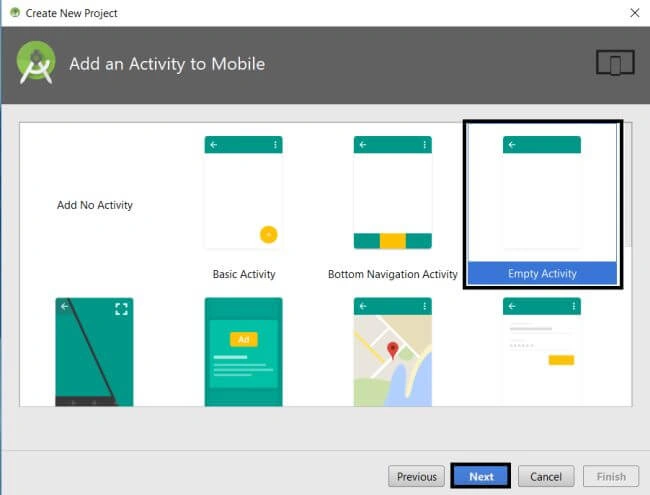
Select an empty activity and click "Next".
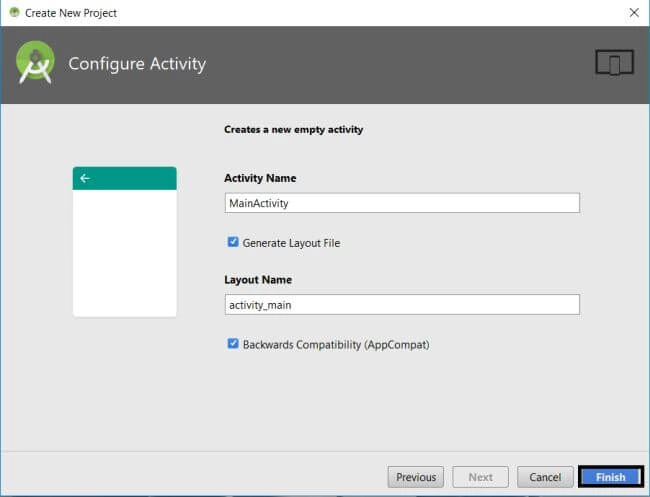
At last, give the activity name and click on "Finish".
Step 2
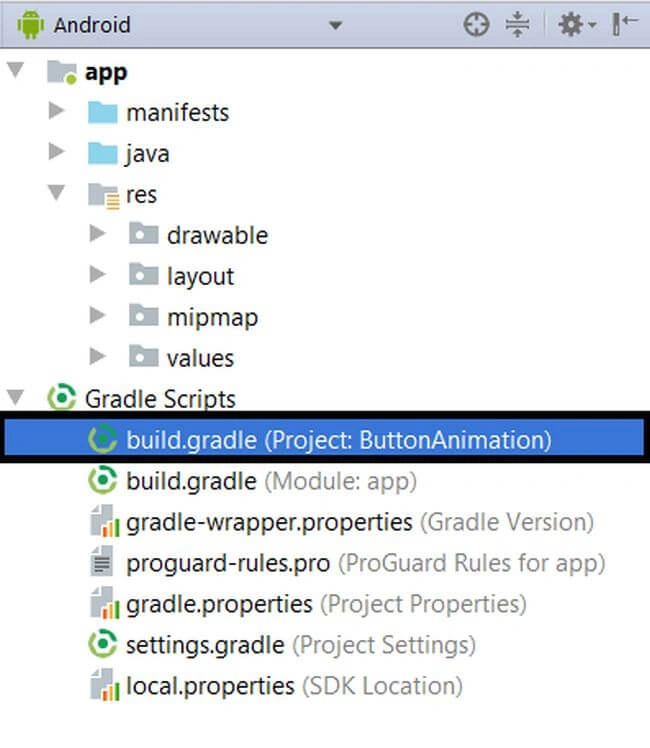
Locate the Gradle Scripts>>Build. Gradle 1.
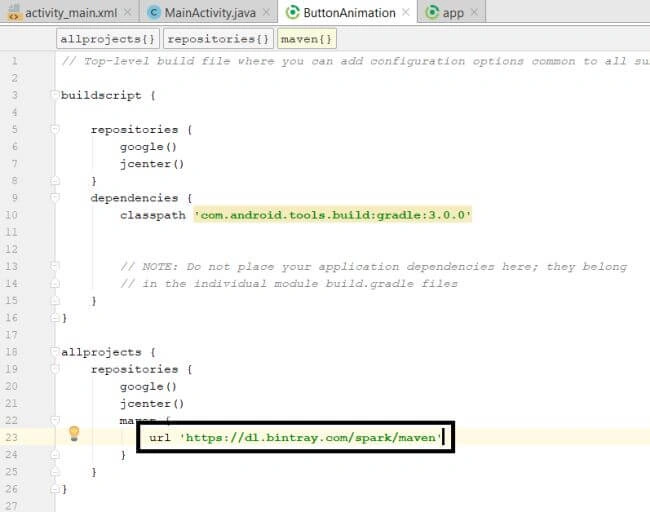
And, type the following dependency in your app's build.gradle.
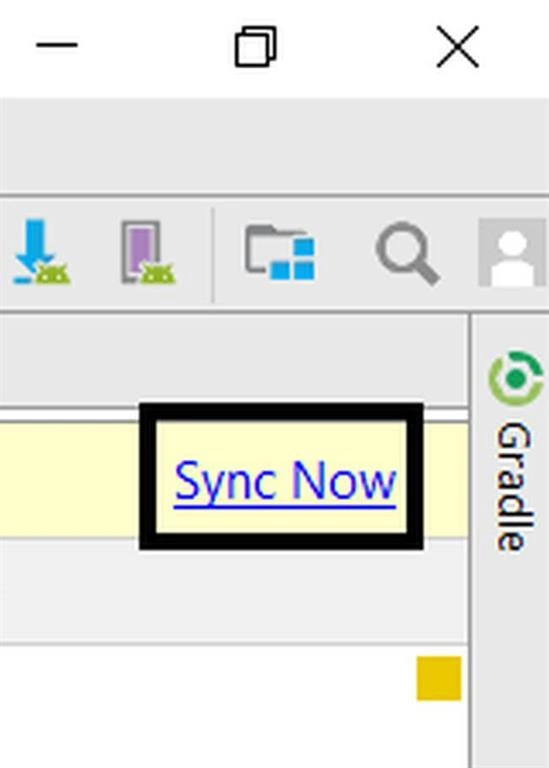
Then, click the sync button in the top right corner and repeat this for step 4.
Code copy is here
- maven {
- url 'https://dl.bintray.com/spark/maven'
- }
Step 3
Locate the Gradle Scripts>>Build. Gradle 2.
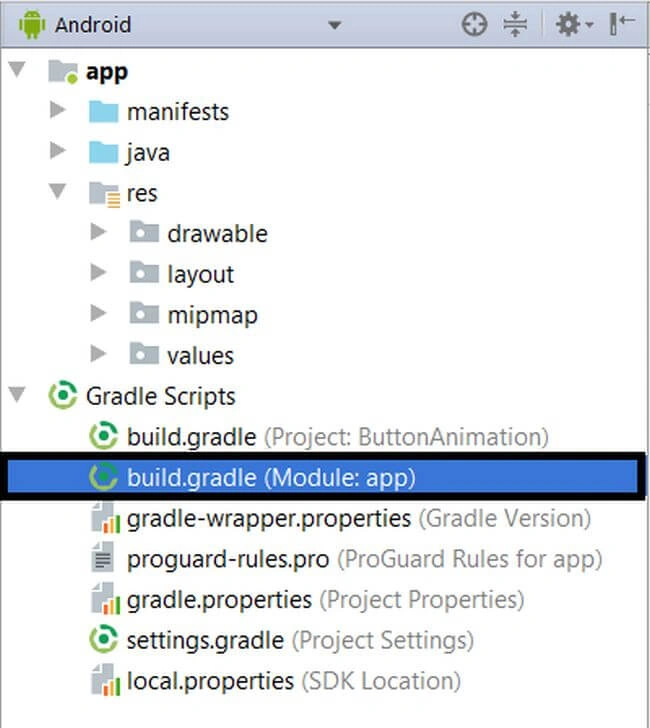
Type the following dependency in your app's build.gradle.
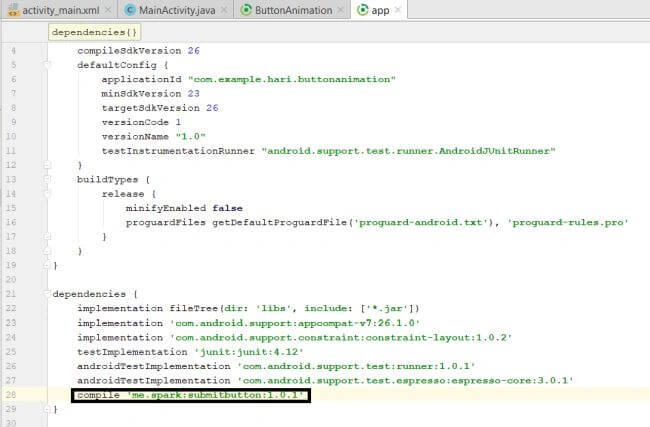
The code copy is here.
- compile 'me.spark:submitbutton:1.0.1'
Step 4
Next, go to app >> res >> layout >> activity_main.xml. Select activity page.
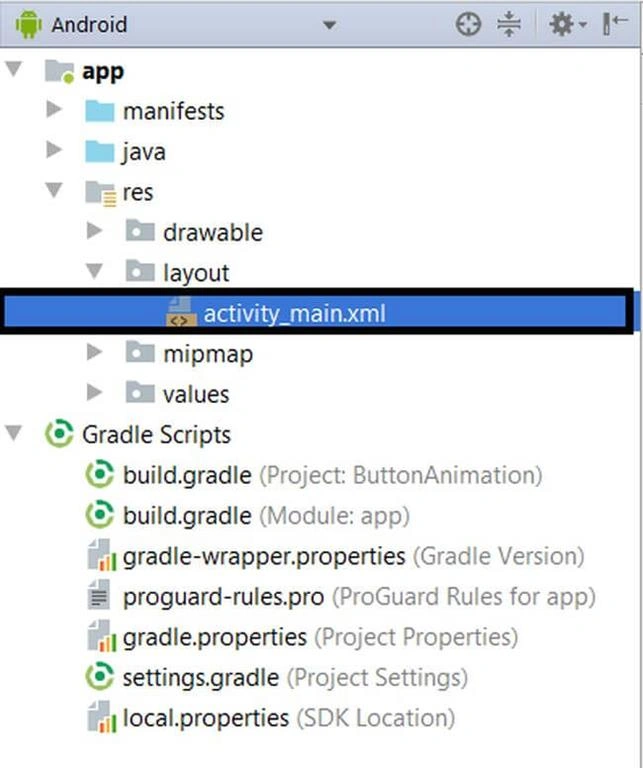
Just type the code as follows.
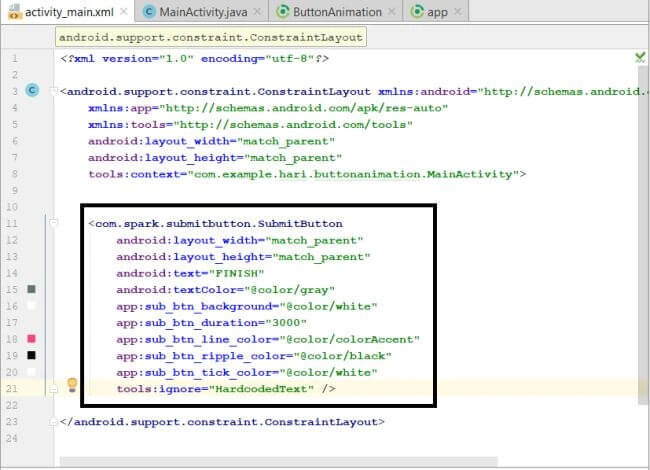
The code copy is here.
- <com.spark.submitbutton.SubmitButton
- android:layout_width="match_parent"
- android:layout_height="match_parent"
- android:text="FINISH"
- android:textColor="@color/gray"
- app:sub_btn_background="@color/white"
- app:sub_btn_duration="3000"
- app:sub_btn_line_color="@color/colorAccent"
- app:sub_btn_ripple_color="@color/black"
- app:sub_btn_tick_color="@color/white"
- tools:ignore="HardcodedText"
- tools:layout_editor_absoluteX="0dp"
- tools:layout_editor_absoluteY="120dp" />
Step 5
Next, go to app >> java>>Mainactivity.java. Select Mainactivity page.
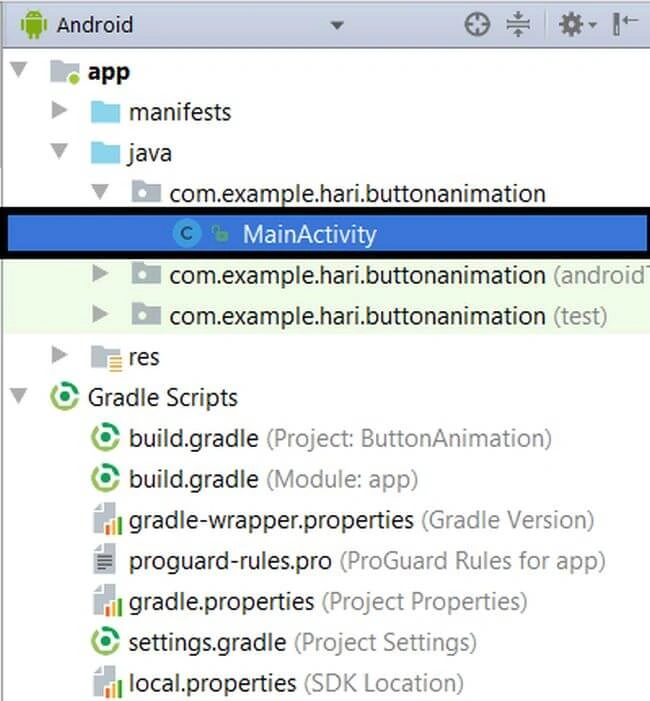
And check whether it is the default.
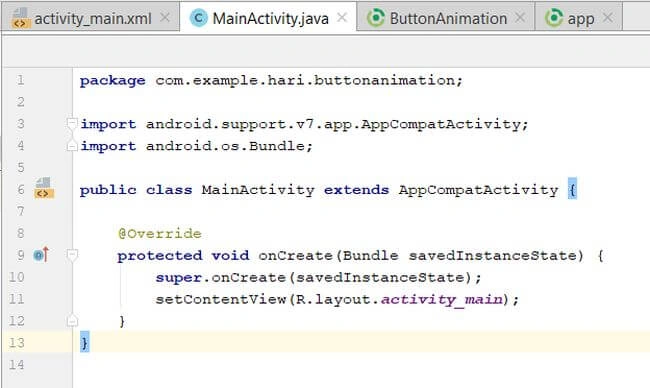
Step 6
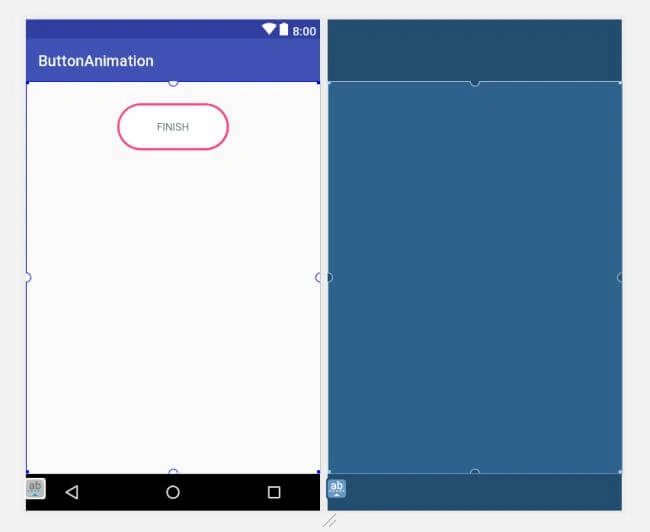
Verify the preview.
After the code is applied, the preview will appear like this.
Step 7
Next, go to Studio and deploy the application. Select an Emulator or your mobile with USB debugging enabled. Give it a few seconds to make installations and set permissions.
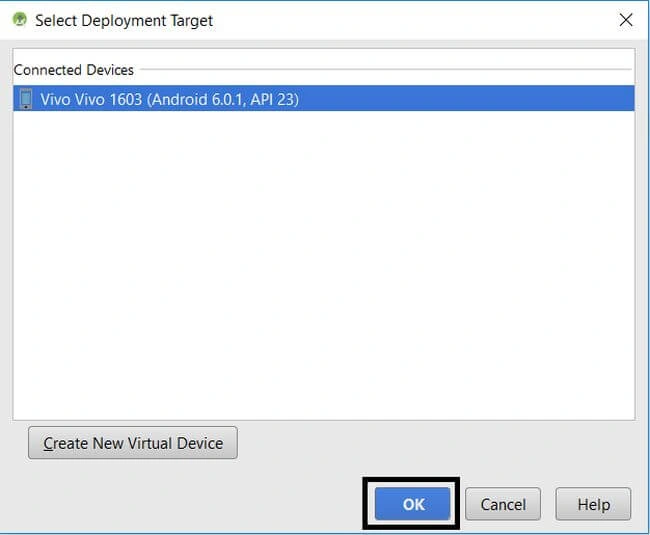
Run the application in your desired emulator (Shift + F10).
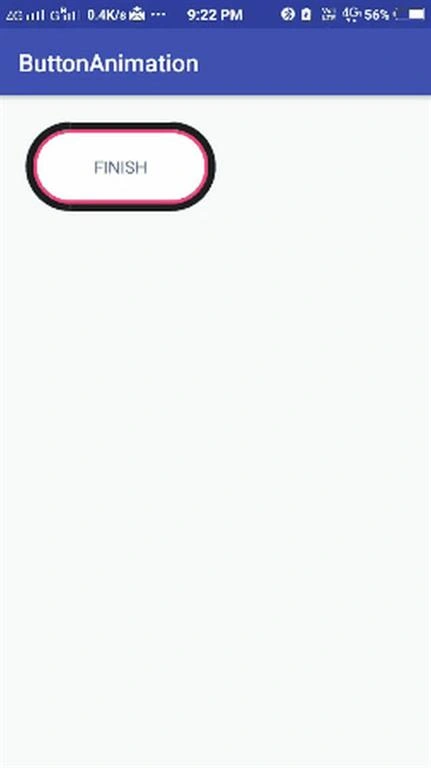
Explanation of source code
The source code used in the activitymain.xml file will perform the motion for the given button. The motion is based on the dependency you added.
Summary
We have just created the app to see how the button motion works and learned how to use it.
*Support and Share, Thank You*
Sagar SupekarPosted Apr 22, 2018, 12:44 PM
nice article and explanations but please also post a project zip file .it will more helpfull.
Guest UserPosted Apr 4, 2018, 11:37 AM
Nice article Hariharan and neet explanation, pls reduce your image resolution