
We will go step-by-step. Before going further let us see the meaning of some keywords:
- Setter: This will set the value or property.
- EventTrigger: It's name itself explain that it will raise some event at any time.
- Storyboard: Is a place where animation information is Stored.
Here are the steps:
Step 1: Open Visual Studio.
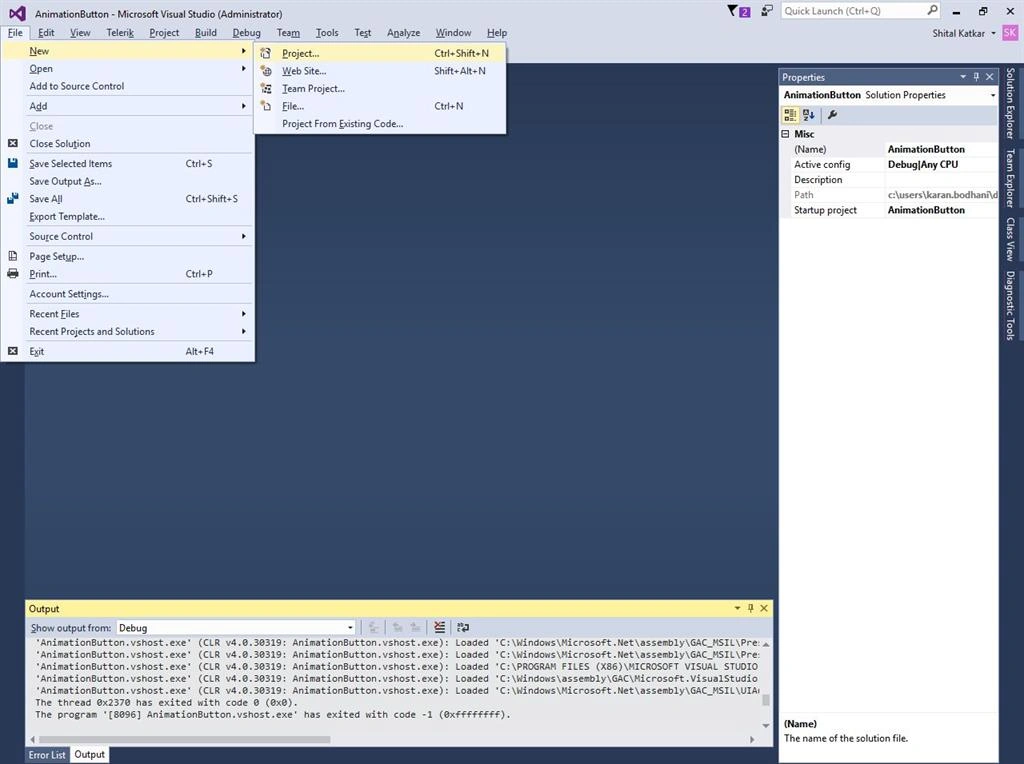
Step 2: Go to FILE and select New, then Project.
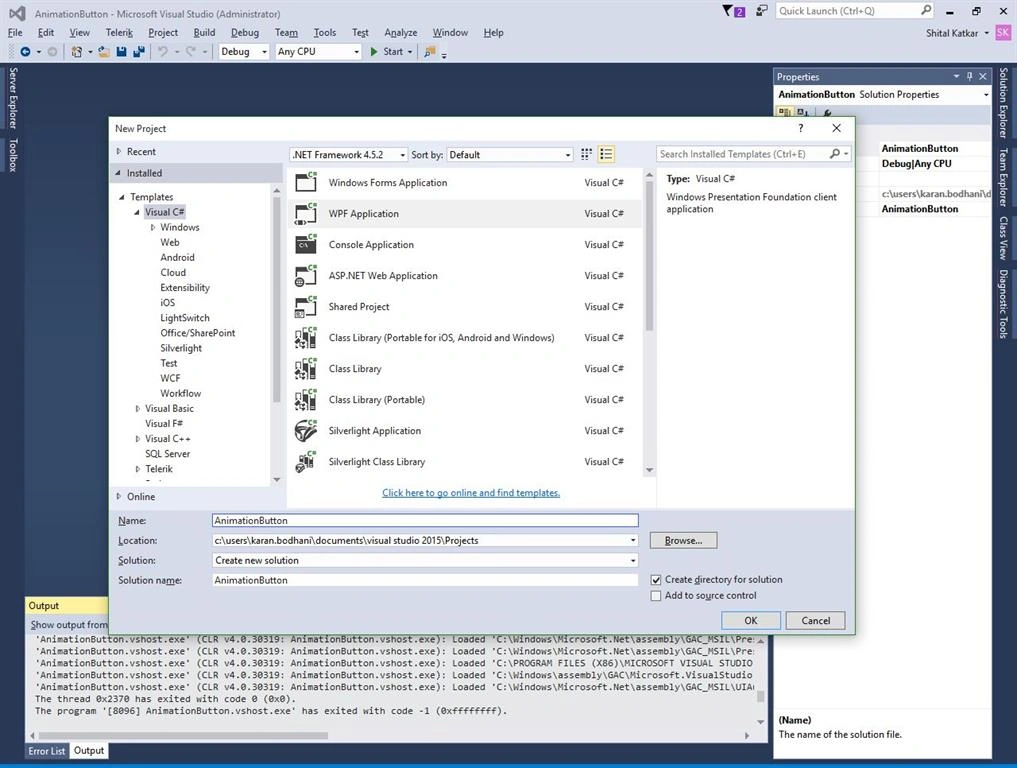
Step 3: Select Visual C# from left panel and WPF Application on right side, give the name of the project and press OK.
Step 4: Copy this code and lets see how it work.
- <StackPanel.Resources>
- <Style TargetType="{x:Type Button}">
- <Setter Property="HorizontalAlignment" Value="Center" />
- <Setter Property="Margin" Value="12" />
- <Setter Property="RenderTransformOrigin" Value="0.5 0.5" />
- <Setter Property="RenderTransform">
- <Setter.Value>
- <RotateTransform />
- </Setter.Value>
- </Setter>
- <Style.Triggers>
- <EventTrigger RoutedEvent="Button.Click">
- <BeginStoryboard>
- <Storyboard TargetProperty="RenderTransform.Angle">
- <DoubleAnimation
- From="0" To="180" Duration="0:0:1.05"
- AutoReverse="True"
- FillBehavior="Stop" />
- </Storyboard>
- </BeginStoryboard>
- </EventTrigger>
- <EventTrigger RoutedEvent="Button.MouseEnter">
- <BeginStoryboard>
- <Storyboard TargetProperty="RenderTransform.Angle">
- <DoubleAnimation
- From="0" To="90" Duration="0:0:1.05"
- AutoReverse="True"
- FillBehavior="Stop" />
- </Storyboard>
- </BeginStoryboard>
- </EventTrigger>
- </Style.Triggers>
- </Style>
- </StackPanel.Resources>
- <Button >Click me to shake</Button>
- ckPanel>
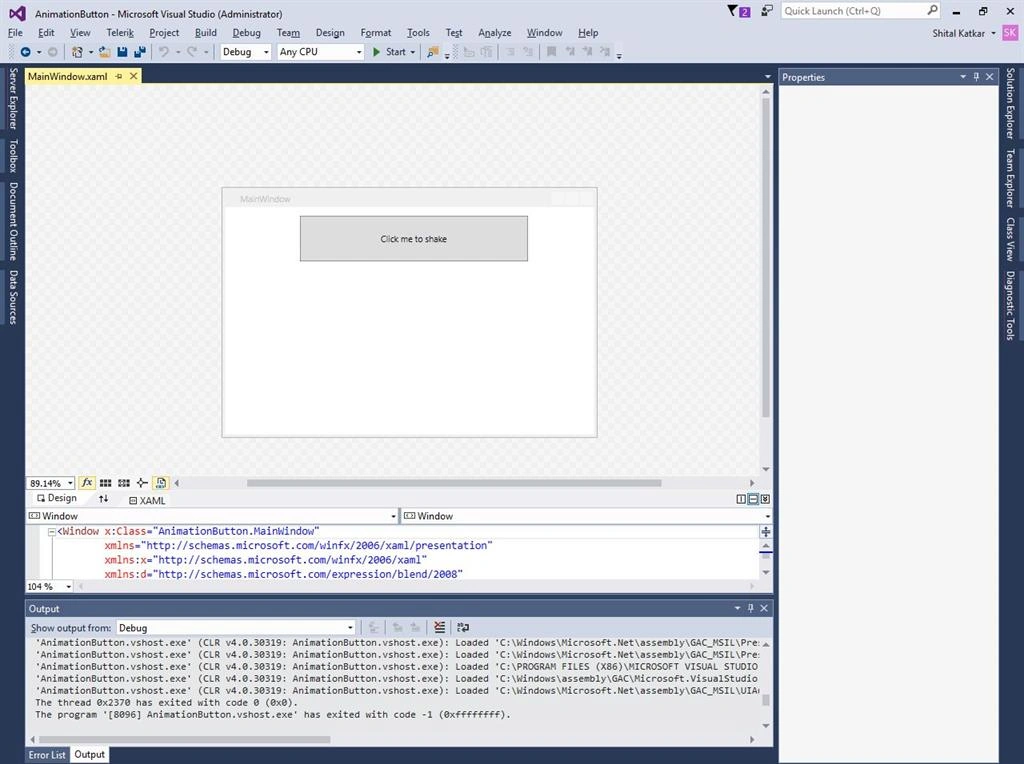
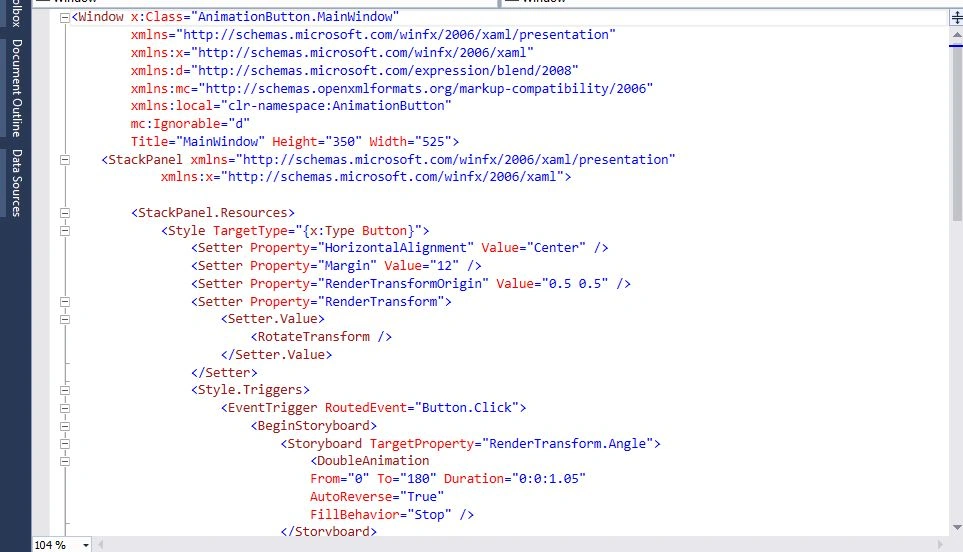

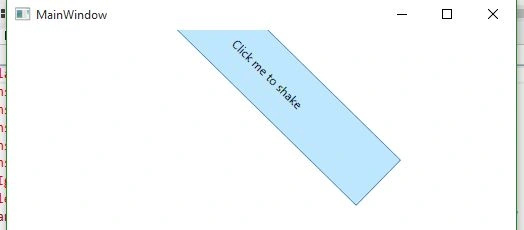
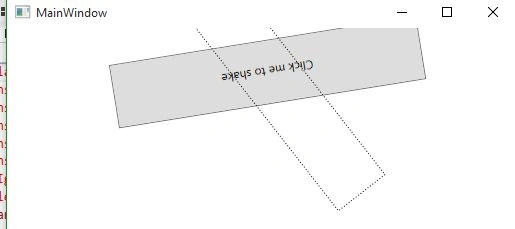
Here first we will give <stackPanel>, which will hold all the UI Elements on window, then we will define resources for that stack panel, here <StackPanel.Resources> will be only available to that stack panel, but this stack panel is the main panel for us, which means that resources will be available throughout the window. Then we will set the triggers, which will fire the event on the given event. Here we are using RotateTransform which will rotate the attached element. This animation has some properties like From, which will tell from which angle to which angle the element is to rotate, and duration specifies the time duration the object will take to desired angle. AutoReverse tells whether it will go back to its original place or not. Then simply just put buttons element to the main stack panel.
Output:
Sonu ChaudharyPosted Mar 31, 2016, 11:50 AM
nice share
Manoj KallaPosted Jan 30, 2016, 11:38 AM
Nice share
Arul RPosted Jan 24, 2016, 12:39 PM
Nice share
Santhakumar MunuswamyPosted Jan 23, 2016, 1:36 AM
Thanks for nice share
Jaco ZwartsPosted Jan 22, 2016, 11:55 AM
Thank you for sharing!
Debasis SahaPosted Jan 22, 2016, 9:55 AM
Good..Keep posting...
Ankur MistryPosted Jan 22, 2016, 3:41 AM
Nice share