Introduction
If you are a C# developer who uses Visual Studio Code as your preferred code editor, you might be wondering how to make your development experience more productive and enjoyable. You might have already installed the C# extension, which provides basic support for C# editing, debugging, and project management. But what if you want more? What if you want a solution-oriented project system, a powerful test explorer, and an AI-powered code completion engine? That's where C# Dev Kit comes in.
What is a C# Dev Kit?
C# Dev Kit is a VS Code extension that enhances and extends the capabilities of the C# extension. It provides a set of features and benefits that make C# development easier and faster, such as:
- Solution management: Manage your projects and solutions with a new Solution Explorer view, which gives you a curated and structured view of your application.
- Test discovery and debugging: Run and debug your tests with expanded Test Explorer capabilities. Discover and organize your tests more easily and navigate the results faster.
- AI-powered development: Boost your productivity and code quality with IntelliCode for C# Dev Kit extension, which brings AI-powered development to the editor. Get whole-line completions and starred suggestions based on your personal codebase.
In this article, we will explore these features in more detail and show you how to get started with C# Dev Kit.
Installing C# Dev Kit
Before you install C# Dev Kit, you need to have the following software installed on your machine:
- Visual Studio Code, which is a free and open-source code editor that supports many languages and platforms. You can download it from here.
- .NET SDK, which is a set of libraries and tools that allow you to create and run applications using C# and other .NET languages. You can download it from here.
After you have installed VS Code and .NET SDK, you can install C# Dev Kit by following these steps:
- Open VS Code and go to the Extensions view by clicking on the Extensions icon in the Activity Bar on the left side of VS Code or using the keyboard shortcut
Ctrl+Shift+X.
- Search for
C# Dev Kit in the Extensions Marketplace and select the extension published by Microsoft.
- Click on the Install button to install the extension. You may need to reload VS Code to activate the extension.
- You will see a notification that the C# Dev Kit has been successfully installed and that it requires some additional extensions to work properly.
They are
You can now start creating and managing your C# projects and solutions with VS Code. You can also use the Solution Explorer view, the Test Explorer view, and the IntelliCode features to improve your productivity and code quality.
Project System/Solution Explorer
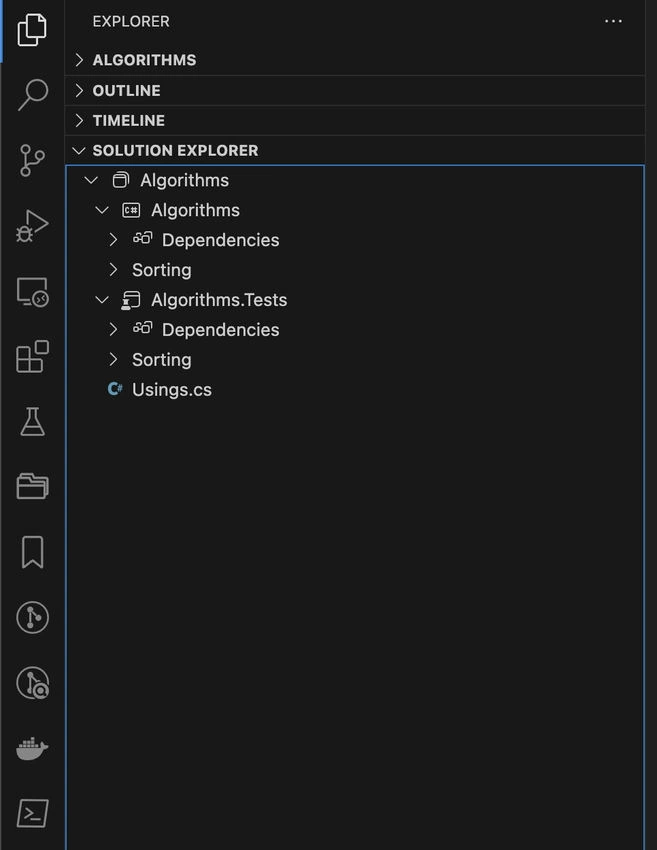
One of the main features of C# Dev Kit is the solution-oriented project system. Unlike VS Code's default Workspaces, which show all the files and folders in your workspace regardless of their relevance to your application, C# Dev Kit's Solution Explorer gives you a curated and structured view of your solution.
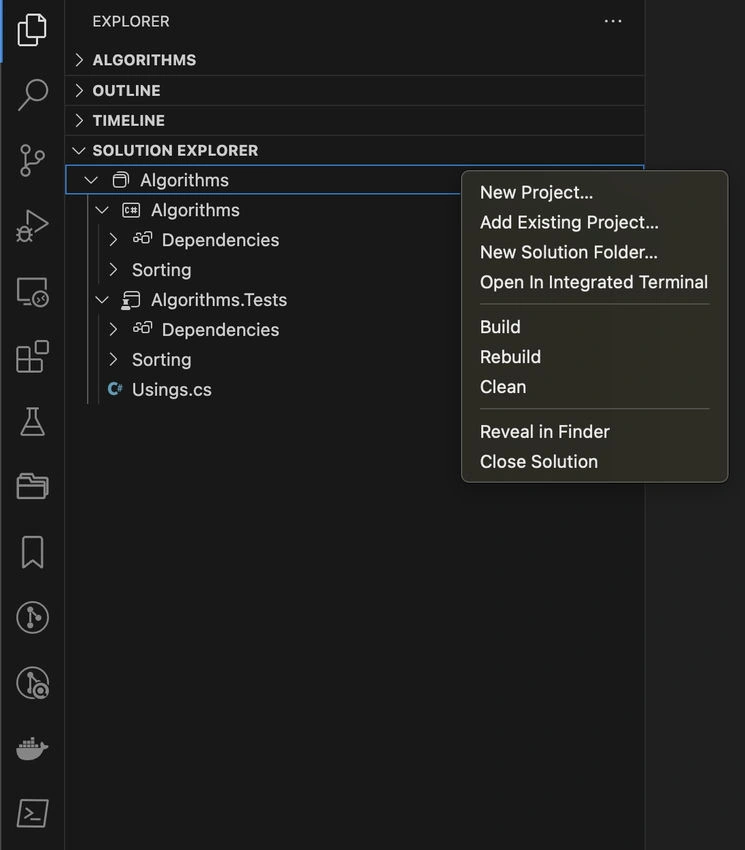
Solution Explorer shows you only the projects and files that are part of your solution. You can quickly add new projects or files to your solution using the context menu or the command palette. You can also easily build all or part of your solution using the build button or the command palette.
Solution Explorer also integrates with other features of C# Dev Kit, such as testing and debugging. You can run or debug your tests from the Solution Explorer by right-clicking on a project or a test file. You can also see the test status icons next to each test method.
Here are some screenshots of Solution Explorer in action.
1. Solution Explorer showing a solution with two projects
2. Solution Explorer context menu with options to add new project
Testing
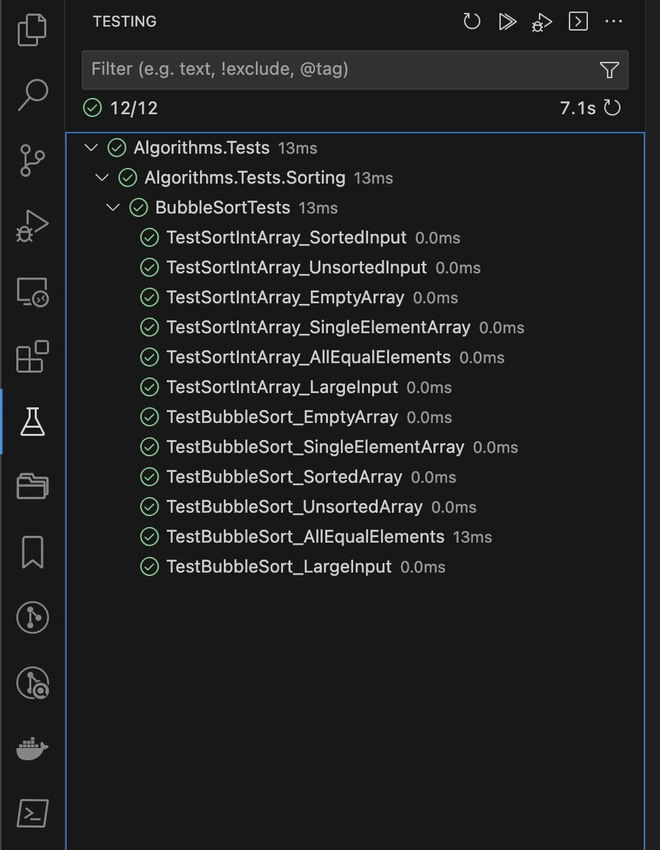
Another feature of the C# Dev Kit that makes testing your projects easier and faster is the expanded Test Explorer capabilities. Test Explorer is a VS Code view that shows you all the tests in your workspace and lets you run and debug them.
C# Dev Kit enhances Test Explorer by automatically discovering and organizing your tests. You don't need to install any additional extensions or configure any settings to use Test Explorer with these test frameworks. C# Dev Kit will do it for you.
Test Explorer also lets you navigate the test results more easily. You can see the output, errors, and stack traces for each test. You can also filter, sort, group, and search your tests using various criteria.
Here are some screenshots of Test Explorer in action.
3. Test Explorer showing tests
AI-powered development
The last feature of C# Dev Kit that we will cover in this article is AI-powered development. This feature is enabled by installing IntelliCode for the C# Dev Kit extension, which integrates with IntelliCode, Microsoft's AI service that provides intelligent suggestions for code completion.
IntelliCode enhances the basic IntelliSense code completion found in the existing C# extension with powerful features such as whole-line completions and starred suggestions based on your personal codebase.
Whole-line completions are completions that span more than one token or symbol. They can save you time by completing entire lines of code for you based on what you have typed so far. For example, if you type var list = new, IntelliCode will suggest var list = new List<string>(); as a whole-line completion.
Starred suggestions are completions that are marked with stars () to indicate that they are more likely to be what you want based on your personal codebase. IntelliCode learns from your code and the code of others who have used similar APIs to provide you with the most relevant suggestions. For example, if you type Console., IntelliCode will suggest `Console.WriteLine();` as a starred suggestion because it is a common method to use with the Console class.
Further Reading
To explore the features of C# Dev Kit, refer to the below resources.
Conclusion
We have seen how C# Dev Kit can make your C# development experience more productive and enjoyable with features such as solution management, test discovery and debugging, and AI-powered development. If you are interested in trying out the C# Dev Kit for yourself, you can install it from the Visual Studio Marketplace and follow the C# Getting Started documentation to set up your environment.
I hope you enjoy using the C# Dev Kit.
Happy coding!


Join the conversation! Your thoughts help the community grow.