

Introduction
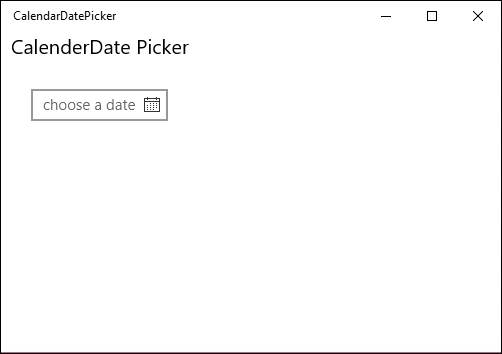
CalendarDatePicker represents a control that allows a user to pick a date from a calendar display.
Step 1
Open a blank app and add CalendarDatePicker and Textblock control either from the toolbox or by copying the following XAML code into your grid.
- <StackPanel>
- <TextBlock Text="CalenderDate Picker" FontSize="20"></TextBlock>
- <StackPanel Orientation="Horizontal" Margin="20,30,0,0">
- <CalendarDatePicker Name="myCalender" PlaceholderText="choose a date" DateChanged="myCalender_DateChanged"></CalendarDatePicker>
- <TextBlock Name="selectedDate" Margin="10,0,0,0" Foreground="Green"></TextBlock>
- </StackPanel>
- </StackPanel>
Step 2
Copy and paste the following code to the myCalender_DateChanged event on the cs page.
- DateTime date = args.NewDate.Value.LocalDateTime;
- DateTimeFormatter dtf = new DateTimeFormatter("shortdate");
- selectedDate.Text ="The selected date is "+ dtf.Format(date).ToString();
Step 3
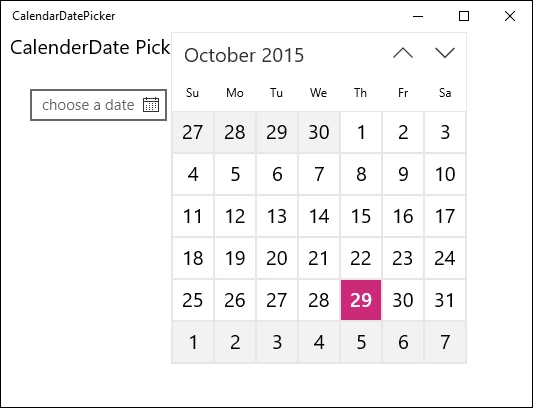
Run your application and select a date. The selected date will be shown in our assigned TextBlock:

Summary
In this article, we learned about CalendarDatePicker Control For Windows 10.
Kuppurasu NagarajPosted Feb 11, 2016, 12:39 PM
Nice Ramees..
Gowtham KPosted Oct 30, 2015, 12:41 PM
Good One
Nilesh JadavPosted Oct 30, 2015, 11:54 AM
Good post !
RameesPosted Oct 30, 2015, 9:34 AM
Thanks :)
Sibeesh VenuPosted Oct 30, 2015, 5:10 AM
Nice Share
Harshad PansuriyaPosted Oct 30, 2015, 2:40 AM
Nice one