

Overview
Sometimes, we encounter a requirement where we need to call some sort of Rest APIs from Power BI Desktop. In this article, I will teach you a step-by-step procedure for calling Rest APIs from Power BI.
Note
- Sometimes, Rest APIs in Power BI do not support Refresh when you publish your report in the Power BI Service.
- Make sure you check if your API supports Refresh or not!
Real-Life Example
- In this example, I’m going to pass the Username and Password to my API.
- This will generate a Bearer Token to consume in my API.
- Using the Bearer Token, we need to call another API.
Let’s get started!
Step 1
Open your Power Query Window.
Go to Get Data > select Blank Query.
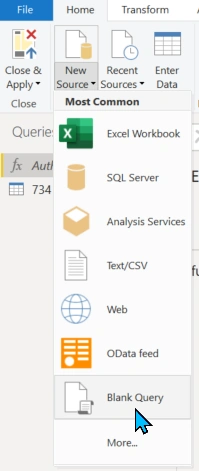
Add the following line of code:
() =>
let body = [username = "[email protected]", password = "999999"],
    Data = Json.Document(Web.Contents("https://api.symestic.com/api/login", [Headers = [# "Content-Type" = "application/json"], Content = Json.FromValue(body)])),
    result = Record.Field(Data[result] {
        0
    }, "token")
in
result
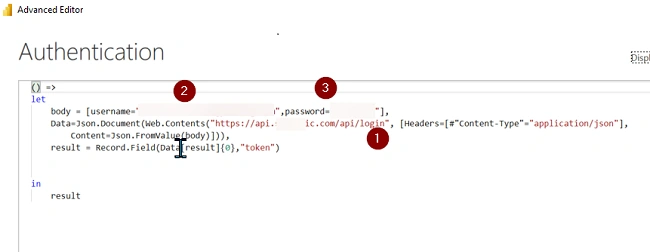
Here:
1 = Your API URL
2= Username to generate Token
3 = Password
If your API does not support any Parameters, you can skip this step.
This will add the one PowerQuery function for you!
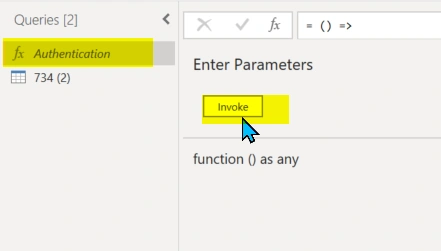
Click on Invoke. This will show you the Bearer Token generated by API.
Step 2
- Now, we want to call one of the APIs that use the above Bearer Token.
- The API URL is = https://api.system.com/api/downtime/user/724.
- Open Power BI Desktop and then Click on Get Data > select Web.
- Select the Advanced option.
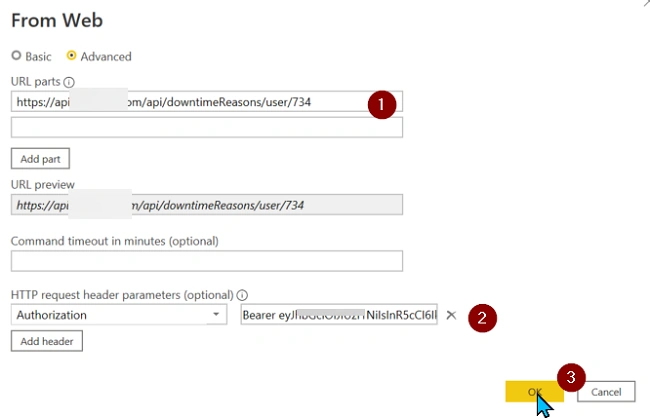
Add API URL in #1.
Add Authorization header as Bearer Token.
Authorization = Bearer <<space>> Token Generated in Step 1. - Click on OK.
- This will load the following records:
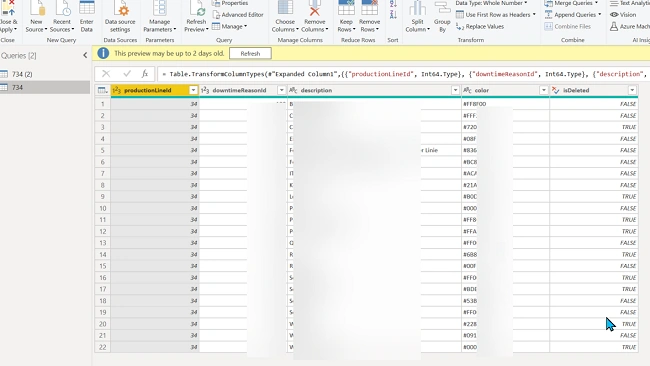
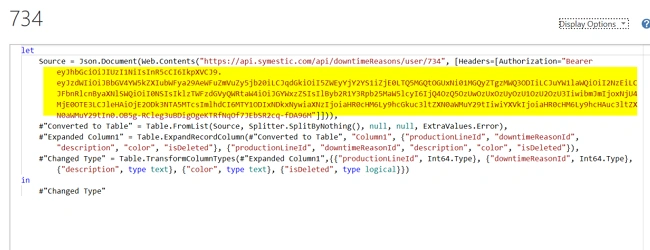
- It will also generate the below PowerQuery code automatically for us:
Step 3: Configure Dynamic Bearer Token in Power BI for REST APIs
- Open the Power Query code generated in step 2.7.
- Replace Bearer code with the function created in Step 1.
- The code will look like the image below.
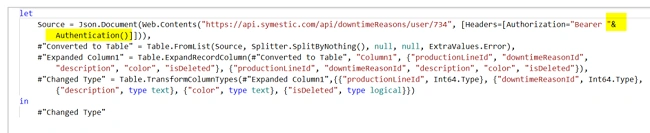
let Source = Json.Document(Web.Contents("https://api.system.com/api/downtime/user/724", [Headers = [Authorization = "Bearer " & Authentication()]])), # "Converted to Table" = Table.FromList(Source, Splitter.SplitByNothing(), null, null, ExtraValues.Error), # "Expanded Column1" = Table.ExpandRecordColumn(# "Converted to Table", "Column1", { "productionLineId", "downtimeReasonId", "description", "color", "isDeleted" }, { "productionLineId", "downtimeReasonId", "description", "color", "isDeleted" }), # "Changed Type" = Table.TransformColumnTypes(# "Expanded Column1", { { "productionLineId", Int64.Type }, { "downtimeReasonId", Int64.Type }, { "description", type text }, { "color", type text }, { "isDeleted", type logical } }) in # "Changed Type" - That will generate a dynamic token on every refresh.
Step 4 - Schedule Refresh for Power BI Rest APIs
- Not every API in Power BI Report supports schedule refresh.
- If I publish the report with Step 1, Step 2 and Step 3, it will not support refresh.
- If I publish the report with only Step 2 and pass the static Bearer Token, then it supports refresh. This is totally dependent on your API.
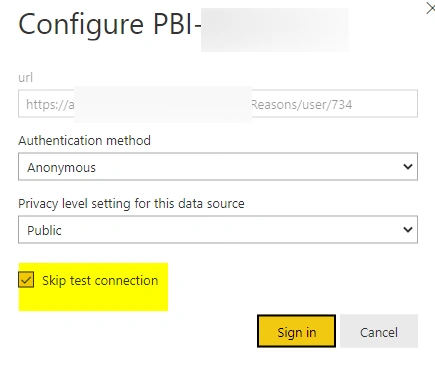
Go to Schedule Refresh and make sure that you select skip test connection from “Datasource credentials."
Conclusion
This is how you can call Rest APIs from Power BI.
Mahmood AkhtarPosted Apr 3, 2023, 8:22 PM
Hi Dhruvin, thank you for sharing this wonderful article. I am having a small issue when I am executing step 1: () => let body = [username = pusername, password = ppassword], Data = Json.Document(Web.Contents("htts://restapirequesturl/login",[Headers = [#"Content-Type" = "application/json"],Content = Json.FromValue(body)])), result = Record.Field(Data[result] {0}, "token") in result Here is the error message I am receiving when I click on the invoke button: An error occurred in the ‘’ query. Expression.Error: The field 'result' of the record wasn't found. Details: userName=------------this is where the username showed up token=---------------this is where the token showed up