Introduction
Reading this article, you will learn how to create a camera application in Xamarin for Android platform.
Tools
We are using Visual Studio 2017 and Windows 10 Operating System.
Step 1
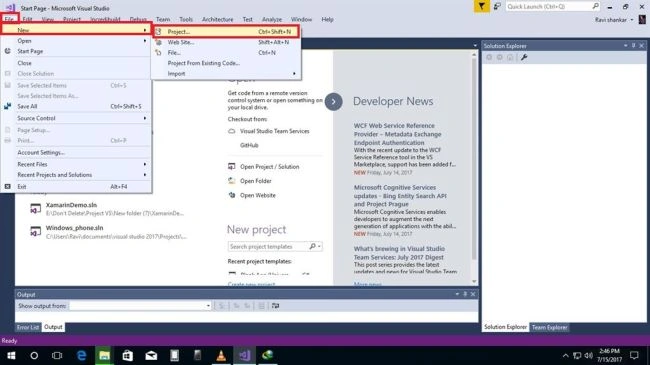
Go to Visual Studio 2017.
Click File —> New —> Project or shortcuts (Ctrl+Shift+N).
Step 2
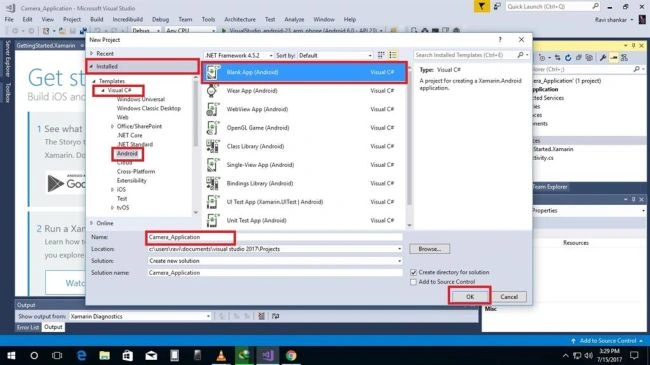
Go to Visual C# --> Android –> Blank App (Android); change your application name and click the "OK" button.
Step 3
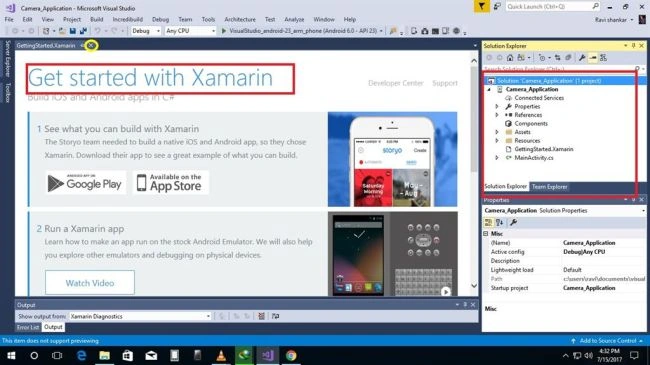
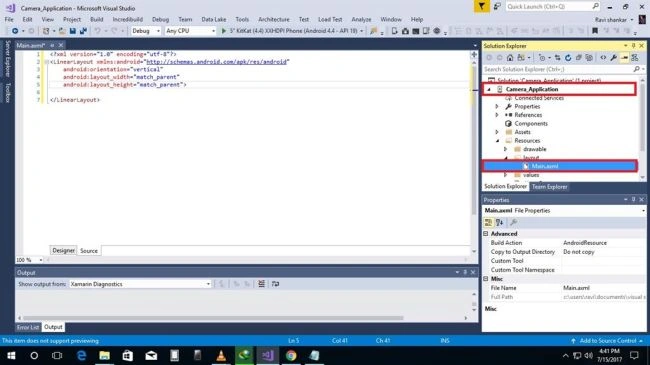
After the process completes, the Xamarin dashboard appears. At the top right, you will see Solution Explorer. There is your application solution.
Step 4
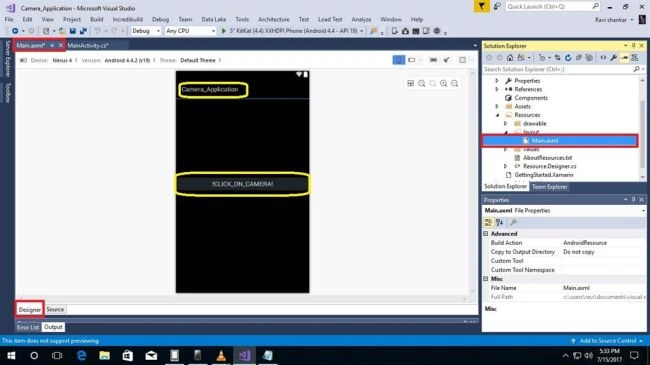
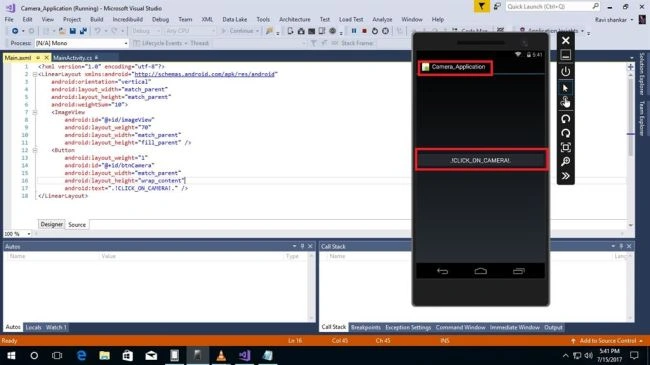
Select application name; extract to resources. The Layout folder appears in which there is Main.axml* file. Double click to open Main.axml.
Step 5
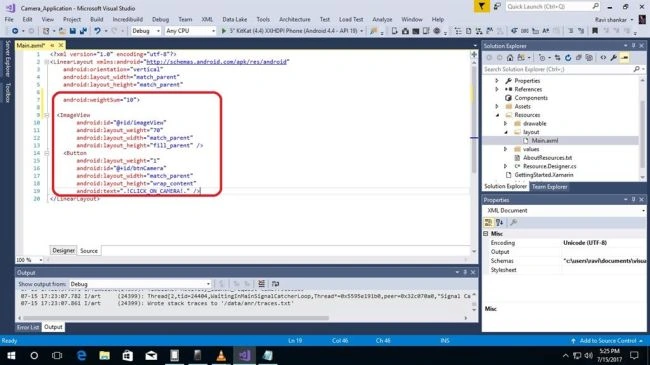
I have given XAML code already. You can use this code or you can write your own code.
XAML Code
- <?xml version="1.0" encoding="utf-8"?>
- <LinearLayout xmlns:android="http://schemas.android.com/apk/res/android" android:orientation="vertical" android:layout_width="match_parent" android:layout_height="match_parent" android:weightSum="10">
- <ImageView android:id="@+id/imageView" android:layout_weight="70" android:layout_width="match_parent" android:layout_height="fill_parent" />
- <Button android:layout_weight="1" android:id="@+id/btnCamera" android:layout_width="match_parent" android:layout_height="wrap_content" android:text=".!CLICK_ON_CAMERA!." />
- </LinearLayout>
Step 6
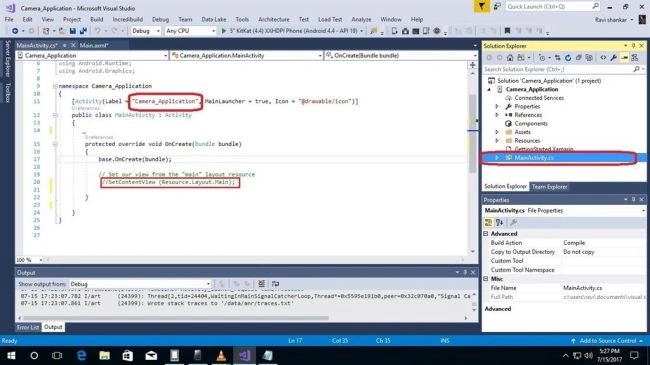
Double click on MainActivity.cs file. You will see the camera application. Protected override content including a file of //SetContentView (resource.layout.Main) should be there.
Step 7
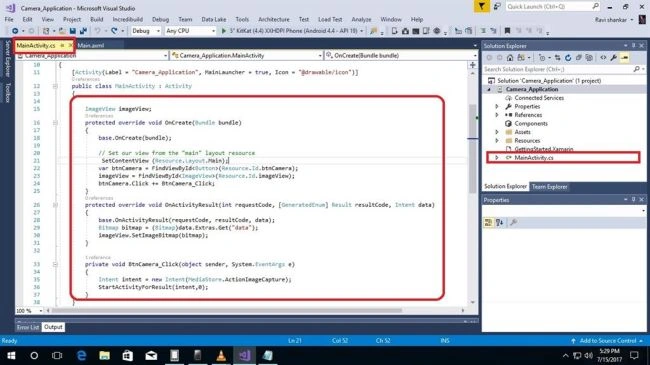
I have given C# code. You can use this code or you can use your own code. But be careful; all the code for your MainActivity should be here.
C# Code
- using Android.App;
- using Android.Widget;
- using Android.OS;
- using Android.Content;
- using Android.Provider;
- using Android.Runtime;
- using Android.Graphics;
- namespace Camera_Application {
- [Activity(Label = "Camera_Application", MainLauncher = true, Icon = "@drawable/icon")]
- public class MainActivity: Activity {
- ImageView imageView;
- protected override void OnCreate(Bundle bundle) {
- base.OnCreate(bundle);
-
- SetContentView(Resource.Layout.Main);
- var btnCamera = FindViewById < Button > (Resource.Id.btnCamera);
- imageView = FindViewById < ImageView > (Resource.Id.imageView);
- btnCamera.Click += BtnCamera_Click;
- }
- protected override void OnActivityResult(int requestCode, [GeneratedEnum] Result resultCode, Intent data) {
- base.OnActivityResult(requestCode, resultCode, data);
- Bitmap bitmap = (Bitmap) data.Extras.Get("data");
- imageView.SetImageBitmap(bitmap);
- }
- private void BtnCamera_Click(object sender, System.EventArgs e) {
- Intent intent = new Intent(MediaStore.ActionImageCapture);
- StartActivityForResult(intent, 0);
- }
- }
- }
Step 8
Just create a page application name and button. This is only for demo app; you can use more codes using design in this application.
Step 9
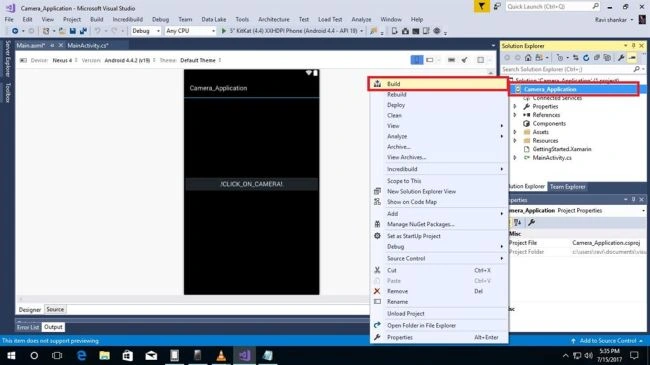
Then, build this application; wait for a few seconds; all calling functions will get connected.
Step 10
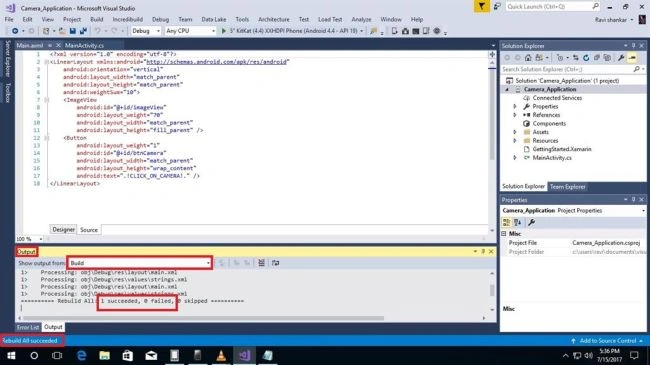
Calling function and all processes will complete for this page. Failure is 0 and success is 1, so building process is completed.
Step 11
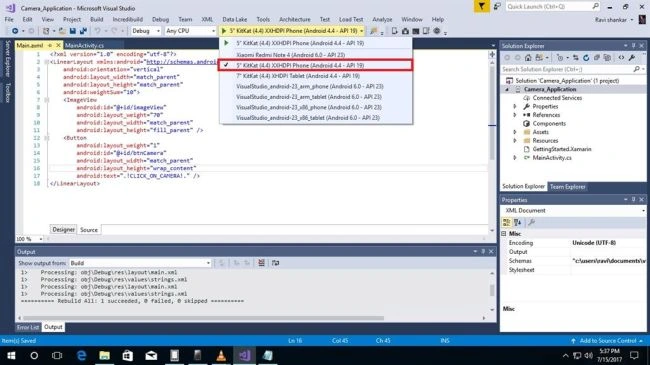
Select a device; I have used emulator only so I selected “5’ KitKat (4.4) Application program interface (API) 19”.
Step 12
Emulator screen appears but this emulator needs 2GB RAM so you need a minimum of 4GB RAM in your machine along with an i3 Third Generation processor.
Step 13
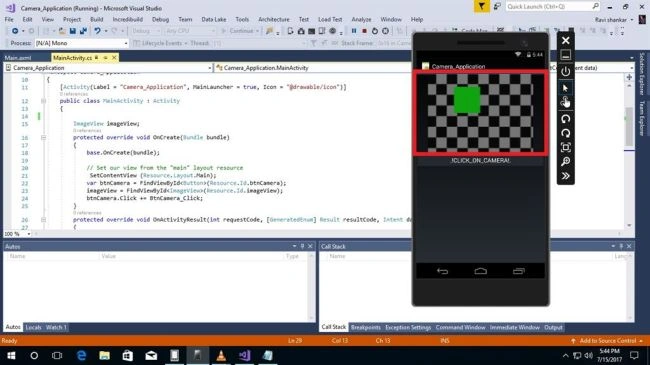
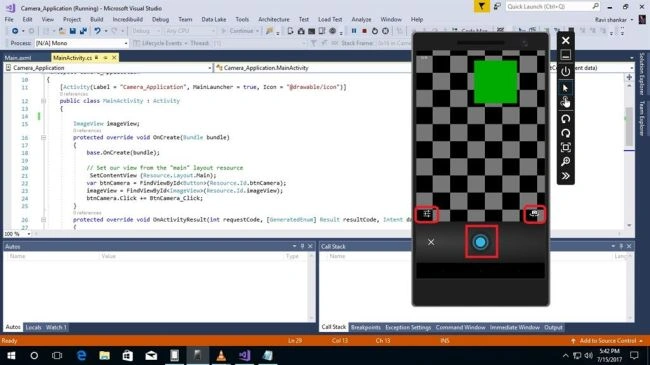
Access your mobile's camera.
Step 14
Take a selfie and it will be saved.
 SUMMARY
In this article, you learned how to create a camera app using Android native application development feature of Xamarin with .NET Standard libraries.
If you have any questions/ feedback/ issues, please write in the comment box.


Djordje BPosted Mar 8, 2023, 8:26 AM
How to use this picture for saving in Sqlite database?
Daniel FloresPosted Mar 19, 2020, 10:58 AM
I've found the answer to my question. As I was working through your tutorial, I didn't notice the procedure named 'BtnCamera_Click'. Thanks again for the cool tutorial.
Daniel FloresPosted Mar 18, 2020, 12:00 PM
Thanks for the great tutorial. Can you please explain this line of code: 'btnCamera.Click += BtnCamera_Click;'? The VS IDE is showing an error here. Thanks.
Jakub StegienkoPosted Mar 13, 2019, 10:58 AM
How to increase the quality of the photo\
Vipul MalhotraPosted Jan 2, 2018, 5:42 AM
After clicking a pic, the outcome is blurry. Can you please suggest the reason?
Rafnas T PPosted Jul 17, 2017, 2:33 AM
Nice start , Keep sharing...
Vidyadharran GPosted Jul 16, 2017, 12:19 PM
It's nice keep sharing ravi...............