

In this article we can explore the SharePoint 2010 free tool CAML Query Builder.
What is CAML?
The Collaborative Markup Language (CAML) is an XML based language for querying and updating SharePoint objects.
What are the Advantages of this Tool?
We can see the following are the advantages of using this tool:
- Since CAML is non-typed and error-prone during development the CAML Query Builder provides the advantages of writing and validating the CAML queries
- An intuitive User Interface is provided by the application for easier Query building
- The tool is free
Download
You can download the tool from following location:
http://www.u2u.be/res/tools/camlquerybuilder.aspx
Please make sure you download the 2007 version which is working well with SharePoint 2010.
Download the tool and extract the zip file to a temporary folder. Execute the setup.exe inside it and follow the wizard to install the tool.
Note: The SharePoint binaries are required for working with this tool.
Starting with the Tool
After the installation execute the tool from the Start Menu or Desktop. The tool is available on Start Menu > U2U > CAML Builder > CAML Builder as shown below:
On execution you will see the following screen: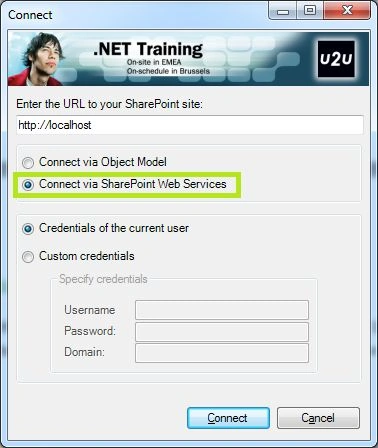
Enter the following details as shown above:
- URL of the site
- Connect through SharePoint Web Services
- User Credentials
After entering the details click the Connect button.
Note: Since the tool is for SharePoint 2007, the Connect via Object Model option cannot be used.
Inside the Tool
On connecting successfully you will get the following screen: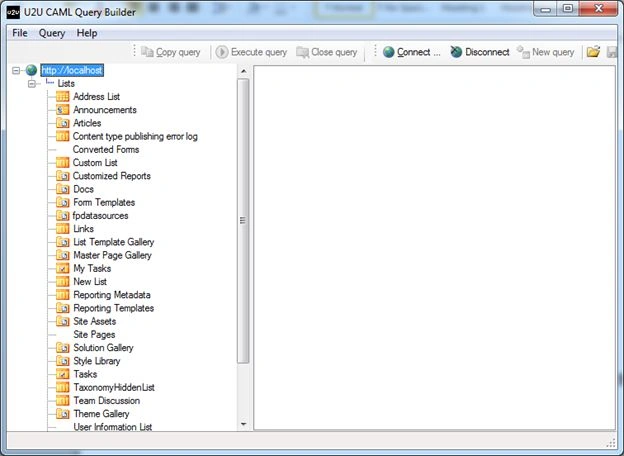
You will see that the preceding screen displays your existing Lists and Libraries. Additionally it displays the Lists & Libraries which are hidden in the Quick Launch too.
Create a Contacts List
To start, create a Contacts list of Contacts template inside your SharePoint site. Insert the following test data into it and refresh the CAML Query Builder Tool.
Building your first CAML Query
Now we can try building our first query using the CAML Query Builder Tool.
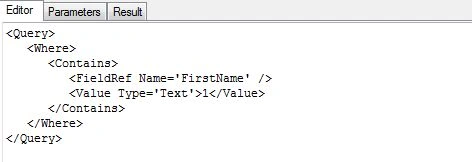
Here we are trying to find the list items for which the First Name contains "1".
Step 1: Start the New Query pane
Right-click on the Contacts list from the left side pane and choose the New Query menu.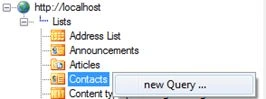
You can also use the New Query button from the tool bar.
Step 2: Specify the Column Parameters
From the pane on the right side, choose the Filter Column > First Name using the second drop down list as shown below.: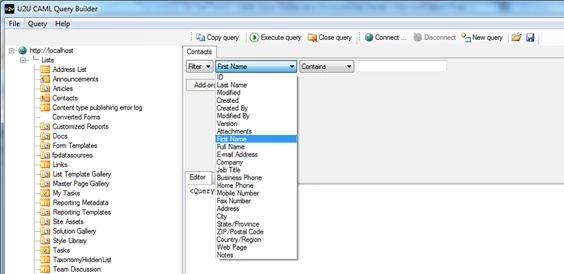
Now choose the option Contains from the third drop down list. Enter the text "1" in the textbox.
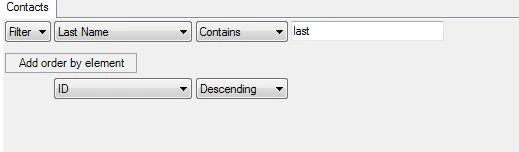
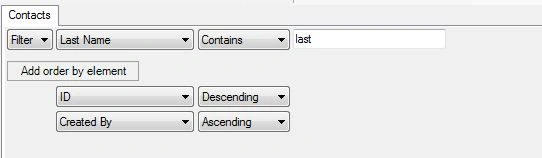
Note: The following are the drop down lists shown above and the purpose:





Jean PaulPosted Oct 19, 2012, 9:38 AM
Hello Mahesh, You can use the SPQuery class to use the CAML query text you have generated. A link is given below: http://msdn.microsoft.com/en-us/library/microsoft.sharepoint.spquery.aspx Regards, Jean Paul
Mahesh BabuPosted Oct 19, 2012, 3:52 AM
Hi Paul, I got result in CAML Query Editor. but how to use this result in our sharepoint application. Please tell me how to proceed in this scenario...
Jean PaulPosted Oct 16, 2012, 12:00 PM
No Problem Dude!
Mahesh BabuPosted Oct 16, 2012, 11:54 AM
ho!! thanks for clarification...
Jean PaulPosted Oct 5, 2012, 10:08 PM
Direct SQL is not recommended in SharePoint. Microsoft owns the content database and the db design / procs may change as each version move through. The recommended ways of interaction is Server Object Model. So we have to depend on the Server Object Model possibilities like CAML, LINQ.
Mahesh BabuPosted Oct 5, 2012, 9:54 PM
We have SqlServer to do all queries, then why should we do this CAML Query builder again...Could you please explain?
Jean PaulPosted Sep 11, 2012, 11:44 PM
Not really Gaurav! Functions are not supported in CAML.
Gaurav GuptaPosted Sep 11, 2012, 11:40 PM
Can we create functions using CAML?