

Introduction
Xamarin is a platform to develop cross-platform and multi-platform apps (like Windows phone, Android, iOS). In Xamarin, the code sharing concept is used. In Xamarin Studio, Visual Studio is also available.
Xamarin is a platform to develop cross-platform and multi-platform apps (like Windows phone, Android, iOS). In Xamarin, the code sharing concept is used. In Xamarin Studio, Visual Studio is also available.
Step 1
Create a new blank Android App using Visual Studio.
Step 2
In your project solution, there is a Main.axml file. Now, open this file in designer view. Drag and drop one email field to take an email input. Plain text is required to take Web URL from the user also. Drag two TextViews to show the result and take one button.
- <?xml version="1.0" encoding="utf-8"?>
- <LinearLayout xmlns:android="http://schemas.android.com/apk/res/android"
- android:orientation="vertical"
- android:layout_width="match_parent"
- android:layout_height="match_parent">
- <EditText
- android:layout_marginLeft="20dp"
- android:inputType="textEmailAddress"
- android:layout_width="match_parent"
- android:layout_height="wrap_content"
- android:id="@+id/txtUserValue"
- android:hint="Enter Email Id"
- android:layout_marginRight="0.0dp" />
- <EditText
- android:layout_marginLeft="20dp"
- android:layout_width="match_parent"
- android:layout_height="wrap_content"
- android:id="@+id/txtWebURL"
- android:layout_marginRight="0.0dp"
- android:hint="Enter Web URL" />
- <TextView
- android:layout_marginLeft="20dp"
- android:text=""
- android:layout_width="match_parent"
- android:layout_height="wrap_content"
- android:id="@+id/txtResult" />
- <TextView
- android:layout_marginLeft="20dp"
- android:text=""
- android:layout_width="match_parent"
- android:layout_height="wrap_content"
- android:id="@+id/txtWebResult" />
- <Button
- android:text="Button"
- android:layout_width="273.5dp"
- android:layout_height="wrap_content"
- android:layout_marginLeft="40dp"
- android:id="@+id/btnSubmit" />
- </LinearLayout>
Now, in MainActivity.cs file, get references to the EditText and the TextView. I am going to write the code to check if input is valid or not. I am going to explain how to validate an Email address and Web URL.
We can also validate other things like Domain Name, Top Level Domain, IP Address, Phone, Numbers etc.
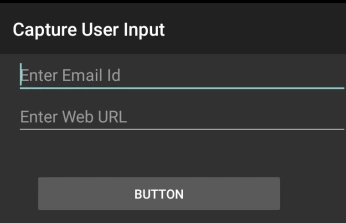
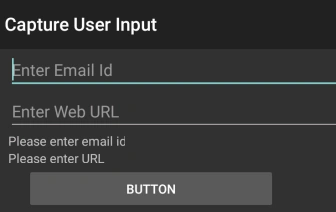
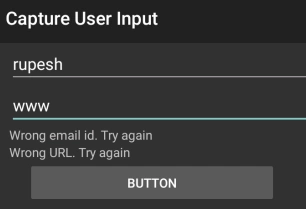
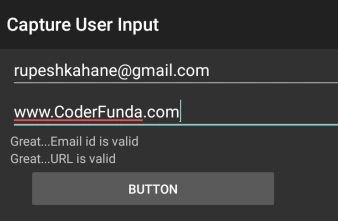
Louise EggletonPosted Sep 26, 2018, 4:15 AM
This is great as a demo, but the validation logic really needs to be separated out into its own module or use a library like Fluent Validation. In production I would never have all that validation logic mixed in with the Main Activity.
Rupesh KahanePosted Dec 7, 2016, 2:31 AM
Thank you so much to Bhavik Patel and Abhijeet Chavan also...
Abhijeet ChavanPosted Dec 5, 2016, 10:17 PM
Good one. well explained..
Bhavik PatelPosted Nov 28, 2016, 9:44 PM
Very useful article! nicely explained.