

Let’s see the steps.
Create new windows 10 universal app using javascript. For creating a new Windows 10 universal project, refer to the following:
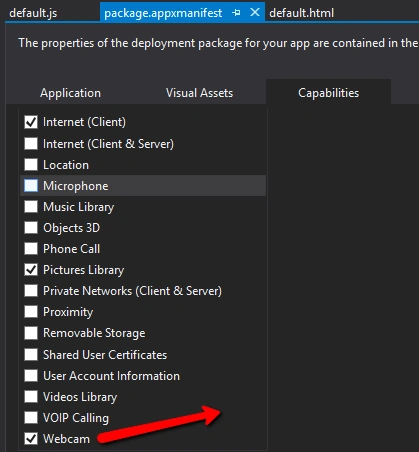
We need to enable the capability “Webcam" in the Package.appx manifest file as in the following image.
Next we need to add a button to capture Image and an Image control to show the captured image.
Go to default.html page and write the following code.
- <input type="button" id="btnCapture" value="Capture"
- onclick="captureImage()" />
- <img id="imgCapture" src="" width="100px" height="100px" />
- var page = WinJS.UI.Pages.define("default.html",
- {
- ready: function (element, options) {
- document.getElementById("btnCapture").addEventListener("click", captureImage, false);
- },
- });
- function captureImage() {
- var cam = Windows.Media.Capture.CameraCaptureUI();
- cam.captureFileAsync(Windows.Media.Capture.CameraCaptureUIMode.photo)
- .done(function (data) {
- if (data) {
- document.getElementById('imgCapture').src
- = window.URL.createObjectURL(data);
- }
- }
- , error);
- }
- function error() {
- alert('Error');
- }

Now run the app and output can be seen like the following screen:
For more information on Windows 10 UWP, refer to my e-book:
Read more articles on Windows 10:
Vignesh ManiPosted Apr 24, 2016, 10:24 AM
Nice
Humayun Kabir MamunPosted Apr 24, 2016, 12:39 AM
Nice...
Bhuvanesh MohankumarPosted Apr 23, 2016, 6:22 PM
Good
Kishor Bikram OliPosted Apr 23, 2016, 12:27 PM
nice. thanks for sharing
Debasis SahaPosted Apr 23, 2016, 6:27 AM
Nice One..
Gowtham RajamanickamPosted Apr 23, 2016, 12:06 AM
Good one...
NitinPosted Apr 22, 2016, 11:36 PM
Good one
Vignesh ManiPosted Apr 22, 2016, 5:35 PM
Nice
Ankur MistryPosted Apr 22, 2016, 12:33 PM
Helpful stuff
Kuppurasu NagarajPosted Apr 22, 2016, 12:02 PM
Nice Sharing..
Gowtham RajamanickamPosted Apr 22, 2016, 4:29 AM
very good
Rahul Kumar SaxenaPosted Apr 22, 2016, 1:28 AM
Good show