

This article explains how to crete a cascading dropdownlist in the Kendo UI using the Web API and Entity Framework with the Database First approach.
- Open Visual Studio 2012, create a new project.
- Select File, New and then Project.
- Select Web in the installed template and select ASP.NET Web Application.
- Provide the name for the project and click OK, as in the following figures.

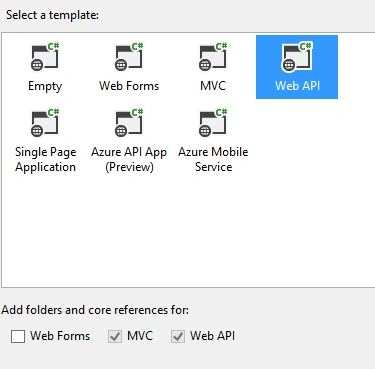
My database schema is as in the following figure:

My table structure is as in the following figure:

I am using the Entity Framework with Database First approach, so the Entity Framework builds default model classes and context classes.
Create a data transfer object model class.
Write the following code in the new model class:
- public class Country
- {
- public int CountryId
- {
- get;
- set;
- }
- public string CountryName
- {
- get;
- set;
- }
- }
- public class State
- {
- public int StateId
- {
- get;
- set;
- }
- public int CountryId
- {
- get;
- set;
- }
- public string StateName
- {
- get;
- set;
- }
- }
- public class City
- {
- public int StateId
- {
- get;
- set;
- }
- public int CityId
- {
- get;
- set;
- }
- public string CityName
- {
- get;
- set;
- }
- }
Now add one more class to do the conversion and write the following code in the class.
- public static List < Country > CountriesToCountry(List < tbl_country > e)
- {
- List < Country > lstCountry = e.Select(country = > new Country()
- {
- CountryId = country.Country_ID, CountryName = country.Country_Name
- }).ToList();
- return lstCountry;
- }
- public static List < State > FCountrytoState(List < tbl_state > e)
- {
- List < State > lstState = e.Select(state = > new State()
- {
- StateId = state.State_ID, StateName = state.State_Name
- }).ToList();
- return lstState;
- }
- public static List < City > FStatetoCity(List < tbl_city > e)
- {
- List < City > lstCity = e.Select(city = > new City()
- {
- CityId = city.City_ID, CityName = city.City_Name
- }).ToList();
- return lstCity;
- }

Write the following code in the new controller class.
- public class CascadingController: ApiController
- {
- testEntities dbcontext1 = new testEntities();
- public IEnumerable < Country > GetCountries()
- {
- var lstCountries = from r in dbcontext1.tbl_country select r;
- List < Country > lst = new List < Country > ();
- lst = Converter.CountriesToCountry(lstCountries.ToList());
- return lst;
- }
- [ActionName("GetStates")]
- public IEnumerable < State > GetStates(int id)
- {
- var lstStates = dbcontext1.tbl_state.Where(b = > b.Country_ID == id).ToList();
- List < State > list = new List < State > ();
- list = Converter.FCountrytoState(lstStates.ToList());
- return list;
- }
- [ActionName("GetCities")]
- public IEnumerable < City > GetCities(int id)
- {
- var lstCities = dbcontext1.tbl_city.Where(b = > b.State_ID == id).ToList();
- List < City > list = new List < City > ();
- list = Converter.FStatetoCity(lstCities.ToList());
- return list;
- }
- }
To avoid the conflict between GetStates and GetCities methods add the following routing configuration in the WebApiConfig class:
- config.Routes.MapHttpRoute(
- name: "DefaultApiWithAction",
- routeTemplate: "api/{controller}/{action}/{id}",
- defaults: new { id = RouteParameter.Optional }
- );
Check the API services using the POSTMAN/Fiddler as in the following figures.
Case 1: /api/Cascading/
Case 2: /api/Cascading/GetStates/2
Case 3: /api/Cascading/GetCities/2
Now it's time for creating a design to consume the service.
Create an HTML page, here's the design:
- <head>
- <link rel="stylesheet" href="http://cdn.kendostatic.com/2014.3.1316/styles/kendo.common.min.css" />
- <link rel="stylesheet" href="http://cdn.kendostatic.com/2014.3.1316/styles/kendo.default.min.css" />
- <link rel="stylesheet" href="http://cdn.kendostatic.com/2014.3.1316/styles/kendo.dataviz.min.css" />
- <link rel="stylesheet" href="http://cdn.kendostatic.com/2014.3.1316/styles/kendo.dataviz.default.min.css" />
- <script src="http://cdn.kendostatic.com/2014.3.1316/js/jquery.min.js"></script>
- <script src="http://cdn.kendostatic.com/2014.3.1316/js/kendo.all.min.js"></script>
- <title></title>
- </head>
- <body>
- <div id="example">
- <div class="demo-section k-header">
- <h4>Products</h4>
- <input id="products" style="width: 50%" />
- <br />
- <br />
- <input id="State" disabled="disabled" style="width: 50%" />
- <br />
- <br />
- <input id="City" disabled="disabled" style="width: 50%" />
- </div>
- </div>
- </body>
JavaScript
- $(document).ready(function() {
- $("#State").data("kendoDropDownList")
- function onChange(e) {
- e.preventDefault();
- $("#State").kendoDropDownList({
- enable: true,
- dataTextField: "StateName",
- dataValueField: "StateId",
- optionLabel: "Select State",
- change: onChangeState,
- dataSource: {
- transport: {
- read: {
- dataType: "json",
- url: "/api/Cascading/GetStates/" + $("#products").val(),
- }
- }
- }
- });
- var dropdownlist = $("#State").data("kendoDropDownList")
- dropdownlist.enable();
- };
- function onChangeState(e) {
- e.preventDefault();
- $("#City").kendoDropDownList({
- dataTextField: "CityName",
- dataValueField: "CityId",
- optionLabel: "Select City",
- dataSource: {
- transport: {
- read: {
- dataType: "json",
- url: "/api/Cascading/GetCities/" + $("#State").val(),
- }
- }
- }
- });
- var dropdownlist = $("#City").data("kendoDropDownList")
- dropdownlist.enable();
- };
- $("#products").kendoDropDownList({
- dataTextField: "CountryName",
- dataValueField: "CountryId",
- optionLabel: "Select Country",
- change: onChange,
- dataSource: {
- transport: {
- read: {
- dataType: "json",
- url: "/api/Cascading",
- }
- }
- }
- });
- });
The result in browser:
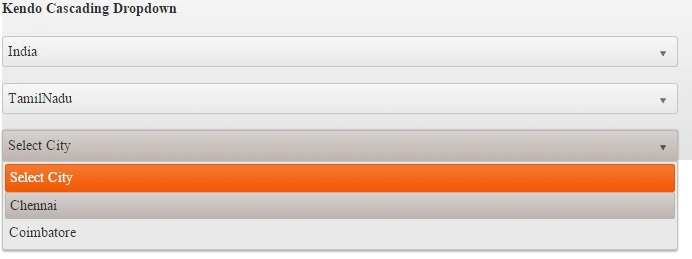
References
- Getting Started with Entity Framework 6 Database First using MVC 5
- Kendo DropDown Binding to remote data
I hope you have enjoyed this article, Thank you.
Arul RPosted Oct 28, 2015, 5:57 AM
Nice share!!!
Yashwanth MuthineniPosted Aug 19, 2015, 6:20 AM
Nice Share
Santhakumar MunuswamyPosted Aug 18, 2015, 2:28 PM
Good one
Chervine BhiwooPosted Aug 18, 2015, 11:23 AM
That's great!
Sibeesh VenuPosted Aug 18, 2015, 8:14 AM
Nice Share
Nilesh JadavPosted Aug 18, 2015, 6:29 AM
Nice article sir
Rajeesh MenothPosted Aug 18, 2015, 6:24 AM
Good One
Vaikesh K PPosted Aug 18, 2015, 6:12 AM
Nice one
Karthikeyan KPosted Aug 18, 2015, 6:08 AM
Good one sir...Thanks for sharing