

Introduction
This article will help you to understand building cascading dropdownlist in jqGrid, using MVC Application. jqGrid is the component written in JavaScript, which is more powerful and gives most of the features similar to GridView in ASP.NET.
In this article, I have created an Application, where I am getting the data from my model data. From the class List object (we can use database instead of it) bind the data to jqGrid, and the grid has an option to edit the selected row. Here, we have country and city columns , where city depends on the country.
Steps to create the project are given below-
- Create MVC project in Visual Studio and select empty template.
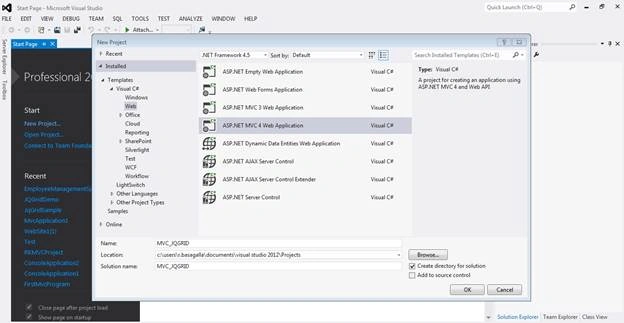
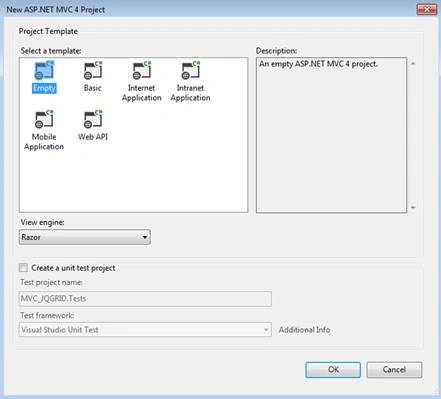
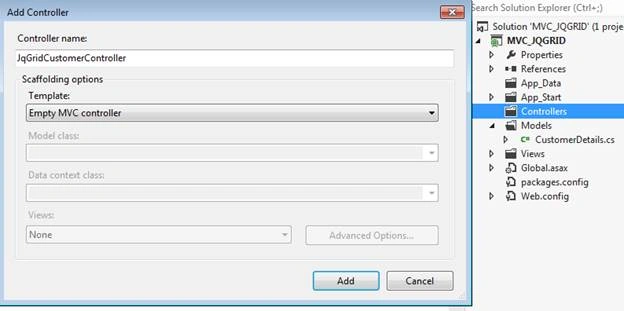
- Add Controller (jqGridCustomer) to the project. The control is the starting point in MVC Application. It contains the actions to Get/Post the data and display, using view.
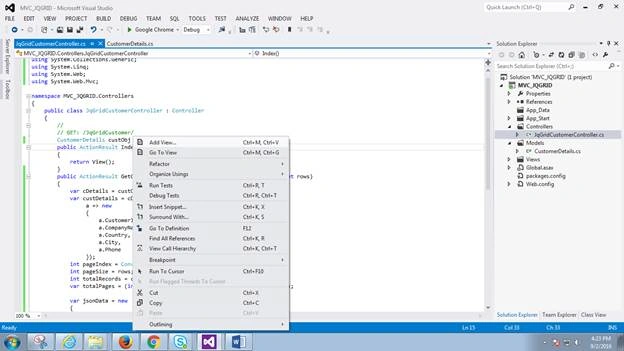
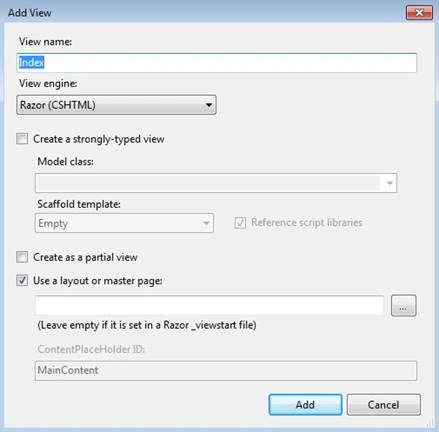
- Create a view from the Index actions to display the customer data in view. Here, we are going to select empty template, as we are going to implement HTML code on our own.
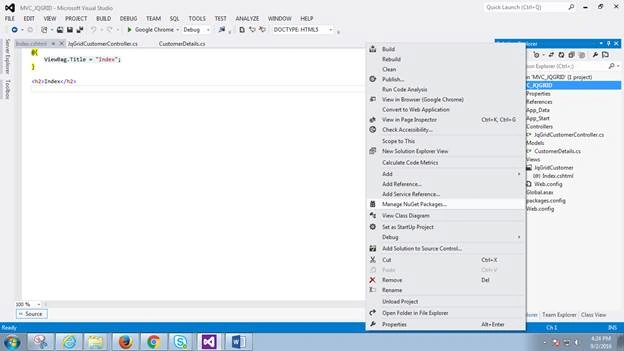
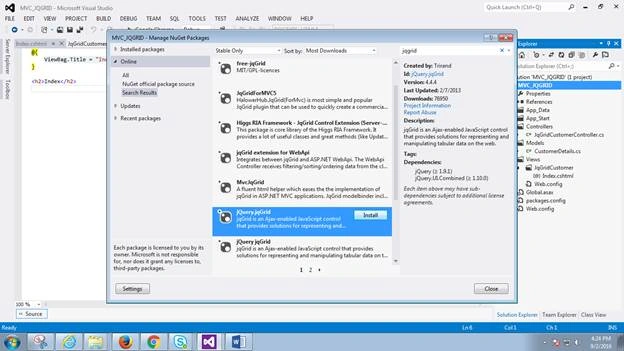
- Install jqGrid libraries from Manage NewGet packages.
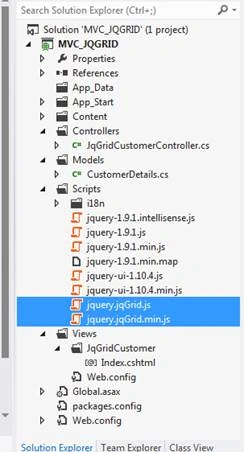
- Add the code, given below, in Index.html page. Here, we have added all JS files, which are related to jQuery, jqGrid and its styles. Also, add the table and div to bind the grid data and its pagination.
Index.html- @{
- ViewBag.Title = "Index";
- }
- <h2>Index</h2>
- <script src="~/Scripts/jquery.jqGrid.js"></script>
- <script src="~/Scripts/i18n/grid.locale-en.js"></script>
- <script src="~/Scripts/jquery-ui-1.12.0.js"></script>
- <link rel="stylesheet" href="https://maxcdn.bootstrapcdn.com/bootstrap/3.3.4/css/bootstrap.min.css">
- <script src="~/Scripts/ProjectCustomJS/JQLinkedDDL.js"></script>
- <link href="~/Content/jquery.jqGrid/ui.jqgrid.css" rel="stylesheet" />
- <link href="~/Content/themes/base/jquery-ui.css" rel="stylesheet" />
- <div style="margin-left:20px">
- <table id="jqGrid"></table>
- <div id="jqGridPager"></div>
- </div>
- Create custom list data with few customer records. We are going to display these details in jqGrid. This is just like in memory data (we can use the database connection data also).
- public class LCustomerDetails
- {
- public string CustomerID { get; set; }
- public string CompanyName { get; set; }
- public string Phone { get; set; }
- public string Country { get; set; }
- public string City { get; set; }
- }
- public class CustomerDetails
- {
- public List<LCustomerDetails> GetCustomerDetails()
- {
- List<LCustomerDetails> customers = new List<LCustomerDetails>
- {
- new LCustomerDetails(){ CustomerID = "1001", CompanyName="Ramakrishna Corp", Phone="333-23542634",
- Country="UK",City="London"},
- new LCustomerDetails(){ CustomerID = "1002", CompanyName="Shivakumar Corp", Phone="777-3453434",
- Country="UK",City="Chshent"},
- new LCustomerDetails(){ CustomerID = "1003", CompanyName="Ravindra Corp", Phone="3453434-345",
- Country="UK",City="Welwyn Garden City"},
- new LCustomerDetails(){ CustomerID = "1004", CompanyName="Praveenkumar Corp", Phone="9849098490",
- Country="India",City="Hyderabad"},
- new LCustomerDetails(){ CustomerID = "1005", CompanyName="Prashant Corp", Phone="9848098480",
- Country="India",City="Banalore"},
- new LCustomerDetails(){ CustomerID = "1006", CompanyName="Rakesh Corp", Phone="9848098480",
- Country="India",City="Pune"},
- new LCustomerDetails(){ CustomerID = "1007", CompanyName="Puneeth Corp", Phone="333-345343",
- Country="USA",City="Chicago"},
- new LCustomerDetails(){ CustomerID = "1008", CompanyName="Indraneel Corp", Phone="333-869232",
- Country="USA",City="Houston"},
- new LCustomerDetails(){ CustomerID = "1008", CompanyName="Neelohith Corp", Phone="333-456432",
- Country="USA",City="Phoenix"},
- };
- return customers;
- }
- }
- Add actions in the controller to retrieve the customer details from memory custom list data and cities, based on the country selection.
- CustomerDetails custObj = new CustomerDetails();
- public ActionResult GetCustDetails(string sidx, string sord, int page, int rows)
- {
- var cDetails = custObj.GetCustomerDetails();
- var custDetails = cDetails.Select(
- a => new
- {
- a.CustomerID,
- a.CompanyName,
- a.Country,
- a.City,
- a.Phone
- });
- int pageIndex = Convert.ToInt32(page) - 1;
- int pageSize = rows;
- int totalRecords = custDetails.Count();
- var totalPages = (int)Math.Ceiling((float)totalRecords / (float)rows);
- var jsonData = new
- {
- total = 48,
- page,
- records = 100,
- rows = custDetails
- };
- return Json(jsonData, JsonRequestBehavior.AllowGet);
- }
- public ActionResult GetCities(string country)
- {
- var cities = (from cust in custObj.GetCustomerDetails()
- where cust.Country == country
- select new { City = cust.City }).Distinct();
- return Json(cities.ToList(), JsonRequestBehavior.AllowGet);
- }
- Create custom JS file to bind the customer details to the grid table.
- $(document).ready(function () {
- $("#jqGrid").jqGrid({
- // Controller Name/Action Name
- url: '/JqGridCustomer/GetCustDetails',
- datatype: "json",
- // Column names and its properties
- colModel: [
- {
- label: 'Customer ID',
- name: 'CustomerID',
- width: 75,
- key: true
- },
- {
- label: 'Company Name',
- name: 'CompanyName',
- width: 200,
- editable: true
- },
- {
- label: 'Phone',
- name: 'Phone',
- width: 200,
- editable: true
- },
- {
- name: 'Country',
- width: 100,
- editable: true,
- edittype: "select",
- editoptions: {
- value: "USA:USA;UK:UK;India:India"
- }
- },
- {
- name: 'City',
- width: 200,
- editable: true,
- edittype: "select",
- editoptions: {
- value: "Select a City"
- }
- }
- ],
- jsonReader: {
- root: "rows",
- page: "page",
- total: "total",
- records: "records",
- repeatitems: false,
- Id: "0"
- },
- loadonce: true,
- viewrecorde: true,
- width: 780,
- height: 200,
- rowNum: 10,
- pager: "#jqGridPager"
- });
- // Grid options to Enable/Disable Edit, Add, Del etc..
- $('#jqGrid').navGrid('#jqGridPager',
- // the buttons to appear on the toolbar of the grid
- { edit: true, add: false, del: false, search: false, refresh: false, view: false, position: "left", cloneToTop: false },
- // options for the Edit Dialog
- {
- width: 450,
- editCaption: "The Edit Dialog",
- recreateForm: true,
- closeAfterEdit: true,
- viewPagerButtons: false,
- afterShowForm: populateCities,
- errorTextFormat: function (data) {
- return 'Error: ' + data.responseText
- }
- },
- // options for the Add Dialog
- {
- closeAfterAdd: true,
- recreateForm: true,
- errorTextFormat: function (data) {
- return 'Error: ' + data.responseText
- }
- },
- // options for the Delete Dailog
- {
- errorTextFormat: function (data) {
- return 'Error: ' + data.responseText
- }
- });
- // This function gets called whenever an edit dialog is opened
- function populateCities() {
- // first of all update the city based on the country
- updateCityCallBack($("#Country").val(), true);
- // then hook the change event of the country dropdown so that it updates cities all the time
- $("#Country").bind("change", function (e) {
- updateCityCallBack($("#Country").val(), false);
- });
- }
- function updateCityCallBack(country, setselected) {
- var current = $("#jqGrid").jqGrid('getRowData', $("#jqGrid")[0].p.selrow).City;
- var countryVal = $("#Country").val();
- $("#City")
- .html("<option value=''>Loading cities...</option>")
- .attr("disabled", "disabled");
- $.ajax({
- url: '/JqGridCustomer/GetCities',
- type: "GET",
- dataType: "JSON",
- async: false,
- data: { country: countryVal },
- success: function (cities) {
- $("#City").html(""); // clear before appending new list
- $.each(cities, function (i, city) {
- $("#City").append(
- $('<option></option>').val(city.City).html(city.City));
- });
- $("#City").prop("disabled", false);
- $("#City").val(current);
- }
- });
- }
- });
- Set the project starting point details in Route Config file.
- public static void RegisterRoutes(RouteCollection routes)
- {
- routes.IgnoreRoute("{resource}.axd/{*pathInfo}");
- routes.MapRoute(
- name: "Default",
- url: "{controller}/{action}/{id}",
- defaults: new { controller = "JqGridCustomer", action = "Index", id = UrlParameter.Optional }
- );
- }
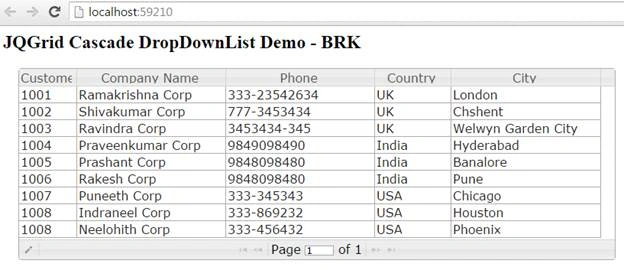
- Execute the project and you can see the customer details in jqGrid.
- Select the particular row and click Edit icon and you can edit the selected items. Here, the country and city are shown as dropdownlist and the cities will change, based on the country selection.
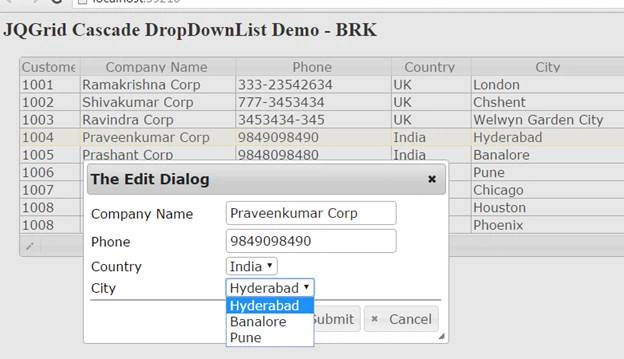
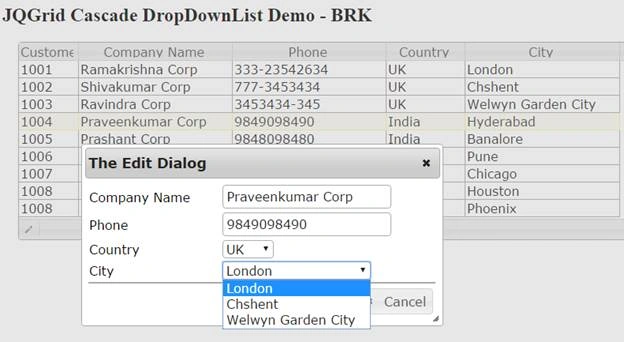
Hope, this article will help in understanding, how to bind the data, using jqGrid and cascading dropdownlist. Please post your comments and questions. Happy coding!!
Pradeep SahooPosted Sep 19, 2016, 1:27 PM
Good share