

Problem
I have a requirement to show a cascading dropdownlist based upon the selection of a different state. I am binding all the states of India with a state dropdownlist and on the change of the listed state, all the cities of that state will change and we can choose the city from the next dropdownlist. I need to do this entire operation using the Web API in the MVC.
Overview
In the ASP.Net MVC 5 project template there are various types of techniques by which we can do the database operations like Create, Read, Update and Delete (CRUD) in the web application. We can use the Entity Framework approaches in the controller using an Entity Data Model and display it from the View. We can create the service for doing data operations and using a service reference we can call the operations using JavaScript like Angular, Knockout or jQuery in the web application.
In the previous article Integrating ASP.Net Web API With MVC we have seen how to integrate the API with the MVC project template based an ASP.Net application and we have also done some operations like fetch the data from the database using the API call and using the MVC controller we call the API and return to the View. In this article we will add some more GET operations and display the cities based upon the states. We will fetch the data from the database using the API call and using the MVC controller we will call the API and return the data to the view.
Note
Please go through here before working with this article. This article is not the second part of the previous article. This is the extension part of the previous one.
Prerequisites
In this article the web applications are created with the new Project Templates like ASP.Net Web API 2 and ASP.Net MVC 5 in the Visual Studio 2013, so there are the following prerequisites before getting started:
- Visual Studio 2012 or later
- ASP.NET Web API 2 Project Template
- ASP.Net MVC 5 Project Template
Getting Started
Let's begin with the following sections:
- Working with Database
- Creating Model
- Working with Data Access Layer
- Working with API Project
- Working with User Interface Layer
Working with Database
In this section we will create the table of state and city and insert the state and city in the both tables. We will also create some Stored Procedures for fetching the data from both tables.
Step 1
Create the State and City tables and insert values into both of the tables.
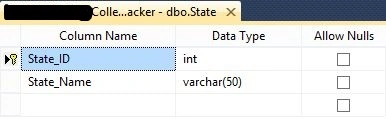
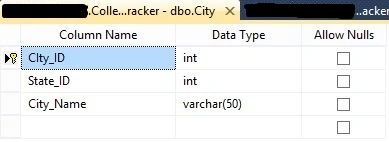
Step 2
In the City table create the reference between City and State as shown in the following diagram.
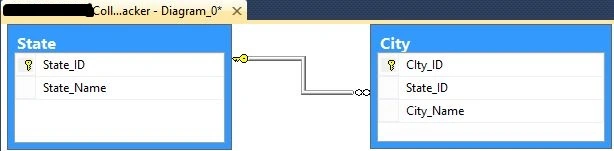
Step 3
Create the Stored Procedure to select the state with the following code:
- Create Proc [dbo].[CT_State_Select]
- As
- Begin
- Set NOCOUNT ON
- Select State_ID, State_Name
- From State (NOLOCK)
- Order By State_Name ASC
- End
Step 4
Create the Stored Procedure to select the city with the following code:
- CREATE PROCEDURE [dbo].[CT_City_Select] (
- @StateId Int)
- AS
- BEGIN
- SET NOCOUNT ON
- SELECT
- City_ID, State_ID, City_Name
- FROM City (NOLOCK)
- WHERE State_ID=@StateId
- ORDER BY City_Name ASC
- END
Step 5
In the following code, we will update the previous Stored Procedure to fetch the College Details data:
- ALTER Proc [dbo].[CT_CollegeDetails_Select]
- As
- Begin
- Select
- c.CollegeID,
- c.[CollegeName],
- c.[CollegeAddress],
- c.[CollegePhone],
- c.[CollegeEmailID],
- c.[ContactPerson],
- c.[State],
- c.[City],
- s.State_Name,
- ci.City_Name
- From CollegeDetails c inner join State s on c.State = s.State_ID inner join City ci on c.City = ci.CIty_ID
- End
Creating Model
Since we have created the model in the previous application as said in the previous article, in this section we will add some more classes to add a new model. Start with the following procedure.
Step 1
Right-click on the "CollegeTrackerModels" project and add a new class as the named state with the following code:
- namespace CollegeTrackerModels
- {
- /// <summary>
- /// class for state
- /// </summary>
- public class State
- {
- #region Properties
- /// <summary>
- /// get and set the State ID
- /// </summary>
- public int State_ID { get; set; }
- /// <summary>
- /// get and set the State Name
- /// </summary>
- public string State_Name { get; set; }
- #endregion
- }
- }
Step 2
Add a new class as the named city with the following code:
- namespace CollegeTrackerModels
- {
- /// <summary>
- /// class for City
- /// </summary>
- public partial class City
- {
- #region Properties
- /// <summary>
- /// get and set the city id
- /// </summary>
- public int City_ID { get; set; }
- /// <summary>
- /// get and set the state id
- /// </summary>
- public int State_ID { get; set; }
- /// <summary>
- /// get and set the city name
- /// </summary>
- public string City_Name { get; set; }
- /// <summary>
- /// get and set the value
- /// </summary>
- public int Value { get; set; }
- /// <summary>
- /// get and set the text
- /// </summary>
- public string Text { get; set; }
- #endregion
- }
- }
Step 3
Update the CollegeDetails class with the following code:
- namespace CollegeTrackerModels
- {
- /// <summary>
- /// class for College Details
- /// </summary>
- public class CollegeDetails
- {
- #region Constructor
- public CollegeDetails()
- {
- this.States = new List<State>();
- this.Cities = new List<City>();
- }
- #endregion
- #region Properties
- ///<summary>
- ///get and set the College ID
- ///</summary>
- public int CollegeID { get; set; }
- ///<summary>
- ///get and set the College Name
- ///</summary>
- [Display(Name = "College Name")]
- public string CollegeName { get; set; }
- ///<summary>
- ///get and set the College Address
- ///</summary>
- [Display(Name = "College Address")]
- public string CollegeAddress { get; set; }
- ///<summary>
- ///get and set the College Phone
- ///</summary>
- [Display(Name = "College Phone")]
- public string CollegePhone { get; set; }
- ///<summary>
- ///get and set the College Email ID
- ///</summary>
- [Display(Name = "College EmailID")]
- public string CollegeEmailID { get; set; }
- ///<summary>
- ///get and set the Contact Person
- ///</summary>
- [Display(Name = "Contact Person")]
- public string ContactPerson { get; set; }
- ///<summary>
- ///get and set the State Id
- ///</summary>
- public Int16 StateId { get; set; }
- /// <summary>
- /// get and set the States
- /// </summary>
- public IList<State> States { get; set; }
- /// <summary>
- /// get and set the Cities
- /// </summary>
- public IList<City> Cities { get; set; }
- ///<summary>
- ///get and set the City Id
- ///</summary>
- public Int16 CityId { get; set; }
- ///<summary>
- ///get and set the status
- ///</sumary>
- public int Status { get; set; }
- /// <summary>
- /// get and set the state name
- /// </summary>
- [Display(Name="State")]
- public string State_Name { get; set; }
- /// <summary>
- /// get and set the city name
- /// </summary>
- [Display(Name="City")]
- public string City_Name { get; set; }
- #endregion
- }
- }
Working with Data Access Layer
In this section we will create some more classes to access the state and city table data.
Step 1
Right-click on the DAL folder and add a new class named "StateDAL" and provide the following code:
- using System;
- using System.Collections.Generic;
- using CollegeTrackerModels;
- using System.Configuration;
- using System.Data;
- using System.Data.SqlClient;
- namespace CollegeTrackerCore.DAL
- {
- public class StateDAL
- {
- #region Variables
- SqlConnection con;
- SqlCommand cmd;
- SqlDataAdapter adap;
- DataTable dt;
- DataSet ds;
- string connectionstring = ConfigurationManager.ConnectionStrings["CollegeTrackerConnectionString"].ConnectionString;
- #endregion
- #region Constructor
- public StateDAL()
- {
- con = new SqlConnection(this.connectionstring);
- }
- #endregion
- #region Public Method
- /// <summary>
- /// This method is used to get all State.
- /// </summary>
- /// <returns></returns>
- public List<State> GetState()
- {
- List<State> objState = new List<State>();
- using (cmd = new SqlCommand("CT_State_Select", con))
- {
- try
- {
- cmd.CommandType = CommandType.StoredProcedure;
- con.Open();
- adap = new SqlDataAdapter();
- adap.SelectCommand = cmd;
- dt = new DataTable();
- adap.Fill(dt);
- foreach (DataRow row in dt.Rows)
- {
- State state = new State();
- state.State_ID = Convert.ToInt32(row["State_ID"]);
- state.State_Name = row["State_Name"].ToString();
- objState.Add(state);
- }
- }
- catch (Exception ex)
- {
- con.Close();
- }
- return objState;
- }
- }
- #endregion
- }
- }
Step 2
Right-click on the DAL folder and add a new class named "CityDAL" and provide the following code:
- using System;
- using System.Collections.Generic;
- using CollegeTrackerModels;
- using System.Configuration;
- using System.Data;
- using System.Data.SqlClient;
- namespace CollegeTrackerCore.DAL
- {
- public class CityDAL
- {
- #region Variables
- SqlConnection con;
- SqlCommand cmd;
- SqlDataAdapter adap;
- DataTable dt;
- DataSet ds;
- string connectionstring = ConfigurationManager.ConnectionStrings["CollegeTrackerConnectionString"].ConnectionString;
- #endregion
- #region Constructor
- public CityDAL()
- {
- con = new SqlConnection(this.connectionstring);
- }
- #endregion
- #region Public Method
- /// <summary>
- /// This method is used to get all cities.
- /// </summary>
- /// <returns></returns>
- public List<City> GetCity(int stateId)
- {
- List<City> objCity = new List<City>();
- using (cmd = new SqlCommand("CT_City_Select", con))
- {
- cmd.CommandType = CommandType.StoredProcedure;
- dt = new DataTable();
- cmd.Parameters.AddWithValue("@StateId", stateId);
- adap = new SqlDataAdapter();
- adap.SelectCommand = cmd;
- try
- {
- con.Open();
- adap.Fill(dt);
- foreach (DataRow row in dt.Rows)
- {
- City city = new City();
- city.City_ID = Convert.ToInt32(row["City_ID"]);
- city.State_ID = Convert.ToInt32(row["State_ID"]);
- city.City_Name = row["City_Name"].ToString();
- objCity.Add(city);
- }
- }
- catch (Exception ex)
- {
- throw ex;
- }
- finally
- {
- con.Close();
- }
- return objCity;
- }
- }
- #endregion
- }
- }
Step 3
Update the "CollegeDAL" method named "GetAllCollegeDetails()" with the following code:
- public List<CollegeDetails> GetAllCollegeDetails()
- {
- List<CollegeDetails> objCollegeDetails = new List<CollegeDetails>();
- using (cmd = new SqlCommand("CT_CollegeDetails_Select", con))
- {
- try
- {
- cmd.CommandType = CommandType.StoredProcedure;
- con.Open();
- adap = new SqlDataAdapter();
- adap.SelectCommand = cmd;
- dt = new DataTable();
- adap.Fill(dt);
- foreach (DataRow row in dt.Rows)
- {
- CollegeDetails col = new CollegeDetails();
- col.CollegeID = Convert.ToInt32(row["CollegeID"]);
- col.CollegeName = row["CollegeName"].ToString();
- col.CollegeAddress = row["CollegeAddress"].ToString();
- col.CollegePhone = row["CollegePhone"].ToString();
- col.CollegeEmailID = row["CollegeEmailID"].ToString();
- col.ContactPerson = row["ContactPerson"].ToString();
- col.State_Name = row["State_Name"].ToString();
- col.City_Name = row["City_Name"].ToString();
- objCollegeDetails.Add(col);
- }
- }
- catch (Exception ex)
- {
- con.Close();
- }
- return objCollegeDetails;
- }
- }
Step 4
Add new classes named "StateBLCore" and "CityBLCore" in the BLL folder. Begin with following procedure.
- StateBLCore Class
- namespace CollegeTrackerCore.BLL
- {
- public abstract class StateBLCore
- {
- #region public method
- /// <summary>
- /// This method is used to get the State Details
- /// </summary>
- /// <returns></returns>
- protected List<State> GetState()
- {
- List<State> objState = null;
- try
- {
- objState = new StateDAL().GetState();
- }
- catch (Exception ex)
- {
- throw ex;
- }
- return objState;
- }
- #endregion
- }
- }
- CityBLCore Class
- namespace CollegeTrackerCore.BLL
- {
- public abstract class CityBLCore
- {
- #region public method
- /// <summary>
- /// This method is used to get the City Details
- /// </summary>
- /// <returns></returns>
- protected List<City> GetCity(int stateId)
- {
- List<City> objCity = null;
- try
- {
- objCity = new CityDAL().GetCity(stateId);
- }
- catch (Exception ex)
- {
- throw ex;
- }
- return objCity;
- }
- #endregion
- }
- }
Working with API Project
In this section we will add ome more classes to access the data layer. Start with the following procedure:
Step 1
In the "CollegeTrackerAPI" project go to the Areas folder and right-click on the BLL folder to add two more classes named "CityBL" and "StateBL". Replace the code with the following code:
- CityBL Class
- using CollegeTrackerCore.BLL;
- using CollegeTrackerModels;
- using System.Collections.Generic;
- namespace CollegeTrackerAPI.Areas.BLL
- {
- internal sealed class CityBL : CityBLCore
- {
- /// <summary>
- /// This method is used to get the CityDetails
- /// </summary>
- /// <return></return>
- internal new List<City> GetCity(int stateId)
- {
- return base.GetCity(stateId);
- }
- }
- }
- StateBL Class
- using CollegeTrackerCore.BLL;
- using CollegeTrackerModels;
- using System.Collections.Generic;
- namespace CollegeTrackerAPI.Areas.BLL
- {
- internal sealed class StateBL : StateBLCore
- {
- /// <summary>
- /// This method is used to get the states
- /// </summary>
- /// <return></return>
- internal new List<State> GetState()
- {
- return base.GetState();
- }
- }
- }
Step 2
Go to the Controllers folder and add a new Web API 2 Controller named "StateDetails". Replace the code with the following code:
- using CollegeTrackerAPI.Areas.BLL;
- using CollegeTrackerModels;
- using System;
- using System.Collections.Generic;
- using System.Net;
- using System.Net.Http;
- using System.Web.Http;
- namespace CollegeTrackerAPI.Areas.Controller
- {
- public class StateDetailsController : ApiController
- {
- #region variable
- ///<summary>
- ///variable for StateBL
- ///</summary>
- private StateBL objStateBL;
- ///<summary>
- /// variable for httpResponseMessage
- /// </summary>
- HttpResponseMessage response;
- # endregion
- #region Response Method
- ///summary
- /// This method is used to fetch StateDetails
- /// <summary>
- /// <return></return>
- [HttpGet, ActionName("GetAllStateDetails")]
- public HttpResponseMessage GetAllStatesDetails()
- {
- objStateBL = new StateBL();
- HttpResponseMessage response;
- try
- {
- var detailsResponse = objStateBL.GetState();
- if (detailsResponse != null)
- response = Request.CreateResponse<List<State>>(HttpStatusCode.OK, detailsResponse);
- else
- response = new HttpResponseMessage(HttpStatusCode.NotFound);
- }
- catch (Exception ex)
- {
- response = Request.CreateErrorResponse(HttpStatusCode.InternalServerError, ex.Message);
- }
- return response;
- }
- #endregion
- }
- }
Step 3
Add a new Controller named "CityDetails" and add the following code:
- using CollegeTrackerAPI.Areas.BLL;
- using CollegeTrackerModels;
- using System;
- using System.Collections.Generic;
- using System.Net;
- using System.Net.Http;
- using System.Web.Http;
- namespace CollegeTrackerAPI.Areas.Controller
- {
- public class CityDetailsController : ApiController
- {
- #region variable
- ///<summary>
- ///variable for CityBL
- ///</summary>
- private CityBL objCityBL;
- ///<summary>
- /// variable for httpResponseMessage
- /// </summary>
- HttpResponseMessage response;
- #endregion
- #region Response Method
- ///summary
- /// This method is used to fetch CityDetails
- /// <summary>
- /// <return></return>
- [HttpGet, ActionName("GetAllCityDetails")]
- public HttpResponseMessage GetAllCityDetails(int stateId)
- {
- objCityBL = new CityBL();
- HttpResponseMessage response;
- try
- {
- var detailsResponse = objCityBL.GetCity(stateId);
- if (detailsResponse != null)
- response = Request.CreateResponse<List<City>>(HttpStatusCode.OK, detailsResponse);
- else
- response = new HttpResponseMessage(HttpStatusCode.NotFound);
- }
- catch (Exception ex)
- {
- response = Request.CreateErrorResponse(HttpStatusCode.InternalServerError, ex.Message);
- }
- return response;
- }
- #endregion
- }
- }
Working with User Interface Layer
In this section we will update the controller and add some new views to create the new view and display the dropdownlist in the view. Use the following procedure.
Step 1
Update the "CollegeDetails" controller and add the following code to it:
- public ActionResult CreateCollegeDetails()
- {
- CollegeDetails objcollege = new CollegeDetails();
- objcollege.States = GetAllStates();
- return View("~/Views/CollegeDetails/CreateCollegeDetails.cshtml", objcollege);
- }
- public List<State> GetAllStates()
- {
- var list = new List<CollegeTrackerModels.State>();
- var httpClient = new HttpClient();
- httpClient.DefaultRequestHeaders.Accept.Add(new MediaTypeWithQualityHeaderValue("application/json"));
- HttpResponseMessage response;
- response = httpClient.GetAsync("http://localhost:59866/api/" + "StateDetails/GetAllStateDetails/").Result;
- response.EnsureSuccessStatusCode();
- List<State> stateList = response.Content.ReadAsAsync<List<State>>().Result;
- if (!object.Equals(stateList, null))
- {
- var states = stateList.ToList();
- return states;
- }
- else
- {
- return null;
- }
- }
- [HttpGet]
- public JsonResult GetJsonCity(int stateId)
- {
- var list = new List<CollegeTrackerModels.City>();
- try
- {
- var httpClient = new HttpClient();
- httpClient.DefaultRequestHeaders.Accept.Add(new MediaTypeWithQualityHeaderValue("application/json"));
- HttpResponseMessage response;
- response = httpClient.GetAsync("http://localhost:59866/api/" + "cityDetails/GetAllCityDetails?stateId="+stateId+"").Result;
- response.EnsureSuccessStatusCode();
- List<City> cityList = response.Content.ReadAsAsync<List<City>>().Result;
- if (!object.Equals(cityList, null))
- {
- var cities = cityList.ToList();
- foreach (var item in cities)
- {
- list.Add(new City
- {
- Value = item.City_ID,
- Text = item.City_Name
- });
- }
- }
- }
- catch (HttpException ex)
- {
- throw new HttpException(ex.Message);
- }
- catch (Exception ex)
- {
- throw new Exception(ex.Message);
- }
- return Json(new SelectList(list, "Value", "Text"), JsonRequestBehavior.AllowGet);
- }
Step 2
Add the following code before the table in the Views/CollegeDetails/CollegeDetails page:
- <p>
- @Html.ActionLink("Create New", "CreateCollegeDetails", "CollegeDetails")
- </p>
Step 3
Go to Views/CollegeDetails and add an empty view named "CreateCollegeDetails" and replace the code with the following code:
- @model CollegeTrackerModels.CollegeDetails
- @{
- ViewBag.Title = "Create CollegeDetails";
- }
- <h2>Create</h2>
- <script type="text/javascript">
- function getCities() {
- var stateID = $('#DropDownListStates').val();
- if (stateID > 0)
- {
- $.ajax({
- url: "@Url.Action("GetJsonCity","CollegeDetails")",
- data: { stateId: stateID },
- dataType: "json",
- type: "GET",
- success: function (data) {
- var items = "";
- items = "<option value=''>--Choose City--</option>";
- $.each(data, function (i, item) {
- items += "<option value=\"" + item.Value + "\">" + item.Text + "</option>";
- });
- $('#DropDownListCities').html(items);
- }
- });
- }
- }
- </script>
- @using (Ajax.BeginForm("CreateUpdateCollegeDetails","CollegeDetails",null))
- {
- @Html.AntiForgeryToken()
- <div class="form-horizontal">
- <hr />
- @Html.ValidationSummary(true)
- <div class="form-group">
- @Html.LabelFor(model => model.CollegeName, new { @class = "control=label col-md-2" })
- <div class="col-md-10">
- @Html.EditorFor(model => model.CollegeName)
- @Html.ValidationMessageFor(model => model.CollegeName)
- </div>
- </div>
- <div class="form-group">
- @Html.LabelFor(model => model.CollegeAddress, new { @class = "control=label col-md-2" })
- <div class="col-md-10">
- @Html.EditorFor(model => model.CollegeAddress)
- @Html.ValidationMessageFor(model => model.CollegeAddress)
- </div>
- </div>
- <div class="form-group">
- @Html.LabelFor(model => model.CollegePhone, new { @class = "control=label col-md-2" })
- <div class="col-md-10">
- @Html.TextBoxFor(model => model.CollegePhone)
- @Html.ValidationMessageFor(model => model.CollegePhone)
- </div>
- </div>
- <div class="form-group">
- @Html.LabelFor(model => model.CollegeEmailID, new { @class = "control=label col-md-2" })
- <div class="col-md-10">
- @Html.EditorFor(model => model.CollegeEmailID)
- @Html.ValidationMessageFor(model => model.CollegeEmailID)
- </div>
- </div>
- <div class="form-group">
- @Html.LabelFor(model => model.ContactPerson, new { @class = "control=label col-md-2" })
- <div class="col-md-10">
- @Html.EditorFor(model => model.ContactPerson)
- @Html.ValidationMessageFor(model => model.ContactPerson)
- </div>
- </div>
- <div class="form-group">
- @Html.LabelFor(model => model.StateId, new { @class = "control=label col-md-2" })
- <div class="col-md-10">
- @Html.DropDownListFor(model => model.StateId, new SelectList(Model.States, "State_ID", "State_Name"), "Choose State", new { onchange = "getCities()", @id = "DropDownListStates" })
- @Html.ValidationMessageFor(model => model.StateId)
- </div>
- </div>
- <div class="form-group">
- @Html.LabelFor(model => model.CityId, new { @class = "control=label col-md-2" })
- <div class="col-md-10">
- @Html.DropDownListFor(model => model.CityId, new SelectList(Model.Cities, "City_ID", "State_ID", "City_Name"), "Choose City", new { @id = "DropDownListCities" })
- @Html.ValidationMessageFor(model => model.CityId)
- </div>
- </div>
- <div class="form-group">
- <div class="col-md-offset-2 col-md-10">
- <input type="submit" value="Create" class="btn btn-success" />
- </div>
- </div>
- </div>
- }
- <div>
- @Html.ActionLink("Back to List", "GetCollegeList")
- </div>
- @section Scripts{
- @Scripts.Render("~/bundles/jqueryval");
- }
Step 4
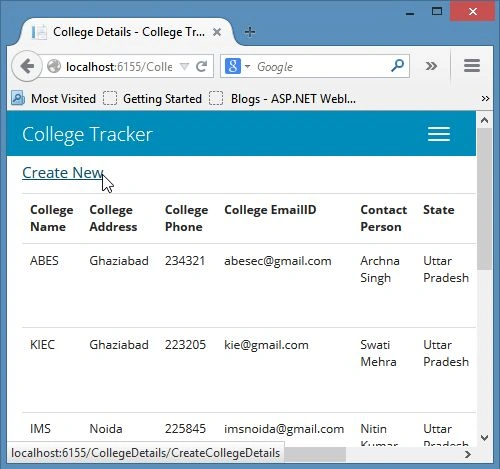
Now run the project and click on the Create New Action Link as shown below:
Step 5
In the next page you can check that the states are listed in the States dropdownlist.
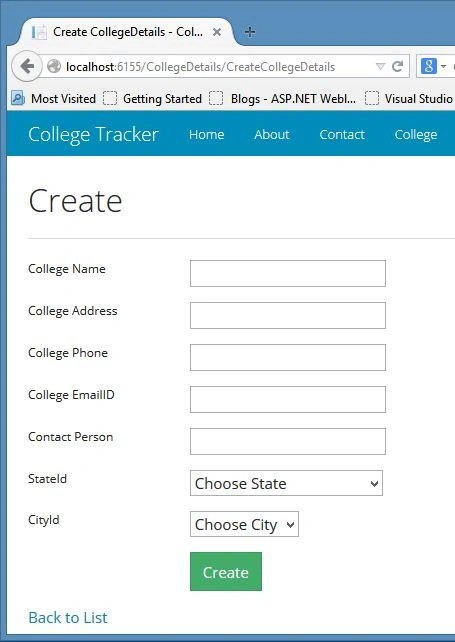
Step 6
Choose the state and the city dropdownlist will update.
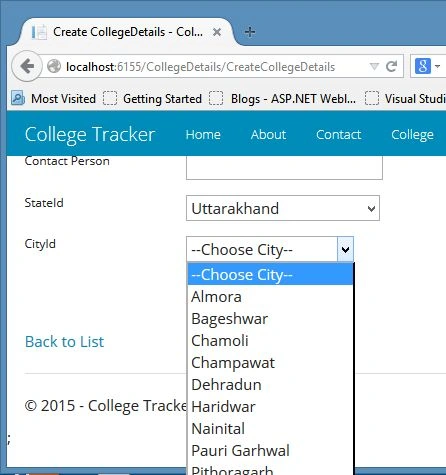
That's it.
Summary
This article described how to show the cascading dropdownlist based upon the selection of a different state. In the next article we will do the Insert, Delete and Update operation using an API controller using MVC 5. Thanks for reading.
Nitin KannaujiyaPosted Oct 1, 2019, 3:45 AM
Can you share code link for download
Mukesh KumarPosted Oct 20, 2015, 12:51 AM
Step by step article... very helpful
Sibeesh VenuPosted Apr 13, 2015, 8:39 AM
Good one.
Manish Kumar ChoudharyPosted Jan 4, 2015, 12:12 AM
Nice article. ..
Vithal WadjePosted Jan 2, 2015, 9:58 PM
nice explanation good work