

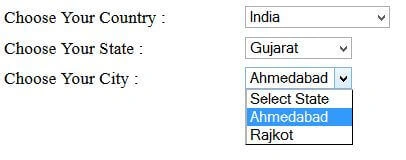
This article shows how to cascade one dropdown list with another dropdown list in ASP.Net using C#. Here I took three dropdown lists, Country, State, and City. You will see how to fill the state dropdownlist based on the data of the country dropdownlist. So here we go!
Initial Chamber
Step 1
Open your VS10, create an empty website (I hope you will get the idea of creating an empty website from my previous articles). Name it "Cascade_dropdownlist_demo".
Step 2
In Solution Explorer, right-click on your website then select Add New Item -> Web Form. Name it dropdownlist_demo.aspx (or whatever you want to give the name. No pressure. :P). In Solution Explorer you will get your dropdownlist_demo.aspx and dropdownlist.aspx.cs, both files.
Step 3
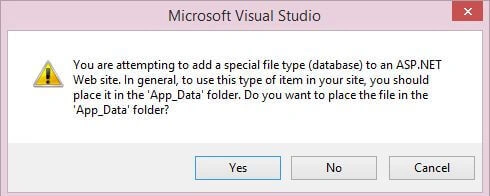
Again you need to get to Add New Item and Select -> SQL Server Database. (You know very well what we must do if they prompt you by asking Would you like to place your Database inside the App_Data_Folder? Say “Yes”, always). You will get your database in the Server Explorer (CTRL + ALT + S).
Database Chamber
Step 4
In Server Explorer, click on the arrow sign of your database (“Database.mdf”). Go to tables then right-click and select Add New Table.
- Country Table : tbl_country (Don't Forgot – IS INDENTITY = “TRUE”)
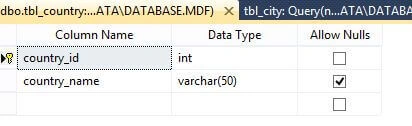
- State Table: tbl_State (IS IDENTITY=”TRUE”)
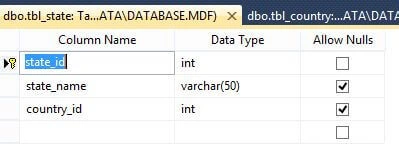
- City Table: tbl_city (IS IDENTITY= “TRUE”)
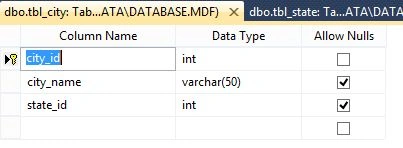
Make “Is Identity True”. Don't forget it. Another thing is the data of the tables that you must enter manually. Just right-click on your tables (Country, State, and City) then select Show Table Data. Here you need to add all the data that will be shown in the dropdown list when we run the project.
Design Chamber
Step 5
Open your dropdownlist.aspx from Solution Explorer and start designing your application.
It will look Like this:
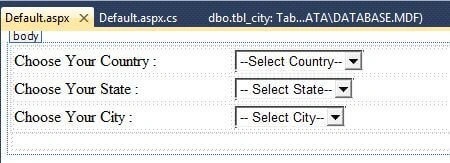
Here is your design code:
- <form id="form1" runat="server">
- <table style="width: 100%; height: 86px;">
- <tr>
- <td class="style1">
- <asp:Label ID="Label1" runat="server" Text="Choose Your Country :"></asp:Label>
- </td>
- <td>
- <asp:DropDownList ID="DropDownList1" runat="server" AutoPostBack="True"
- DataTextField="country_name" DataValueField="country_id" AppendDataBoundItems="true"
- onselectedindexchanged="DropDownList1_SelectedIndexChanged">
- <asp:ListItem Value="0">--Select Country--</asp:ListItem>
- </asp:DropDownList>
- </td>
- <td>
- </td>
- </tr>
- <tr>
- <td class="style1">
- <asp:Label ID="Label2" runat="server" Text="Choose Your State :"></asp:Label>
- </td>
- <td>
- <asp:DropDownList ID="DropDownList2" runat="server" AppendDataBoundItems="true" DataTextField="state_name"
- DataValueField="state_id" AutoPostBack="True"
- onselectedindexchanged="DropDownList2_SelectedIndexChanged">
- <asp:ListItem Value="0">-- Select State--</asp:ListItem>
- </asp:DropDownList>
- </td>
- <td>
- </td>
- </tr>
- <tr>
- <td class="style1">
- <asp:Label ID="Label3" runat="server" Text="Choose Your City :"></asp:Label>
- </td>
- <td>
- <asp:DropDownList ID="DropDownList3" runat="server" AppendDataBoundItems="true" DataTextField="city_name"
- DataValueField="city_id">
- <asp:ListItem Value="0">-- Select City--</asp:ListItem>
- </asp:DropDownList>
- </td>
- <td>
- </td>
- </tr>
- </table>
- <div>
- </div>
- </form>
Inderjit KumarPosted Jan 17, 2018, 6:37 AM
Hlo sir, i am getting the values but it is repeating the same values and when i m using distinct in sql query it is showing error and i have only one table..plz help
abhishek choubeyPosted Jul 26, 2017, 2:54 AM
Need validation control on 2nd and 3rd drop down list, if first drop down index changed
Arul RPosted Oct 28, 2015, 5:46 AM
Nice share!!!
Aarthna MaheshwariPosted May 29, 2015, 9:09 AM
Thanks!! was looking for this only!.
vishal jainPosted May 28, 2015, 4:02 AM
good article....
Santhakumar MunuswamyPosted May 26, 2015, 3:56 PM
Thanks for nice article
Gowtham RajamanickamPosted May 26, 2015, 8:58 AM
Good one..
NitinPosted May 11, 2015, 12:18 PM
good one
Sibeesh VenuPosted May 11, 2015, 3:01 AM
Good One :)
Abhishek JaiswalPosted May 11, 2015, 2:20 AM
very informative article! Keep sharing! :)