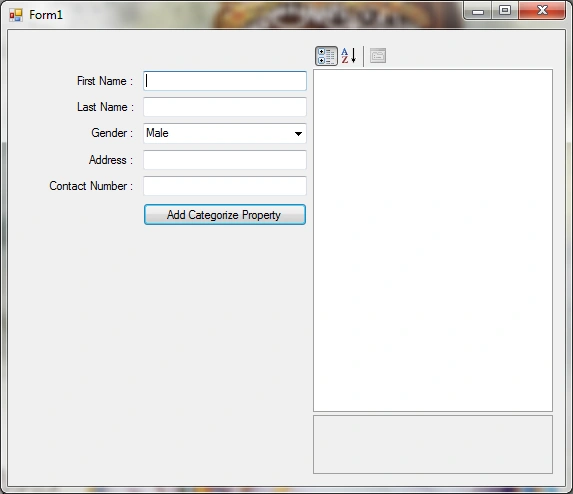
First look at the Form :
As for the code now:
Create one class for your custom properties. Declare all variables depending on your properties.
private string myFirstName = "";
private string myLastName = "";
private string myGender = "";
private string myAddress = "";
private string myContact = "";
Also you can set the default selected property in the PropertyGrid.
[DefaultPropertyAttribute("Name")]
Declare the constructor for getting the values of the variables.
public mySetCustomeProperty(string fn, string ln, string gen, string add, string con)
{
myFirstName = fn;
myLastName = ln;
myGender = gen;
myAddress = add;
myContact = con;
}
Then Write the properties & also write the logic for the get & set the value for the particular variable.
public string FirstName
{
get { return myFirstName;}
set { myFirstName =value ;}
}
For the category use the "CategoryAttribute" keyword above each property. Set the same name that you want to keep in one category.
[CategoryAttribute("Name")]
In the above code all the properties written below this line will be displayed in the Name Category.
Then create the object of the created class & pass the related parameters into it.
mySetCustomeProperty myObj = new mySetCustomeProperty(txtFirstName.Text, txtLastName.Text, cmbGender.SelectedItem.ToString (), txtAddress.Text, txtContactNumber.Text);
Finally load all the properties into the PropertyGrid.
myPropertyGrid.SelectedObject = myObj;
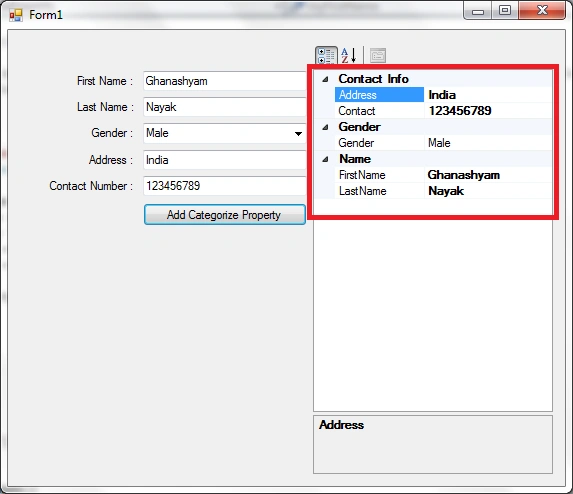
On the button Click event it will load all the properties into the PropertyGrid & display them in the categories.
private void btnAdd_Click(object sender, EventArgs e)
{
mySetCustomeProperty myObj = new mySetCustomeProperty(txtFirstName.Text, txtLastName.Text, cmbGender.SelectedItem.ToString (), txtAddress.Text, txtContactNumber.Text);
myPropertyGrid.SelectedObject = myObj;
}
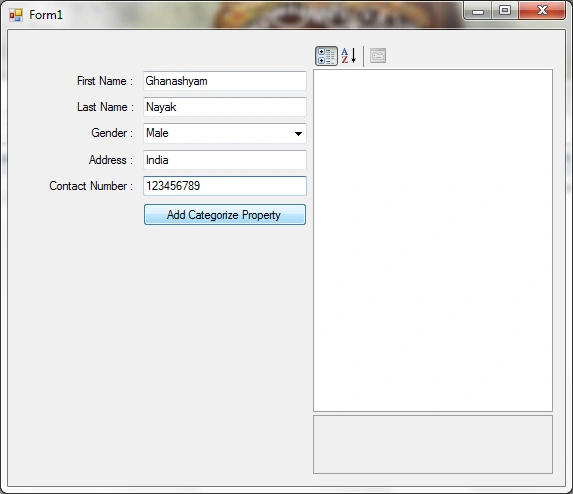
See the following images:
Hope this will clear to you...


Jessica StephenPosted Feb 15, 2012, 11:42 PM
Thank you for the article. It is really nice
Laura ParkerPosted Feb 15, 2012, 11:40 PM
I am learning this technology, Thank you so much for such a relevant stuff
Nitin SinghPosted Feb 15, 2012, 11:05 PM
Thanks, Really this article is so useful stuff.
Monika AroraPosted Feb 15, 2012, 11:05 PM
You have presented your article very nicely.