

In this article, we are going to change the border style when the user focuses on a textbox in an app. It's very easy to change the border color by defining your text box style, as shown below:
- <Style x:Key="FeedtxtName" TargetType="TextBox">
- <Setter Property="PlaceholderText" Value="Name/Email"></Setter>
- <Setter Property="AcceptsReturn" Value="True"></Setter>
- <Setter Property="Height" Value="40"></Setter>
- <Setter Property="Padding" Value="8"></Setter>
- <Setter Property="BorderBrush" Value="#8d8d8d"></Setter>
- <Setter Property="BorderThickness" Value="1"></Setter>
- <Setter Property="Margin" Value="5"></Setter>
- </Style>
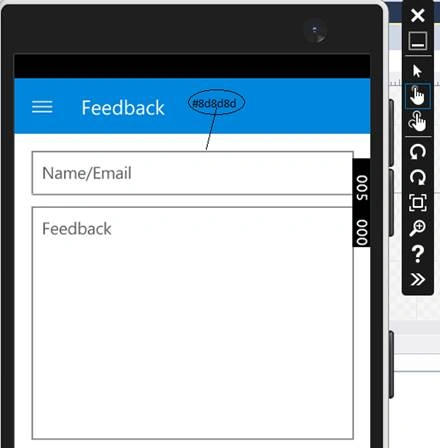
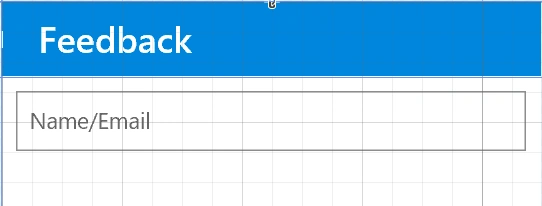
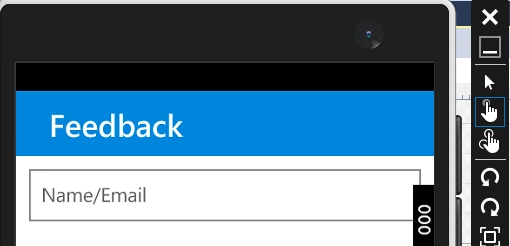
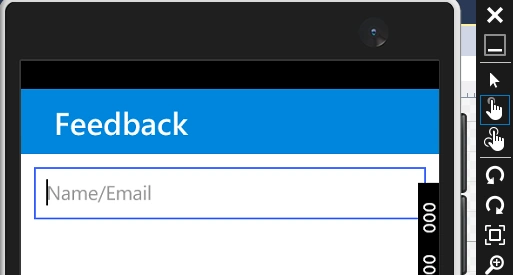
In the image, given above, you can see, for both the text box border color is #8d8d8d, which is already mentioned in my style dictionary. Now, if I click text box to write something, after focusing in it, its border color will change into a blue color -- see the image, given below:
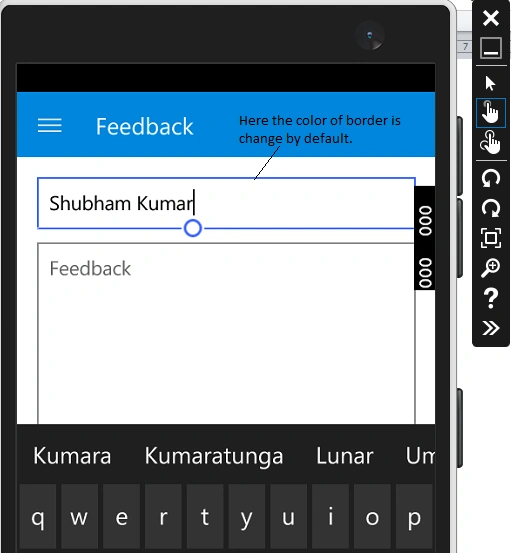
This is my main motive to write this article to describe, how we can change the border color of the text box on gotfocus. Follow these steps.
- Create the project in Microsoft Visual Studio Blend 2015.
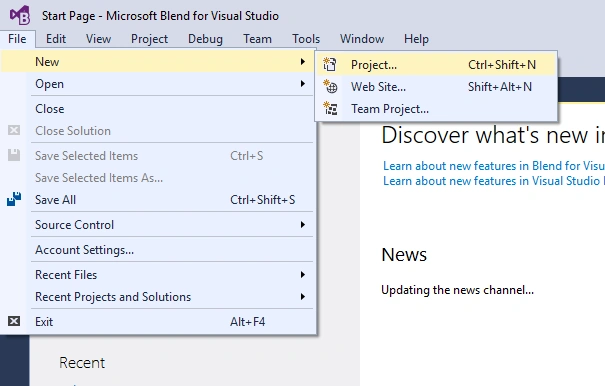
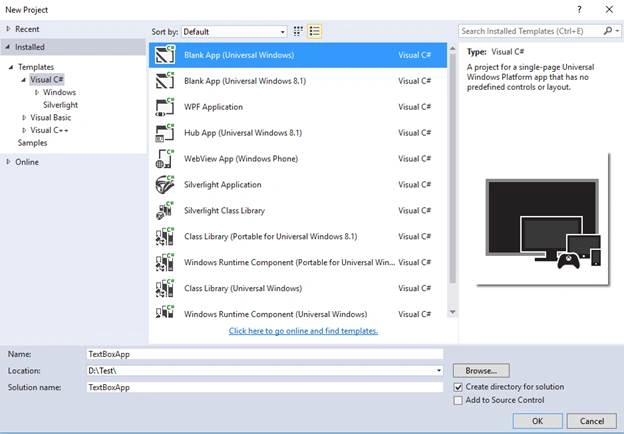
- Create app with any name at any location.
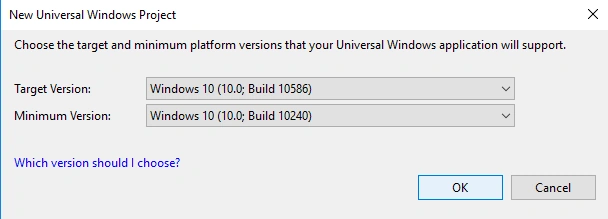
- On the page, write the code, given below:
- <Page x:Class="TextBoxApp.MainPage" xmlns="http://schemas.microsoft.com/winfx/2006/xaml/presentation" xmlns:x="http://schemas.microsoft.com/winfx/2006/xaml" xmlns:local="using:TextBoxApp" xmlns:d="http://schemas.microsoft.com/expression/blend/2008" xmlns:mc="http://schemas.openxmlformats.org/markup-compatibility/2006" mc:Ignorable="d">
- <Grid Background="{ThemeResource ApplicationPageBackgroundThemeBrush}">
- <Grid.RowDefinitions>
- <RowDefinition Height="50" />
- <RowDefinition Height="220" /> </Grid.RowDefinitions>
- <Grid.ColumnDefinitions>
- <ColumnDefinition Width="*" /> </Grid.ColumnDefinitions>
- <Grid Grid.Row="0" Background="#0086dc">
- <TextBlock Text="Feedback" Foreground="White" HorizontalAlignment="Left" VerticalAlignment="Center" FontSize="24" FontWeight="SemiBold" Margin="25,0,0,0"></TextBlock>
- </Grid>
- <Grid Grid.Row="1">
- <TextBox VerticalAlignment="Top" PlaceholderText="Name/Email" AcceptsReturn="True" Height="40" Padding="8" Margin="10" BorderBrush="#8d8d8d" BorderThickness="1"></TextBox>
- </Grid>
- </Grid>
- </Page>
- In the code, given above, I had made on Textbox Example. According to this, you can implement on the other textboxes too.
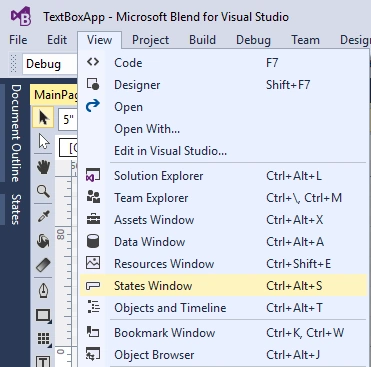
- Let's change the border color on focus, open the state window, as given below:
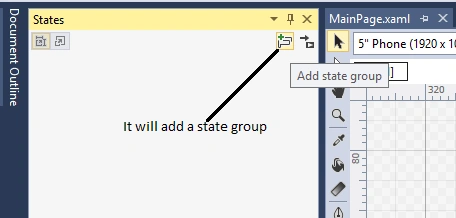
Add a state group:
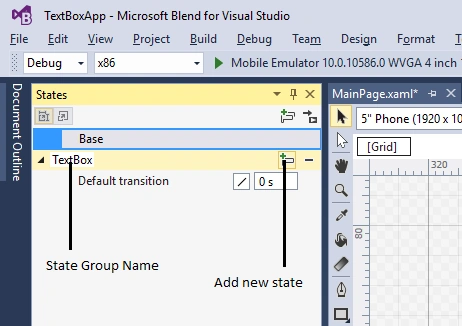
Add a state, as shown below:
Name that new state as Focused, as shown below: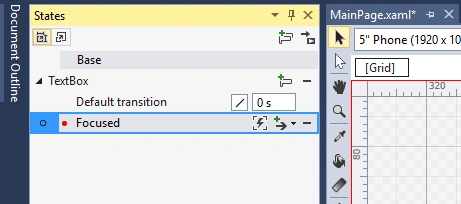
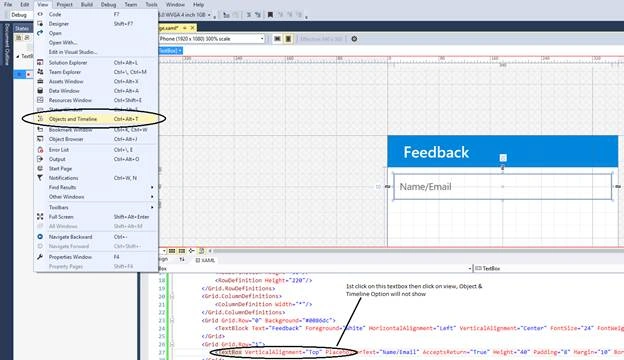
- Now, click the textbox and open objects & Timeline, as shown below:
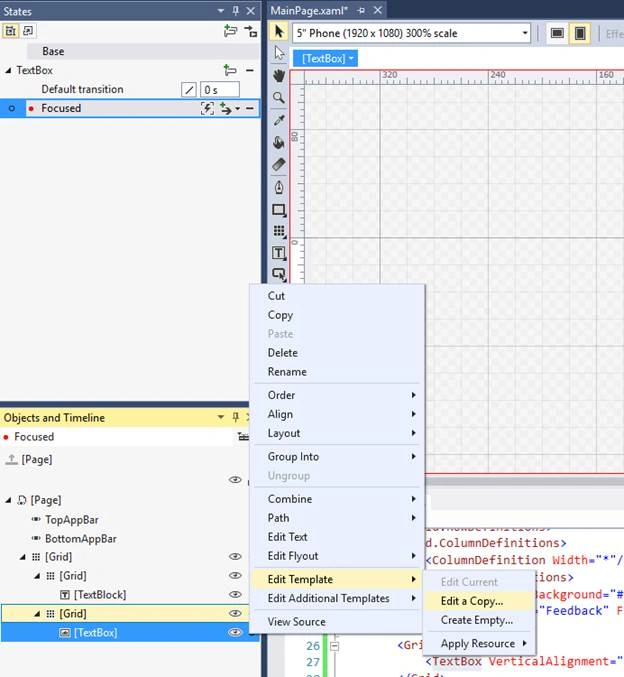
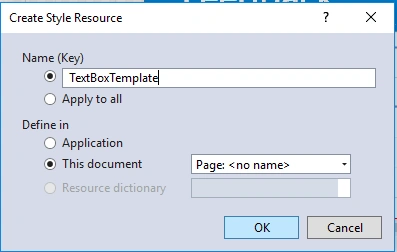
Edit the template of the textbox, as shown below:
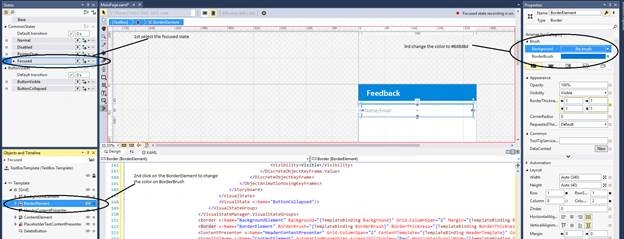
Set the Border Brush color according to the image, given below:
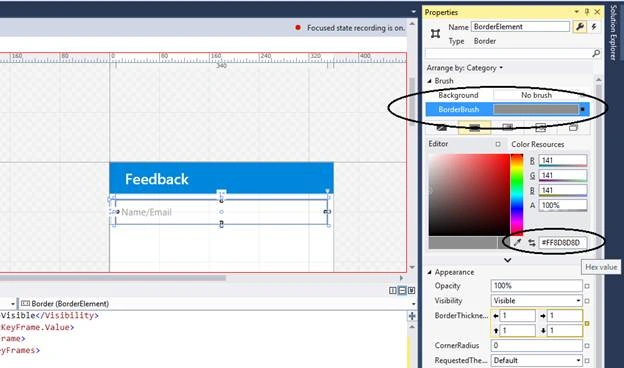
- Now, run the app and check.
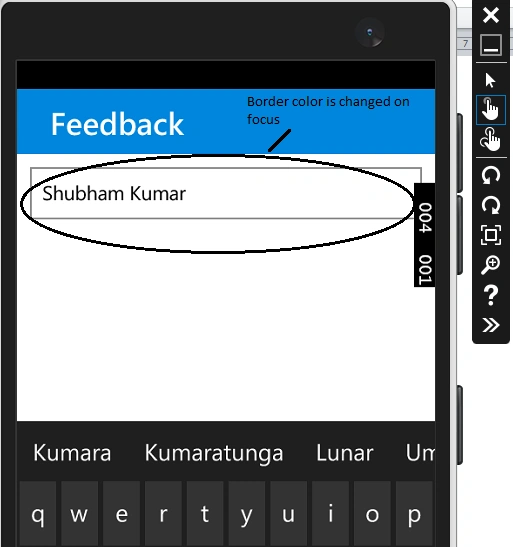
In Visual State Manager, you will get another element to implement like background element, content element etc.
Vignesh ManiPosted Jul 8, 2016, 8:22 AM
Good one
Chandra ShekherPosted Jul 8, 2016, 1:12 AM
Good job shubham.