

Introduction
In this article, we explain how to change the default Windows 8 email client. Windows 8 sets its Mail app as the default email client. When we open an email link on a web page, then we open a new UI. Here's how to change it to a different desktop email program like Outlook.
Set Default Windows 8 Desktop Email Client
Step 1
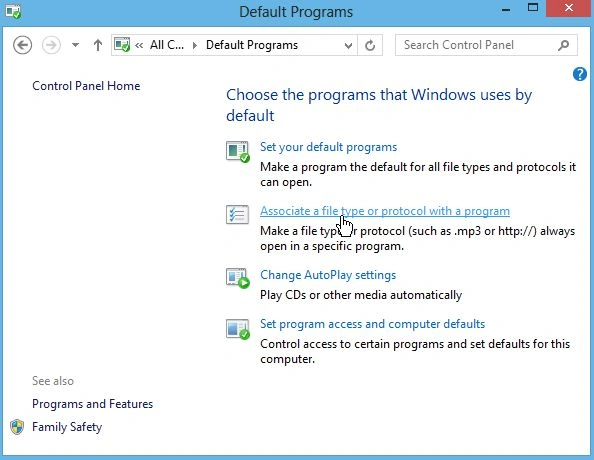
First, we open the Control Panel and click on "Default Programs".

Step 2
Then click the "Associate a File Type or Protocol with a Program" link.
Step 3
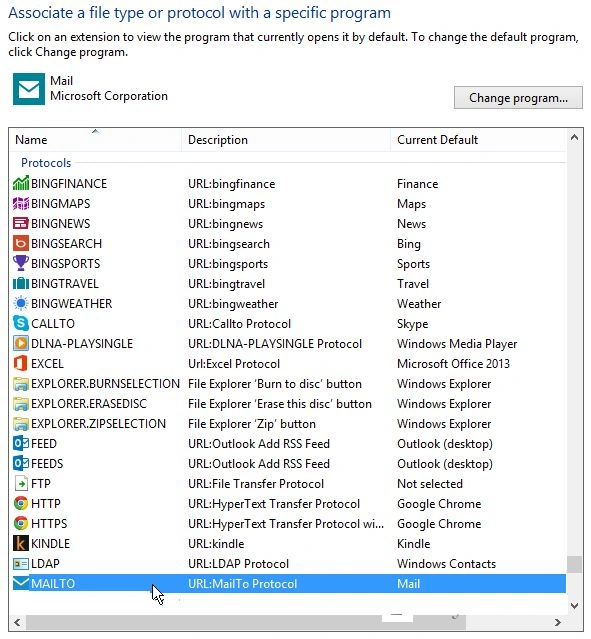
Next in the Set Associations screen, scroll down the list until we find Protocols, and under that, we'll see "MAILTO". It's set to "Mail"; double-click it.
Step 4
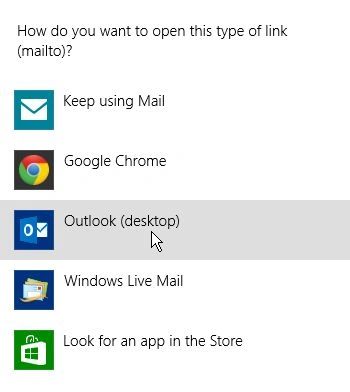
Here I'm sticking with Outlook 2013 for mailto links. Old habits are hard to break! I've been using Outlook since 97 and still prefer it today. It's definitely better than the current version of the Mail app.
Set Webmail as Default in Chrome or Firefox
Step 5
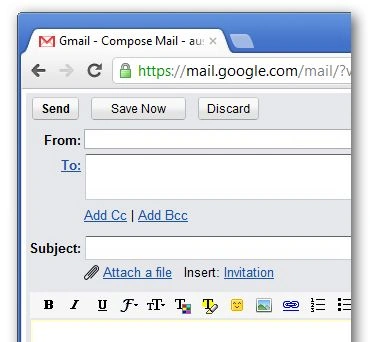
Set our default email for all of our browsers. In Chrome, you'll probably want to set Gmail as our default email handler.
Step 6
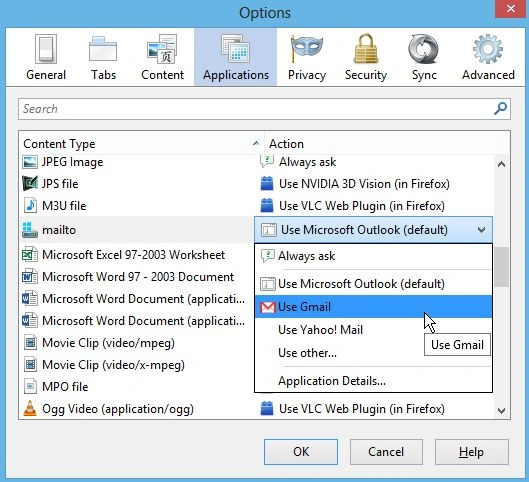
Or if you're a Firefox user, it's easy to set the default email client to Gmail or another web-based client.
Summary
In this article, we learned about Change the Default Windows 8 Email Client.
Join the conversation! Your thoughts help the community grow.