

Welcome to an article on how to change theme of SharePoint Online sites in Office 365. Mainly, we should call it a part of SharePoint Branding. Those days are gone when we need to struggle to set themes for SharePoint sites and still feel there is something missing.
Here in SharePoint online we have a basic theme configuration but what we have, it’s perfect.
Let’s see what we have.
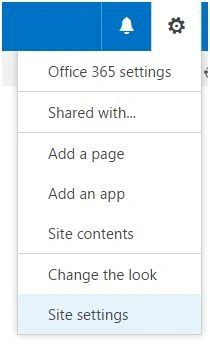
- Click on the gear icon on the right corner and browse the site settings link.
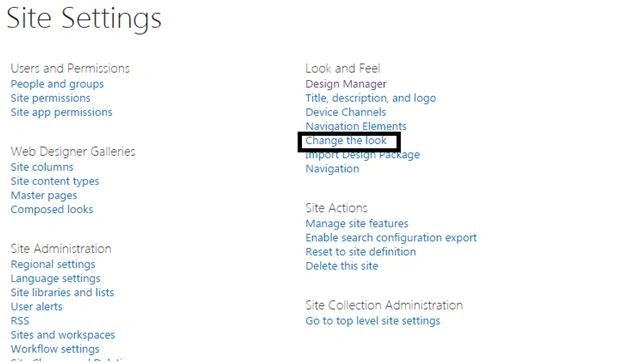
- Click on the ‘Change the look’ option under the Look and Feel section.
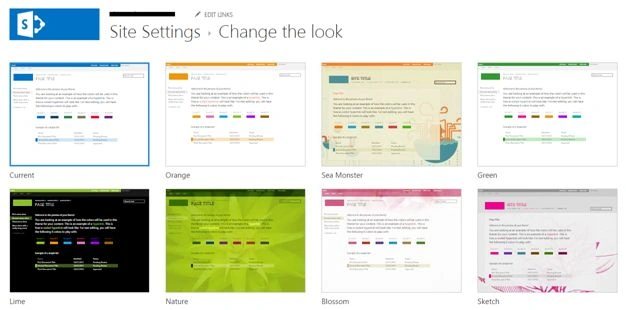
- You will reach the screen with various options of color and layout options. Choose the one as per your requirement and click on it.
- Once you select, you will see the options below with a layout of the site as visible on the screenshot below,
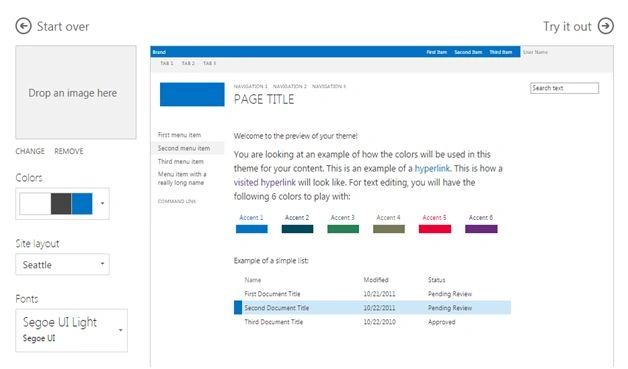
Drop an image here:
You can add an image here as a background of the site browsing it from your computer.

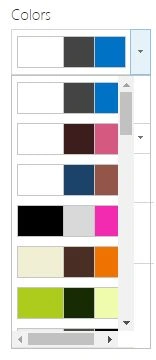
Colors:
You can choose the color of the site here with combinations as per screen below.
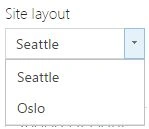
Choose one of the master pages to inherit your sit; as per now, we have two default site layout as in Seattle and Oslo.
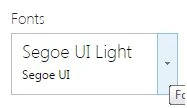
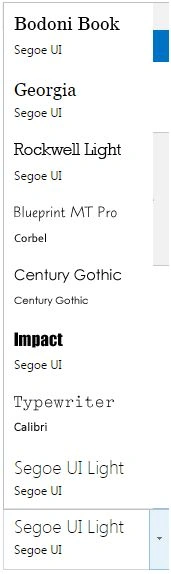
Choose the fonts, you want your site to have from the option below.
Once you have configured your theme, Click on ‘Try it Out’ on the right side of the panel.

You will see the preview of the site.
If you like it, click on ‘Yes, keep it’ and if you don’t, click on ‘No, not quite there’.

Here we saw today an article on how to change theme of SharePoint Online sites in Office 365. There are more to come. Keep reading and keep learning!
Kumaresh RajalingamPosted Mar 23, 2016, 9:12 PM
Nice one
Humayun Kabir MamunPosted Mar 23, 2016, 2:54 AM
Nice...
Vignesh ManiPosted Mar 22, 2016, 9:11 AM
Nice
Sibeesh VenuPosted Mar 22, 2016, 6:15 AM
Nice Share
Mohammed IbrahimPosted Mar 22, 2016, 4:26 AM
nice
Pawan TiwariPosted Mar 22, 2016, 1:31 AM
nice