

How to change the Theme using LightSwitch Visual Studio 2012
In this article I describe how to change the Theme in LightSwitch using Visual Studio 2012.
Procedure for changing the Theme in LightSwitch using Visual Studio 2012
Step 1
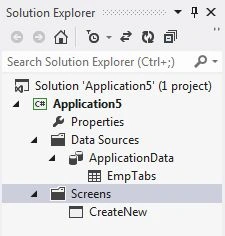
Open the Solution Explorer.
Step 2
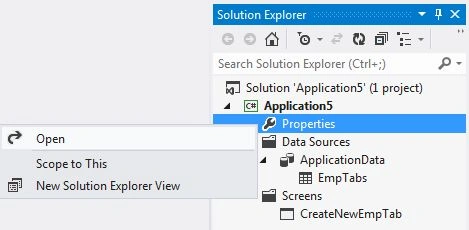
In the Solution Explorer, right-click on the property node and choose "Open".
Step 3
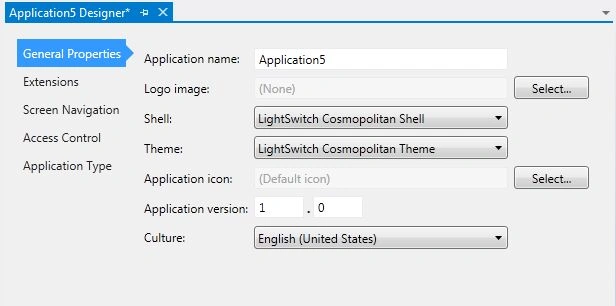
The Application Designer appears.
Step 4
In the Application Designer, select "General Properties".
Step 5
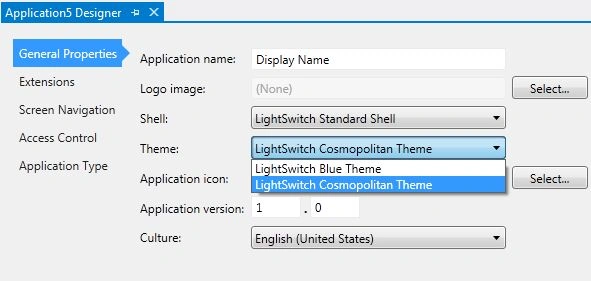
In the Theme field, choose the theme that you want to apply for the application.
Step 6
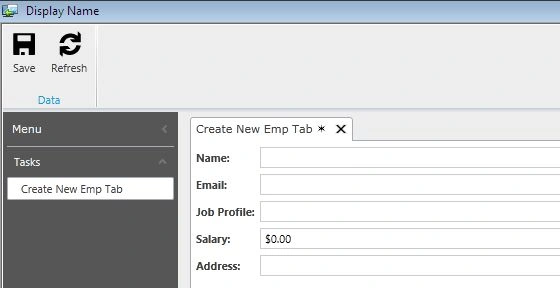
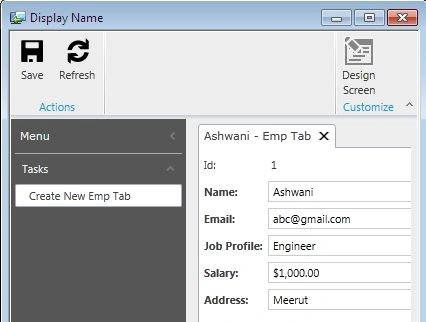
Assume you have chosen the LightSwitch Cosmopolitan Theme.
After inserting the data we get:
Step 7
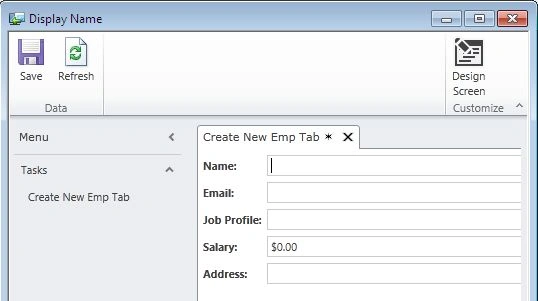
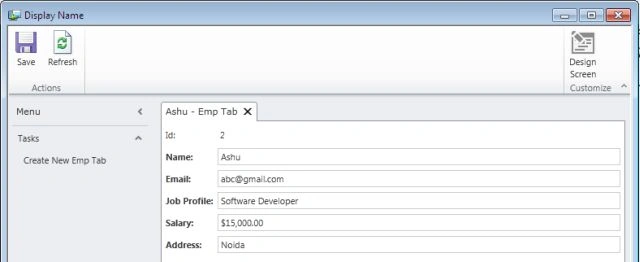
Assume you have chosen the LightSwitch Blue Theme.
After inserting the data we get:
Join the conversation! Your thoughts help the community grow.