

This chapter is taken from book "Pro ASP.NET 3.5 Server Controls and AJAX Components" by Rob Cameron, Dale Michalk published by Apress.
Introduction
To create server controls, you need to understand how they work. This chapter provides a very high-level run-through of the various server control namespaces to set the scene for the rest of this book. To begin our journey, we'll start by reviewing what a server control provides to clients and taking a look at some of the prebuilt controls supplied by ASP.NET. We'll study the controls inheritance bloodlines for the HTML and web controls, examining how the namespaces are organized, so that you become familiar with what is available for immediate use in ASP.NET. Because inheritance and composition of existing server controls are important timesaving control-building techniques available in ASP.NET, this rapid journey through the object model is well worth the effort.
To begin this chapter, we start out with a "Hello, World" form to demonstrate master pages. The MasterPage class can trace its inheritance back to the user control functionality introduced in ASP.NET 1.0. We next discuss the basic server control construction, as well as how server controls are organized in an ASP.NET web form. Finally, we cover the root server control namespaces with an example of the types of server controls found in the different namespaces.
Source Code
The source code for this book is available for download from the Apress web site for those who want to follow along by running the code in Visual Studio 2008. The web site project is file based, so having IIS installed and configured isn't required. There is a main solution file titled ControlsBook2Solution.sln that, when opened, will load all of the projects. Please refer to the read-me file included with the source code download for detailed instructions on how to get the code running. The full source code is also printed in this book, so those who want to read while not in front of a computer can still enjoy reading the source code.
The Heart and Soul of ASP.NET
Each piece of HTML delivered by an ASP.NET page, whether a <span> tag without server-side interactivity, a complex list control such as the DataGrid that supports templates, or the web form itself that hosts the HTML tags, is generated by an object that inherits from the System. Web.UI.Control base class. These objects, or server controls, are the engine that drives the ASP.NET page-rendering process. The fact that every snippet of rendered HTML exists as a server control allows for a consistent page parsing process that permits easy control configuration and manipulation to create dynamic and powerful content. The clean, consistent object model provided by ASP.NET also facilitates extension through custom server controls that share a common object model.
A .NET Framework "Hello, World" Web Form
The first stop on our journey through the ASP.NET server controls is construction of a "Hello, World" web form. Before actually creating the "Hello, World" web form, we need to create a master page to provide a consistent UI for the book web site. A master page, one of the many new features in ASP.NET 2.0 and later versions, has a @Master directive at the top of the code instead of the @Page directive on a standard web form.
Note: ASP.NET 3.5 includes additional master page item templates to support AJAX functionality and nested master pages called AJAX Master Page and Nested Master Page respectively.
The @Master directive takes most of the same options as the @Control directive. If you have not migrated to ASP.NET 2.0 or later, master pages are a welcome addition in ASP.NET and should often be used for page layout and template purposes in situations where ASP.NET user controls were in ASP.NET 1.1 but came up short. Figure 1-1 shows the master page used in this book's sample web site.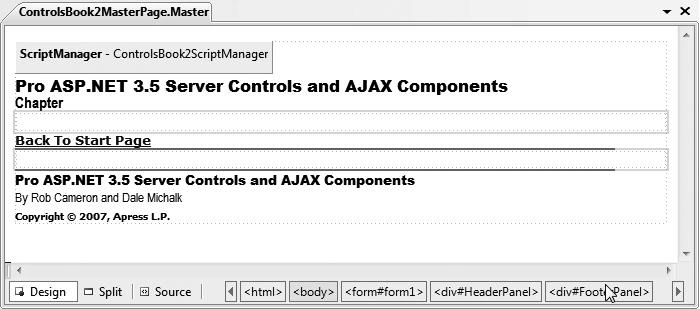
Figure 1-1. The Controls Book 2 web site's master page
Web forms added to the project can be configured to use the master page rendering at design time, like Figure 1-2.
Notice in Figure 1-2 that the master page area is grayed out (and cannot be edited) at design time in a web content form. The design-time view displays the master page HTML and the web content form HTML, providing a more accurate view of the rendered web form. Listings 1-1 and 1-2 show the master page source page and code-behind file.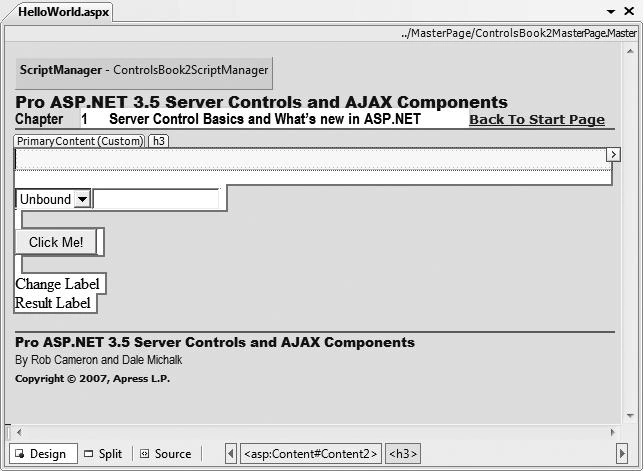
Figure 1-2. The Controls Book 2 web site's master page displayed in a web content form
Listing 1-1. The ControlsBook2 Master Page File
<%@ Master Language="C#" AutoEventWireup="true" CodeBehind="ControlsBook2MasterPage.master.cs" Inherits="ControlsBook2Web.MasterPage.ControlsBook2MasterPage" %><?xml:namespace prefix = o ns = "urn:schemas-microsoft-com:office:office" />
<!DOCTYPE html PUBLIC "-//W3C//DTD XHTML 1.0 Transitional//EN" "http://www.w3.org/TR/xhtml1/DTD/xhtml1-transitional.dtd">
<html xmlns="http://www.w3.org/1999/xhtml">
<head id="Head1" runat="server">
<title>Master Page</title>
<link href="../css/ControlsBook2Master.css" rel="stylesheet" type="text/css" />
<link href="../css/SkinnedControl.css" rel="stylesheet" type="text/css" />
<asp:ContentPlaceHolder ID="HeadSection" runat="server">
</asp:ContentPlaceHolder>
</head>
<body>
<form id="form1" runat="server">
<div id="HeaderPanel">
<asp:ScriptManager ID="ControlsBook2ScriptManager" runat="server">
<Scripts>
<asp:ScriptReference Path="../ch09/hoverbutton.js" />
</Scripts>
</asp:ScriptManager>
<asp:Label ID="Label2" CssClass="TitleHeader" runat="server" Height="18px"
Width="604px">Pro ASP.NET 3.5 Server Controls and AJAX Components</asp:Label>
<br />
<div id="ChapterInfo" class="Chapter">
<asp:Label ID="label1" runat="server">Chapter</asp:Label>
<asp:ContentPlaceHolder ID="ChapterNumAndTitle" runat="server">
</asp:ContentPlaceHolder>
<asp:HyperLink ID="DefaultPage" runat="server" NavigateUrl="~/Default.aspx">
Back To Start Page
</asp:HyperLink><br />
<asp:Image ID="Image1" runat="server" ImageUrl="~/img/blueline.jpg" /><br />
</div>
<asp:ContentPlaceHolder ID="PrimaryContent" runat="server">
</asp:ContentPlaceHolder>
<div id="FooterPanel">
<asp:Image ID="Image2" runat="server" ImageUrl="~/img/blueline.jpg" /><br />
<asp:Label CssClass="TitleFooter" ID="Label5" runat="server">
Pro ASP.NET 3.5 Server Controls and AJAX Components</asp:Label><br />
<asp:Label CssClass="Author" ID="Label6" runat="server">
By Rob Cameron and Dale Michalk</asp:Label><br />
<asp:Label CssClass="Copyright" ID="Label7" runat="server">
Copyright 2007, Apress L.P.</asp:Label>
</div>
</div>
</form>
</body>
</html>
Listing 1-2. The ControlsBook2MasterPage Master Page Code-Behind Class File
using System;
namespace ControlsBook2Web.MasterPage
{
public partial class ControlsBook2MasterPage : System.Web.UI.MasterPage
{
protected void Page_Load(object sender, EventArgs e)
{
}
}
}
In the master page for the Controls Book 2 web site, the chapter number and chapter title have ContentPlaceHolder placeholder tags to allow content pages to update the chapter number and title.
Each web form sets values for the chapter title and number by simply placing the value in the corresponding Content tag in the content page. This is a simple example of providing a consistent user interface in a web site, but still allowing customization.
Tip ASP.NET User Controls are still present in ASP.NET 3.5. In fact the MasterPage class inherits from the UserControl class.
The resulting arrangement is shown in Figure 1-3 with a DropDownList control, a TextBox control, two Label controls, and a Button control. The resulting source code generated by Visual Studio 2008 is shown in Listings 1-3 and 1-4.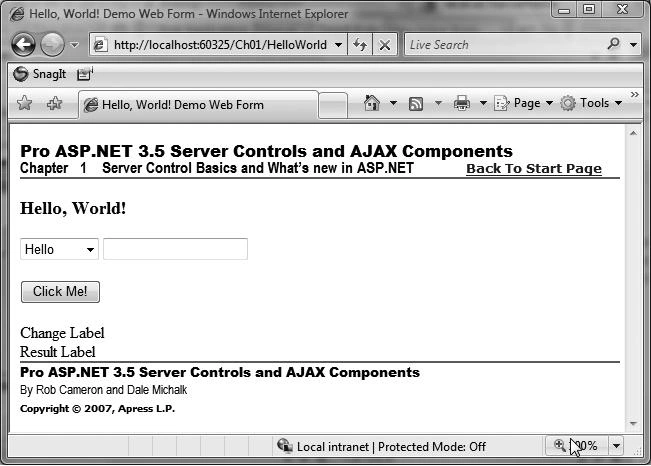
Figure 1-3. The HelloWorld server control web form
Listing 1-3. The HelloWorld Demo Web Form .aspx File
<%@ Page Language="C#" MasterPageFile="~/MasterPage/ControlsBook2MasterPage.Master" AutoEventWireup="true" CodeBehind="HelloWorld.aspx.cs" Inherits="ControlsBook2Web.Ch01.HelloWorld"
Title="Hello, World! Demo Web Form" %>
<asp:Content ID="Content1" ContentPlaceHolderID="ChapterNumAndTitle" runat="server">
<asp:Label ID="ChapterNumberLabel" runat="server"
Width="14px">1</asp:Label> <asp:Label
ID="ChapterTitleLabel" runat="server" Width="360px">
Server Control Basics and What's new in ASP.NET</asp:Label>
</asp:Content>
<asp:Content ID="Content2" ContentPlaceHolderID="PrimaryContent" runat="server">
<h3><asp:Label ID="Label1" runat="server" Text= "Hello, World!"></asp:Label></h3>
<asp:DropDownList ID="Greeting" runat="server" ToolTip="Select a greeting">
</asp:DropDownList>
<asp:TextBox ID="Name" runat="server" Font-Italic="True" ToolTip="Enter your name"
OnTextChanged="Name_TextChanged"></asp:TextBox><br />
<br />
<asp:Button ID="ClickMe" runat="server" Text="Click Me!"
OnClick="ClickMe_Click"></asp:Button><br />
<br />
<asp:Label ID="ChangeLabel" runat="server">Change Label</asp:Label><br />
<asp:Label ID="Resultlabel" runat="server">Result Label</asp:Label>
<br />
</asp:Content>
Listing 1-4. The HelloWorld Server Control Demo Code-Behind Class File
using System;
using System.Collections;
namespace ControlsBook2Web.Ch01
{
public partial class HelloWorld : System.Web.UI.Page
{
protected void Page_Load(object sender, EventArgs e)
{
ArrayList list = new ArrayList();
list.Add("Hello");
list.Add("Goodbye");
Greeting.DataSource = list;
Greeting.DataBind();
}
protected void ClickMe_Click(object sender, EventArgs e)
{
Resultlabel.Text = "Your new message: " + Greeting.SelectedItem.Value +
" " + Name.Text + "!";
}
protected void Name_TextChanged(object sender, EventArgs e)
{
ChangeLabel.Text = "Textbox changed to " + Name.Text;
}
}
}
The server controls on our "Hello, World" web form (specifically, the Label, TextBox, and DropDownList objects) render as HTML and, for the TextBox control, remember what is typed in the control between postback cycles. The HTML rendered to the browser is backed by powerful objects that can be wired up to programming logic to perform useful work on the web server. During server-side processing, the object-oriented nature of server controls provides us with three main constructs to interact with controls as objects: properties, methods, and events. We discuss these constructs in the sections that follow.
Control Properties
The most common means of working with a server control is through the properties it exposes. Properties allow the control to take information from the web form to configure its output or modify its behavior in the HTML-generation process.
Note: Properties are different and more powerful than public data members. Properties provide an additional layer of abstraction through the use of get and set methods; get and set methods or function calls provide a convenient location for programming logic, such as displaying an error if a value is out of range or otherwise invalid, enforcing read-only access (implementing a get method only), and so on. Properties can be declared as public, protected, or private.
Properties are easily viewable in the Properties window available when you select a control in the Visual Studio Design view of the .aspx page. Figure 1-4 shows the Properties window when the Name TextBox is selected. Notice that the Font property has been configured to show the TextBox's Text property text in italics.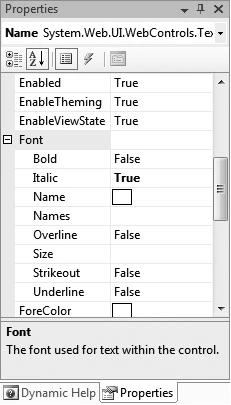
Figure 1-4. The Properties window for the TextBox control
The Visual Studio Designer translates the entries in the Properties window into attribute values on the HTML view of the .aspx page. To see this, set a property for a control in the Properties tool window and then switch to HTML view. Likewise, if you modify attribute values in the HTML view of the .aspx page, these changes will be reflected in the Designer, assuming you typed in the values correctly. This behavior can be very handy for quickly duplicating attributes between controls. Simply copy the HTML version of the attributes and then paste the HTML into the target control that you want to match the original. You can think of the Designer as a code generator that allows you to declaratively work with the look and feel of the ASP.NET application without having to write the code. As an example, the Font settings set in the Properties window for the TextBox control described previously map directly to Font attributes:
<asp:TextBox id="Name" runat="server" Font-Italic="True" ToolTip="Enter your name" OnTextChanged="Name_TextChanged">
</asp:TextBox>
The Label and TextBox controls work a little differently than most, in that the content between the opening and closing tags is controlled by the Text property:
<asp:Label id="Resultlabel" runat="server">Result Label</asp:Label>
You can also set a control's properties programmatically in the code-behind class file. The "Hello, World" demonstration sets the Text property for Label1 to a blank string each time the web form is loaded, to overwrite the Label value that is declaratively set in the .aspx page. The activity happens in a method named Page_Load that is mapped to the Page object's Load event:
protected void Page_Load(object sender, EventArgs e)
{
Resultlabel.Text = "";
ChangeLabel.Text = "";
if (!Page.IsPostBack)
{
UpdateMaster();
LoadDropDownList();
}
DataBind();
}
You can also use the properties exposed by the control to read input from the client browser during postback on the server side. The Button click event handling routine in the "Hello, World" web form reads the Text property of the TextBox control and the Value property of the SelectedItem property on the DropDownList control to display the greeting to the client of the web browser:
protected void ClickMe_Click(object sender, EventArgs e)
{
Resultlabel.Text = "Your new message: " + Greeting.SelectedItem.Value + " " + Name.Text + "!";
}
Control Methods
The second feature exposed by a server control is a collection of object methods. Functionality implemented using methods typically goes beyond the features of a property's set or get method; they usually perform a more complex action against the control. One of the best examples in ASP.NET of using methods for a server control is the data-binding process that links a control with a data source.
In the "Hello, World" web form example, the Page_Load event checks to see if the page is requested via a form postback or if it was called for the first time using HTTP GET so that the page can generate the initial HTML for the browser, creating the option list. In the postback scenario, the code to create the option list is not necessary for the DropDownList control via the LoadDropDownList() method, because the server control DropDownList1 maintains its internal option list via the web form ViewState mechanism for subsequent postback operations to the server. We cover ViewState extensively in Chapter 3.
The page's LoadDropDownList() method's first task is to create an ArrayList collection and load it with the string values "Hello" and "Goodbye". It also links the ArrayList to the DropDownList by setting the DataSource property to the ArrayList:
private void LoadDropDownList()
{
ArrayList list = new ArrayList();
list.Add("Hello");
list.Add("Goodbye");
Greeting.DataSource = list;
}
Note that we do not call the DataBind() method directly for DropDownList. Instead, we call the DataBind() method on the Page_Load handler itself. The DataBind() method of the Page class recursively calls the DataBind() methods for all its child controls that have references to a data source. In this case, when the Page class's DataBind() method is invoked, the DropDownList control data binds to the ArrayList object as shown previously.
Control Events
Events are the final constructs used for interacting with controls that we discuss in this chapter. Events provide a mechanism to notify clients of state changes inside the control. In ASP.NET, events always coincide with an HTTP POST submission back to the web server. Through the automatic postback mechanism, events in ASP.NET appear to behave very much like their counterparts in a Windows Forms application.
Note: Events provide an object-oriented mechanism for a control to communicate with other controls that care to know about state changes within that control. If events did not exist, objects would have to resort to polling to know about state changes in other objects. The asynchronous nature of events provides an elegant means for communicating between objects. Event handler methods are generally protected to the control class (the event subscriber), as it would not make sense to call event handlers outside the consuming class.
The Page class in the "Hello, World" example consumes the Click event raised by the Button to read values and sets the first Label control. The Button Click event is easy to map in the Designer by simply double-clicking the button. Double-clicking a control in Visual Studio automatically generates the default event handler for the control. In the case of the Button, it is the Click event. In addition, Visual Studio performs other housekeeping tasks, such as wiring up the event delegate exposed by the Button control to the generated method (in this case, Button1_Click) in the Page class.
Note: In the .NET Framework 2.0 and later, the concept of a partial class exists where a class can be split across multiple files. This allows Visual Studio or similar non-Microsoft tools to provide better design-time support.
Events in ASP.NET take advantage of delegates as the infrastructure for this communication among objects. In Chapter 5, we discuss how to work with events in detail.
The Properties window in the Design view of the Visual Studio Designer can help map the events from a control that don't result from double-clicking the control.
Note: Click the yellow lightning bolt icon at the top of the Properties window to filter the view to show only events exposed by a particular control.
Each available event for a control is listed on a separate line, and creating a wired up event handler is as simple as either double-clicking the blank area next to the event name to generate an event with the default naming schem(ControlName_EventName) or typing a name and pressing the Enter key. Figure 1-5 illustrates creating the event handler for the TextBox control.
The end result of using the Properties window to add the protected event handler to the Page class is a method named TextBox_TextChanged that is wired to the TextChanged event of the TextBox control. You can add code to this handling routine to announce the state change of the TextBox control by setting the Text property of the Label2 control on the web form:
protected void Name_TextChanged(object sender, EventArgs e)
{
ChangeLabel.Text = "Textbox changed to " + Name.Text;
}
Visual Studio 2008 provides much cleaner code generation when compared to Visual Studio .NET 2003. There is no longer a code region named "Web Form Designer generated code" present in the code file. Much of the boilerplate code that existed in ASP.NET 1.1 is no longer present, which makes developers' lives a bit simpler.
The result of all the not-so-hard work to this point is the browser view in Figure 1-6, which shows what happens when Rob enters his name and selects a polite greeting.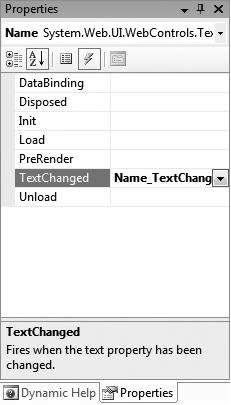
Figure 1-5. Adding an event handler to the TextChanged event of the TextBox control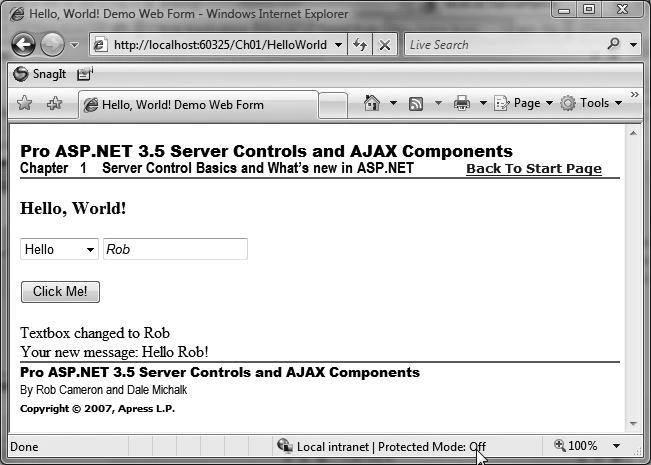
Figure 1-6. The completed "Hello, World" demonstration web form
The Web Page As a Control Tree
ASP.NET provides full programmatic access to the tags on an HTML page in an object-oriented way. The architecture in ASP.NET that provides this capability is the .aspx page control tree. In this section, we discuss the control tree as it relates to the "Hello, World" example.
At first glance, the "Hello, World" web form would seem to contain only a few visible server controls that were explicitly placed on the form. The reality is that the entire display surface of the .aspx page becomes a cornucopia of controls during processing. Any HTML content in the web form that is not part of the server controls laid out in the Visual Studio Designer is packaged into a server control that renders the HTML. The control structure of the web form can be seen by turning on the trace features of ASP.NET through setting the Trace=True attribute on the Page directive:
<%@ Page Language="C#" Trace="true" MasterPageFile="../Master Page/ControlsBook2MasterPage.master" AutoEventWireup="true" CodeFile="HelloWorld.aspx.cs" Inherits="Ch01_HelloWorld" Title="Ch01 Hello World!" %>
You no longer need to make sure that tracing is enabled in the <trace> XML element inside of the web.config configuration file for the web application with .NET Framework 2.0 and later. However, if you wish to enable and customize the trace functionality, you have to paste the element within the <system.web> element of the web.config file for the application:
<trace
enabled="true"
requestLimit="10"
pageOutput="false"
traceMode="SortByTime"
localOnly="true"
/>
Figure 1-7. shows the portion of the trace output that displays the control tree for the web form.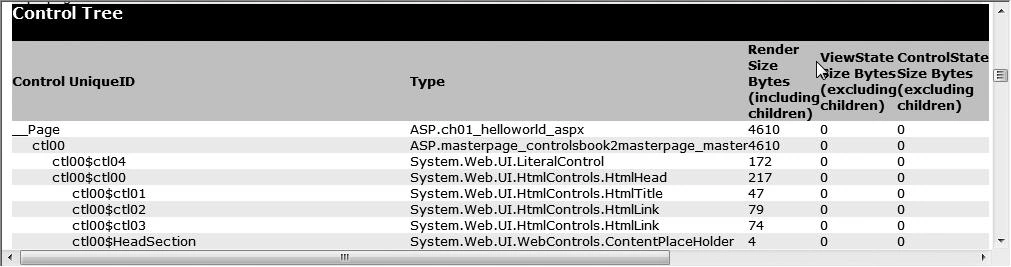
Figure 1-7. Tracing the control tree of the "Hello, World" web form
The X-ray vision into ASP.NET provided by the trace feature dissects the web form in gory detail. At the top is the Page control that represents the web form of type ASP. ch01_helloworld_aspx. Below it are the server controls that you would expect to be there: DropDownList, TextBox, Button, and Label. What you might not expect to see are the HtmlForm, DataBoundLiteralControl, and LiteralControl objects in the control tree trace.
HtmlForm is responsible for representing the <form> tag on the .aspx page and providing the missing method and action properties to ensure the page is always sent back to the original URL via an HTTP POST. The form server control looks like the following in the ControlsBook2MasterPage.master master page at design time:
<form id="form1" runat="server">
There isn't a form server control in HelloWorld.aspx, because it is a content page that renders within a master page, which is where the HTML form exists. At runtime in the browser, the generated HTML has this <form> tag:
<form name="aspnetForm" method="post" action="HelloWorld.aspx" id="aspnetForm">
The HtmlForm server control renders HTML with all the necessary information to post the page back to itself, as shown in the preceding line of code. This allows each control on the page to remember its previous state via the ViewState mechanism and raise the appropriate server control event.
The literal controls have the responsibility for rendering the generic text and HTML tags in the web form without much of a server-side presence. These are the flyweight classes of the ASP.NET server control framework. The literal controls pick up text or tags in the master page or .aspx page that do not have the runat="server" attribute identifying them as a server control.
The LiteralControl class is the simplest of the two shown in the control dump, because it is a pure text-in and text-out operation. Notice how the control tree picks up the <br/> tags between the other server controls as well as the closing <body> and <html> tags as LiteralControl objects. The ResourceBasedLiteralControl that was present in ASP.NET 1.1 was removed in ASP.NET 2.0. That is not a backward compatibility concern, because the class is an internally implemented class in the ASP.NET 1.1 framework that is not creatable or accessible by the programmer.
The DataBoundLiteralControl is the most complex of the literal controls, because it represents a data-binding expression like the one in the document that binds to the GetTitle() method of the Page object. It has a DataBind() method that must be called by the Page class to resolve its value, just like the DropDownList control had to read from the ArrayList data source in its DataBind() operations.
The Root Controls
The previous demonstration highlighted the server-control-centric nature of the ASP.NET web form page execution process. We now shift gears to briefly discuss where the various controls exist inside the .NET Framework and what features they provide in rendering HTML. The controls are factored into three primary namespaces in the .NET Framework: System.Web.UI, System.Web.UI.HtmlControls, and System.Web.UI.WebControls (see Figure 1-8).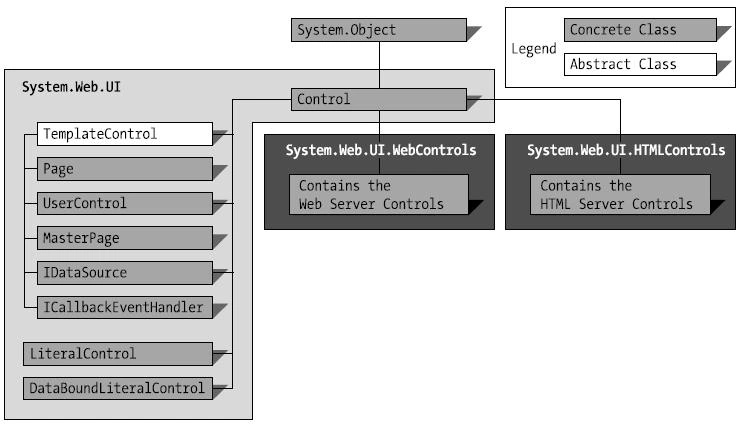
Figure 1-8. The major namespaces of ASP.NET under System.Web.UI
The System.Web.UI Namespace
At the top of the hierarchy is our first destinationthe System.Web.UI namespace and its root controls. It contains the Control class, which is the mandatory parent class for all objects that want to call themselves controls. Directly inheriting from the Control class in this namespace is a set of specialized classes that implement the web form through the Page class, the user control through the UserControl class, and the literal controls. The Page class and the literal controls are discussed in detail in the previous "Hello, World" web form demonstration. We focus in more detail on the UserControl class in the next chapter when we cover control creation.
System.Web.UI.HtmlControls Namespace
The controls under System.Web.UI.HtmlControls have the capability to take existing HTML content and make it available as a server control with the addition of a runat="server" attribute. The canonical example of this type of control is turning an HTML text box into a server control:
<input type="text" id="name" runat="server"/>
The ASP.NET parsing engine is responsible for mapping the HTML tag to the correct control type in System.Web.UI.HtmlControls when it sees this marker attribute. The preceding example adds an instance of the HtmlInputText control to the web form's control collection.
Note If you want to modify or interact with any of the literal controls on the server side, you have two options. One option is to walk the page's control tree collection to find the desired control. The other option is declare the control in the code-behind class file. In the previous input example, the declaration would look like this:
protected System.Web.UI.HtmlControls.HtmlInputText name;
Although they may look like their HTML cousins, these controls set themselves apart by remembering state, raising events, allowing themselves to be programmatically manipulated in server-side code, and providing other value-add services such as file upload when the form post has reached the Web. The full list of HTML controls available in the System.Web.UI.HtmlControls namespace is depicted in Figure 1-9.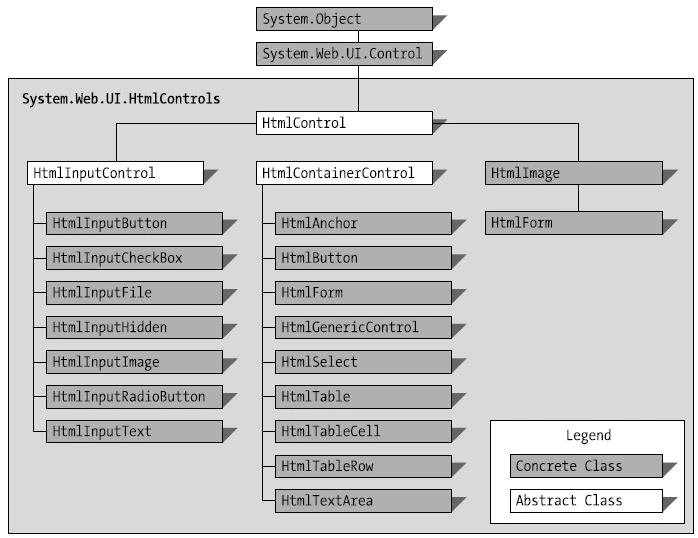
Figure 1-9. Controls in the System.Web.UI.HtmlControls namespace
Table 1-1 is useful for figuring out which of the HTML tags maps to a specific HTML control. Note that some of controls (such as the HtmlInputText control) map to multiple HTML tags on an .aspx page. For tags that do not have a specific control mapping, the HtmlGeneric control is used to represent them as a server-side control object when they have a runat="server" attribute.
Table 1-1. HTML Tags and Their HTML Server Control Counterparts
| HTML Tag | HTML Server Control |
| <form> | HtmlForm |
| <input type="text"> | HtmlInputText |
| <input type="password"> | HtmlInputText |
| <input type="radio"> | HtmlInputRadioButton |
| <input type="checkbox"> | HtmlInputCheckBox |
| <input type="submit"> | HtmlInputButton |
| <input type="hidden"> | HtmlInputHidden |
| <input type="button"> | HtmlInputButton |
| <input type="reset"> | HtmlInputButton |
| <input type="image"> | HtmlInputImage |
| <input type="file"> | HtmlInputFile |
| <button> | HtmlButton |
| <select> | HtmlSelect |
| <textarea> | HtmlTextArea |
| <img> | HtmlImage |
| <a> | HtmlAnchor |
| <table> | HtmlTable |
| <tr> | HtmlTableRow |
| <td> | HtmlTableCell |
| All other tags | HtmlGenericControl |
An HTML Controls Demonstration
To examine the System.Web.UI.HtmlControls namespace, we examine the execution of a demonstration showing the controls in action. This demonstration dynamically constructs an HTML table from X and Y coordinates that are present on the web form using the code shown in Listings 1-5 and 1-6. We discuss this code after the listings.
Listing 1-5. The HTMLControls Web Form .aspx File
<%@ Page Language="C#" MasterPageFile="~/MasterPage/ControlsBook2MasterPage.Master" AutoEventWireup="true" CodeBehind="HtmlControls.aspx.cs" Inherits="ControlsBook2Web.Ch01.HtmlControls"
Title="HTML Controls Demo" %>
<asp:Content ID="Content1" ContentPlaceHolderID="ChapterNumAndTitle" runat="server">
<asp:Label ID="ChapterNumberLabel" runat="server"
Width="14px">1</asp:Label> <asp:Label
ID="ChapterTitleLabel" runat="server" Width="360px">
Server Control Basics and What's new in ASP.NET</asp:Label>
</asp:Content>
<asp:Content ID="Content2" ContentPlaceHolderID="PrimaryContent" runat="server">
<h3>
HTML Controls</h3>
X
<input type="text" id="XTextBox" runat="server" /><br />
<br />
Y
<input type="text" id="YTextBox" runat="server" /><br />
<br />
<input type="submit" id="BuildTableButton" runat="server"
value="Build Table" onserverclick="BuildTableButton_ServerClick" /><br />
<br />
<span id="Span1" runat="server"></span>
</asp:Content>
Listing 1-6. The HTMLControls Code-Behind Class File
using System;
using System.Web;
using System.Web.UI;
using System.Web.UI.WebControls;
using System.Web.UI.HtmlControls;
namespace ControlsBook2Web.Ch01
{
public partial class HtmlControls : System.Web.UI.Page
{
protected void Page_Load(object sender, EventArgs e)
{
}
protected void BuildTableButton_ServerClick(object sender, EventArgs e)
{
int xDim = Convert.ToInt32(XTextBox.Value);
int yDim = Convert.ToInt32(YTextBox.Value);
BuildTable(xDim, yDim);
}
private void BuildTable(int xDim, int yDim)
{
HtmlTable table;
HtmlTableRow row;
HtmlTableCell cell;
HtmlGenericControl content;
table = new HtmlTable();
table.Border = 1;
for (int y = 0; y < yDim; y++)
{
row = new HtmlTableRow();
for (int x = 0; x < xDim; x++)
{
cell = new HtmlTableCell();
cell.Style.Add("font", "16pt verdana bold italic");
cell.Style.Add("background-color", "red");
cell.Style.Add("color", "yellow");
content = new HtmlGenericControl("SPAN");
content.InnerHtml = "X:" + x.ToString() +
"Y:" + y.ToString();
cell.Controls.Add(content);
row.Cells.Add(cell);
}
table.Rows.Add(row);
}
Span1.Controls.Add(table);
}
}
}
Dynamically adding controls to an existing control structure is a common way to implement web forms that vary their content and structure according to the user's input. The BuildTable() method encapsulates this dynamic functionality in this HTML controls demonstration by rendering the table when passed X and Y parameters. The variables passed in to BuildTable() are retrieved using the Value property of the HtmlInputText controls:
int xDim = Convert.ToInt32(XTextBox.Value);
int yDim = Convert.ToInt32(YTextBox.Value);
BuildTable(xDim, yDim);
The bulk of the work in this HTML controls demonstration is located in the BuildTable() method. This method starts by creating an HtmlTable control representing the outer <table> tag and then jumps into nested For loops to add HtmlTableRow controls representing the <tr> tags along with HtmlTableCell controls rendering <td> tags.
One of the more interesting sections of this routine is the cell creation and CSS styling configuration code. Once the HtmlTableCell control is created, the CSS styles are set as strings and then added to the Style property representing the cell's CSS attributes. This is a manual, string-based process that is not helped by any type or enumeration from the System.Web.UI.HtmlControls namespace:
cell = new HtmlTableCell();
cell.Style.Add("font", "16pt verdana bold italic");
cell.Style.Add("background-color", "red");
cell.Style.Add("color", "yellow");
After the styling is set, the cell adds an HtmlGenericControl representing a <span> tag to its control collection. The HtmlGenericControl's InnerHtml, or content, is then set to the X and Y values for the cell. The result is that the <span> tag is nested in the table cell's <td> tag. The final step in the process is to add the cell to its parent row:
content = new HtmlGenericControl("SPAN");
content.InnerHtml = "X:" + x.ToString() + "Y:" + y.ToString();
cell.Controls.Add(content);
row.Cells.Add(cell);
The HTML rendered in the browser client shows the direct insertion of the CSS attributes into the <td> tag and the HtmlGenericControl production of the <span> content:
<td style="font:16pt verdana bold italic; background-color:red;color:yellow;">
<span>X:0Y:0</span>
</td>
Figure 1-10 shows the output of all this work. When the page initially loads, the red and yellow table is not present. Once values are entered for X and Y, in this case 3 and 3, clicking the Build Table button results in the page shown in Figure 1-10.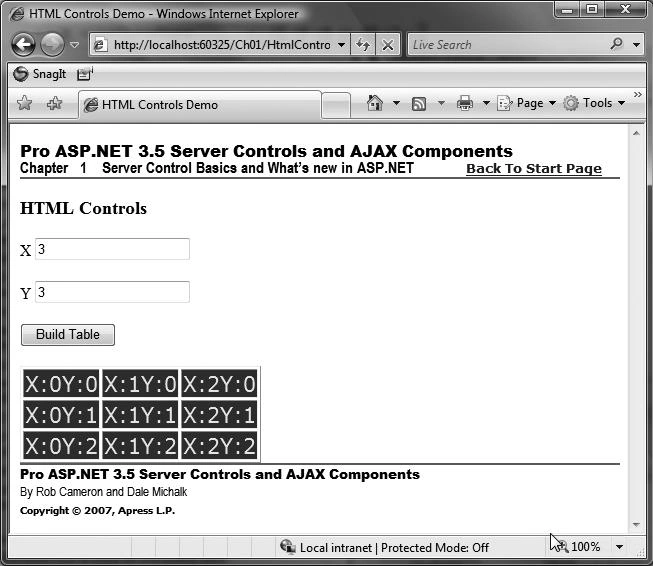
Figure 1-10. Output from the HTML Controls web form
The System.Web.UI.WebControls Namespace
Like the HTML controls in the previous section, the web controls occupy a separate namespace in the .NET Frameworknamely, System.Web.UI.WebControls. Figure 1-11 shows the graphical breakdown of the namespace and the myriad server control objects available.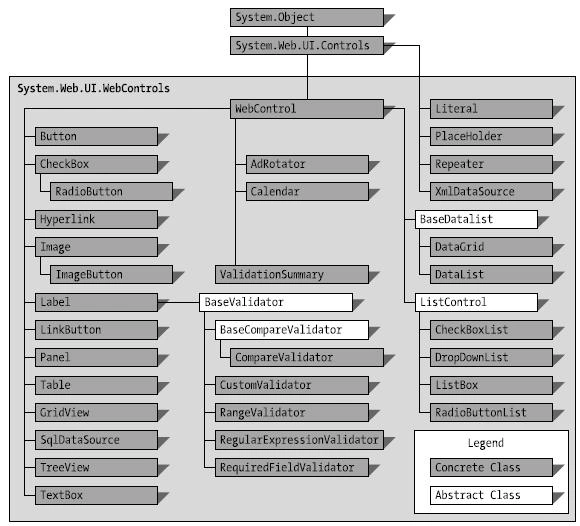
Figure 1-11. Controls in the System.Web.UI.WebControls namespace
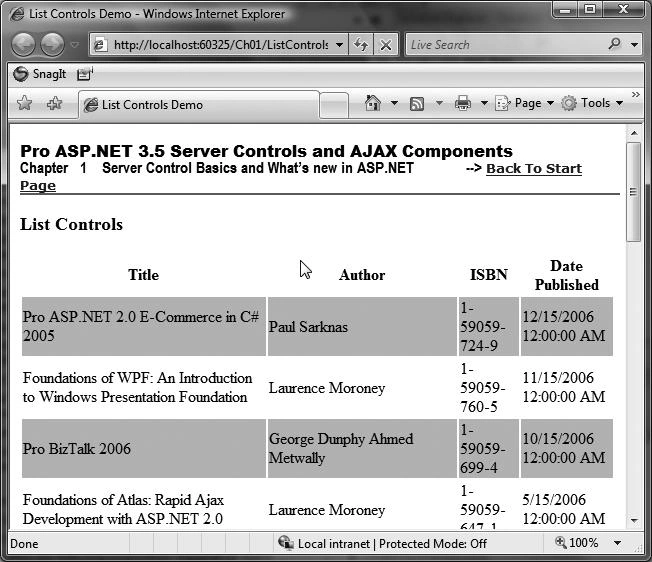
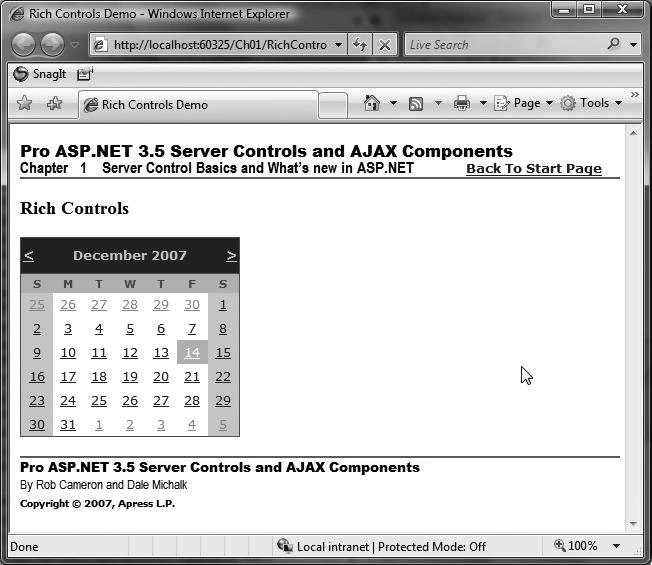
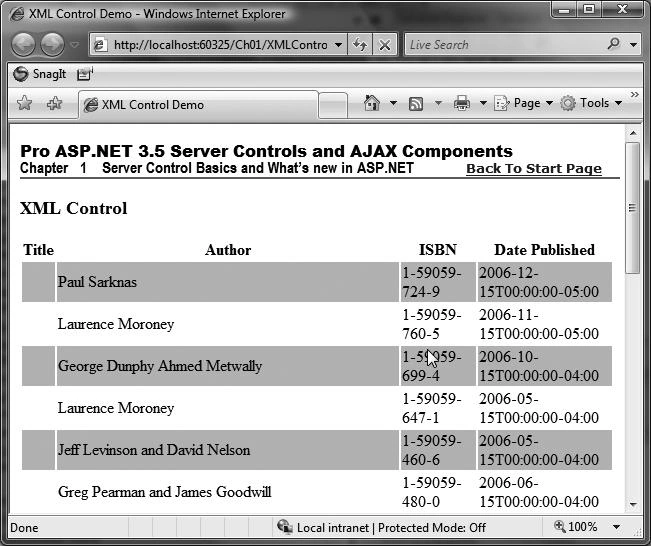
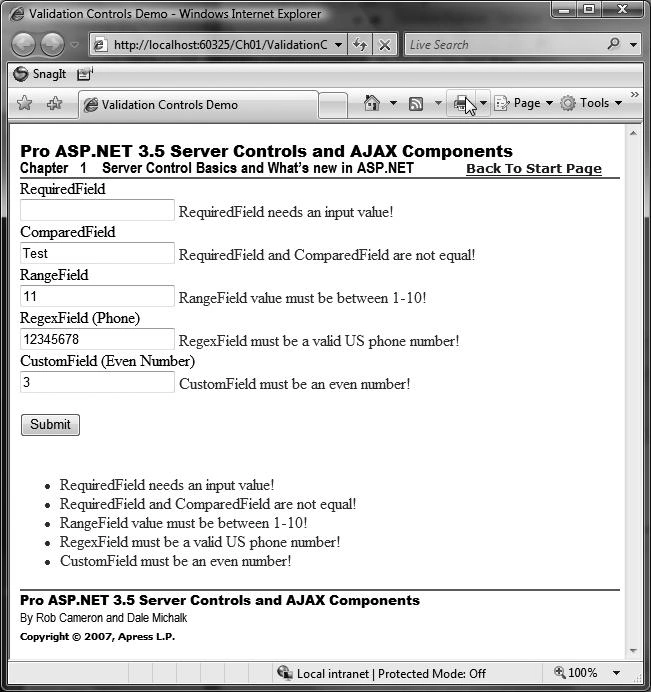
The controls under the System.Web.UI.WebControls namespace are grouped into a few primary categories:

Join the conversation! Your thoughts help the community grow.