

In this article, let's see how to create a simple character matching game, using Windows Universal app. We will create our own game and have fun with Windows phone, using Universal app development.

Windows Universal Application
If we want an application, which needs to be run in any Windows device, for example Windows Phone, Windows 8 or Windows 10 operating system, we can develop a single application, which can be run in any Windows device, using Windows Universal Application.
What is a Character Matching Game?
Character Matching game is a game where a user can click 2 buttons one by one. If both the first clicked and second clicked button have the same character, then he won one time and if he/she wins continuously for 3 times, then he/she is very good in the puzzle game. If he/she clicked different characters from the first and second button, then he/she loses the game. There is no limit to playing the game, we can play any number of times. This game has 4 major rules:
- Clicked first button and second button Character match - Won the game and continue to play more times.
- Clicked first button and second button character do not match – Loses the game and continue to play more times.
- Clicked first button and second button Character match and if he/she won continuously 3 times, then he’s a genius in this game and continues to play more times.
- To shuffle the button text and start a new game, click on “Start New Game” button.
Prerequisites
Note
This example was been developed, using Windows 8.1 operating system. The same Application can be used for Windows 10 operating system.
Code part
Step 1
After installing both Visual Studio 2015 Windows Phone Emulators, click Start. Choose Programs and select Visual Studio 2015 - Click Visual Studio 2015.
Click New, followed by Project and select Visual C# >Select Windows 8 > Select Blank app (Universal Windows 8.1).
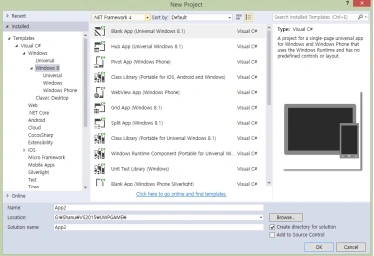
Select your project location path and give the name for your UWP app and click OK.
Adding controls depends on your requirements, and write your first code to display your output. In this example, we have used a Textblock (Textblock is similar to a Label control), button and a Grid control.
The Grid control is the main thing, since we will add buttons dynamically to the Grid whenever the user clicks on the “Start New Game” button.
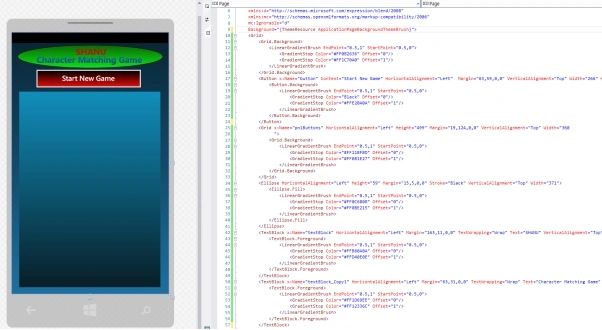
To display the message box, we need to import, using Windows.UI.Popups.
Public variable
- Each variable has been commented with its uses.#region Fields
- // for creating buttons at runtime
- Button[] puzzleButtons;
- //to compare the previous click charater with new click
- Button oldButton;
- Button newButton;
- string oldChar = "";
- string newChar = "";
- //Counter varibale to check the result
- int clickCount = 0;
- int ansCount = 0;
- int totalClickCount = 0;#
- endregion
In the new game, click button and we will check for the total characters. Add the buttons dynamically to the grid. For the dynamically added buttons, we will create a click event to check each result of the button, which is clicked with previous and latest button click.
- private void button_Click(object sender, RoutedEventArgs e) {
- // to shuffle the character and reorder the characters for new Puzzle Game start
- string namePuzzle = "AZCHIJSARBQCNSKZDIFBOHCRQFEGLM";
- Random rnd = new Random();
- string findmyNameChar = new string(namePuzzle.ToCharArray().OrderBy(s => (rnd.Next(2) % 2) == 0).ToArray());
- //reset the game and to start new;
- oldChar = "";
- newChar = "";
- clickCount = 0;
- ansCount = 0;
- totalClickCount = 0;
- //to create dynamic buttons
- int xVal = 4;
- int yVal = 10;
- int boxWidth = (Convert.ToInt32(pnlButtons.Width) / 4) - 20;
- int boxHeight = 60;
- pnlButtons.Children.Clear();
- puzzleButtons = new Button[findmyNameChar.Length];
- int column = 0;
- int rows = 0;
- //Create buttons and add to grid at runtime
- for (int i = 0; i < findmyNameChar.Length; i++) {
- puzzleButtons[i] = new Button();
- puzzleButtons[i].Name = findmyNameChar[i].ToString() + i.ToString();
- puzzleButtons[i].FontSize = 16;
- puzzleButtons[i].Background = new SolidColorBrush(Windows.UI.Colors.OrangeRed);
- puzzleButtons[i].Foreground = new SolidColorBrush(Windows.UI.Colors.Black);
- puzzleButtons[i].Content = ""; // findmyNameChar[i].ToString();
- puzzleButtons[i].HorizontalAlignment = HorizontalAlignment.Left;
- puzzleButtons[i].VerticalAlignment = VerticalAlignment.Top;
- puzzleButtons[i].Margin = new Thickness(xVal, yVal, 0, 0);
- puzzleButtons[i].Click += new RoutedEventHandler(puzzleButton_Click);
- // puzzleButtons[i].Width = 20;
- puzzleButtons[i].Height = boxHeight;
- pnlButtons.Children.Add(puzzleButtons[i]);
- xVal = xVal + boxWidth + 10;
- column = column + 1;
- if (xVal + 100 >= pnlButtons.Width) {
- rows = rows + 1;
- column = 0;
- xVal = 4;
- yVal = yVal + boxHeight + 24;
- }
- }
- }
Note
To use the message box, here we have to use the async in our button click event.
- private async void puzzleButton_Click(object sender, RoutedEventArgs e) {
- // we store the currently clicked button
- Button puzzleButton = (Button) sender;
- //If the currently clicked button already clicked we give the message to click other button to play game.
- if (puzzleButton.Content != null) {
- MessageDialog msgbox2 = new MessageDialog("You have already clicked this !Kindly click another puzzle button :)", "Warning");
- await msgbox2.ShowAsync();
- return;
- }
- //first we increment the value to check the first and secound clicked character
- clickCount = clickCount + 1;
- //we get the clicked button character and display in button
- string clickedChar = puzzleButton.Name[0].ToString();
- puzzleButton.Content = clickedChar;
- //If user clikced for first time we store the button clicked character informaiton
- if (clickCount == 1) {
- oldChar = clickedChar;
- oldButton = (Button) sender;
- newChar = "";
- } else if (clickCount == 2) //If the user click for the second time we store the latest button clicked information
- {
- clickCount = 0;
- newChar = clickedChar;
- newButton = (Button) sender;
- //we compare both previous and newly clicked button character and if both match we vie the message as correct.
- if (oldChar == newChar) {
- totalClickCount = totalClickCount + 1;
- ansCount = ansCount + 1;
- // if user correctly clickt the answer continuously 3 time we give him congrats msg with as he's genius in this game.
- if (ansCount == 3) {
- ansCount = 0;
- MessageDialog msgbox2 = new MessageDialog("Wow you did 3 time and you are the genius now :)", "Congrats");
- await msgbox2.ShowAsync();
- } else {
- MessageDialog msgbox2 = new MessageDialog("Its perfect :)", "Congrats");
- await msgbox2.ShowAsync();
- }
- } else {
- //If we not both the previous and presnt button has same character we give sorry try again message to the user and clear the data to play again.
- newButton.Content = "";
- oldButton.Content = "";
- if (ansCount > 0) {
- ansCount = ansCount - 1;
- // ansCount = 0;
- }
- MessageDialog msgbox2 = new MessageDialog("Sorry !Try Again :(", "Try Again");
- await msgbox2.ShowAsync();
- }
- }
- }
- // This is just a sample script. Paste your real code (javascript or HTML) here.
- if ('this_is' == /an_example/) {
- of_beautifier();
- } else {
- var a = b ? (c % d) : e[f];
- }
Select Emulator and click run. Here, I have used Emulator 10.0.10 UVGA 4 inch.
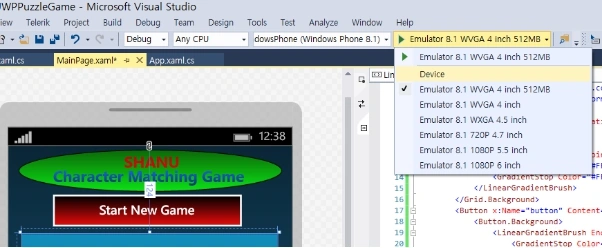
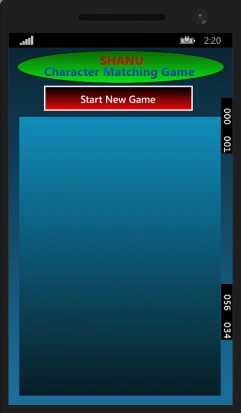
When we run the app, we can see our program will be running in Emulator.
Start New Game
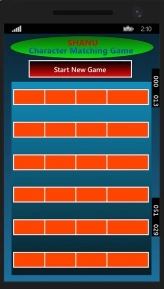
Click Start New Game button to start our game. Afterwards, click this button. We can see buttons will be created on our grid dynamically. The button text will be empty, as we need to find the matching characters of any 2 buttons.
Correct Answer
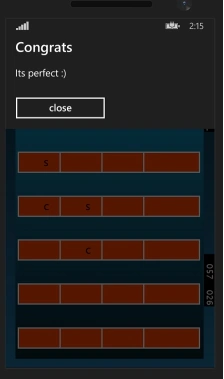
If the member clicks the first button and second button has the same character, we can see the Congrats message, as shown below.
Genius Player
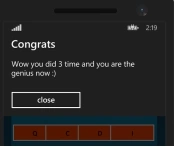
If user continuously wins 3 times, then he/she is the genius of this game.
Wrong Answer
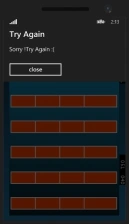
If the user clicks first and second button, and it doesn’t have the same character, then he/she loses the game and can play again.
Warning Message
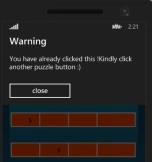
If the user clicks the same button already selected as an answer, then he/she can’t click on the same button. The app will give the message to click other buttons to play the game.
Hope, you liked Windows Mobile Character Matching game. Download it and have try by yourself. If you have any questions, kindly leave a comment.
Anu VPosted Nov 21, 2016, 12:27 AM
Nice article.. Thanks for sharing.