

Introduction
This article demonstrates checkbox in Android using Xamarin.Forms. Xamarin is a platform that allows us to create a multi-platform app for Android, Windows, or iOS through a single integrated development environment (IDE). And with Xamarin.Forms, the interface design for all three platforms can be accomplished within its XAML-based standard, native user-interfaces control.
Android Output

Step 1
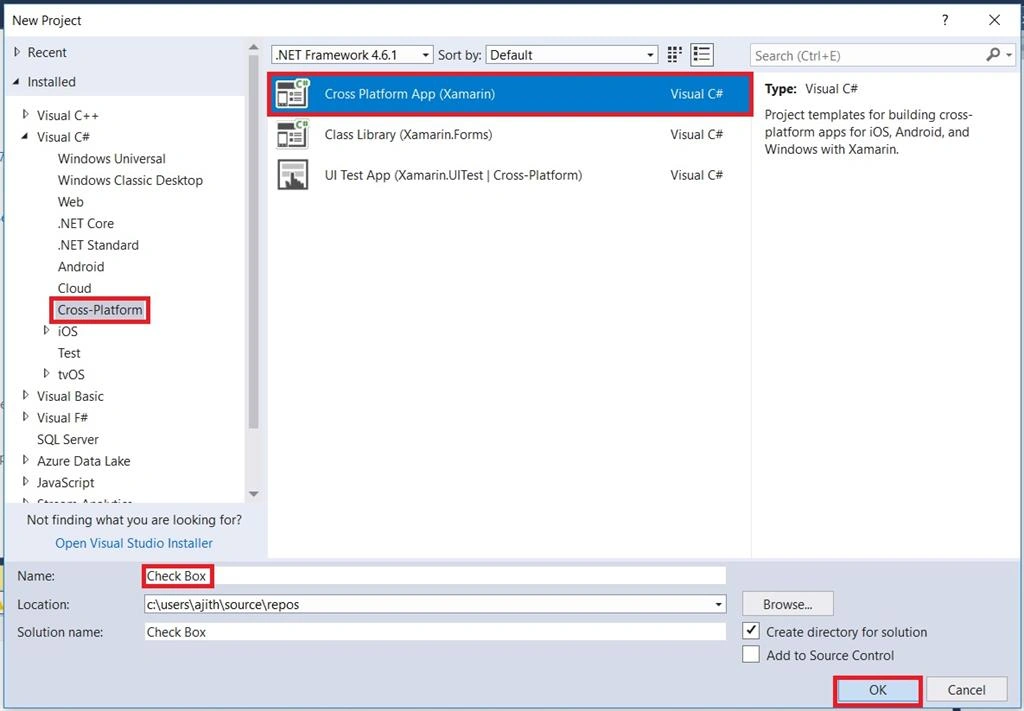
Open Visual Studio and go to New Project >> Installed >> Visual C# >> Cross-Platform. Select Cross-Platform app, then give the project a name and location, and click "OK" button.
Step 2
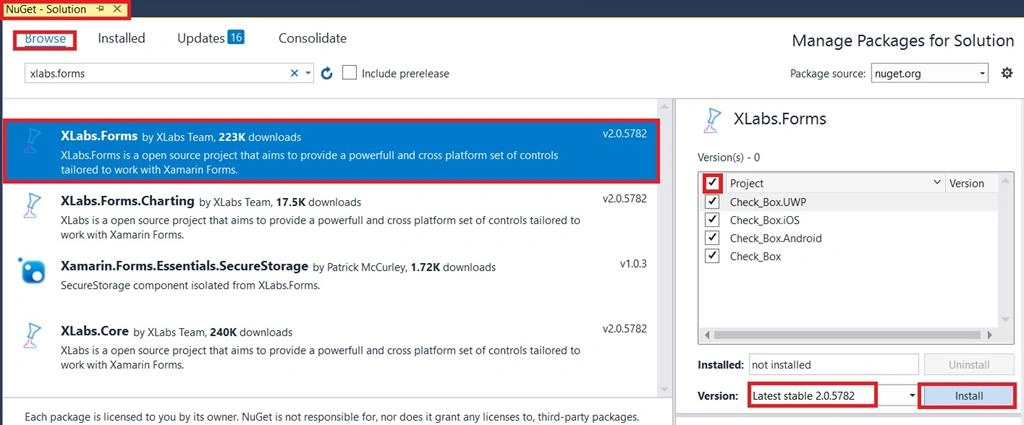
After project creation, add the following Nuget Packages to your project.
- Xlab.Forms
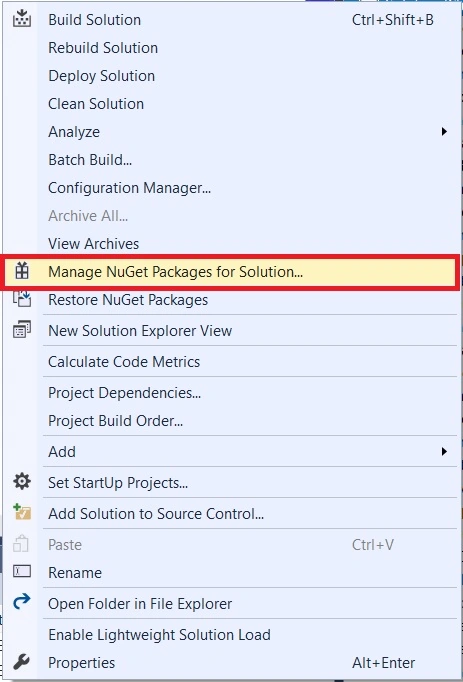
Go to Solution Explorer and select your Solution. Right-click and select "Manage NuGet Packages for Solution".
Now, select the following NuGet Package and select your project to install it.
Step 3
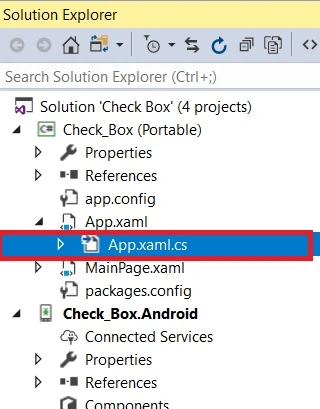
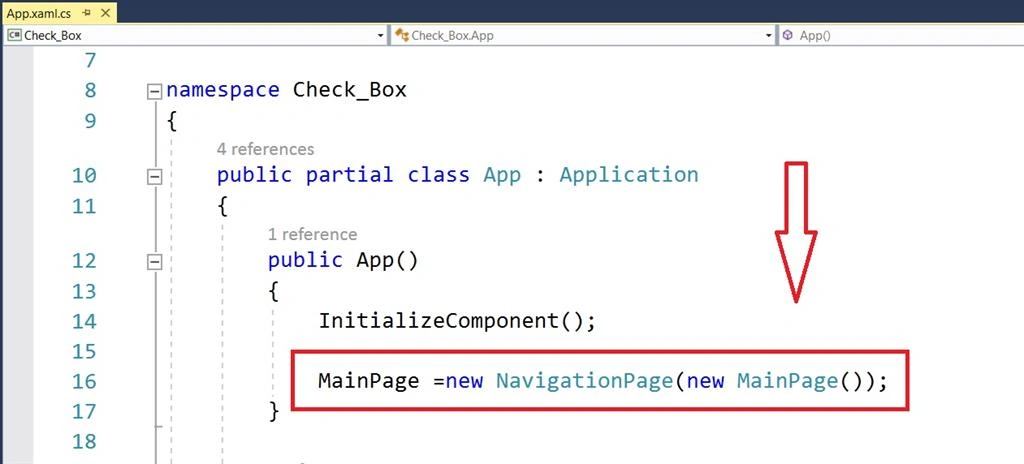
Open Solution Explorer >> Project Name (Portable) >>App.xaml.cs >> Double click. It will open the design view of this page.
The code is given below; just copy it.
C# Code
- using System;
- using System.Collections.Generic;
- using System.Linq;
- using System.Text;
- using Xamarin.Forms;
- namespace Check_Box
- {
- public partial class App : Application
- {
- public App()
- {
- InitializeComponent();
- MainPage =new NavigationPage(new MainPage());
- }
- protected override void OnStart()
- {
- // Handle when your app starts
- }
- protected override void OnSleep()
- {
- // Handle when your app sleeps
- }
- protected override void OnResume()
- {
- // Handle when your app resumes
- }
- }
- }
Step 4
Next, add an image to Solution Explorer >> Project Name.Android >> Resources >> Right-Click >> Ddrawable >> Add >> Existing Item.
When you click an existing item button, it opens a dialogue box.
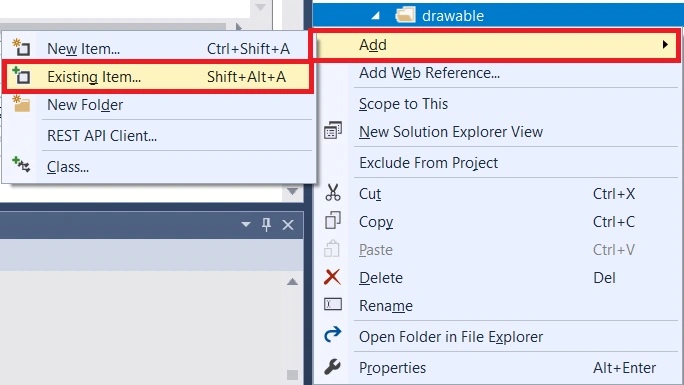
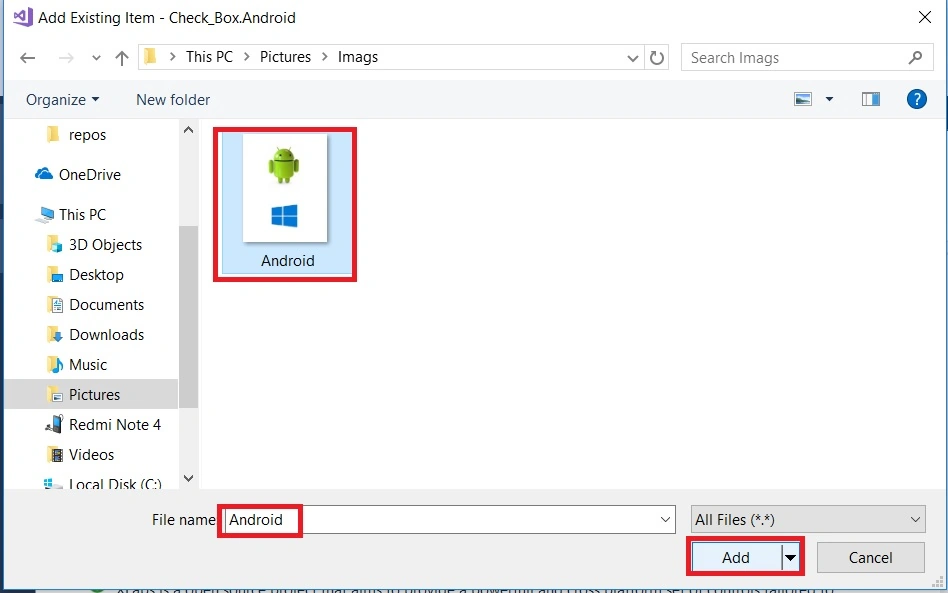
Choose image location and add images.
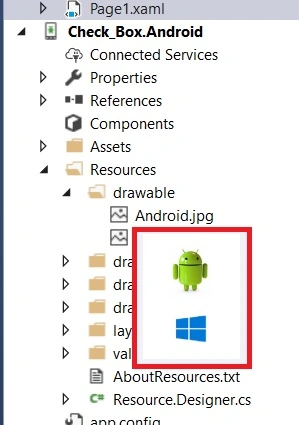
The image is added successfully. Then move the cursor to that image and verify the image.
Step 5
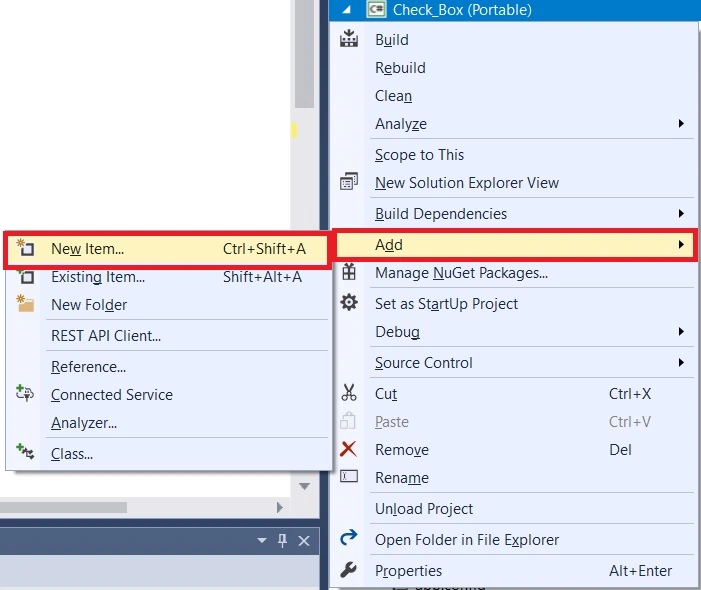
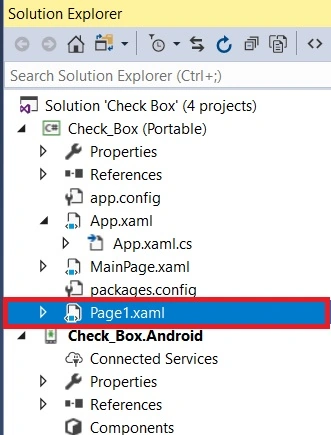
Now, Open the Solution Explorer >> Project Name (Portable) >> Right-Click >> Add >> New Item or ctrl+Shift+A.
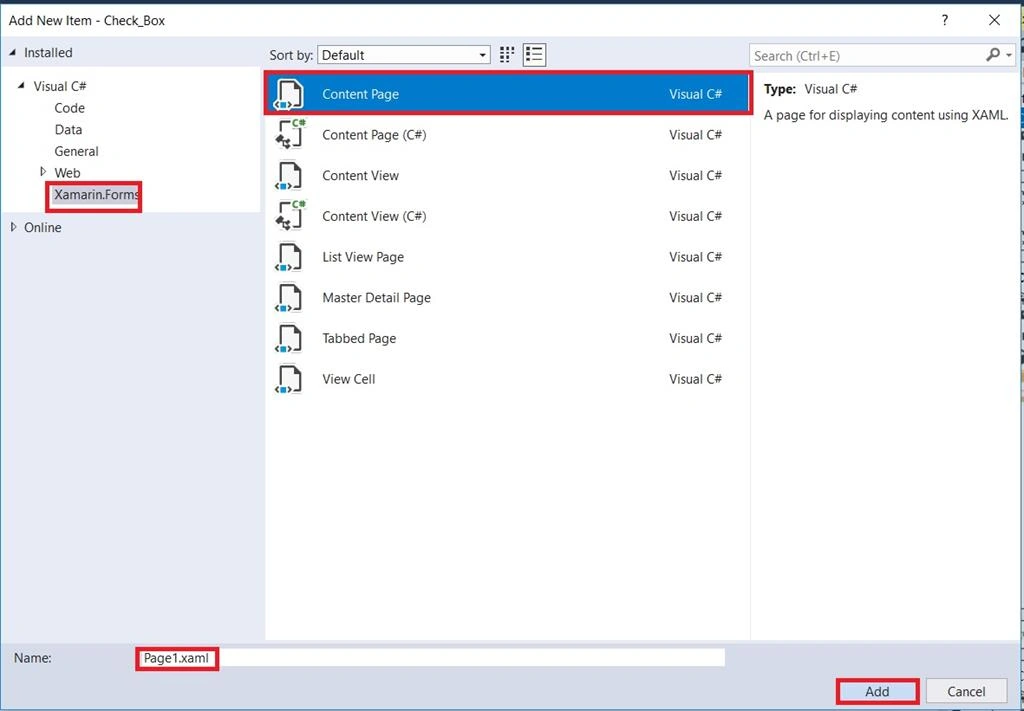
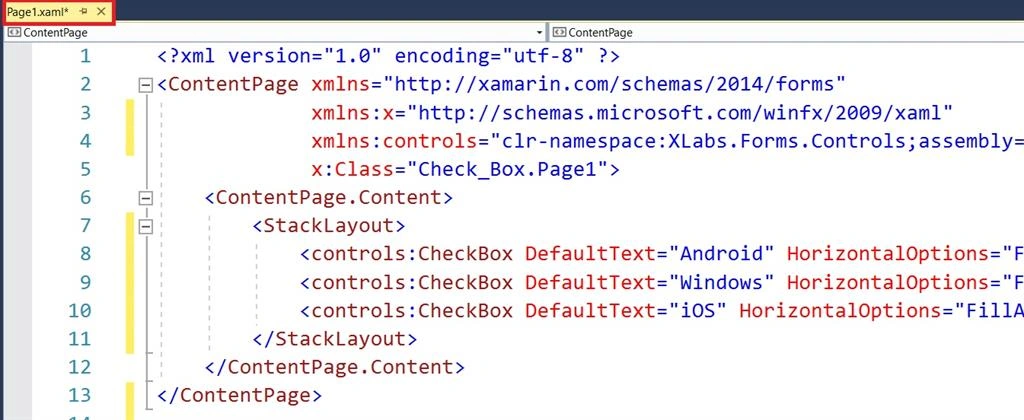
A new dialogue box will open. Now, add the XAML page and give it a name. Click the "Add" button. The XAML page name is "Page1".
Step 6
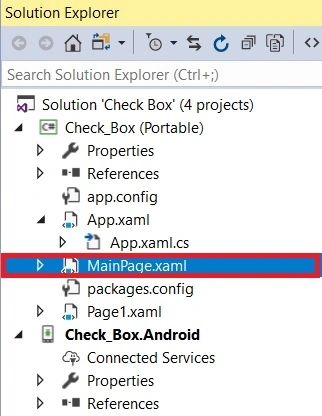
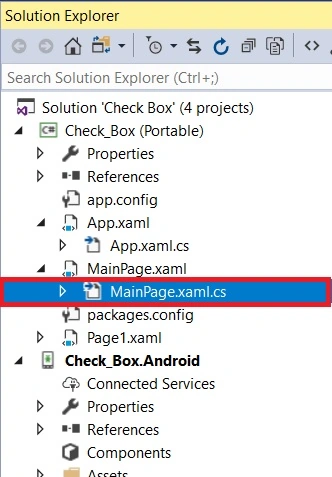
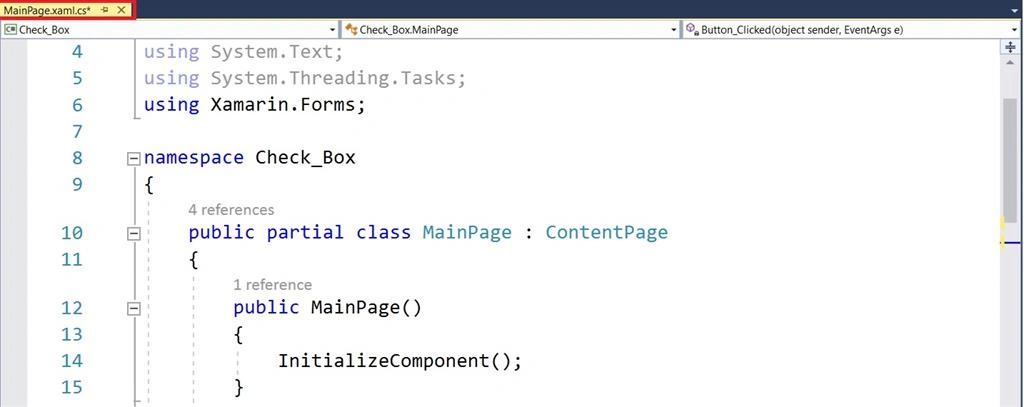
Open Solution Explorer >> Project Name (Portable) >> MainPage.xaml. Double click for opening the design view of this page.
The code is given below just copy it.
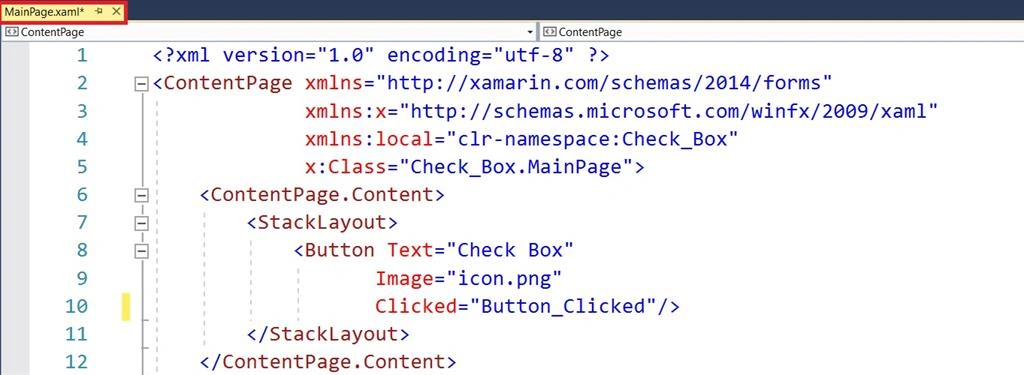
Xaml Code
We are creating a button image inside the stacklayout and button name is "Check Box" and using clicked event.

Ádám FehérPosted Jun 16, 2019, 4:02 AM
Good. But how to handle checked changed event
Akash SSPosted Jun 12, 2019, 1:22 AM
How to get checkbox values on button click
jneid charbelPosted Nov 13, 2018, 3:01 AM
Hi can you show me how are you able to add the Xlabs.Forms in nuget manager and this Plugins require .net framework 4.6.1 or higher , i'm facing a problem with adding this plugin to my solution which using .Net Standard 2.0 . any help please ?
Ashish ChristianPosted Jul 24, 2018, 6:54 AM
Nice Article..
Viknaraj ManogararajahPosted Jul 23, 2018, 11:34 AM
Nice article....