

Introduction
Service Principal Names (SPNs) are critical for enabling applications to authenticate and access resources within Azure Entra ID. Monitoring the expiration dates of SPNs is essential for maintaining security and functionality in your Azure environment. This guide will demonstrate how to check SPN expiration dates using the Azure portal, ensuring the smooth operation of your Azure-based applications and services.
Prerequisites
Prior to accessing Entra ID, it is essential to ensure that the user's SOAP account has the necessary access to Entra ID. If the SOAP account lacks access to Entra ID, it's necessary to engage with the CoS team to grant the required access.
Steps to check SPN Expiration date
Sign in to the Azure Portal
- Open a web browser and navigate to the Azure Portal
- Sign in with your Azure Account Credentials.
Navigate to Microsoft Entra ID
- In the Azure Portal, Search for Microsoft Entra ID.
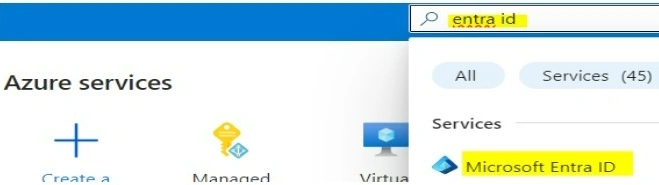
- In Azure Portal Click on Microsoft Entra ID, then will load the overview page
Access App registrations
In the Entra ID menu, Click on App Registrations under the Manage Section.
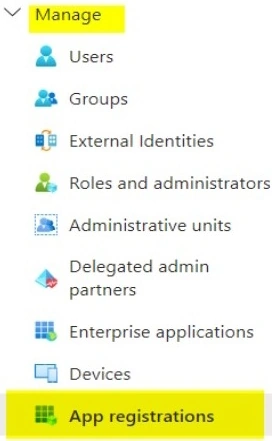
Search for the SPN
- Use the search bar to find the SPN you want to check the expiration date.
- Click on the SPN from the search results to open its overview page.
Check expiration date
Click Certificates and Secrets under the manage section, then in client secrets, you can see the expiration date of the SPN.

Note the expiration date
Make a note of the expiration date for further action, such as renewal or updating.
Join the conversation! Your thoughts help the community grow.