Introduction
This article explains how to implement CI/CD (Continuous Integration and Continuous Delivery) for a simple Azure function app using Atlassian Bamboo.
Bamboo does continuous delivery of the project from source code to deployment. It has stages including Build, Test and Deploy.
In this article we will discuss
Bitbucket as the Git repository, but you can use any other Git repository (Like TFS Git) for source control of the code.
We will follow the below steps during this article:
- Create Azure function app using Visual Studio
- Create Bitbucket cloud remote repository and push the project source code
- Create the Azure function app in Azure
- Configure a Bamboo build plan
- Configure a Bamboo deployment project
- Test the function app
Pre-requisites (Environment Details)
- Azure subscription
- Bamboo Server
- Bitbucket, TFS git or any other Git Remote Repository
- Visual Studio 2017/2019
- Git for Windows
Create Azure function app using Visual Studio
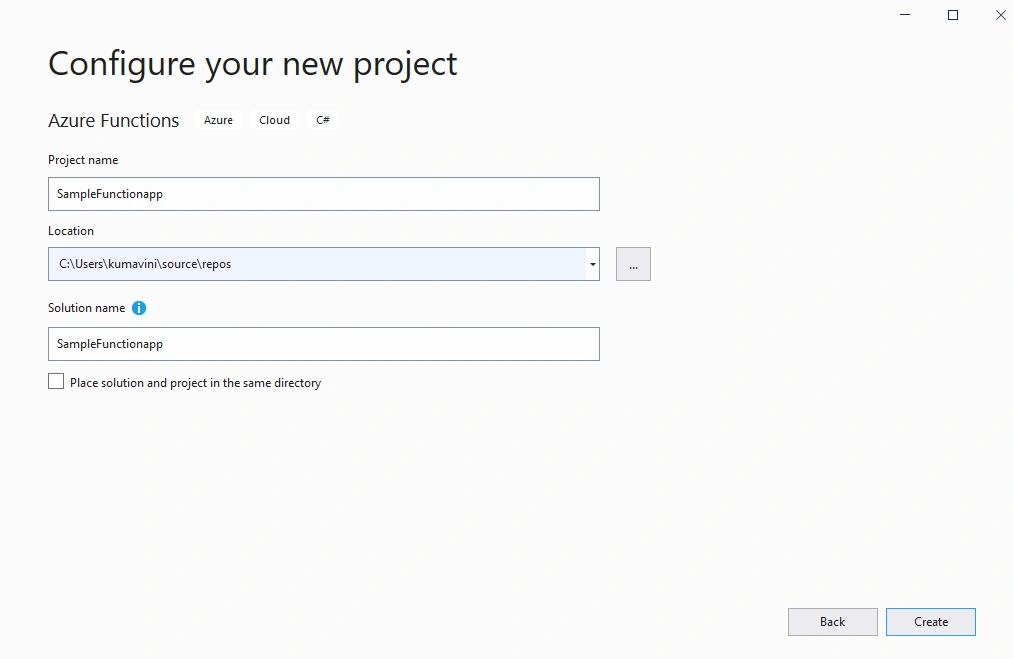
Open Visual Studio, click on Create Project, choose Azure Function app template.
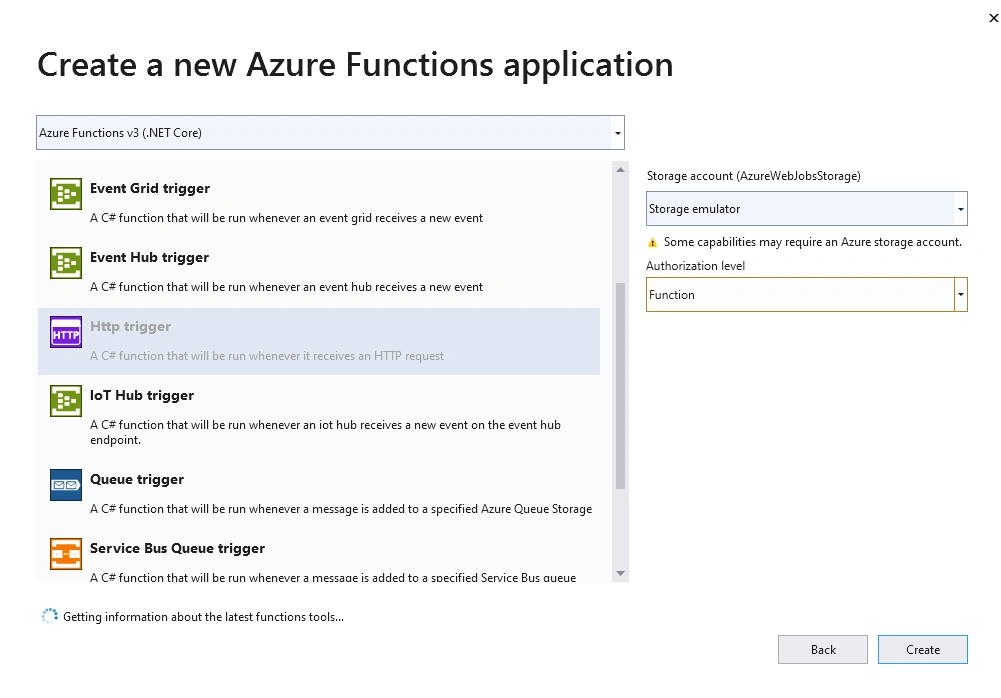
Click on “Create” button, it will redirect to the below screen.
Select the “Http trigger” function and click the “Create” button, it will generate the function app project in Visual Studio.
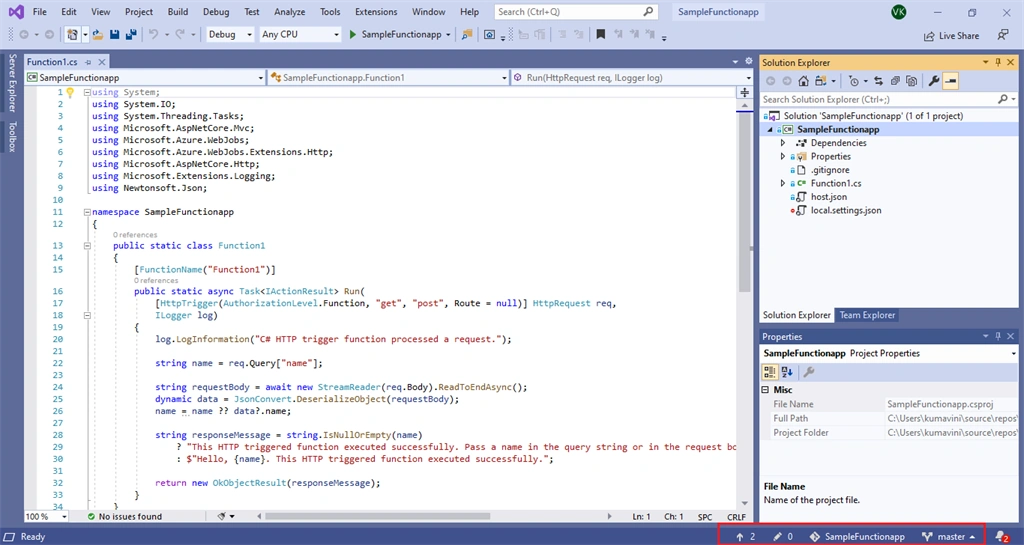
Click on the bottom right corner “Add to source Control." If you have
Git for Windows Installed it will add the project to git as shown in the below image.
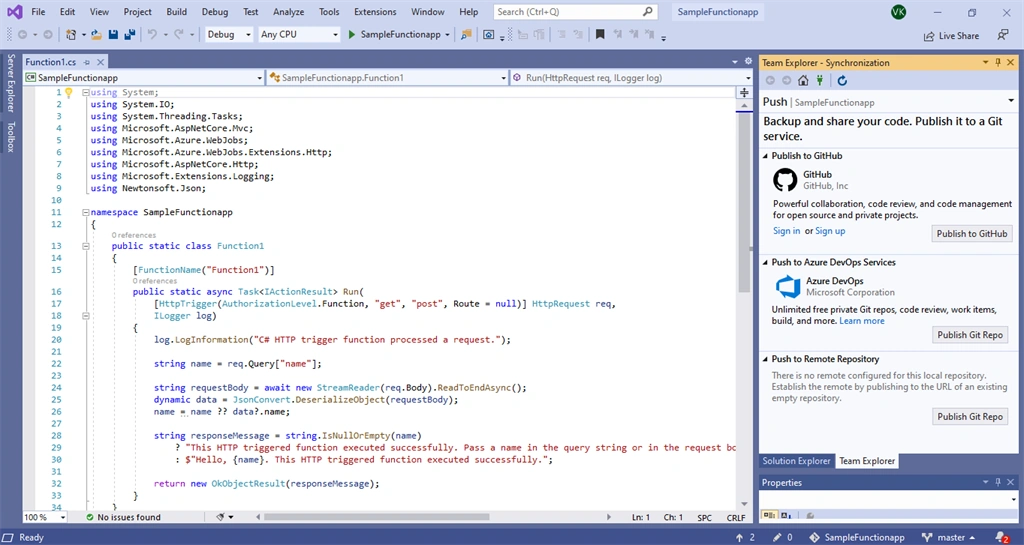
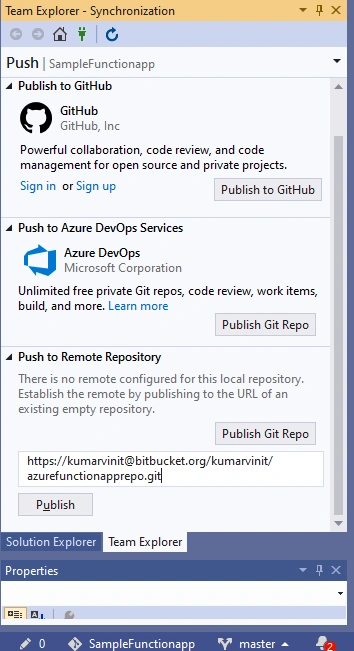
Click on “Team Explorer” tab, it will have the following option to push the code to Remote Repositories.
Depending on your Git remote repositories you can push the code. In this article we will be using Bitbucket Cloud Git Repository.
Create Bitbucket cloud remote repository and Push the Project Source Code
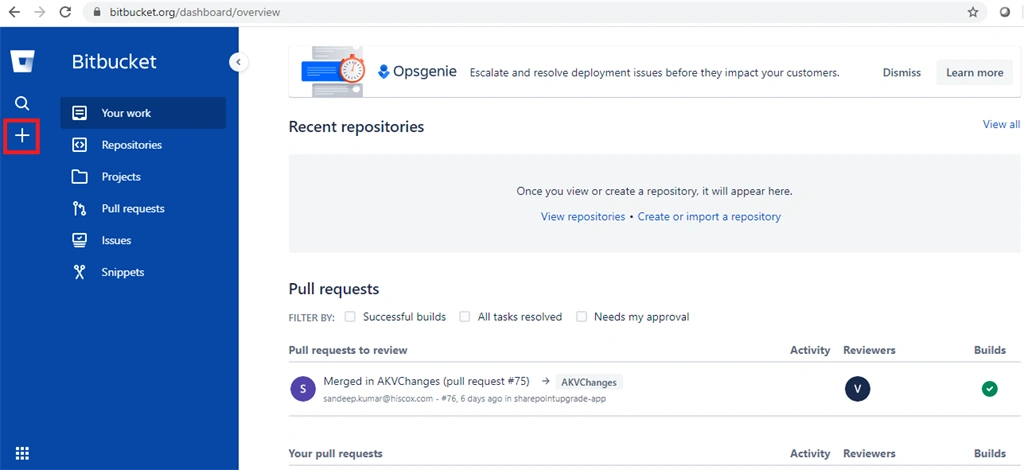
Go to bitbucket cloud, click on + button as highlighted below
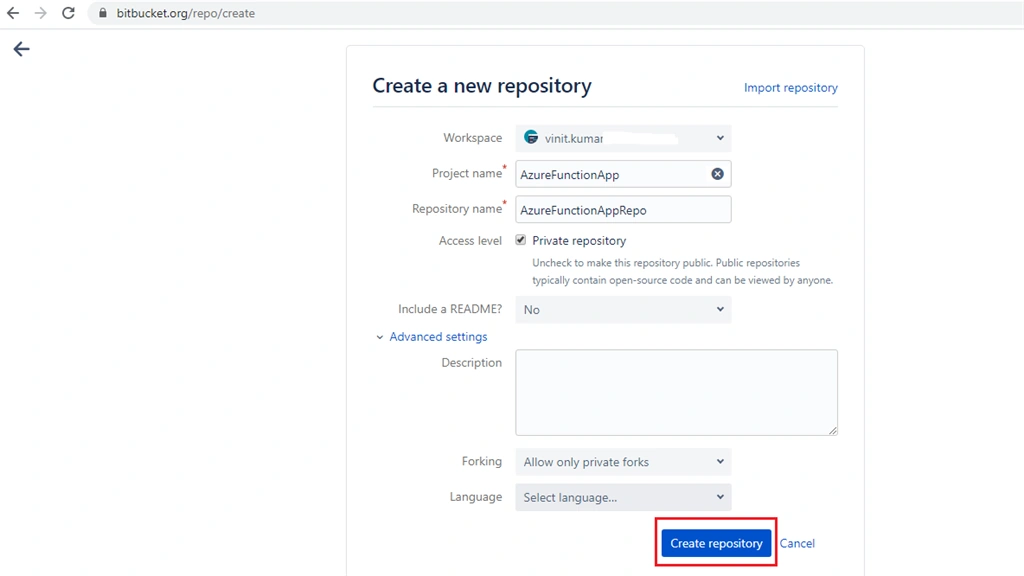
You will be redirected to the below screen.
Click on “Create repository” as highlighted above
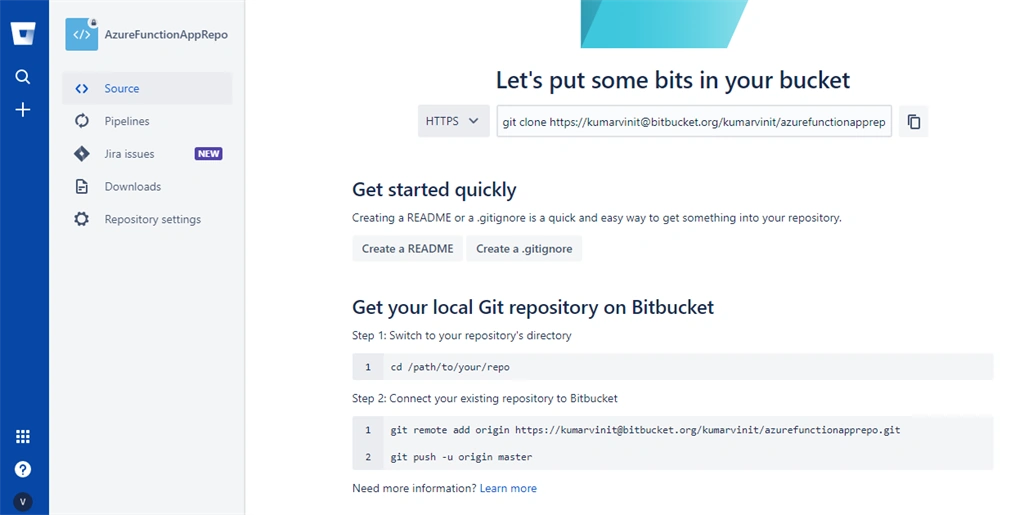
Once repository created you can have the screen as below
Now you can push the Existing Azure function app repository using either the git commands or add the Repository path in Visual Studio as in the below image.
Click on “Publish” button to push the code to the Bitbucket cloud repository, if it requires it, please provide your Remote Repository credentials.
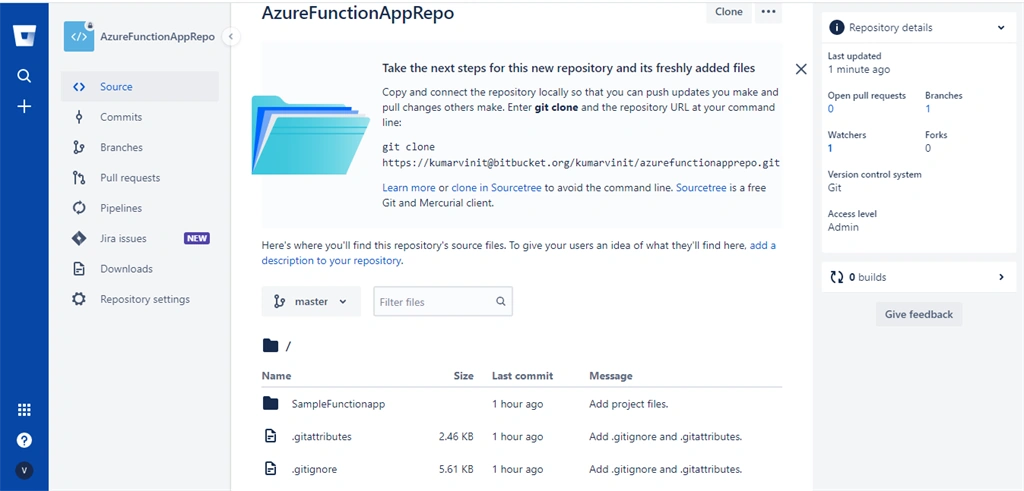
Now you can go to bitbucket cloud repository to see your code as below
So now we have created the Azure Function app using Visual Studio and pushed the code to Atlassian Bitbucket Cloud Git repository successfully.
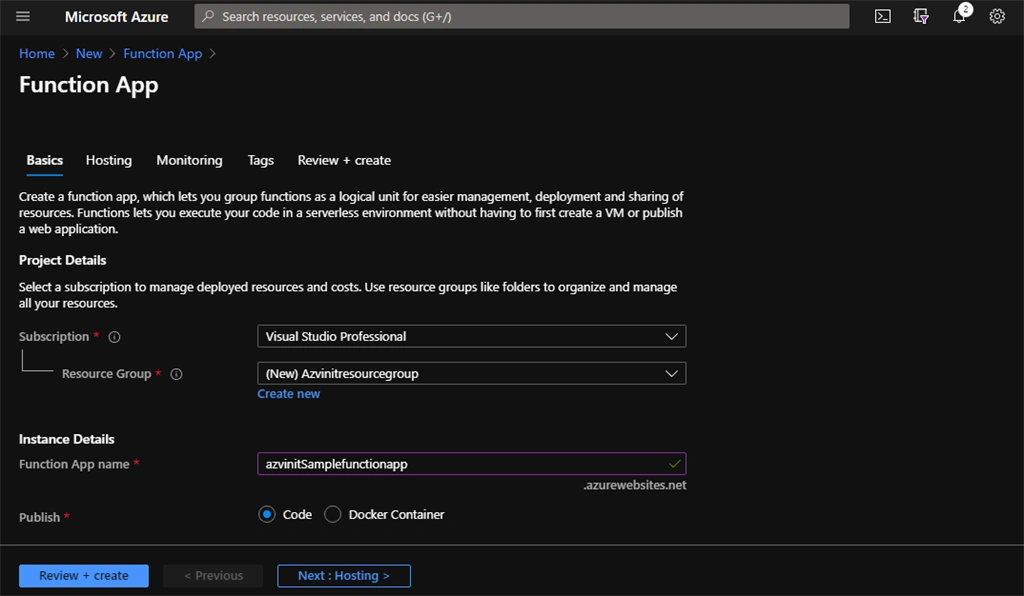
Create the Azure function app in Azure
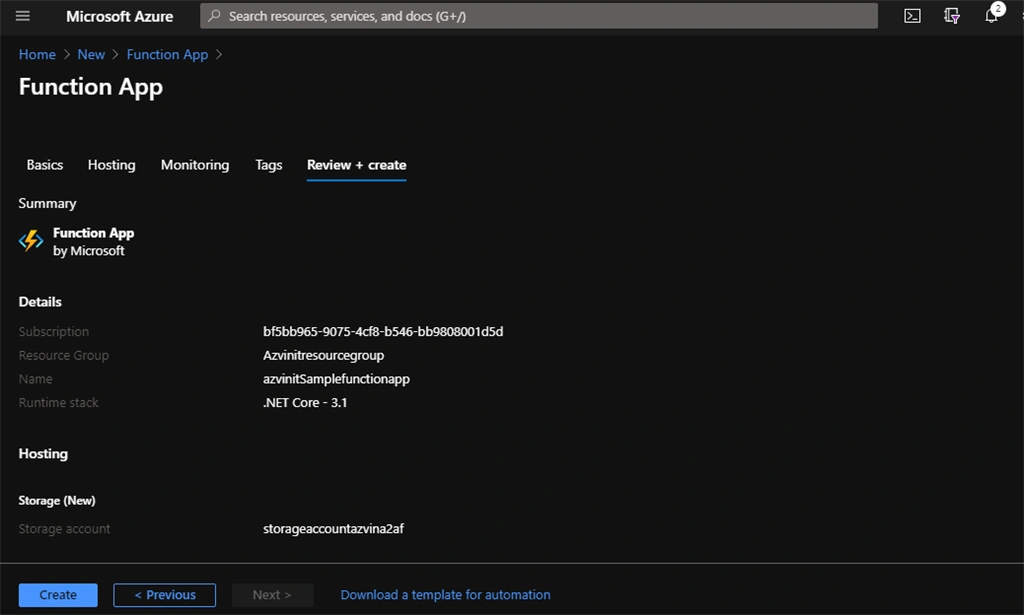
Click on “Review+Create” button you will be redirected to the below screen.
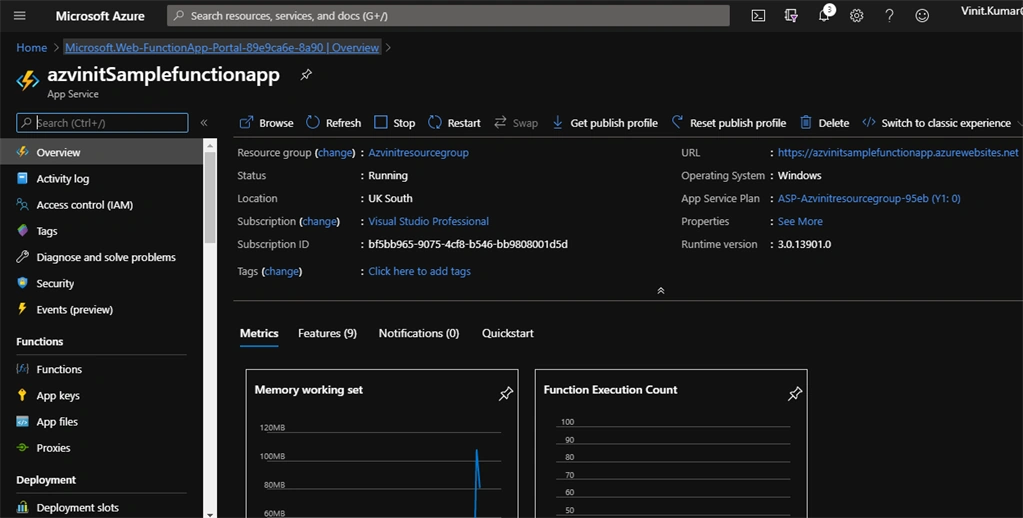
Click on “Create” button, an Azure deployment process will run and create the Function app as below.
So now we have an Azure function app Project Source Code in Bitbucket Repository and an Azure function empty app without any functions. Next we will use Bamboo server to deploy the code to Azure Function app.
Create and Configure a Bamboo Build Plan
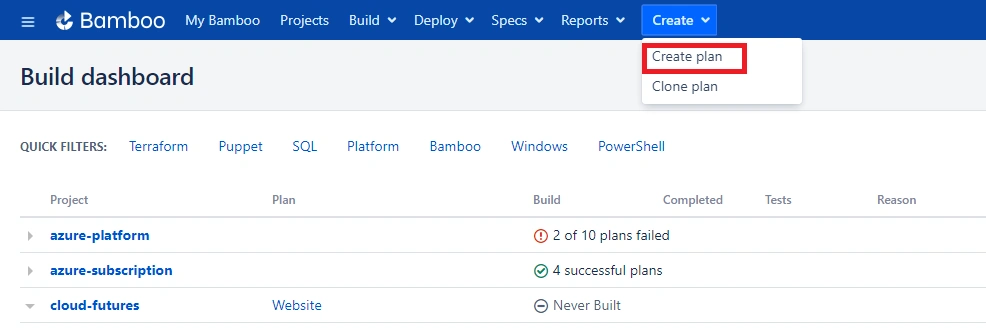
Go to Bamboo server and it will display the already created plans as below.
Click on “Create Plan” button as highlighted above, you will be redirected to the below screen.
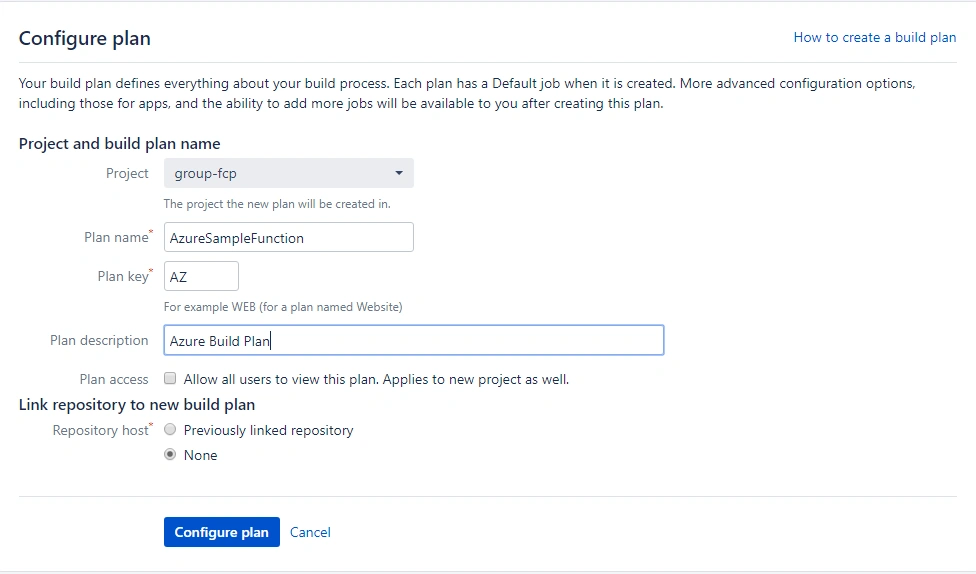
Provide project name, Plan Name and Plan Description and click on “Configure Plan”. Link your newly created repository to the build plan.
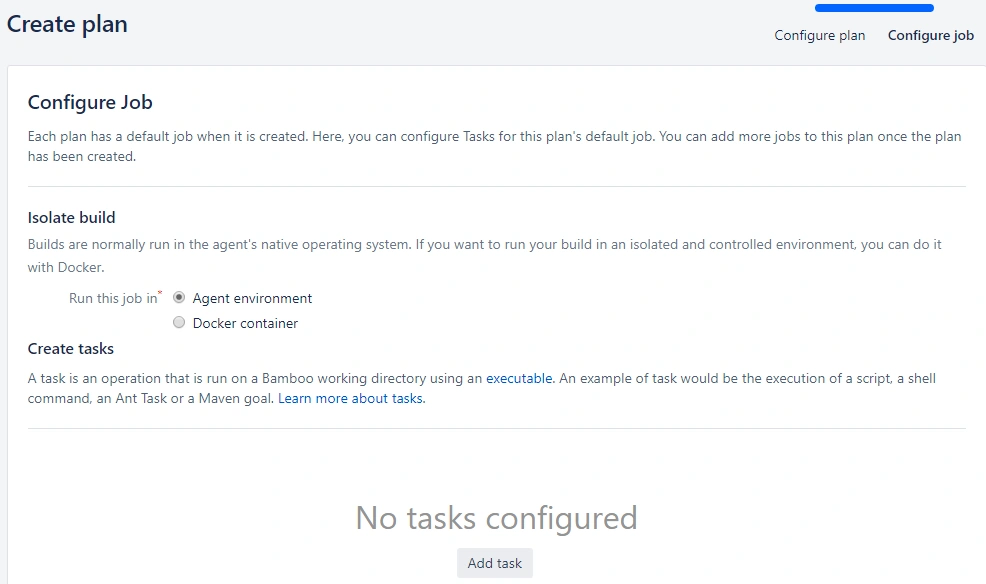
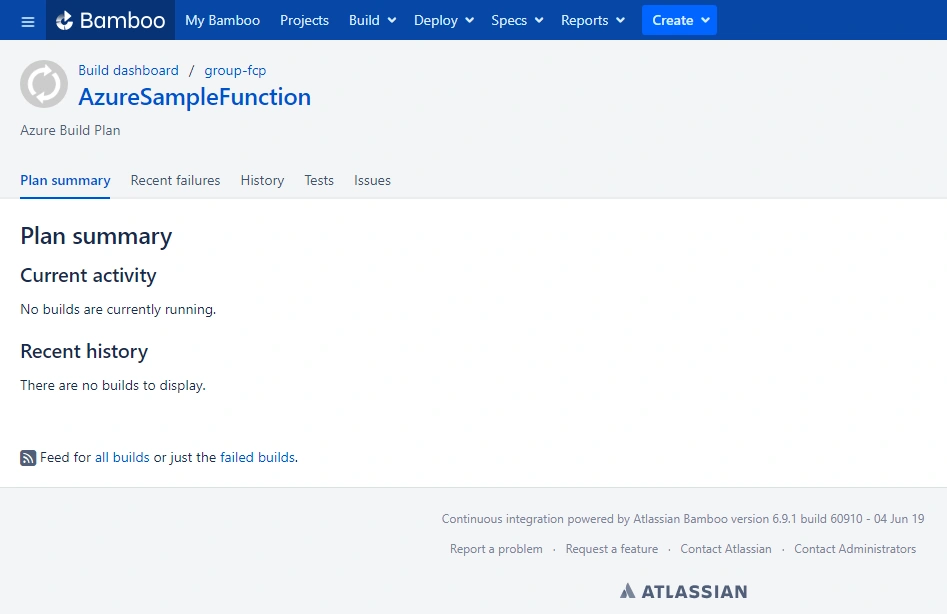
Select the “Agent Environment” option for the build and click “Create." User will be redirected as in the below screen after Build plan is successfully created.
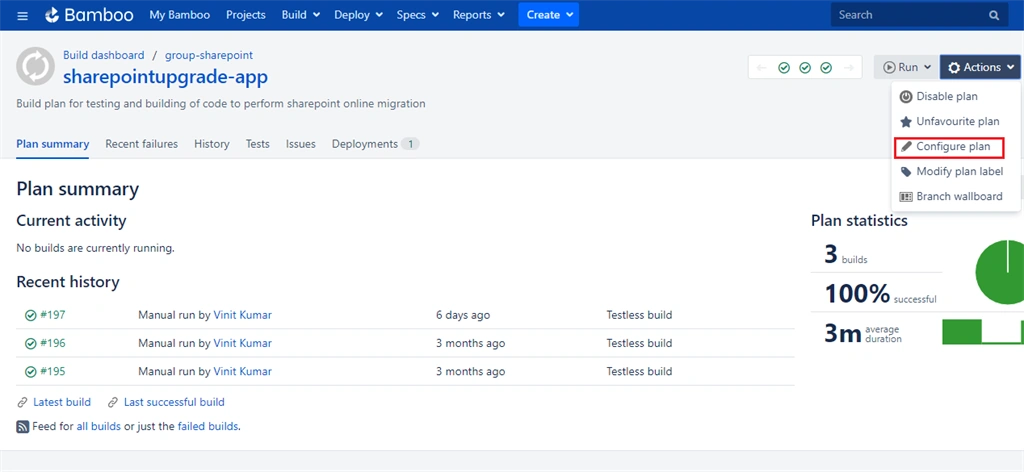
Here in my case I will be using an example of an already created Build plan as below.
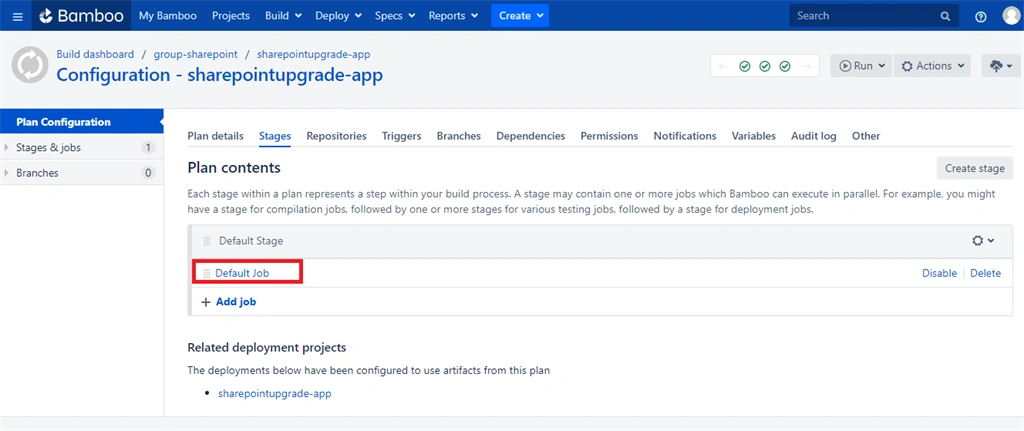
Click on “Configure Plan” as highlighted, you will be redirected to the below screen with Plan contents.
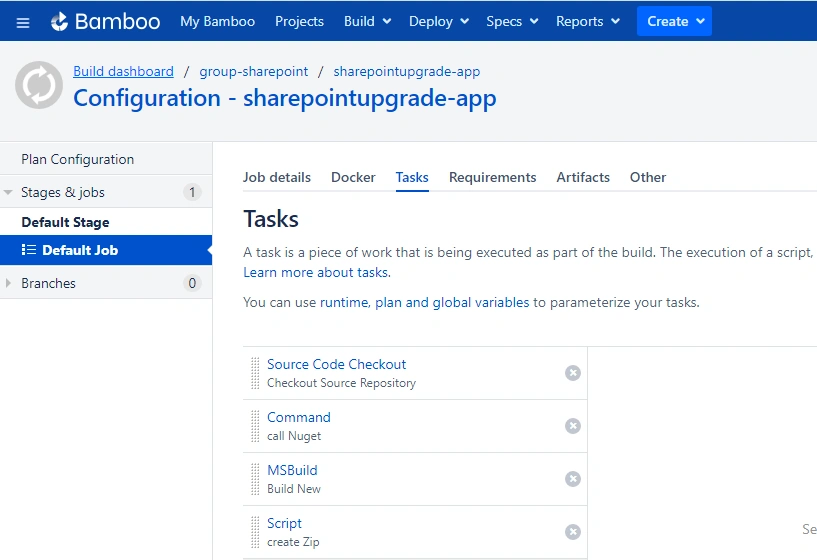
Click on “Default Job” as highlighted, you will be redirected to the below screen.
In three steps we will Configure build process tasks for Azure function app code.
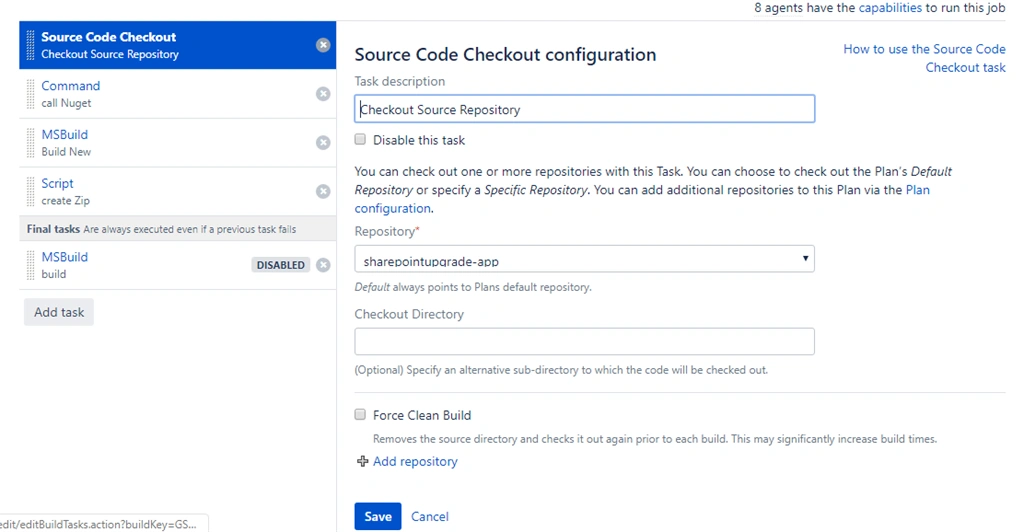
Step 1 -Source code Checkout task
This task checks out the current default branch of the code repository in Bamboo agent.
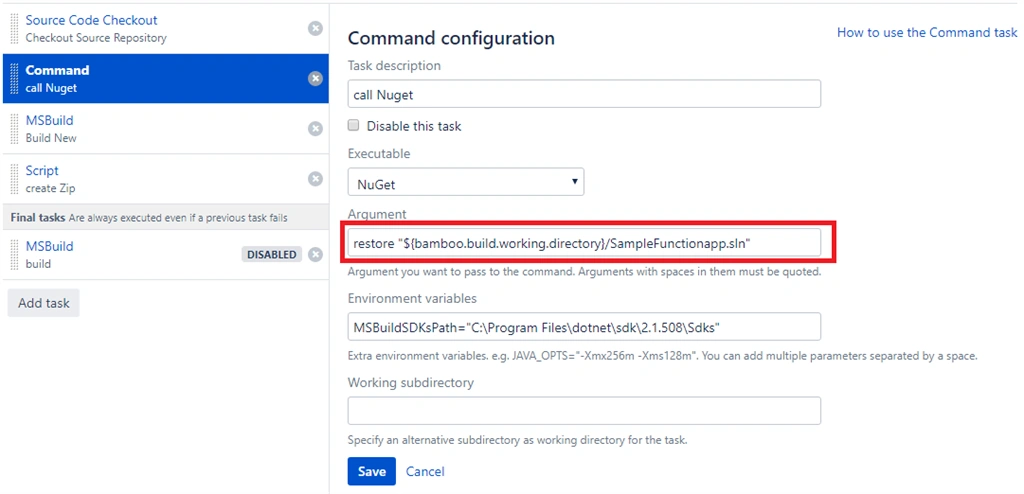
Step 2 – Call Nuget Command
Use a command task and call the Nuget executable.
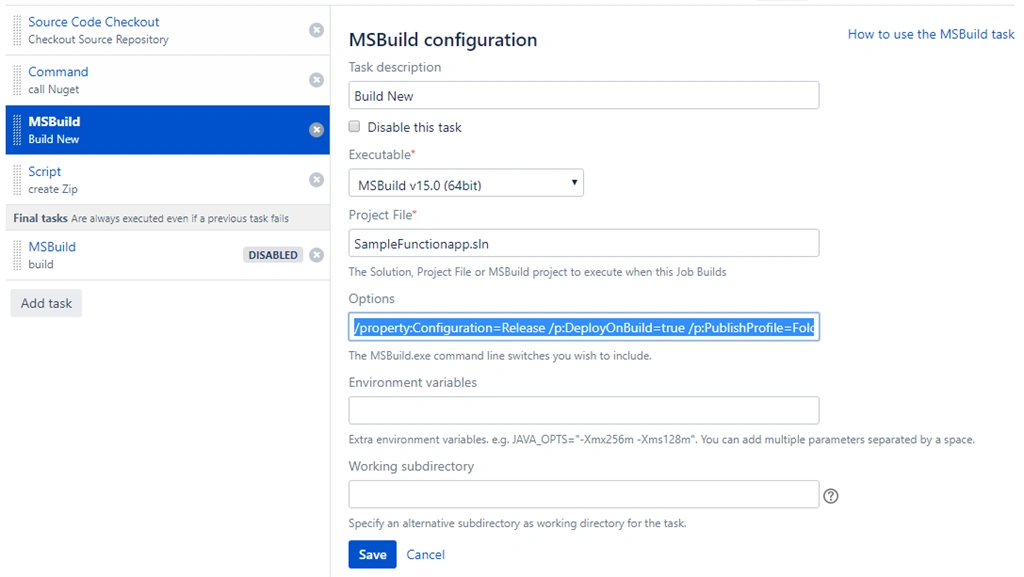
Step 3 – MS Build Task
This step builds the solution on the Bamboo agent in release mode. Below are the options available during the build process.
- /property:Configuration=Release /p:DeployOnBuild=true /p:PublishProfile=FolderProfile
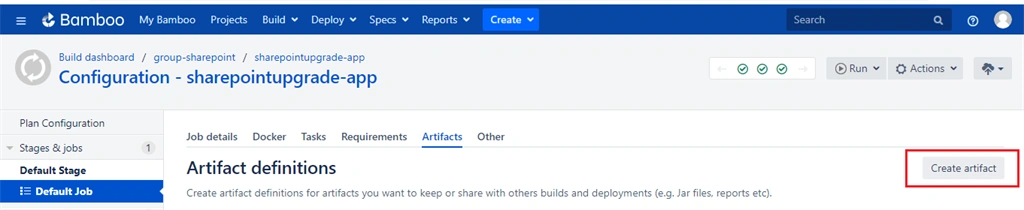
Next create an artifact for the build as below.
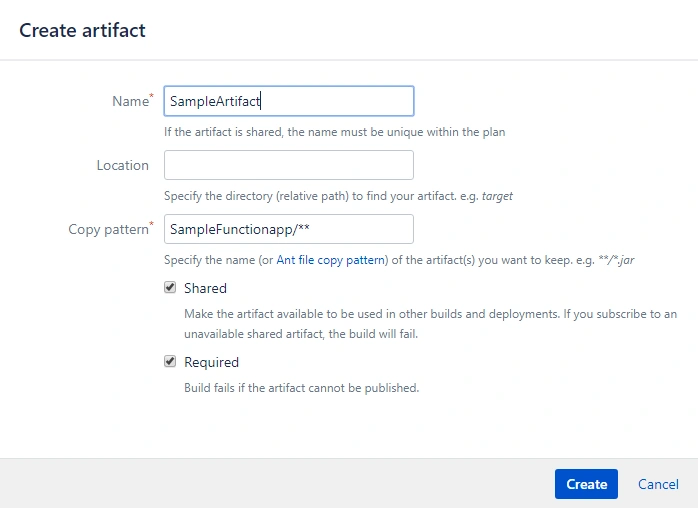
Click on “Create artifact”, a new pop appears as below
Click on “Create” and it will create the configuration of the artifact for the Build Plan.
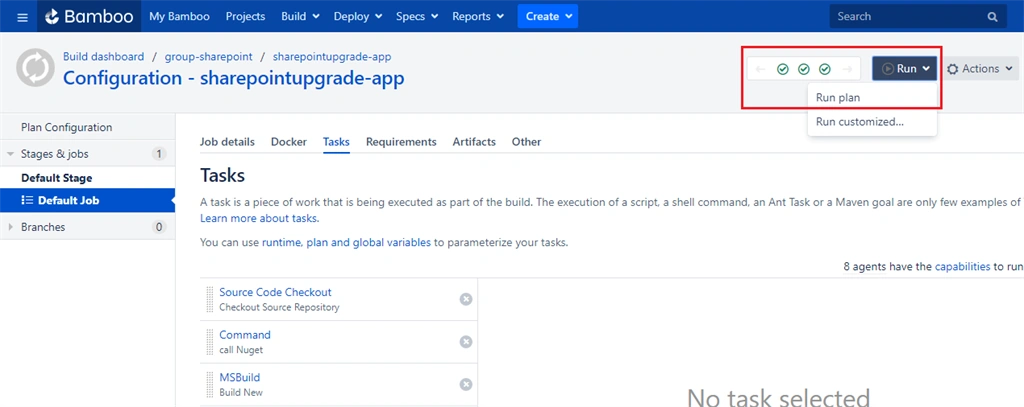
Next step run the plan by clicking of “Run Plan” as highlighted below.
Once built, a successful artifact will be generated. This same artifact will be used for the deployment process.
You can create a Deployment Project associated with your build plan.
Configure Bamboo Deployment Project
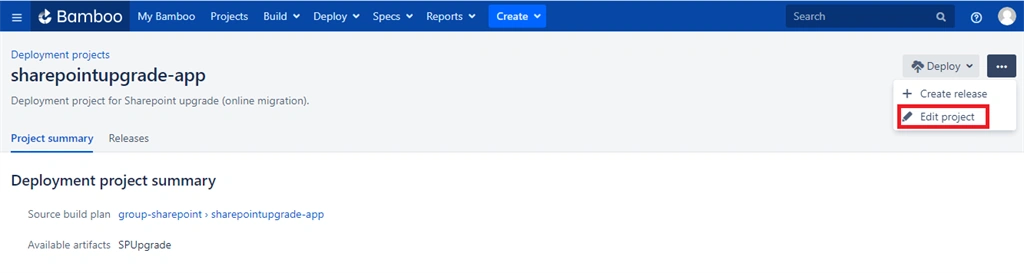
Here I already have a Deployment project associated with the build plan. Let’s configure the plan.
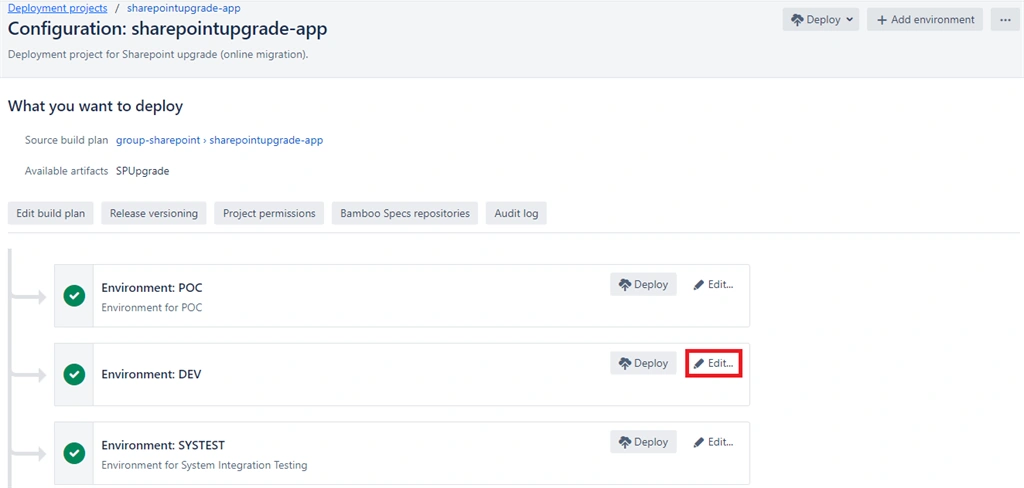
Click on “Edit Project” as highlighted above. The page will be redirected as below. You can see we have multiple environments set up.
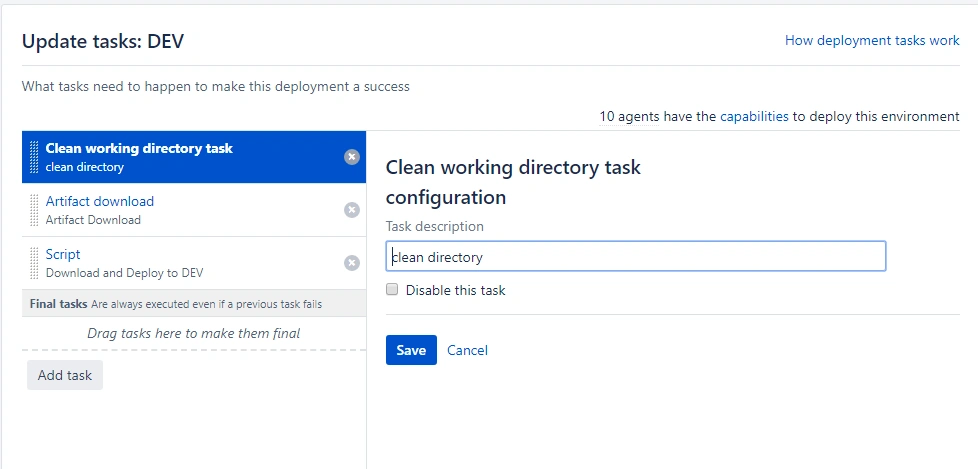
Click on “Edit” and after that “Edit Tasks” to configure the DEV Environment deployment
Step 1 - Clean the working directory
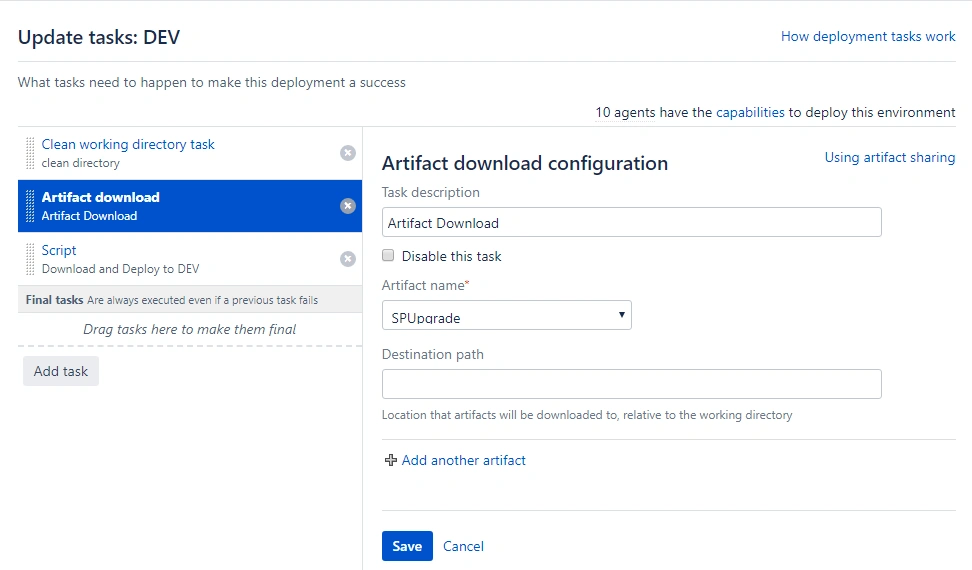
Step 2 – Artifact Download
Download the artifact which was created during the successful build.
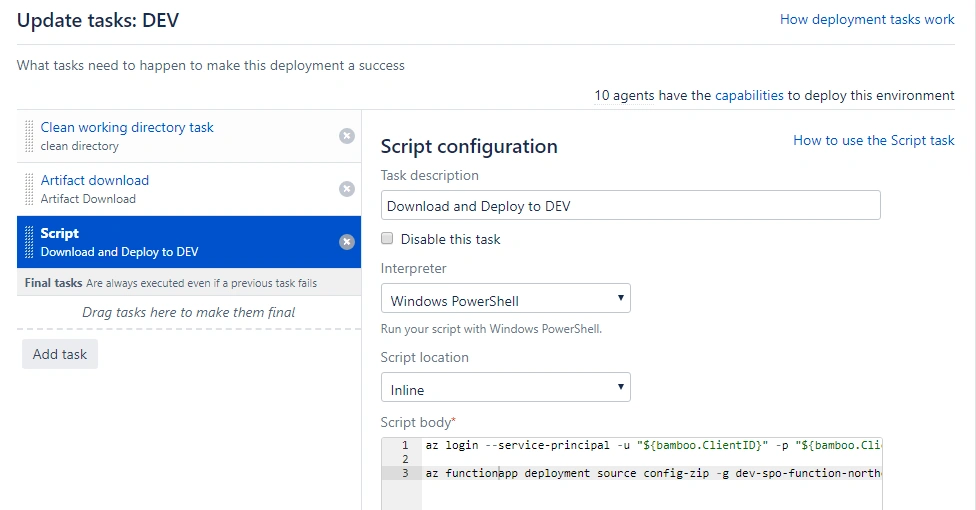
Step 3 – Deploy to Azure
In this task we will connect to Azure and do the zip deployment using PowerShell.
PowerShell script to deploy the Azure function app
- # Connect to Azure using Bamboo Credentials, you can use Own if you have enough permission to deploy code in Prod Azure environment
- az login --service-principal -u "${bamboo.ClientID}" -p "${bamboo.ClientSecret}" --tenant "${bamboo.TenantID}"
- # Zip deployment of Azure function app from the Artifact
- az functionapp deployment source config-zip -g "YourResourceGroupName" -n "YourFunctionAppName" --src ${bamboo.build.working.directory}/Spupgrade.zip
You can either use triggers for the deployment project to start or manual start.
Once the Deployment is successful, you can go to your Azure function app in Azure.
Test the Azure Function app
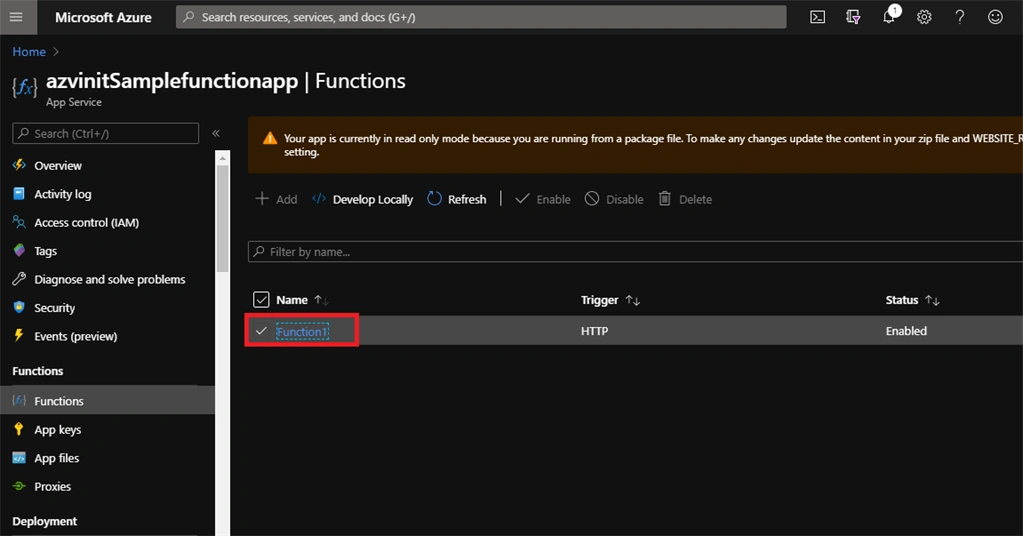
Go to Azure Function app which we have created during the process.
Now under the Functions navigation you can see a new function called “function1” created with http trigger, which we have deployed using the Bamboo CI/CD server
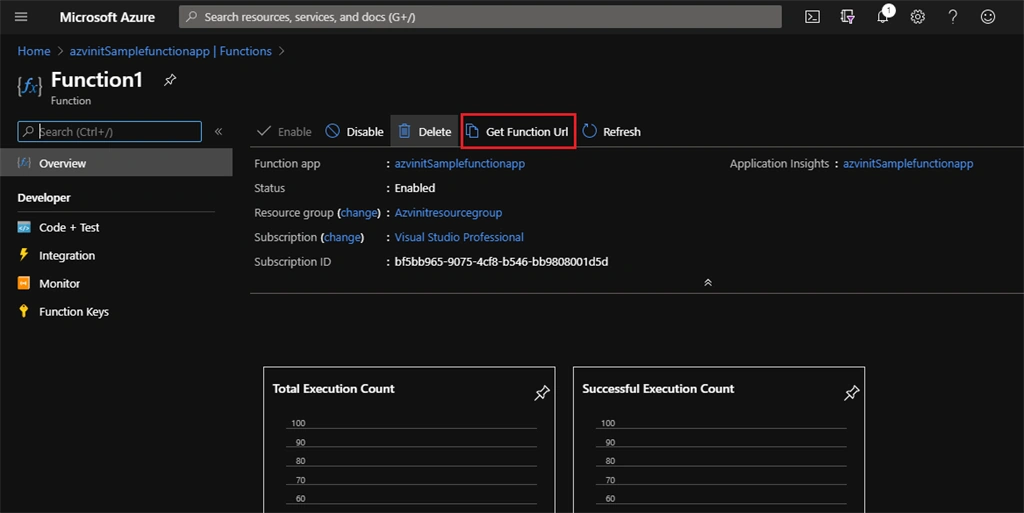
Click on “Function1” it will redirect you to below screen.
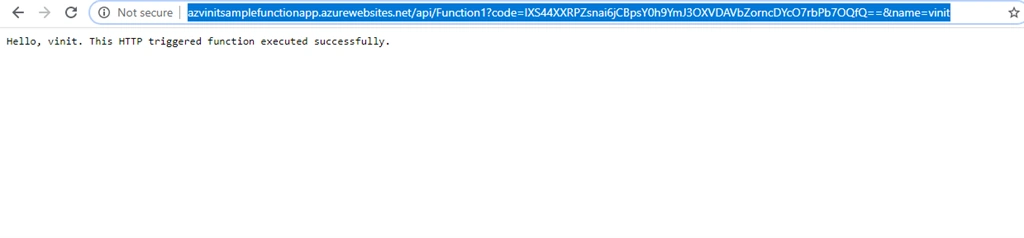
Click on “Get Function Url” to get the function URL , copy and paste the URL into the browser and you can see the Output as below.
Summary
In this article, I have discussed how we can use the Bamboo CI/CD tool to deploy a Azure Function app. We have added the source code to the Bitbucket Repository, configured a Bamboo build plan and deployment project. This article might be useful for those developers whose companies use Azure Portal but they use Bamboo as CI/CD tool instead of Azure DevOps.


Join the conversation! Your thoughts help the community grow.