

Here are the steps,
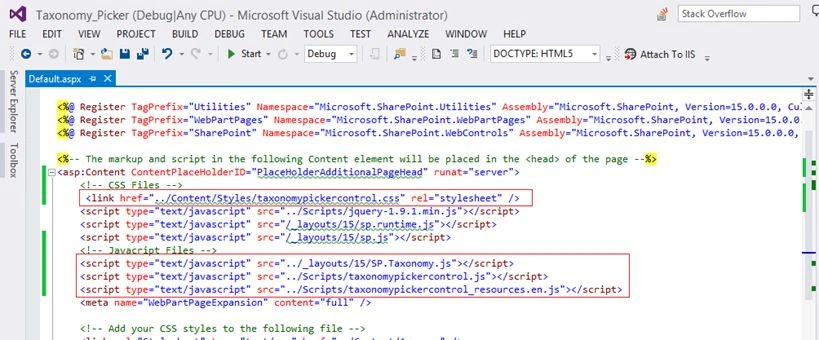
Add the following CSS and JS files references in app .aspx page as in the following image,
- <!-- CSS Files -->
- < link href = "../Content/Styles/taxonomypickercontrol.css"
- rel = "stylesheet" / >
- <!-- Javacript Files -->
- < script type = "text/javascript"
- src = "../_layouts/15/SP.Taxonomy.js" >
- < /script>
- < script type = "text/javascript"
- src = "../Scripts/taxonomypickercontrol.js" >
- < /script>
- < script type = "text/javascript"
- src = "../Scripts/taxonomypickercontrol_resources.en.js" >
- < /script>
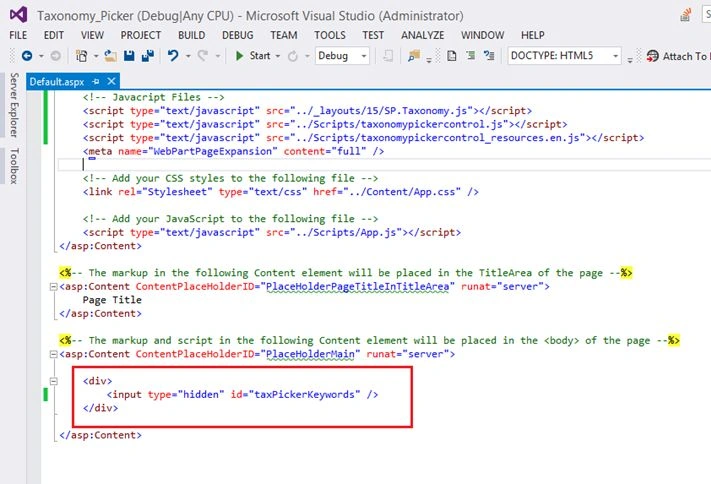
Then add the input control in placeholder main part as shown below,
Note: You can change the id of the input control.
- <div>
- <input type="hidden" id="taxPickerKeywords" />
- </div>
On Document ready add the following code to bind the term set for the taxonomy picker,
Here I added the Enterprise keyword term set,
$('#taxPickerKeywords').taxpicker({ isMulti: true, allowFillIn: true, termSetId: "bbe229c4-6127-4335-a6bb-c756ddcc6da0" }, context);
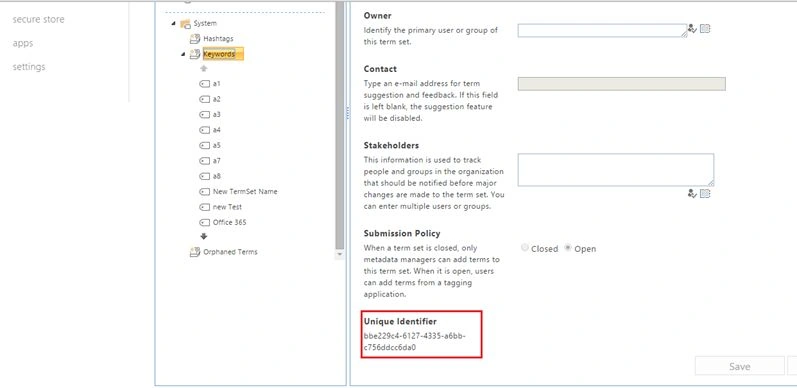
Term set ID will vary for each term sets.
From term store we can take the ID of term set,
Parameters
The first parameter of the Taxonomy Picker sets the options for the control. The properties that can be set include:
| Parameter | Description |
| isMulti | Boolean indicating if taxonomy picker support multiple value. |
| isReadOnly | Boolean indicating if the taxonomy picker is rendered in read only mode. |
| allowFillIn | Boolean indicating if the control allows fill=ins (Open TermSets only). |
| termSetId | The GUID of the TermSet to bind against (available from Term Management). |
| useHashtags | Boolean indicating if the default hashtags TermSet should be used. |
| useKeyword | Boolean indicating if the default keywords TermSet should be used. |
| maxSuggestions | Integer for the max number of suggestions to list (defaults is 10). |
| lcid | The locale ID for creating terms (default is 1033). |
| language | The language code for the control (defaults to en=us) context. |
The second parameter is an initialized SP.ClientContext object,
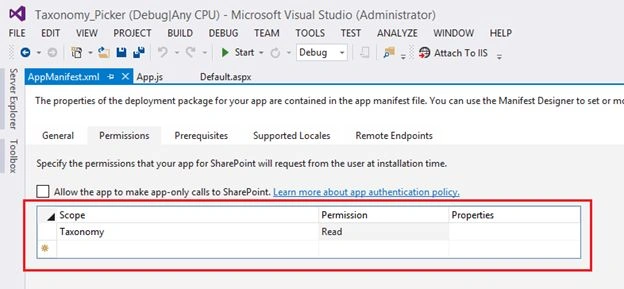
Make sure to provide permission to taxonomy in your appmanifest.xml file,
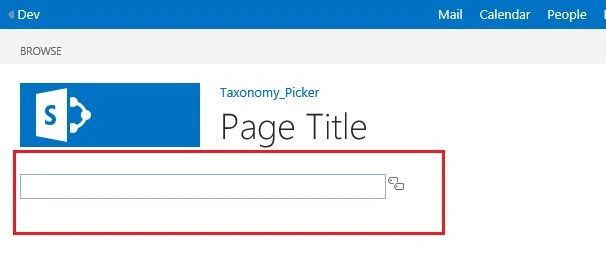
Finally deploy the solution, Taxonomy picker will be available in your apps page.
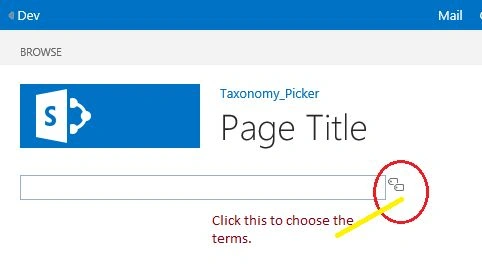
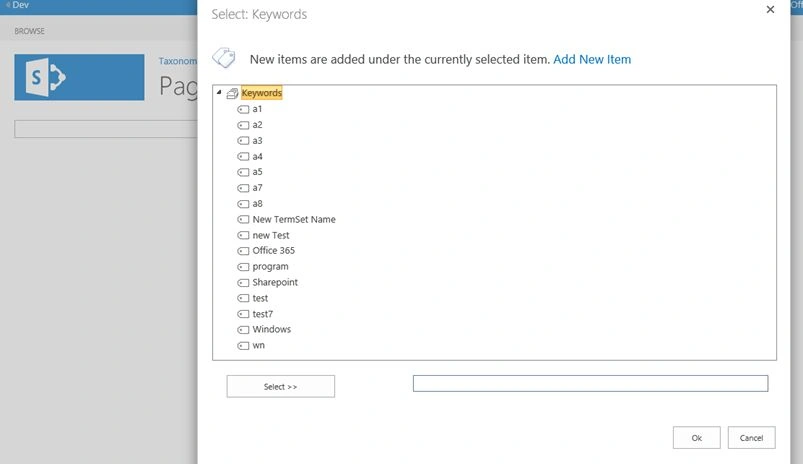
The terms option will be available on the pop up as in the following,
Summary
In this article we explored how to use the taxonomy picker in SharePoint Hosted apps.
kanchan kumbharPosted Aug 28, 2018, 6:28 AM
Hi, I am using this control for on premise environment. But somehow it is not working. It gives me below error while calling var taxSession = SP.Taxonomy.TaxonomySession.getTaxonomySession(spContext); line from taxonomypikcercontrol.js error : Uncaught TypeError: b.get_path is not a function at Function.SP.Taxonomy.TaxonomySession.getTaxonomySession (SP.Taxonomy.js:1) at TermSet.initialize (taxonomypickercontrol.js:52) at TaxonomyPicker.initialize (taxonomypickercontrol.js:266) at new TaxonomyPicker (taxonomypickercontrol.js:260) at init.$.fn.taxpicker (taxonomypickercontrol.js:1063) at initTaggingControl1 (TestPage.aspx:668) When I search for error I got information to load sp.runtime.js manually which I do using SP.SOD.executeFunc,but no use. Same setup is working for SP online. Please help on urgent basis, I really need this to be work for On-Premise. Thank You !!!
Kaviya BalasubramanianPosted Dec 14, 2015, 2:55 AM
Thanks all
Sagar PardeshiPosted Dec 11, 2015, 9:30 AM
Nice Aticle
Raja TPosted Dec 11, 2015, 8:26 AM
Good, thanks for sharing
Harshad PansuriyaPosted Dec 11, 2015, 7:07 AM
Nice one
Sibeesh VenuPosted Dec 11, 2015, 7:03 AM
Nice Share