

Before reading this article, please go through the following article.
Chat Bubble is a container that can be used to show any kind of visual content in the form of a chat bubble. Reading this article, you will learn how to use Coding4Fun Chat Bubble in Universal Windows Apps development, with XAML and Visual C#.
The following important tools are required for developing UWP,
- Windows 10 (Recommended)
- Visual Studio 2015 Community Edition (It is a free software available online).
Now, let's discuss the step by step process of app development.
Step 1
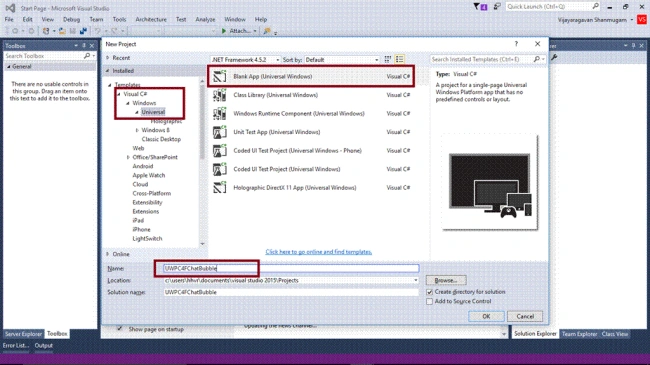
Open Visual Studio 2015 -> Start -> New Project-> Select Universal (under Visual C# -> Windows) -> Blank App -> Give it a suitable name (UWPC4FChatBubble) -> OK.
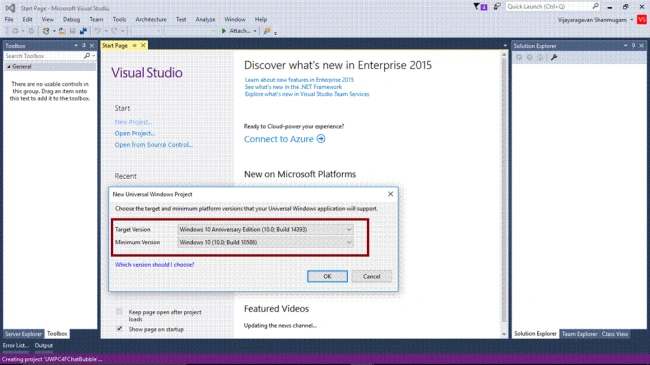
After choosing the target and minimum platform versions for your app, the project gets created. It creates App.xaml and MainPage.xaml files.
Step 2
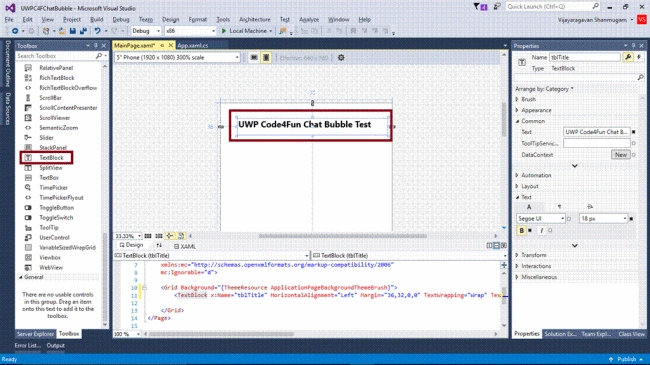
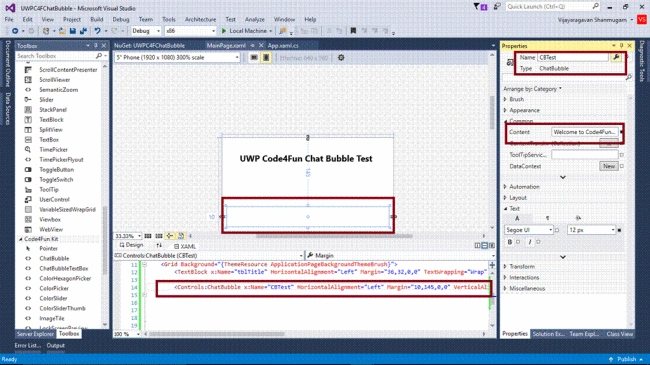
Add TextBlock control and change the name and text property for title.
Step 3
Open (double click) the file MainPage.xaml in the Solution Explorer and add the Coding4Fun.Toolkit.Controls reference in the project.
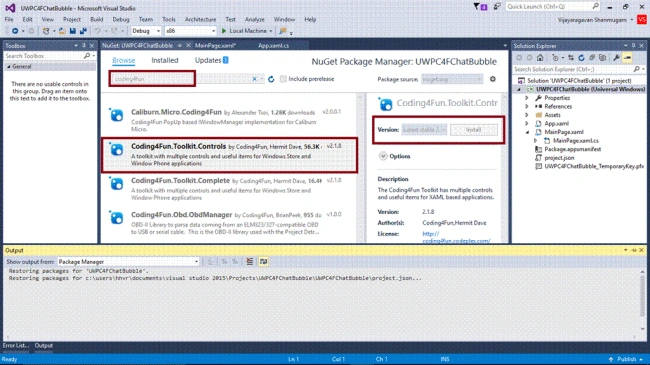
For adding Reference, right click your project (UWPC4FChatBubble) and select "Manage NuGet Packages".
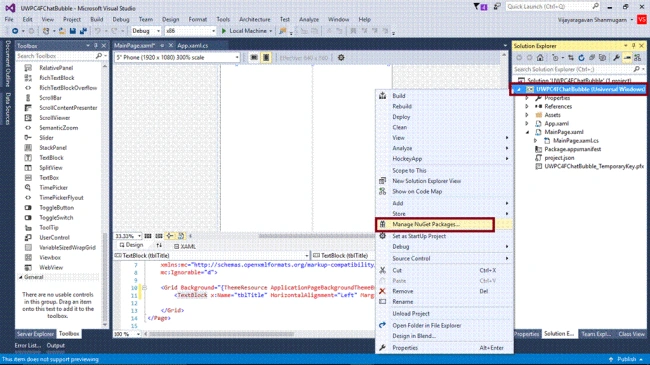
Choose "Browse" and search Coding4Fun.Toolkit.Controls. Select the package and install it.
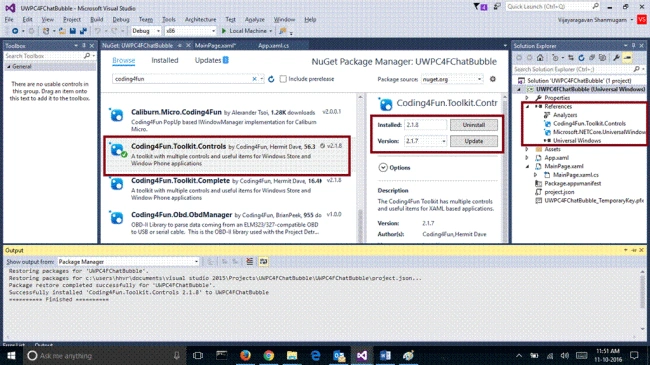
Reference is added to your project.
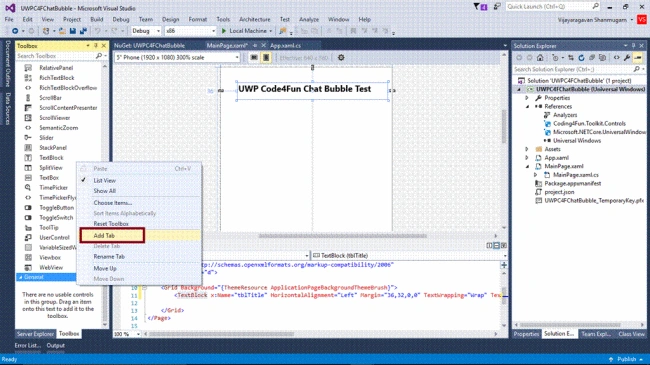
Step 4
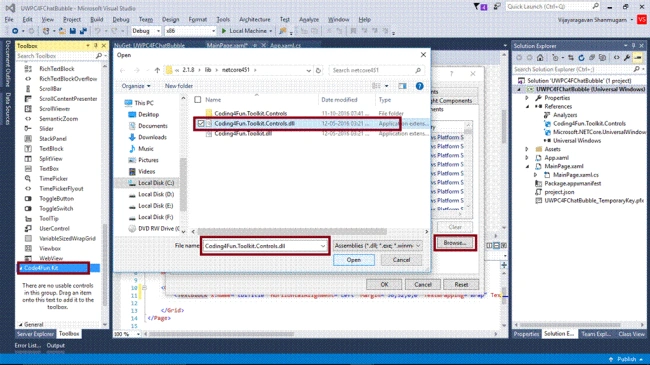
Add tab in the Toolbox, for adding Coding4Fun Toolkit controls.
Right click the Coding4Fun Toolkit (Newly added tab) and select "Choose items".
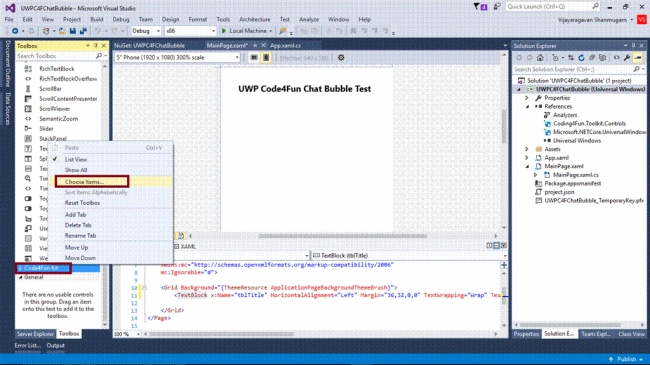
Select the path "C:\Users\<username>\.nuget\packages\Coding4Fun.Toolkit.Controls\2.1.8\lib\netcore451" and select the file Coding4Fun.Toolkit.controls.dll.
Join the conversation! Your thoughts help the community grow.