

In this article we can explore how to create a color palette and deploy it.
Color Palette
A Color Palette is a combination of colors used in a SharePoint site. Each Master page contains multiple elements with color names. A color palette contains color values for these pre-defined names.
A Color Palette has the extension .spcolor.
the following is the content of a sample .spcolor file. 
Location of Color Palette File
The color palette file resides in the root site collection themes folder. You can access the location from Site Actions > Site Settings > Themes page.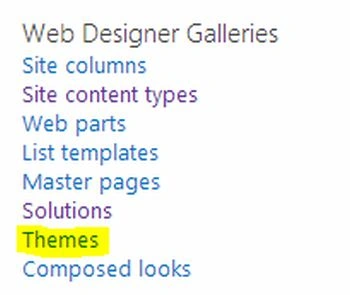
The following is the Themes page.
Creating New Palette
You can open the themes gallery > 15 hive folder > download an existing .spcolor file. Later modify the color values depending on your needs.
Deploying New Palette
You can open the themes gallery > 15 hive folder > choose new document. In the appearing dialog choose the new spcolor file and upload it.
Once uploaded, you can see the new palette in the look and feel page.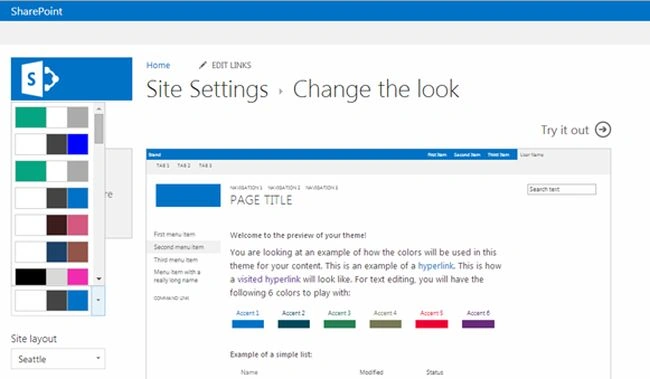
Editing files
We can open the .spcolor file in Notepad and edit the color hex values. Alternatively, there is a very good tool named Color Palette Tool that provides a graphical user interface in editing colors.
Color Palette Tool
Color Palette Tool provides a graphical user interface for editing colors in a color palette file.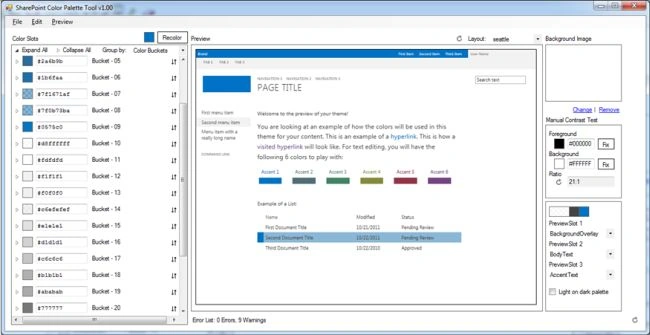
Installation
The tool can be downloaded from:
Download SharePoint Color Palette Tool
After installation you can open it from the Start menu.
Color Slots and Buckets
There are 89 color slots for a SharePoint Color palette. In the default view colors are grouped as Buckets. Bucket is a grouping base on the same color.
Clicking on the color button we can get the color dialog.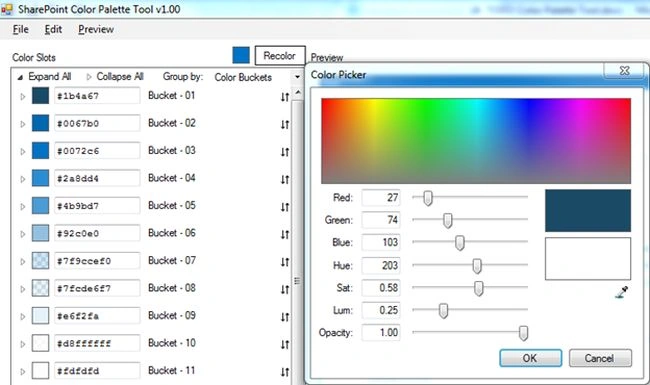
Changing View
There are 3 views available:
- Bucket View
- UI Groups View
- UI Type View
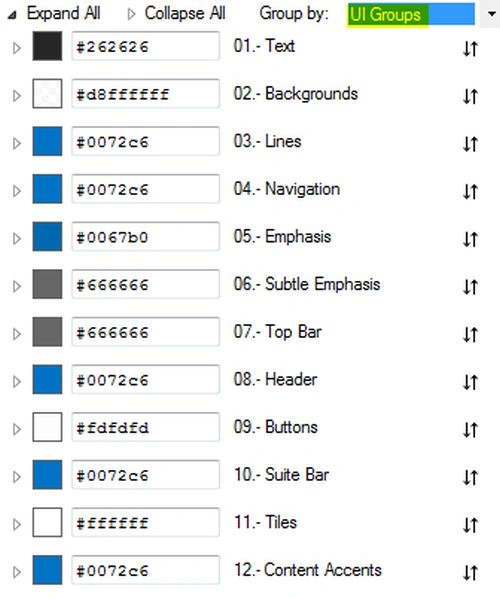
Color Preview Slots
Towards the right bottom Color Preview Slots are available. The colors selected here will be displayed in the SharePoint color palette drop down list.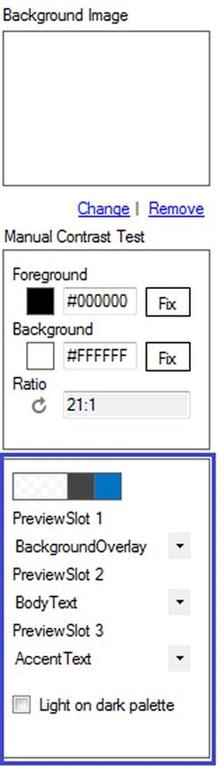
Layout
We can choose a layout from the preview pane.
Recolor
We can quickly create a new theme using the recolor option. Click on the color picker icon.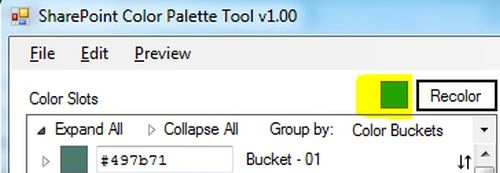
Choose the color from color picker and click the Recolor button. You will get a new theme based on the color selected.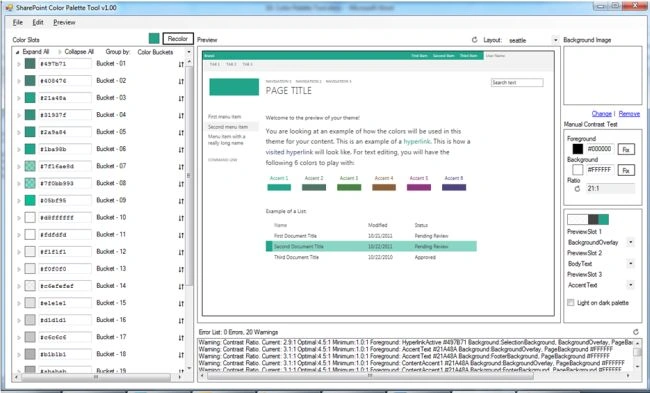
Saving
Once the new color palette is created we can save the changes into a .spcolor file using File > Save menu. the following is the contents of the .spcolor file.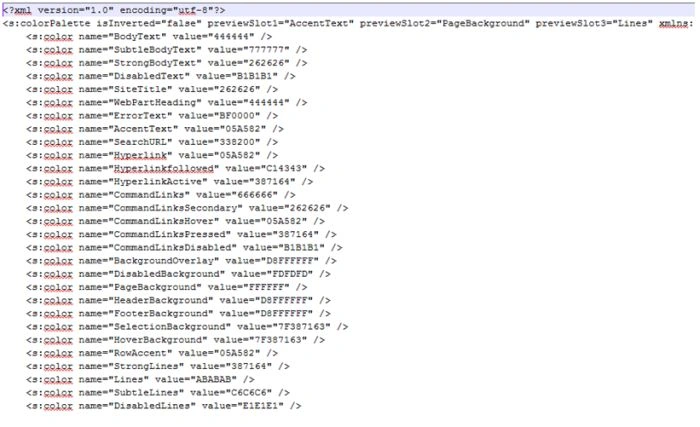

Please note that the themes folder also contains font files.
References
- Color palettes and fonts in SharePoint 2013
SharePoint Color Palette Tool Download
http://www.jeanpaulva.com/index.php/2014/08/18/color-palette/
Summary
In this article we explored color palettes, deployment and tools.
Jean PaulPosted Sep 15, 2014, 2:59 PM
Thank You Vithal!
Vithal WadjePosted Sep 15, 2014, 2:38 PM
great one,keep it up
Jean PaulPosted Sep 15, 2014, 7:48 AM
Thank You Dear Shiju! :)
Shiju JosephPosted Sep 15, 2014, 1:33 AM
Good article Jean
Jean PaulPosted Sep 12, 2014, 2:20 PM
Thank You dear friends Lakshman & Vijai! :)
Vijai Anand RamalingamPosted Sep 12, 2014, 2:18 PM
Nice article!!!
Lakshmanan Sethu SankaranarayanPosted Sep 11, 2014, 1:22 AM
Good One Jean