

Introduction
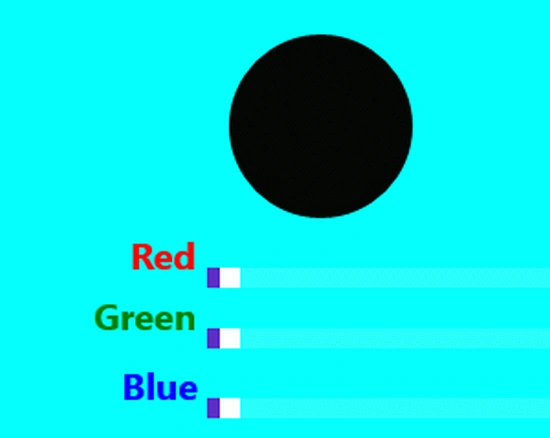
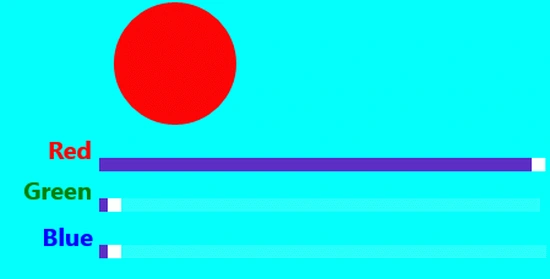
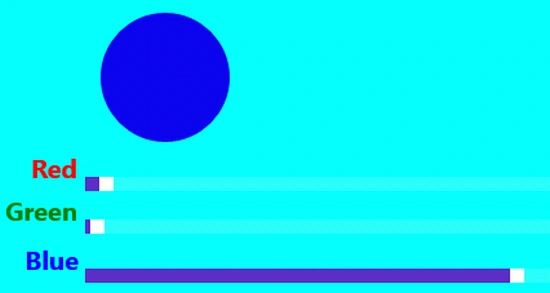
In this article we will use a slider control in a Metro Style Application. We are going to implement a color slider, which will be applied on an ellipse control of a XAML control. In this application we will take a ellipse control and three slider control for color sliding red, blue and green. Also, to specify the slider colors we used three text blocks. The event of the slider control, the slidervaluechanged event, will be used to make the action of slider control and associated code put on this event on code behind file.
In the following we are providing the whole code of the XAML file and the code behind file to create this mini-application.
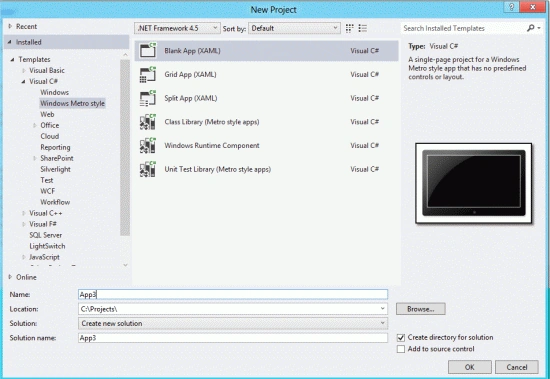
Step 1 : First, you will create a new Metro Style Application. Let us see the description with images of how you will create it.
- Open Visual Studio 2012
- File -> New -> Project
- Choose Template -> Visual C# -> Metro Style Application
- Rename the application
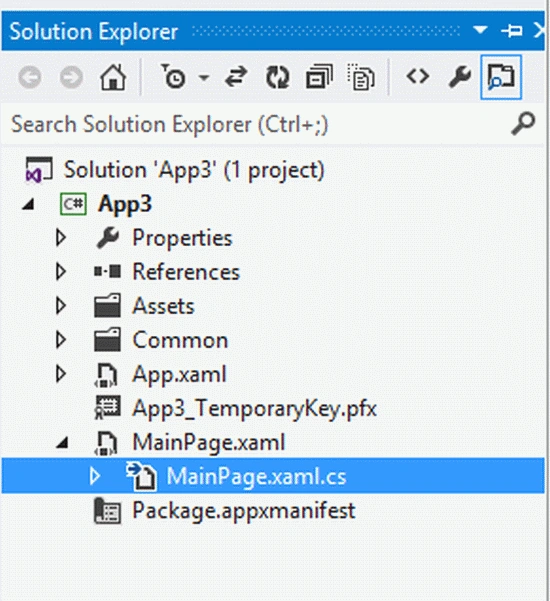
Step 2 : In the Solution Explorer there are two files that we will primarily work with; the MainPage.xaml and MainPage.xaml.cs files.
Step 3 : The MainPage.xaml file is as in the following code:
Code :
<Page
x:Class="App3.MainPage"
IsTabStop="false"
xmlns="http://schemas.microsoft.com/winfx/2006/xaml/presentation"
xmlns:x="http://schemas.microsoft.com/winfx/2006/xaml"
xmlns:local="using:App3"
xmlns:d="http://schemas.microsoft.com/expression/blend/2008"
xmlns:mc="http://schemas.openxmlformats.org/markup-compatibility/2006"
mc:Ignorable="d">
<Grid x:Name="LayoutRoot" Background="Cyan">
<Slider Height="44" Name="redSlider" Width="365" Maximum="255"
ValueChanged="slider_ValueChanged" SmallChange="1"
Margin="145,143,0,0" HorizontalAlignment="Left"
VerticalAlignment="Top" />
<Slider Height="44" HorizontalAlignment="Left" Margin="145,176,0,0"
Name="greenSlider" VerticalAlignment="Top" Width="360" Maximum="255"
ValueChanged="slider_ValueChanged" SmallChange="1" />
<Slider Height="44" HorizontalAlignment="Left" Margin="145,214,0,0"
Name="blueSlider" VerticalAlignment="Top" Width="365" Maximum="255"
ValueChanged="slider_ValueChanged" SmallChange="1" />
<Ellipse Height="100" Width="100" x:Name="rectangle" Margin="157,33,0,0"
Fill="Gray"
HorizontalAlignment="Left" VerticalAlignment="Top" />

Join the conversation! Your thoughts help the community grow.