

Background
Many times, we need to add comma separated values in a text box from autocomplete TextBox to fulfill the particular requirement. Let's say, we have one page to send the emails. Then consider, we want to send emails to multiple recipients with cc and email Ids from coming from database using autocomplete TextBox. In this type of scenario, we need a comma separated autocomplete TextBox .Let's start implementing this scenario by creating one simple ASP.NET MVC application, step by step .
- Go to "Start" --> "All Programs" --> select "Microsoft Visual Studio 2015".
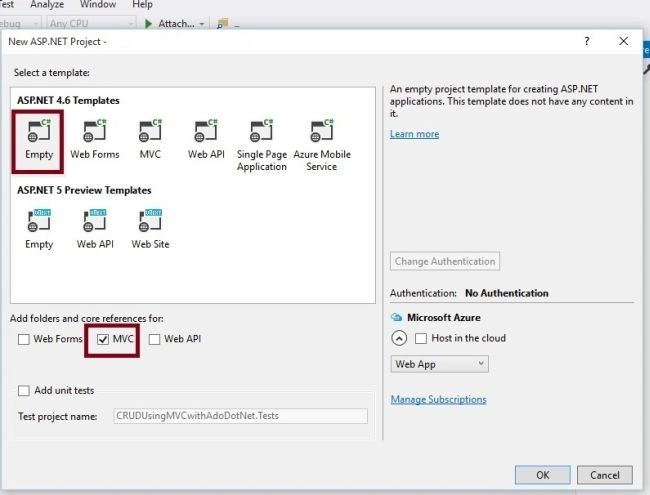
- Go to "File" --> "New" --> click "Project" --> select "ASP.NET Web Application Template". Then, provide the project a name as you wish and click OK. After clicking, the following window will appear:
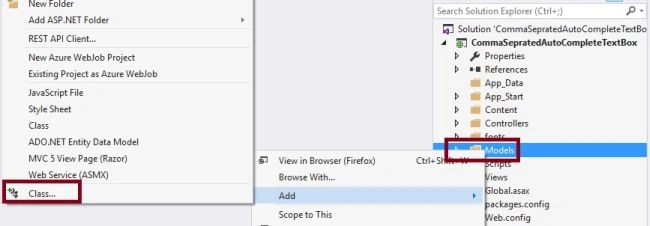
Now, let us create the model class file named EmployeeModel.cs by right clicking on "Models" folder, as in the following screenshot:
Now, the EmployeeModel.cs class file code snippet will look like this:
EmployeeModel.cs
- using System.ComponentModel.DataAnnotations;
- namespace CommaSepratedAutoCompleteTextBox.Models
- {
- public class EmployeeModel
- {
- public int EmpId { get; set; }
- public string EmpName { get; set; }
- }
- }
Now, add the MVC 5 controller, as in the following screenshot:
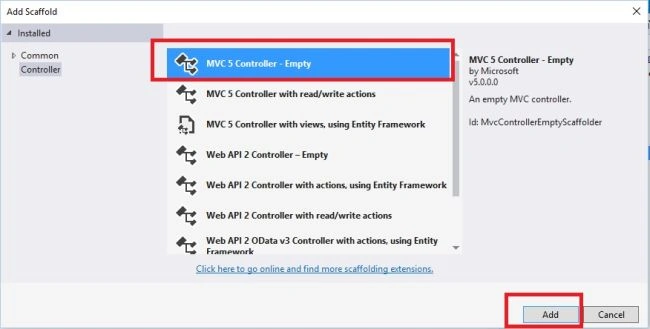
After clicking on Add button, it will show the window. Specify the Controller name as Home with suffix Controller.
Note: The controller name must have a suffix as 'Controller'.
Now, modify the default code in HomeController.cs class file and create two action methods, after modifying the code it will look like the following:
HomeController.cs
Note: The controller name must have a suffix as 'Controller'.
Now, modify the default code in HomeController.cs class file and create two action methods, after modifying the code it will look like the following:
HomeController.cs
- using CommaSepratedAutoCompleteTextBox.Models;
- using System.Collections.Generic;
- using System.Linq;
- using System.Web.Mvc;
- namespace CommaSepratedAutoCompleteTextBox.Controllers
- {
- public class HomeController : Controller
- {
- // GET: Home
- public ActionResult EmpoyeeDetails()
- {
- return View();
- }
- [HttpPost]
- public JsonResult GetAutoEmpName(string Prefix)
- {
- //Adding list of records into list
- List<EmployeeModel> ObjList = new List<EmployeeModel>()
- {
- new EmployeeModel {EmpId=1,EmpName="Vithal Wadje" },
- new EmployeeModel {EmpId=2,EmpName="Suhir Wadje" },
- new EmployeeModel {EmpId=3,EmpName="Anil Kumar" },
- new EmployeeModel {EmpId=4,EmpName="Ravi" },
- new EmployeeModel {EmpId=5,EmpName="Ramesh s" },
- new EmployeeModel {EmpId=6,EmpName="Sachin Y" },
- new EmployeeModel {EmpId=7,EmpName="Vikran T"},
- };
- //Searching records from list using LINQ query.
- var EmpName = (from e in ObjList
- where e.EmpName.ToLower().StartsWith(Prefix.ToLower())
- select new { e.EmpName });
- return Json(EmpName, JsonRequestBehavior.AllowGet);
- }
- }
- }
Step 4: Add Reference of jQuery UI CSS and JS library
There are many ways to add the reference of jQuery library into our project. The following are some methods:
- Using NuGet package manager, you can install library and reference into the project.
- Use CDN library provided by Microsoft, jQuery, Google or any other which requires active internet connection.
- Download jQuery files from jQuery official website and reference into the project.
In the preceding procedure of adding references of libraries into the project, 1 & 3 steps don't require the active internet connection but if you are following the second step, it requires active internet connection to load the CDN library's references into the project .
Layout.cshtml
- @*Uncomment following lines, If you wants to use CDN jquery-ui.css and jquery-ui.js*@
- @*<link rel="stylesheet" href="//code.jquery.com/ui/1.11.4/themes/smoothness/jquery-ui.css">*@
- @*<script src="//code.jquery.com/ui/1.11.4/jquery-ui.js"></script>*@
- <script src="~/Scripts/jquery-1.10.2.min.js"></script>
- <link href="~/Content/jquery-ui.css" rel="stylesheet" />
- <script src="~/Scripts/jquery-ui.js"></script>
-
Step 5: Create jQuery Ajax function.
To call controller JSON action method and invoke autocomplete function including for comma separated search text, write the following jQuery function .
- <script type="text/javascript">
- $(document).ready(function () {
- $("#EmpName").autocomplete({
- source: function (req, resp) {
- $.ajax({
- url: "/Home/GetAutoEmpName",
- type: "POST",
- dataType: "json",
- data: { Prefix: GetCurrentSearchTerm(req.term) },
- success: function (data) {
- resp($.map(data, function (item) {
- return { label: item.EmpName, value: item.EmpName };
- }))
- }
- })
- },
- select: function (event, ui) {
- var LastValue = splitCurrentText(this.value);
- LastValue.pop();
- LastValue.push(ui.item.value);
- LastValue.push("");
- this.value = LastValue.join(",");
- return false;
- },
- focus: function () {
- return false;
- }
- });
- function splitCurrentText(LastTerm) {
- return LastTerm.split(/,\s*/);
- }
- function GetCurrentSearchTerm(LastTerm) {
- return splitCurrentText(LastTerm).pop();
- }
- });
- </script>
Note: To work preceding function, don't forget to add the reference of the following jQuery UI libraries into the project by CDN or by downloading.
Step 6: Create View
Step 6: Create View
Now, let's create Strongly Typed View named EmployeeDetails from EmployeeModel class.
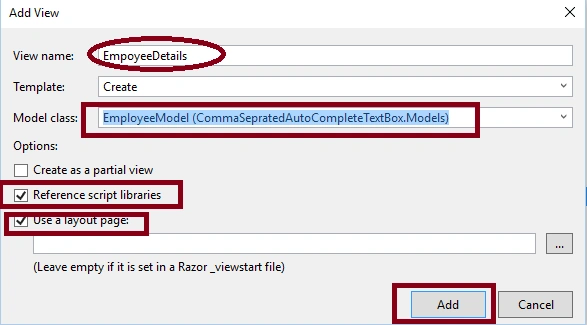
After adding the necessary code, files, and logic, the EmployeeDetails .cshtml will look like the following:
- @model CommaSepratedAutoCompleteTextBox.Models.EmployeeModel
- @{
- ViewBag.Title = "www.compilemode.com";
- }
- <script type="text/javascript">
- $(document).ready(function () {
- $("#EmpName").autocomplete({
- source: function (req, resp) {
- $.ajax({
- url: "/Home/GetAutoEmpName",
- type: "POST",
- dataType: "json",
- data: { Prefix: GetCurrentSearchTerm(req.term) },
- success: function (data) {
- resp($.map(data, function (item) {
- return { label: item.EmpName, value: item.EmpName };
- }))
- }
- })
- },
- select: function (event, ui) {
- var LastValue = splitCurrentText(this.value);
- LastValue.pop();
- LastValue.push(ui.item.value);
- LastValue.push("");
- this.value = LastValue.join(",");
- return false;
- },
- focus: function () {
- return false;
- }
- });
- function splitCurrentText(LastTerm) {
- return LastTerm.split(/,\s*/);
- }
- function GetCurrentSearchTerm(LastTerm) {
- return splitCurrentText(LastTerm).pop();
- }
- });
- </script>
- @using (Html.BeginForm())
- {
- <div class="form-horizontal">
- <hr />
- <div class="form-group">
- <div class="col-md-10">
- @Html.EditorFor(model => model.EmpName, new { htmlAttributes = new { @class = "form-control" } })
- </div>
- </div>
- </div>
- }
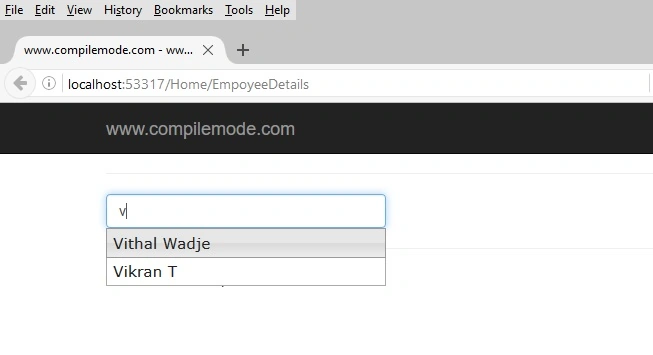
Now, after selecting the particular records, it is added into TextBox with comma. Now, type another initial letter and it will popup the list of records.
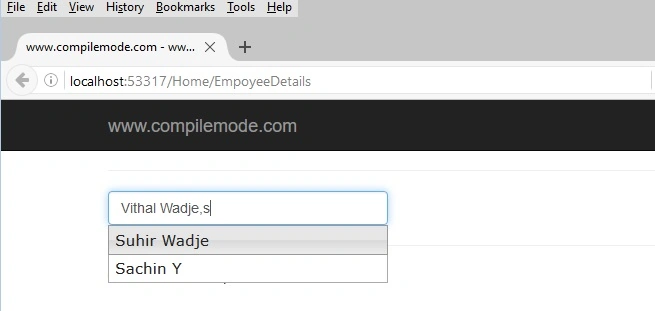
Now, add multiple records with commas. The TextBox will look like as follows.

From all preceding examples and explanations, I hope you learned how to create the comma separated auto complete TextBox using jQuery UI in ASP.NET MVC.
Note
I hope this article is useful for all the readers. If you have any suggestions, please contact me.
Read more articles on ASP.NET
- Download the Zip file of the sample application for a better understanding.
- Since this is a demo, it might not be using proper standards. So, improve it according to your skills.
I hope this article is useful for all the readers. If you have any suggestions, please contact me.
Read more articles on ASP.NET
Chris ChanPosted Nov 21, 2017, 4:08 AM
What query should i use if i have a database?
Vithal WadjePosted Aug 20, 2016, 10:39 PM
Thanks
Vignesh ManiPosted Aug 17, 2016, 7:56 AM
Nice one
Vignesh ManiPosted Aug 17, 2016, 7:55 AM
Good one
Vithal WadjePosted Aug 17, 2016, 6:06 AM
Welcome
Rupali ShindePosted Aug 17, 2016, 5:15 AM
Thanks for sharing this article sir
Vithal WadjePosted Aug 16, 2016, 1:10 PM
Thanks
Ramesh PalaniappanPosted Aug 16, 2016, 8:30 AM
Nice content
Atul RawatPosted Aug 16, 2016, 1:53 AM
Nice article sir
SubashPosted Aug 16, 2016, 12:29 AM
Useful information thank uyou.
Vithal WadjePosted Aug 15, 2016, 11:19 PM
Welcome..
Pradeep SahooPosted Aug 15, 2016, 12:50 PM
Nice share ....Thank you.