

Introduction
Microsoft recently provided a huge update for SharePoint online customers to view the SharePoint sites in different level User Interfaces. This site template is named “Communication Site.”
Now how can you get the “Update” in your tenant?
Navigate to http://portal.office365.com
Open Admin Center ->Settings -> Organization Profile
Release preferences -> Click Edit ->Select “First release for eveyone”
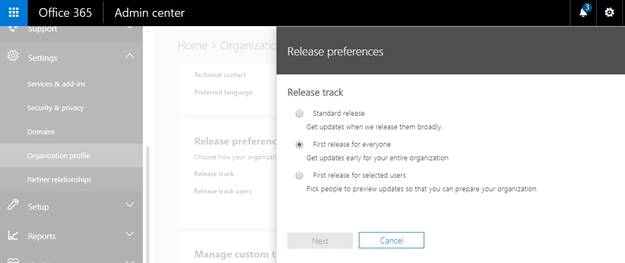
Click Next -> Click Save
Just wait for a couple of hours and the update has been applied to your Sharepoint tenant.
Now let’s check communication site template in your sharepoint tenant
Open Admin center -> Click sharepoint

On that page click Create Site

You are now able to see the two site templates: one will be Team site, and another one is Communication site
Communication site
Communication site template provides a beautiful look and feel of Sharepoint sites across all the devices like mobile, web, tablets, and Sharepoint mobile applications.
It’s showing three types of design layouts
- Topic -> Contains News, Events, Documents and other webparts as team sites
- Showcase -> It helps to display the photos and images well suitable for products related sites
- Blank -> It’s a blank site template, we need to integrate all the webparts and layouts from the scratch
Now let’s create all the three templates and see the experience of beautiful communication sites
Click Communication site -> Choose Topic design template-> Provide the site title and Description -> Click Finish

Site has been created successfully

Here we discuss about
- Navigation
- News webpart and its layouts
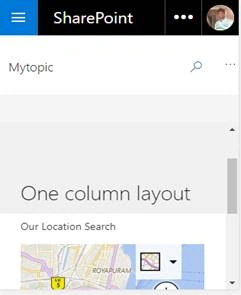
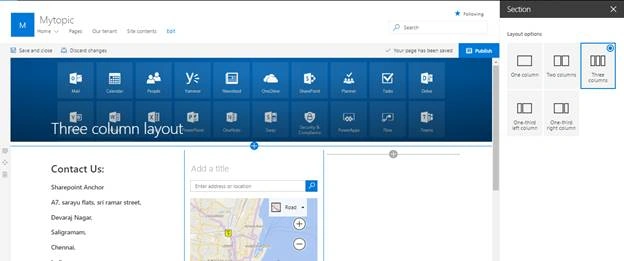
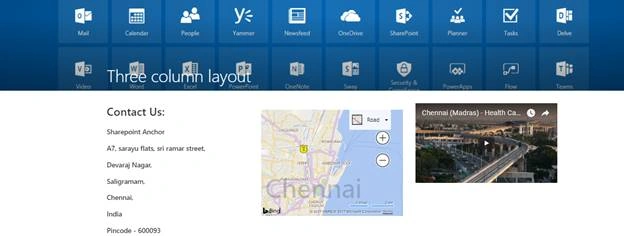
- Page layouts with Mobile and desktop views
- People Picker Card Webpart
Let’s Get started with navigation
Now I will show you how to create a link and sub link


Click Edit -> Click on the child navigation -> Click Make Sub link ->Click Save


Now the “Document” link has been moved as sub link “Home”
Create a New Menu Item -> Click on ADD Icon

Click Ok

“Our tenant” Menu item has been added successfully
News Webpart (This new News web part provides the rich UI experience for display and reading news)
Click Edit Page -> Click Add in a Page

Select News Webpart from Add web part selection window


When you click on EDIT
You can see the three types of layouts
- Top Story [View the content and images as a thumbnail widget]
- List View [This layout shows one by one ]
- Side by Side [It shows the content and images side by side]
Just Add going to news content into this News webpart
Click Add
It navigates to content page -> Provide the title of your News page

Click ADD Icon -> Click Image








Join the conversation! Your thoughts help the community grow.