

Introduction
When we are working on any project, a database plays an important role, and after some time when the number of tables, views, and store procedures increases, it becomes too difficult to manage the database changes. It's very difficult to update production database projects.
And even after that when we manage the database, then we still need to compare which scripts we have worked on and which are remaining on any particular database. There are many good tools available in the market for comparing databases but most of them are paid.
So, in this article, we’re going to learn about how we can manage our database scripts using Visual Studio’s SQL Server Database Project.
We can create a new database project and compare it with an existing database, a .sql script file, or a Data-tier application (.dacpac). We can then invoke the same visual designer tools (Transact-SQL Editor, Table Designer) available for connected database development to make changes to the offline database project, and publish the changes back to the production database. The changes can also be saved as a script to be published later. Using the Project Properties panel, we can change the target platform to different versions of SQL Server (including SQL Azure).
Prerequisite
VS2015 or VS2017 or VS2019 should be installed on your machine.
Getting Started
-
Open Visual Studio and create a new project from the Menu, Select File > New > Project.
-
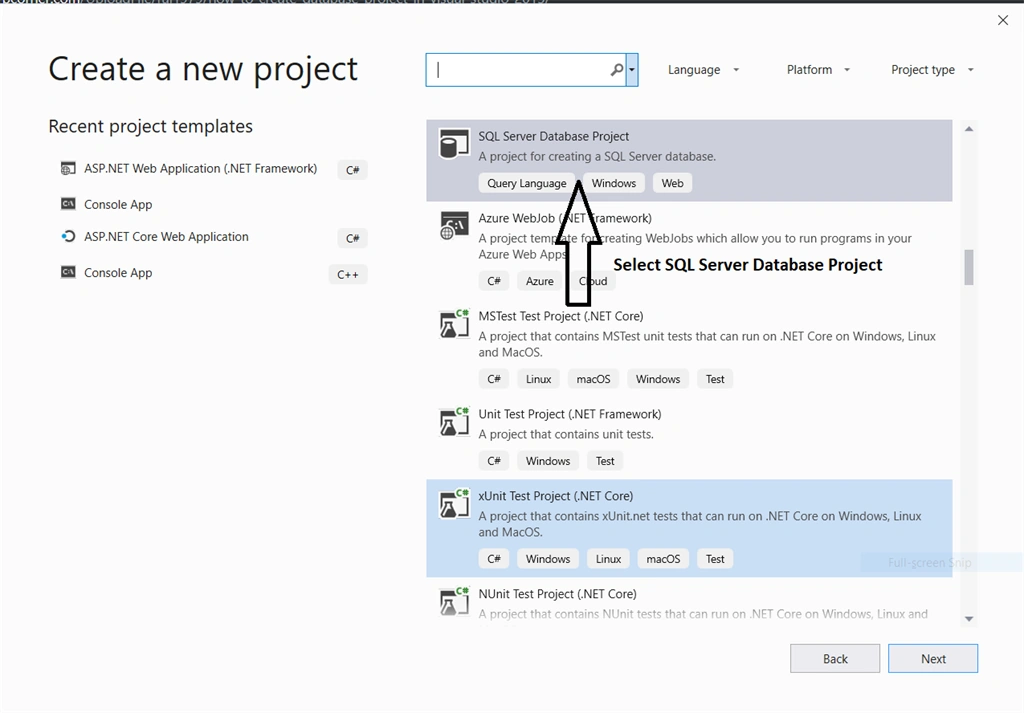
Select the SQL Server Database Project from the list.
-
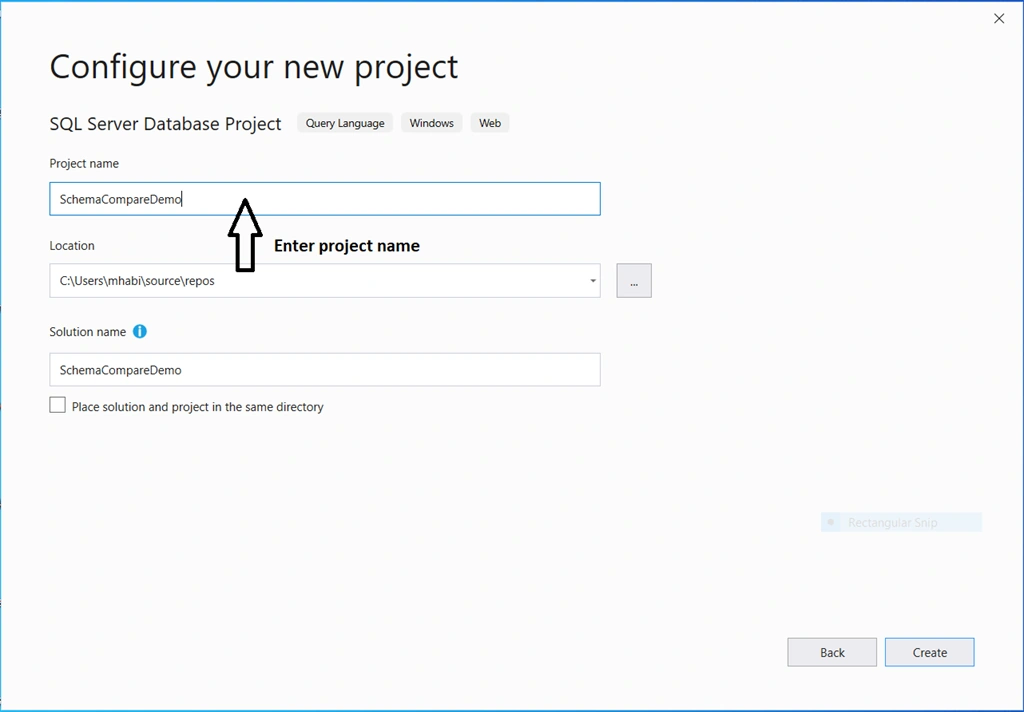
Enter the Project name and click on create button.
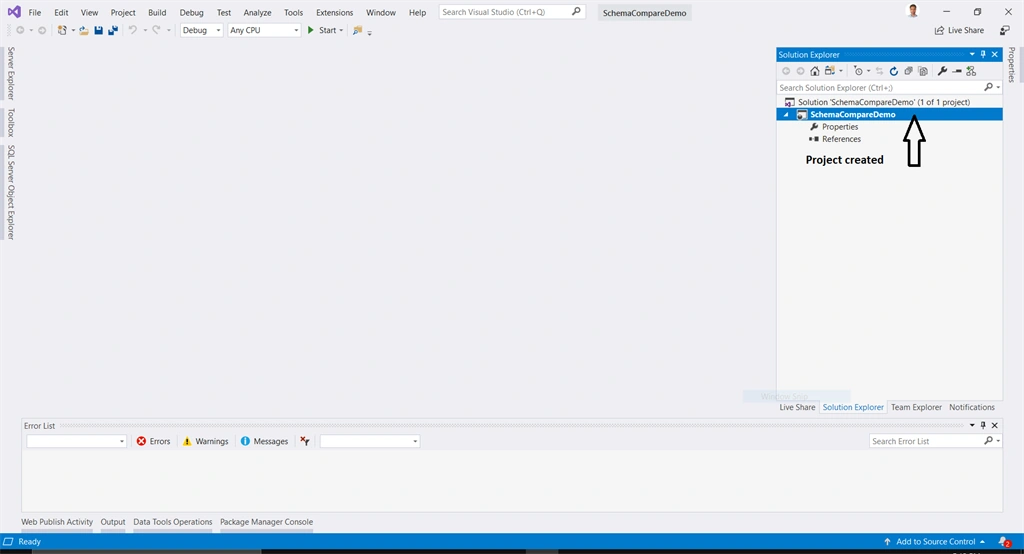
- After the project is created, we can see the database project in Solution Explorer.
-
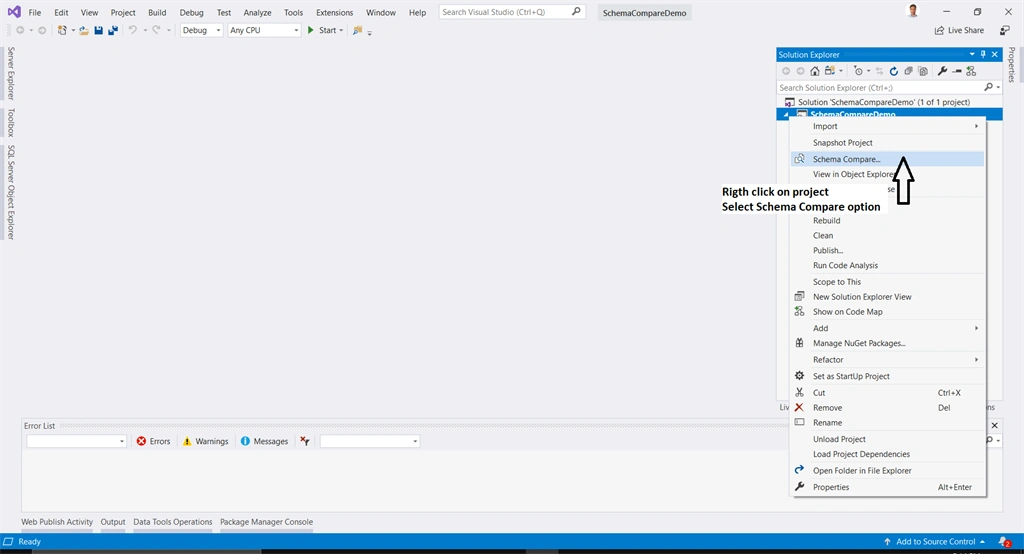
Right-click on the SchemaCompareDemo project and then click on the Schema Compare option from the context menu.
-
Then click on Select Target to select the database.
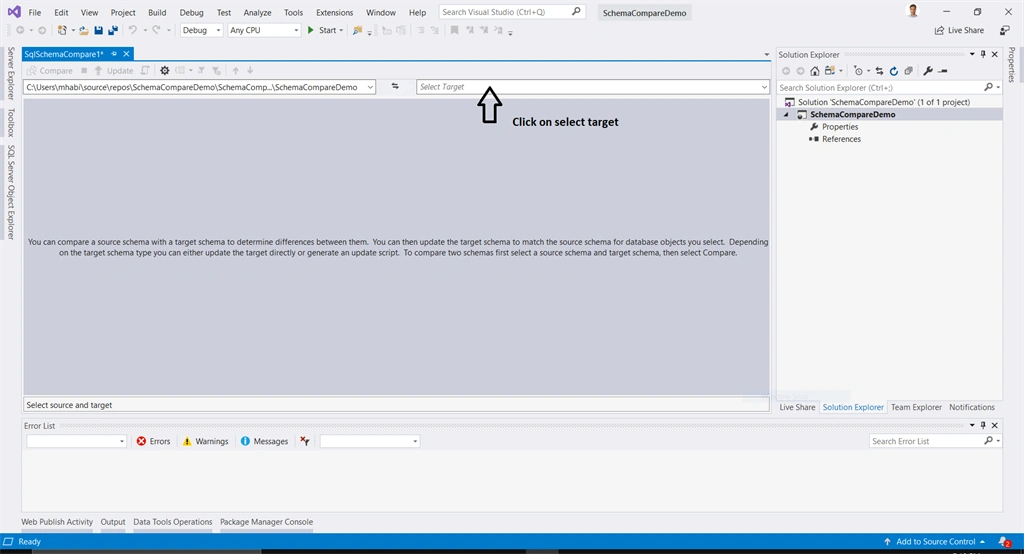
-
Then click on the select connection.
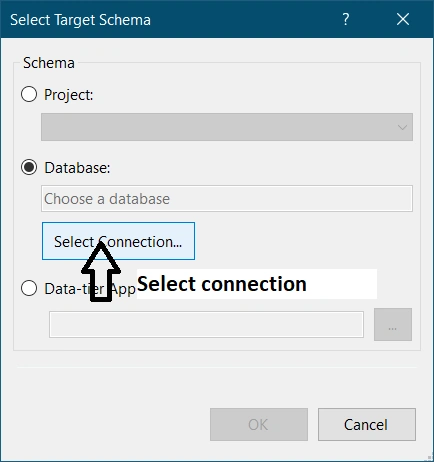
- Select your database or enter new database credentials. Select the database name from the drop-down and click on connect.
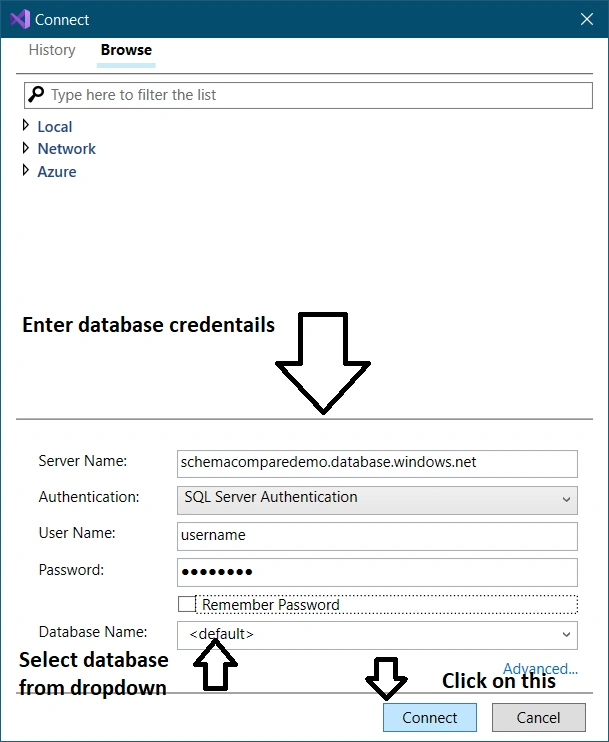
-
After the database, selection clicks on the switch button to switch the source with the target because we want to update our local DB project from a remote database.
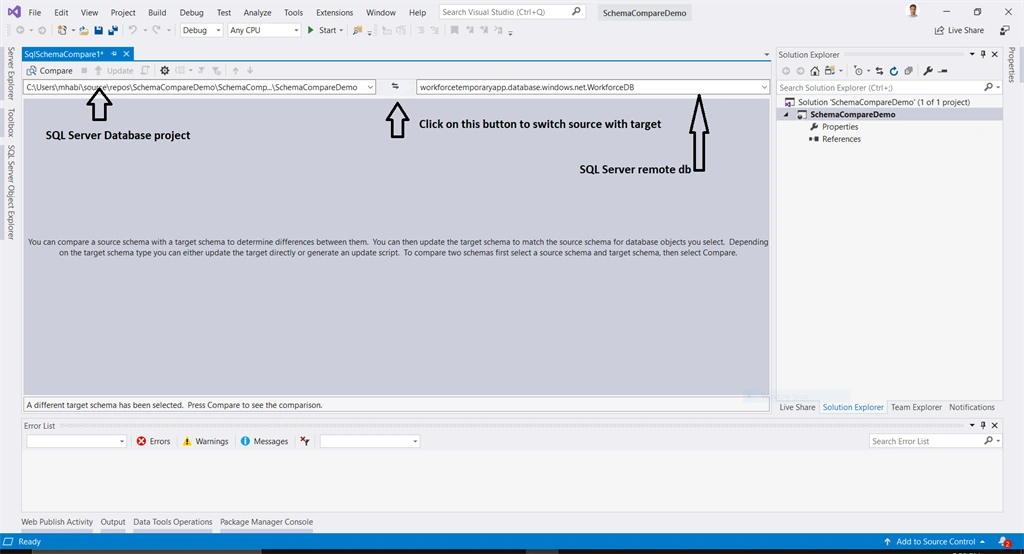
- Start schema comparison by clicking on the Compare button.
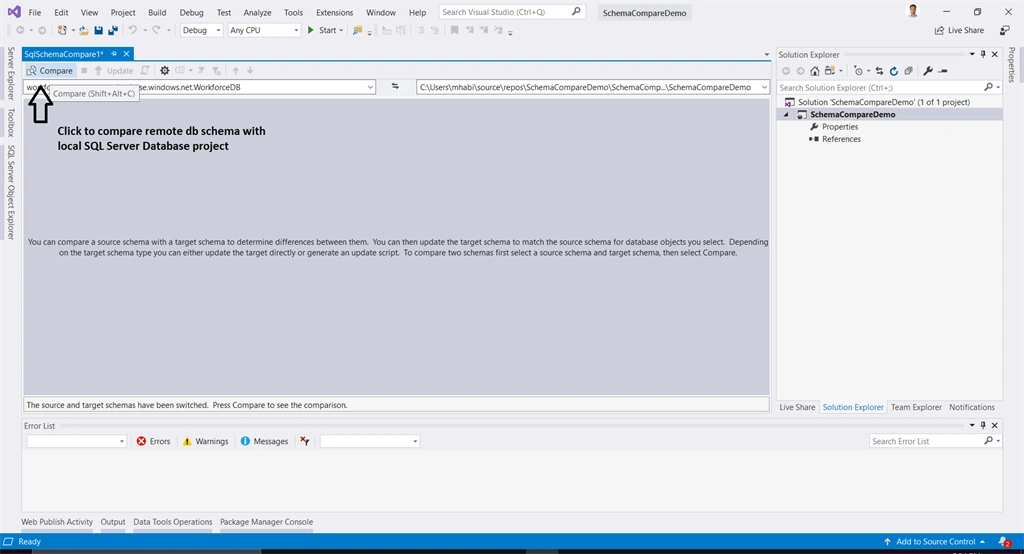
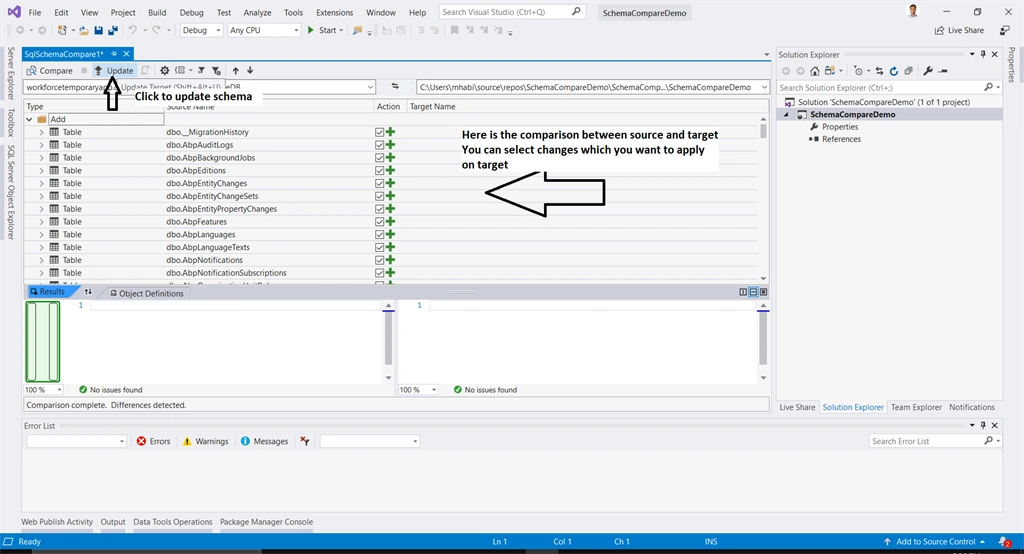
- The comparison view will be shown after some time. You can select the change which you want to make to your local SQL Server Database Project. After selection click on the Update button.
- After the schema update is completed, open your Solution Explorer. As you can see that your SQL Server Database Project has been updated from the remote database.
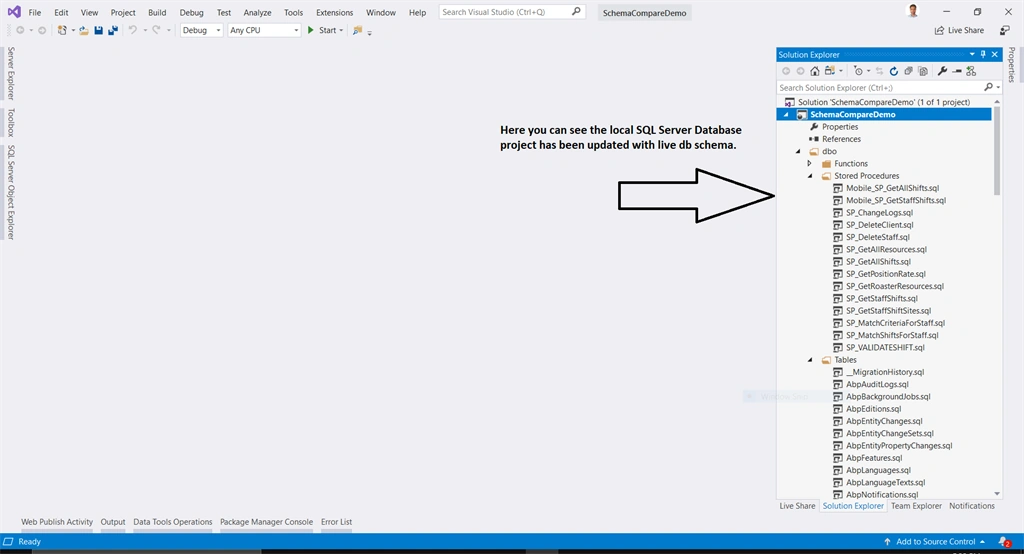
All the tables, stored procedures, views and etc. have been updated from the remote database.
We don't need to write any migration script like we used to do for DB migration.
And after this, whenever there are changes in the tables or the procedures just make the changes to the SQL Server Project Database in the solution, compare and update your changes to the target database. Visual Studio will update the target database accordingly.
Conclusion
So, managing our database now becomes easier using SQL Server Database Project and now there is no need to worry about production db updates.
Anandu G NathPosted Jan 10, 2024, 8:55 AM
Nice Article
PaulPosted Dec 15, 2023, 11:55 PM
I would like to do reverse of this. Where I use my files from local to update MSSQL.
Hm Ahsan JoyiaPosted Sep 15, 2023, 12:12 PM
This is actually a really useful feature in Visual Studio