

In Microsoft Azure, a service is called an Application Gateway if it provides an Application Delivery Controller as a service. Azure Application Gateway offers Layer 7 Load Balancing services for your applications. It also provides SSL offloading features which is more demanded by clients.
Azure Application Gateway also provides an End-to-End Secure Socket Layer feature by which we can have End-to-End encrypted packets and traffic. Application terminates the SSL connection at Application Gateway and using round robin, it redirects traffic towards the back-end; then, once again, it encrypts the packets and forwards those to the back-end. Also Azure Application Gateway supports WebSocket.
Azure Load Balancer works on TCP/UDP protocols and Azure Application Gateway works on HTTP/HTTPS and WebSocket. And Azure Application Gateway comes under three service tiers - Small, Medium, and Large.
In this article, I am going to configure Application Gateway on 2 Web Servers, Azure Virtual Machines with IIS configured in Azure Portal. First, create 2 Windows Server 2012 R2 Datacentre Operating System Virtual Machines in Azure Portal, then Download RDP file of that VMs and open PowerShell and type following command:
Install-WindowsFeature -name Web-Server
After Web Server Configuration please add HTTP Endpoint as an Inbound Security Rules in Network Security Groups of both Virtual Machines from Azure Portal and copy and paste Public IPs of both the Virtual Machines in notepad to add as a backend pool of Application Gateway. After that in both the virtual machines open C Drive Inetpub in that wwwroot folder and create index.html file with some Message like “Hello from WebServer 1” and “Hello from WebServer 2”.
Now Open Azure Portal Create New Search Application Gateway like shown in below figure,
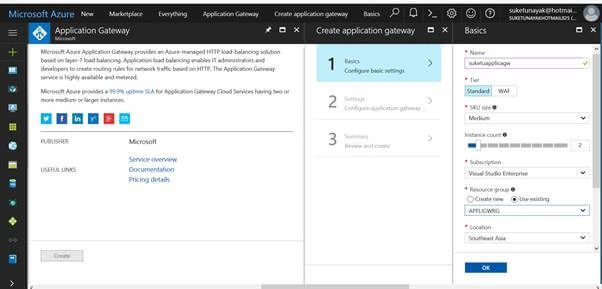
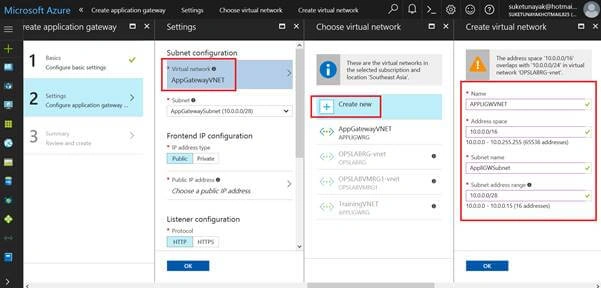
Then Click OK and it will open Setting Tab and create VNET shown in the below figure and create an application gateway subnet also with IP range shown in the figure below. Then Click OK and deploy the Application Gateway Service; it will take 15 minutes to deploy.
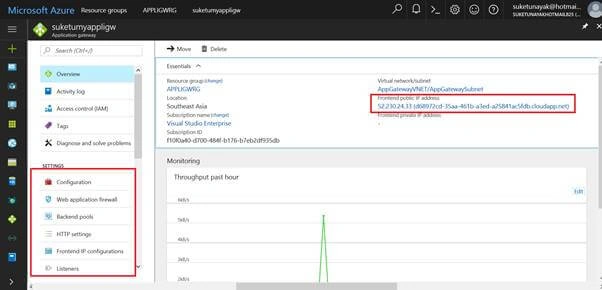
After Deployment Open Application Gateway Service Page as shown in the below figure,
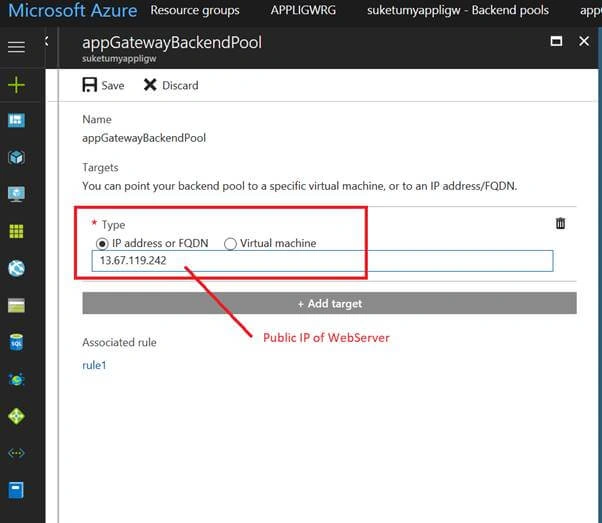
In Menu Click on Backend pool. When you click on existing backend pool there are two options. In Type 1 is IP Address or FQDN and the second option is Virtual Machines. If your 2 WebServers are in the same VNET of the Application Gateway than it will only be visible under Virtual Machine Option of Back End Pool. If your Virtual Machines are in separate VNETs then you need to select IP Address option and enter public IP of both the VMs one by one and Save it.
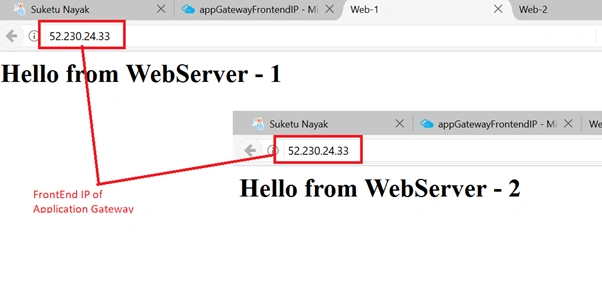
After updating BackEnd Pool please copy FrontEnd IP of Application Gateway and surf in browser and make multiple requests. The reply will come from different WebServers as shown in the below figure,
Join the conversation! Your thoughts help the community grow.