

This configuration will help you to assist the members and role providers in authenticating the web application.
How to configure?
Let’s open Central Admin of SharePoint on your machine. On your Windows desktop screen, click Start >> Administrative Tools >> SharePoint 2016 Central Administration.

- Run it as an administrator to have elevated privileges.
- You will see the screen below.

- Central Admin is configured under the categories given below.
- You will see Web Applications.

- Click on "Manage Web Applications".
- You will see the screen given below.

- Here, we can see various options to work with Web Applications.
- Let’s see them from left to right in different parts of the article.
We have four categories where the events have been categorized.
- Contribute
- Manage
- Security
- Policy
In this part, we will see “Authentication Providers” under the "Security” category.
Authentication Providers
- Select the Web Application and click on "Authentication Providers".
- You will see the screen below.
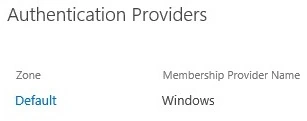
As we can see from the above image, we have a default authentication provider, which is Windows.
- Once you click on the "Default", you will be able to view the entire configuration on the web application.

- Zone It displays whether the zone is default or the custom Client Object Model Permission Requirement
- This function prevents admin and developers from performing changes to the UI if they don’t have Remote Interface Permissions. Again, this function is to control the UI change on the website directly by any user.
- IIS Authentication Settings SharePoint always recommends using Kerberos with Windows, but NTLM will work with any application pool account and the default domain configuration, so we are using NTLM in our case.
- Client Integration, If you turn off this feature, users will have to use browser-integrated tools to perform tasks on SharePoint sites, but if you enable this feature, it will use the default machine-integrated products to launch while editing or modifying the document, filling up the form and many other such processes.
Once you click on "OK," all the configurations selected by you will be added by default in all the sites within the web.
In this article, we saw how to configure authentication providers on the web application. There are more features under managing the web applications which we will see in the next article.
Until then, keep reading and keep learning.
Join the conversation! Your thoughts help the community grow.