-
Verify
that you have one of the following administrative credentials
1.
Member of the farm administrator group
2.
Member of the farm administrator group on the server
running the SharePoint Central Administration.
-
Open
Central Administration.
-
Click on Manage service applications which is available in the
Application Management section.
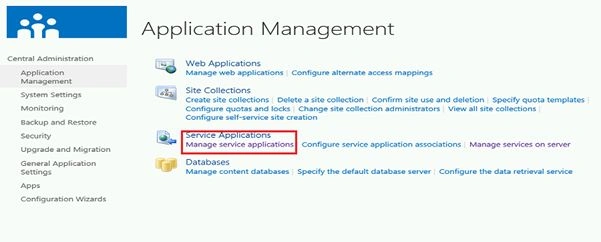
Figure 2-1
Application Management section in SharePoint 2013
-
In the ribbon interface
click on the Service Applications tab, click on the drop down arrow
in the New button which is available in the Create group.
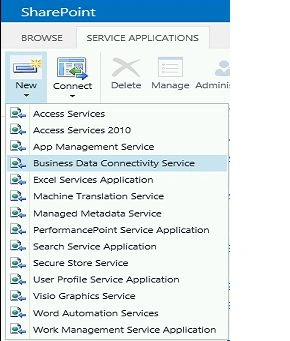
Figure 2-2
New button in ribbon interface to create new service application
-
Click on Business Data
Connectivity Service.
-
Enter the Service
Application Name as Business Connectivity Service, Database
Server and Database Name as shown in Figure 2-3.
-
Select "Create new
application pool" and enter BCSAppPool in the Application pool
Name as shown in Figure 2-3.
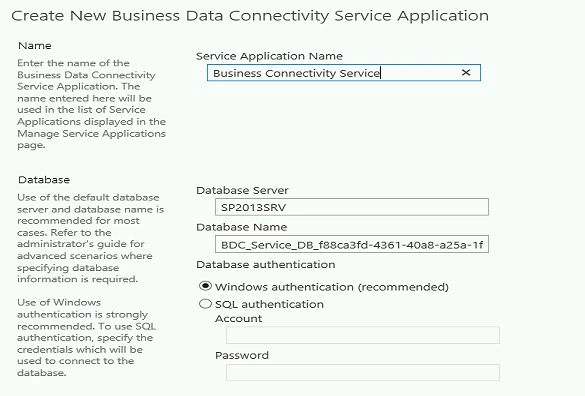
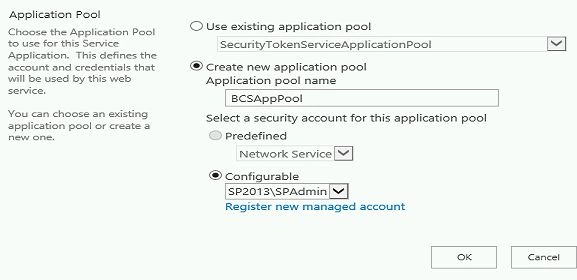
Figure 2-3
Specify the settings for the new Business Data Connectivity Service
Application
-
Select the managed account
from the Configurable drop down as shown in Figure 2-3.
-
Click on Ok.
-
A Business Data
Connectivity Service Application is created successfully as shown in
Figure 2-4.

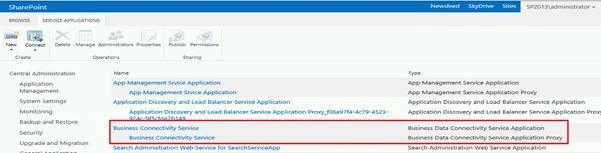
Figure 2-4
New Business Data Connectivity Service Application created successfully
Thus in this article you have
seen how to create a Business Data Connectivity Service Application in
SharePoint 2013 through Central Administration.


Vijai Anand RamalingamPosted Oct 27, 2012, 8:57 AM
Business Connectivity Services (BCS) allow SharePoint sites to connect to and manipulate external data.
hammad razaPosted Oct 22, 2012, 4:25 PM
what are the benefits and why use this ??