

Introduction
In many organizations, users can grant consent to third-party applications that request access to their Microsoft 365 or Entra ID data. While this feature supports flexibility and productivity, it can also open doors to security risks — especially if users unknowingly approve malicious or unverified apps.
Why it matters
Attackers often use consent phishing techniques, where users are tricked into granting permissions to a rogue application that looks legitimate. Once consent is given, the app can access sensitive information such as:
Emails, contacts, and calendar data
Files stored in OneDrive or SharePoint
User profile and group membership details
This access remains active even if the user later changes their password, making it a persistent and dangerous threat vector.
Step 1. Sign in to Entra ID Admin Center https://entra.microsoft.com/
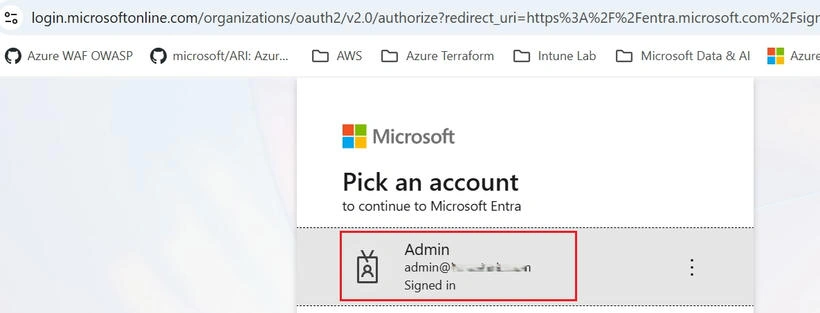
Step 2. Sign in to use your Global Administrator or Cloud Application Administrator account.
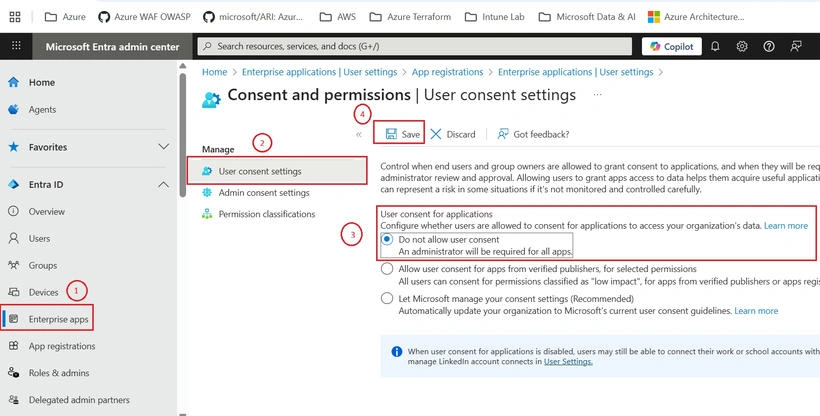
Step 3. Navigate to Enterprise applications ➜ User consent settings, and choose Do not allow user consent to restrict users from granting permissions to applications.
Conclusion
Enforcing “Do not allow user consent” helps block unverified or risky apps from accessing your data. This simple control strengthens your organization’s security and ensures only trusted applications are granted access.
Join the conversation! Your thoughts help the community grow.