

Introduction
In today's interconnected world, seamless connectivity between on-premises networks and cloud environments is crucial for businesses. VMware Cloud on Microsoft Azure (VMware Cloud AVS) provides a powerful platform for running your VMware workloads in the cloud. To ensure a secure and reliable connection between your on-premises network and your VMware Cloud AVS Private Cloud, you can use Microsoft Azure's ExpressRoute Global Reach. This article will guide you through the process of configuring ExpressRoute Global Reach for on-premises connectivity to VMware Cloud AVS Private Cloud.
What is ExpressRoute Global Reach?
ExpressRoute Global Reach is a feature of Microsoft Azure ExpressRoute that allows you to connect your on-premises networks across different regions or continents through the Microsoft Global Network. It enables you to establish private, high-speed connections that bypass the public internet, providing a more secure and reliable connection to your cloud resources.
Prerequisites
Before you begin configuring ExpressRoute Global Reach for your VMware Cloud AVS Private Cloud, ensure you have the following prerequisites in place:
- An active Azure subscription with ExpressRoute enabled.
- An ExpressRoute circuit is configured and connected to your on-premises network.
- A VMware Cloud AVS Private Cloud deployed on Microsoft Azure.
- Access to the Microsoft Azure portal with the necessary permissions to configure ExpressRoute Global Reach.
Configuring ExpressRoute Global Reach for VMware Cloud AVS Private Cloud
Follow these steps to configure ExpressRoute Global Reach for on-premises connectivity to your VMware Cloud AVS Private Cloud:
In the previous article, we successfully connected to the AVS private cloud from the Jump Box hosted on a connected Azure VNet. Now, let's proceed to connect to the vSphere Web Client from our desktop.
https://www.c-sharpcorner.com/article/how-to-connect-azure-vmware-solution-to-an-azure-vnet/
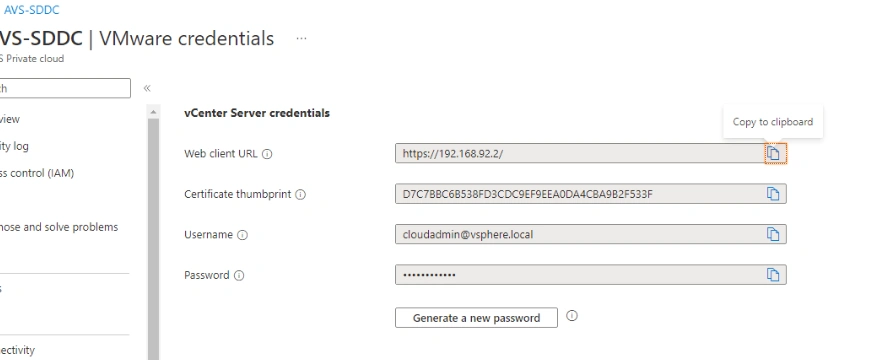
- Copy the URL from the "Web client URL" field by clicking the "Copy to clipboard" icon at the far right.
- Open a new tab in the Edge browser by clicking the + icon in the menu bar.
- Right-click in the address bar of the new tab.
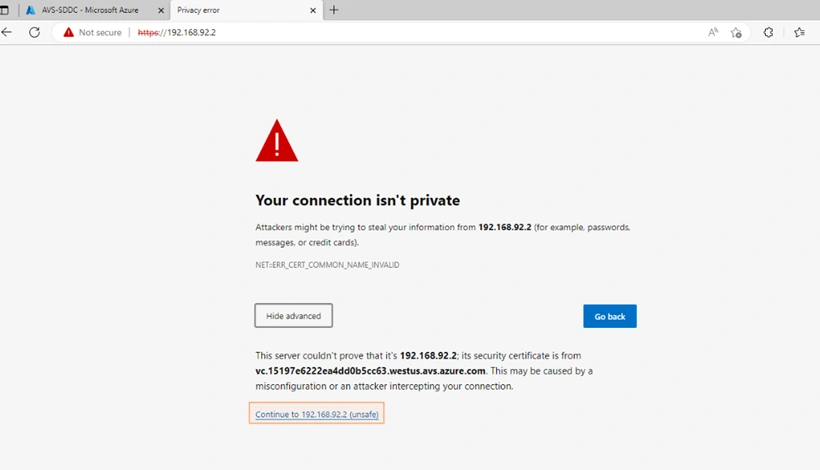
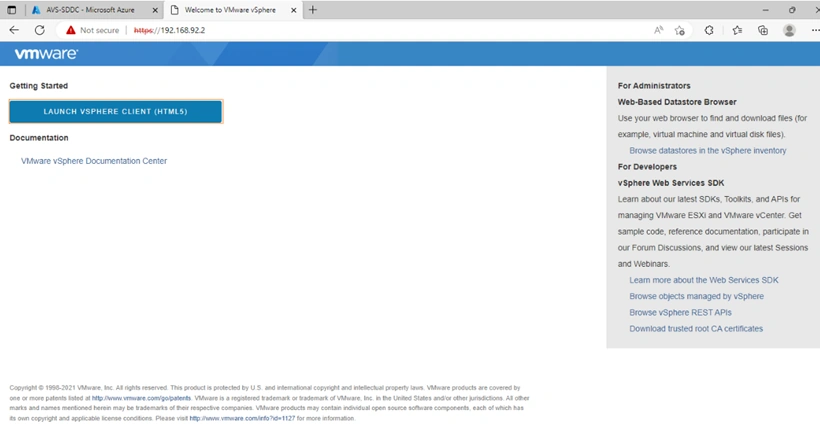
- Select "Paste and go to https://192.168.92.2" to navigate to the vSphere Web Client.
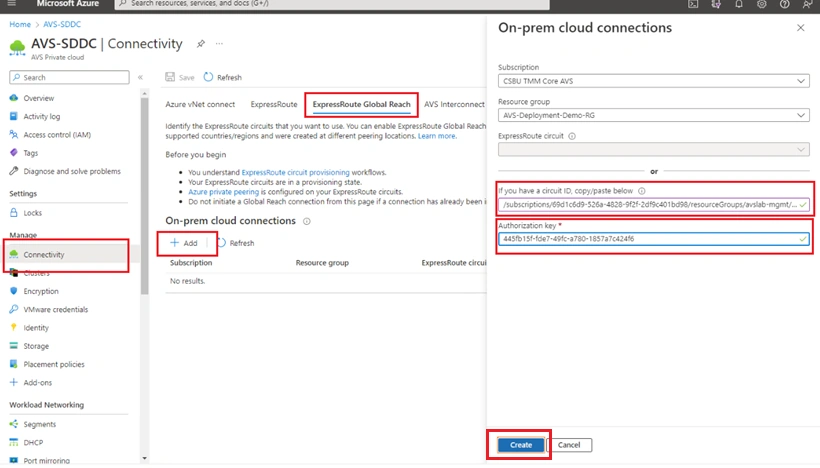
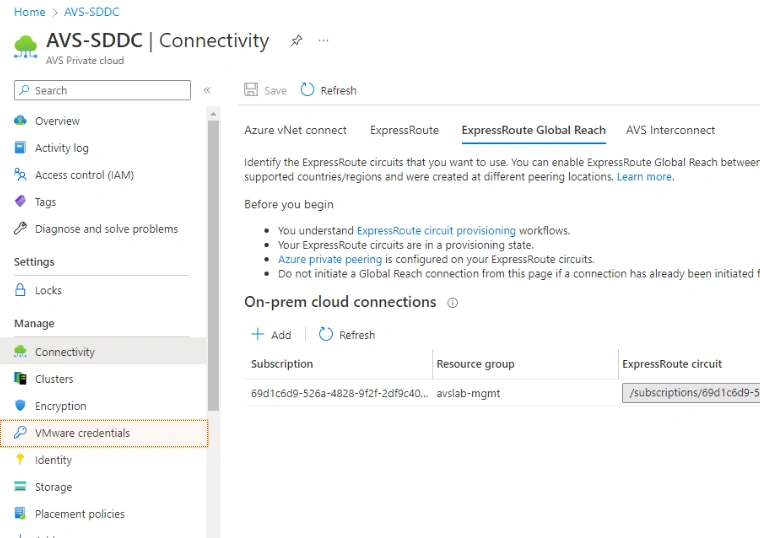
The vSphere Web Client fails to load. The on-premises data center hosting our desktop has an ExpressRoute connection to Azure. The AVS private cloud is connected to an Azure VNet via an ExpressRoute Gateway. However, the ExpressRoute gateway does not allow routes between these connections to be exchanged. To establish connectivity between the customer-managed ExpressRoute circuit supporting the on-premises connection and the Microsoft-managed ExpressRoute circuit supporting the AVS private cloud, we need to configure an ExpressRoute Global Reach connection.
Join the conversation! Your thoughts help the community grow.