

In this article I would like to share the procedure to configure the outgoing email settings for a SharePoint farm using Central Administration.
Use of configure outgoing email for a farm
- It enables users to create alerts to track such site items as lists, libraries, and documents
- By using this end users can send the mail by using workflows, track the changes and updates to individual site collections.
- Administrators can receive the notices when users request to access the site
Procedure to configure outgoing email for a farm
Before you configure the email for a farm, you should have configured the SMTP on your server or you should have a configured mail server address.
Use the following procedure to configure outgoing email for a farm.
Step 1: Go to Central Administration using a farm administrator account as shown below: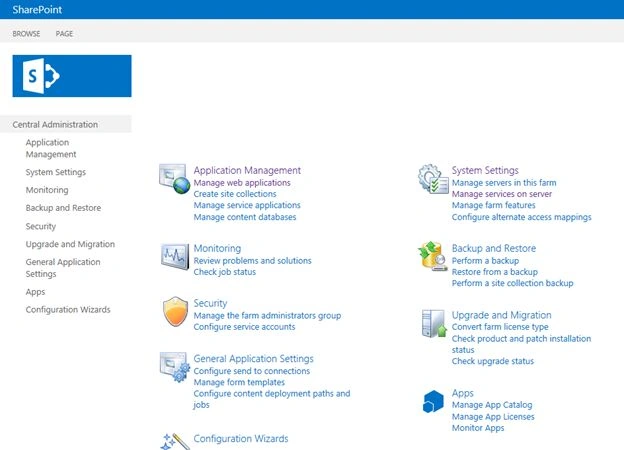
Step 2: In Central Administration, click on system settings in the left navigation. Then you will be navigated to the system settings page.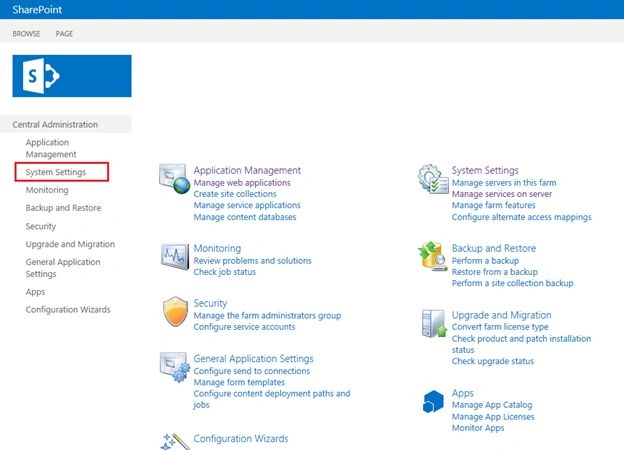
Step 3: On the system settings page, in the “E-mail and Text Messages (SMS)” section select the “Configure Outgoing E-mail Settings”.
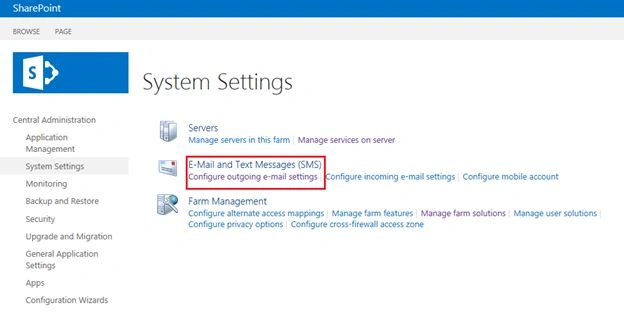
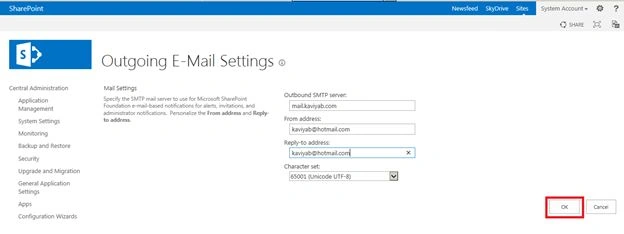
Step 4: When you click on the “Configure Outgoing e-mail settings”, you will be navigated to the outgoing email settings page as shown below.
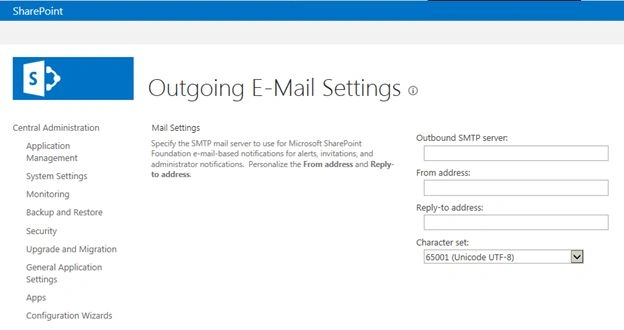
Step 5: On E-mail settings page, provide the following details:
- Outbound SMTP server: Type the SMTP server name for outgoing e-mail (for example, mail.sample.com)
- From Address: Type the e-mail address as you want it to be displayed to e-mail recipients
- Reply-to-address: Type the e-mail address to which you want e-mail recipients to reply.
- Character Set: select the character set that is appropriate for your language.
Then click on the “OK” button to save the settings,
Finally the settings will be changed on your Central Administration farm.
Summary
In this article we have explored how to configure the outgoing email settings for a SharePoint farm by using Central Administration. Happy learning.
Join the conversation! Your thoughts help the community grow.