

One of the biggest changes in Project Server 2016 is the installation process. So, before you get started installing and configuring Project Server 2016, you should be aware of the following.
- A separate installation is no longer required as it was in previous versions of Project Server.
- The SharePoint Server 2016 MSI file will contain the installation files for Project Server 2016 as well.
- Project Server 2016 runs as a service application in SharePoint Server 2016.
- Project Server 2016 is only available on SharePoint Server 2016 Enterprise.
Note
Although Project Server 2016 is included as part of the SharePoint Server 2016 Enterprise installation, it still requires a separate license.
Below, I’ll elaborate how to configure Project Server 2016 under SharePoint 2016.
Steps- Create SharePoint and Project Server Service Accounts.
- Install & configure SharePoint 2016 Enterprise Edition.
- Register Managed Accounts.
- Configure Project Server Service Application.
- Enable Project Server 2016 License.
- Create a Project Server 2016 service application.
- Deploy Project Web App.
- Create a web Application that will host the PWA Site Collection.
- Create a PWA Content Database.
- Lock Down PWA Content Database to prevent any new site collections being added except PWA Site Collection.
- Lock Down PWA Content Database to prevent any new site collections being added except PWA Site Collection.
- Provision a PWA Site Collection.
- SPAdmin is the installation account that used to install and run SharePoint configuration wizard.
- It should be added to local administrator group on each Server on which the setup is run.
- Member of the Server admin SQL Server security role.
- SPFarm is the farm account that used to configure the farm.
- It must have a server role as 'DBcretor' and 'Security Admin' in SQL Server.
- 'db_owner' fixed database role for all databases in the server farm
- PSWebAppPool is a domain user that is used to run the application pool for the web application that will host the PWA site collection.
- PSSrvAppPool is a domain user that is used to run the associated application pool with the project server service application.
- Download Sharepoint 2016 from Microsoft.
- I assumed you already have a farm specifications that meets the SharePoint 2016 hardware and software requirements.
- Minimum requirements for the database server in the farm is The 64-bit edition of Microsoft SQL Server 2014 Service Pack 1 (SP1).
- Minimum requirements for Operating System is Windows Server 2012 R2 Standard or Datacenter or Windows Server 2016 Standard or Datacenter.
- Login as 'SPAdmin' account.
- Run the Microsoft SharePoint Products Preparation Tool.
- Run the SharePoint installation file.
- Provide the SharePoint Key, and follow the steps as mentioned at Install SharePoint 2016 step by step.
- Enterprise trial product key: NQGJR-63HC8-XCRQH-MYVCH-3J3QR.
- Enterprise trial product key: NQGJR-63HC8-XCRQH-MYVCH-3J3QR.
- Once the installation is finished, the Central Administration will be opened. Click on Cancel to configure the farm manually.

Register Managed Accounts
- On the Central Administration home page - In the left navigation, click Security.
- On the Security page - In the General Security section, click Configure managed accounts.

- On the Managed Accounts page > click Register Managed Account.

- Type the user name and password of the service account and leave the Automatic Password Change settings as default> Click OK.
- Repeat the above steps for all service accounts.
Configure Project Server Service Application
Enable Project Server License
Enable Project Server License
- Open the SharePoint 2016 Management Shell as Administrator.
- Type the below cmdlet to enable Project Server 2016,
- Project Server trial license key: Y2WC2-K7NFX-KWCVC-T4Q8P-4RG9W
Enable-ProjectServerLicense -Key "Y2WC2-K7NFX-KWCVC-T4Q8P-4RG9W"

- Project Server trial license key: Y2WC2-K7NFX-KWCVC-T4Q8P-4RG9W
Create a Project Server service application.
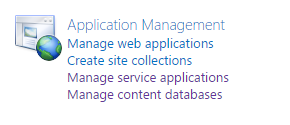
- On the Central Administration home page, > In the Application Management section > Click Manage service applications.
- On the Manage Service Applications page,> From the above ribbon, click New, then click Project Server Service Application.

- Provide the name, and select the service account as shown below.(In this case, it's PSSrvAppPool).

- The Project Server Application Service has been created successfully.

- Once the project server service application is created, the Project Server Application Service will start as shown below: (Contrary to what was happening in the Project Server 2013 where the Project Server Application Service is started manually.)

Deploy Project Web App.
Create a Web Application for PWA.
Project Server 2016 does not require a specific template. You can choose one appropriate for your organization.
Create a PWA Content Database
- On the SharePoint Central Administration > In the Application Management > Web Application > Manage Web application.
- From the above ribbon > Select New > Provide the required information and select PSWebAppPool as application pool account.
- Once the web application is created> Click Create Site collection to create the top level website.
Project Server 2016 does not require a specific template. You can choose one appropriate for your organization.
Create a PWA Content Database
- In the SharePoint Central Administration > Application Management > Manage Content Databases.
- Click on Add A content Database.

- Create a new Content Database for PWA “WSS_Content_PWA”.
- Lock Down PWA Content Database to prevent any new site collections being added except PWA site collection.
The final result should look like,

Create and Provision a PWA Instance
In Project Server 2013, you can create and provision PWA instance by managing Project Server Service application as shown below.

In Project Server 2016, you can’t provision a PWA instance in this way.

In Project Server 2013, you can create and provision PWA instance by managing Project Server Service application as shown below.
In Project Server 2016, you can’t provision a PWA instance in this way.
In this case, The PWA instance should be provisioned via PowerShell cmdlets as mentioned below,
- Open the SharePoint 2016 Management Shell as Administrator.
- Type the below cmdlet to create a PWA instance in Project Server 2016:
- New-SPSite -ContentDatabase PWA_Content -URL http://SiteCollectionURL/PWA -Template pwa#0

- Type the below cmdlet to enable ‘pwasite’ feature to turn on Project Web App site collection features.
- Enable-SPFeature pwasite -URL http://SiteCollectionURL/PWA

- Browse your PWA URL. Great! You should be able to access the new Project Web App site now.

In this article, we learned how to configure Project Server 2016.
References
Mohamed ElqassasPosted Sep 29, 2018, 7:54 AM
Check also https://blog.devoworx.net/2015/10/16/install-and-configure-project-server-2016/
RakeshPosted Apr 19, 2017, 2:33 PM
Nice...Keep up the good work Qassas.. !
Rathrola Prem KumarPosted Apr 18, 2017, 9:57 PM
Excellent Article : )
JhonPosted Apr 18, 2017, 1:25 PM
Great Article :) Thanks for Sharing!