

In This article I am describing about how to install and configure Remote BLOB
Storage (RBS) with the FILESTREAM provider on a Microsoft SQL Server 2008
database server that supports a Microsoft SharePoint Server 2010 system. RBS is
typically recommended in the case where the content databases are 4 gigabytes
(GB) or larger.
SharePoint stores the files (or the blobs) in content database. The advantage of
that approach is it simplifies the backup and restores process. We can backup a
site collection related data in one file. The disadvantage is the database size
can be enormous if Site contains large number of files. It may a critical
problem if you use SQL Server Express Edition which has a limitation in database
file size. RBS is a library API set that is incorporated as an add-on feature
pack for Microsoft SQL Server 2008 and Microsoft SQL Server 2008 Express. RBS is
designed to move the storage of binary large objects (BLOBs) from database
servers to commodity storage solutions. RBS ships with the RBS FILESTREAM
provider, which uses the RBS APIs to store BLOBs.
We can configure SharePoint to stores the blob in the file system, instead of in
database by possible by leveraging FILESTREAM feature of SQL Server 2008 and
Remote BLOB Storage (RBS). With SharePoint 2010, the Remote Blob Storage (RBS)
functionality allows putting documents into the database file system instead of
the database itself. Each content database is located in a specific section of
the file system where all the documents are stored.
Enable File Stream in SQL Server
- Connect to SQL Server
Start -> All Programs -> Microsoft SQL Server 2008 -> Configuration Tools -> SQL Server Configurations Manager - In the Services list, click "SQL Server Services"
- Choose your SQL instance (For me "SQL Server (SHAREPOINT)") and right click Properties.
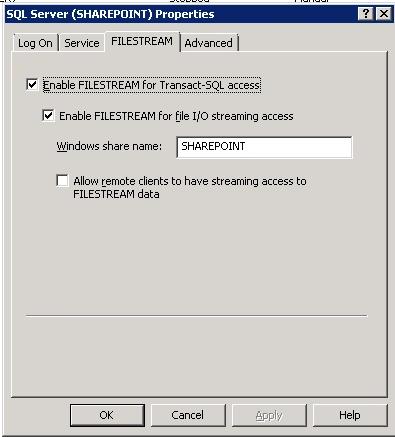
- Switch to the FILESTREAM tab and check all the available checkboxes
- Click Apply -> OK
- Now start SQL Server Management Studio
- Open a query windows and execute the below
SQL Statement mater database is fine
EXEC sp_configure filestream_access_level, 2
RECONFIGURE
- Next we should have a web application and a content database created for the same .If you didn't created create a content data base for your web application.I have created a content data base with the name SP2010_Blob
- You can use Power shell to create a new
content DB with the following command
New-SPContentDatabase -name SP2010_Blob -WebApplication url
- Now we have to enable our new content DB to be prepared to use FILE STREAM
- Start -> All Programs -> Microsoft SQL Server 2008 R2 ->SQL Server Management Studio
- Right click on SP2010_Blob and select a
query window and execute the below statement. Replace "C:\BlobFiles " by
your storage-path
use [SP2010_Blob]
if not exists (select * from sys.symmetric_keys where name = N'##MS_DatabaseMasterKey##')create master key encryption by password = N'Admin Key Password !2#4'
use [SP2010_Blob]
if not exists (select groupname from sysfilegroups where groupname=N'RBSFilestreamProvider')alter database [SP2010_Blob] add filegroup RBSFilestreamProvider contains filestream
use [SP2010_Blob]
alter database [SP2010_Blob] add file (name = RBSFilestreamFile, filename = 'c:\ BlobFiles) to filegroup RBSFilestreamProvider
Install RBS on Web Server
- You must install RBS on the database server and on all Web servers and application servers in the SharePoint farm. You must configure RBS separately for each associated content database.
- On any Web server, go to http://go.microsoft.com/fwlink/?LinkID=177388 (http://go.microsoft.com/fwlink/?LinkID=177388) to download the RBS.msi file.
- Click Start and then type cmd in the text box. In the list of results, right-click cmd, and then click Run as administrator. Click OK.
- Copy and paste the following command at the command prompt:
- Make sure you are running this command in
the downloaded RBS.msi folder
msiexec /qn /lvx* rbs_install_log.txt /i RBS_X64.msi TRUSTSERVERCERTIFICATE=true FILEGROUP=PRIMARY DBNAME="<ContentDbName>" DBINSTANCE="<DBInstanceName>" FILESTREAMFILEGROUP=RBSFilestreamProvider FILESTREAMSTORENAME=FilestreamProvider_1
- Where:
1. <ContentDbName> is the database name in my case SP2010_Blob.
2. <DBInstanceName> is the SQL Server instance name in my case DB SERVERNAME\SHAREPOINT.Please note you should give full name like I given
To install RBS on all additional Web and application servers
- Click Start and then type cmd in the text box. In the list of results, right-click cmd, and then click Run as administrator. Click OK.
- Copy and paste the following command at
the command prompt:
msiexec /qn /lvx* rbs_install_log.txt /i RBS_X64.msi DBNAME="ContentDbName" DBINSTANCE="DBInstanceName" ADDLOCAL="Client,Docs,Maintainer,ServerScript,FilestreamClient,FilestreamServer"
- You should repeat this procedure on all Web servers and application servers. If you do not install RBS on every Web and application server, users will encounter errors when they try to write to the content databases.
- The rbs_install_log.txt log file is created in the same location as the RBS.msi file. Open the rbs_install_log.txt log file with a text editor and scroll toward the bottom of the file. Within the last 20 lines of the end of the file, an entry should read as follows: "Product: SQL Remote Blob Storage - Installation completed successfully".
- The script has created a some tables in
the database, the following query help us to check that
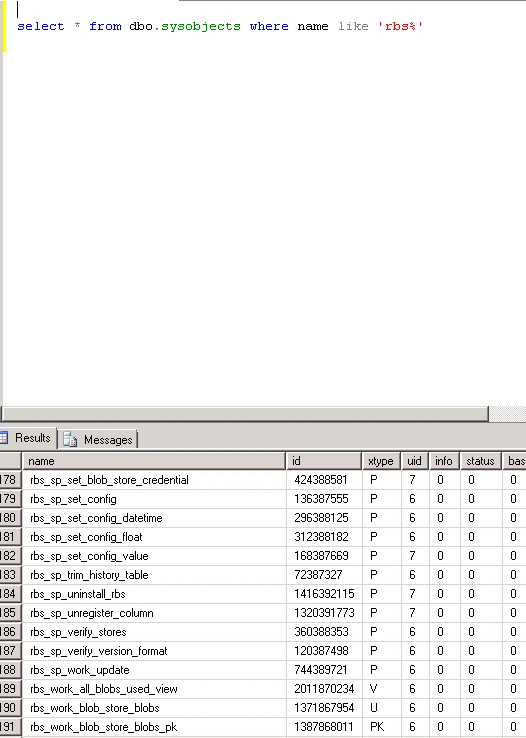
use SP2010_Blob
select * from dbo.sysobjects
where name like 'rbs%'
To enable RBS
- On the Start menu, click Programs, click Microsoft SharePoint 2010 Products, and then click SharePoint 2010 Management Shell.
- At the Windows PowerShell command prompt,
type each of the following commands.
$cdb = Get-SPContentDatabase -WebApplication Your URL
$rbss = $cdb.RemoteBlobStorageSettings
$rbss.Installed()
$rbss.Enable()
$rbss.SetActiveProviderName($rbss.GetProviderNames()[0])
$rbss
- We almost did with the configuration. Create a site collection and should use the content database "SP2010_Blob".
- Connect to WFE
- Go to SharePoint 2010 Central Administration
- Under Application Management - Manage Content Databases Choose the applicable Web Application from the drop down above
- Configure the Content Database to put the next site collection to "SP2010_Blob"
- Go back to the main site of Central Administration
- Application Management - Create Site Collection
- Make sure by going to content database
that the site collection we created will be in the content database that we
configured
To test the RBS data store - Connect to a document library on any Web server.
- Upload a file that is at least 100 kilobytes (KB) to the document library.
- Documents below 100 kB will not be put to the file system but will be stored in the database.
- On the computer that contains the RBS data store, click Start, and then click Computer.
- Browse to the RBS data store directory.
- Browse to the file list and open the folder that has the most recent modified date (other than $FSLOG). In that folder, open the file that has the most recent modified date. Verify that this file has the same size and contents as the file that you uploaded
Fares KTARIPosted Aug 1, 2013, 7:14 AM
We have a problem on configuring RBS : When i am Trying the test the RBS implementation I am gettting the Above error like "The URL '<Doc lib>/File name' is invalid. It may refer to a nonexistent file or folder, or refer to a valid file or folder that is not in the current Web. ' Could you please help me?
root meetPosted Mar 3, 2011, 1:21 PM
How to configure the Content Database to put the next site collection? please explain step 30 in detail....