

In this article you will see how to configure the Word Automation Service in SharePoint 2013.
Introduction
Word Automation Services is a SharePoint Service Application that is used for server-side conversion of documents that are supported by Microsoft Word. A few new features like on demand file conversion and support for converting streams are introduced in Word Automation Service in SharePoint 2013. Please refer to http://msdn.microsoft.com/en-us/library/jj163073.aspx to learn more about what's new in Word Automation Services for developers.
Configure Word Automation Service in SharePoint 2013
- Open Central Administration.
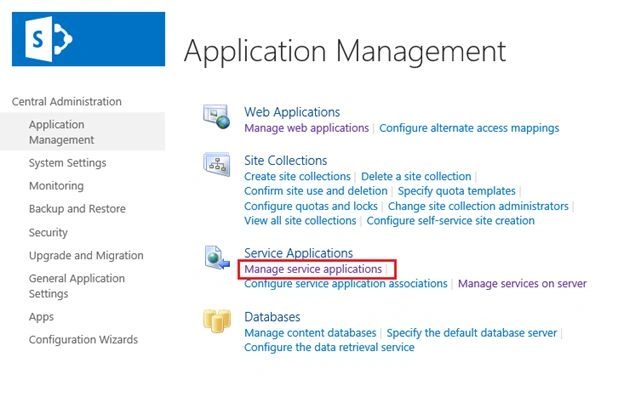
- Click on "Manage service applications" that is available under Service Applications.
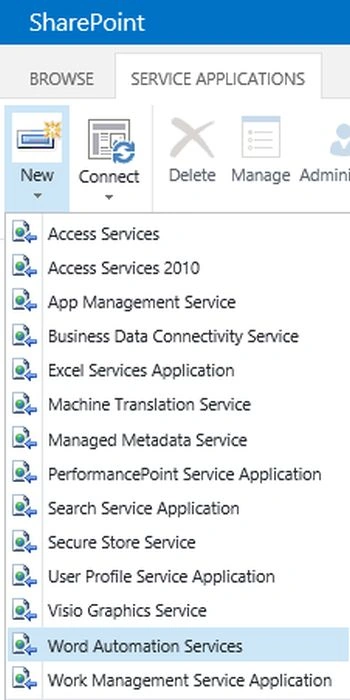
- In the ribbon interface click on the "New" button.
- Click on "Word Automation Services".
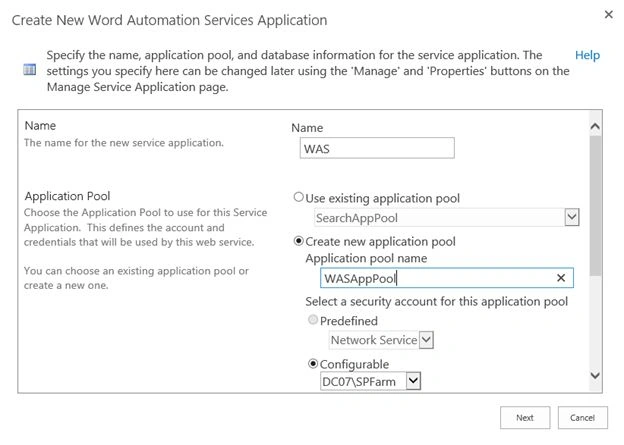
- Enter the Name and App Pool Name for the service application.
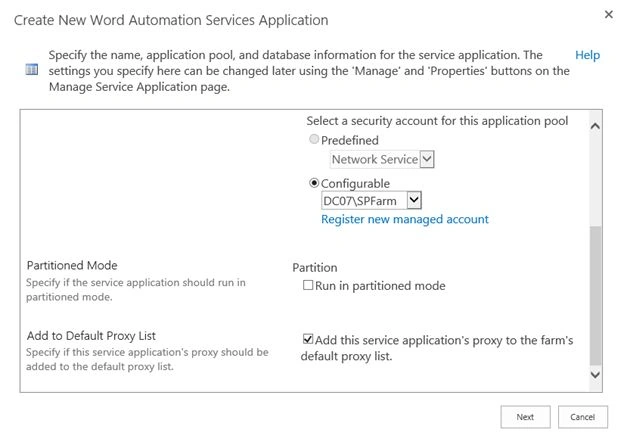
- Select "Add to default proxy list".
- Click on "Next".
- Enter the database name.
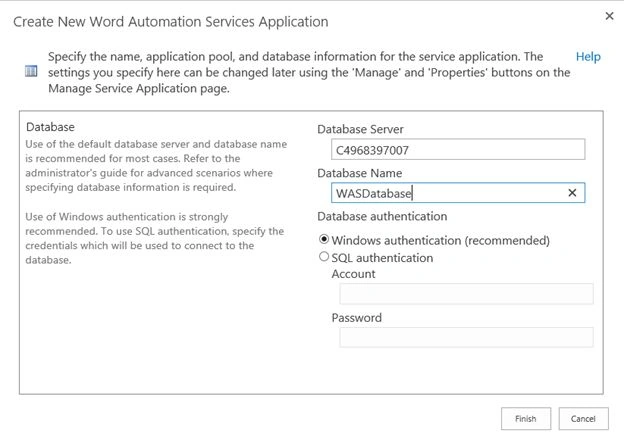
- Click on "Finish".
- The Word Automation Service application is created successfully.

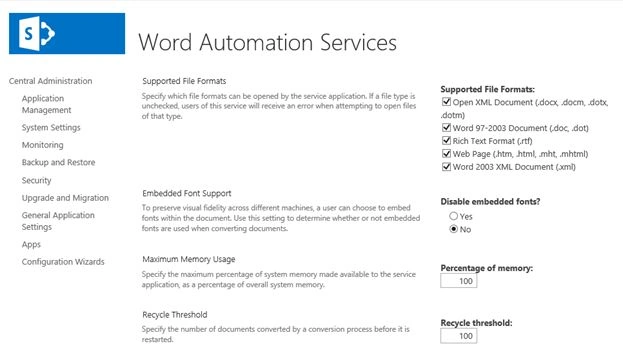
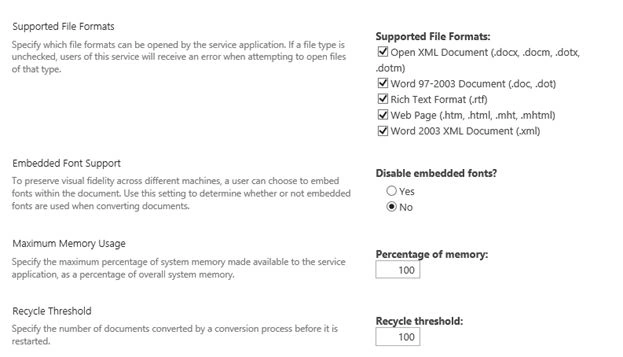
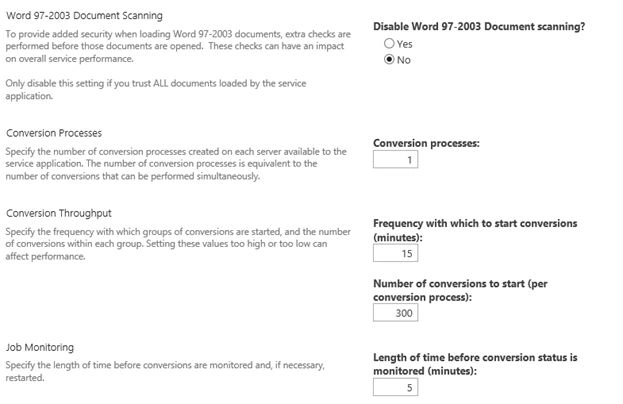
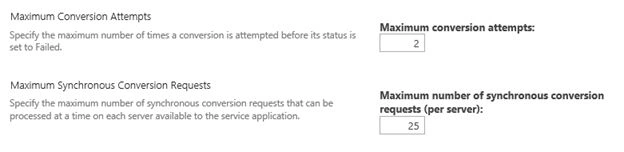
- When you click on WAS you will be able to see the following options.
Summary
Thus in this article you have seen how to configure Word Automation Services in SharePoint 2013.
Venkateswarulu SammitiPosted Mar 29, 2018, 10:03 AM
How to solve the word document in a SharePoint browser in above steps are changed but not opne in the sharepoint brpowser
Venkateswarulu SammitiPosted Mar 29, 2018, 10:03 AM
How to solve the word document in a SharePoint browser
sahtishPosted Sep 9, 2014, 5:37 AM
could not cofigure word automation services in SharePoint 2013. It shows object reference not set to an instance
selvaa vPosted Dec 19, 2013, 3:11 AM
Good. cannot convert word to pdf in the server , which has no job history details. also checked in items tabls in DB , there is no Start and Stop time