

Overview
Transforming classic SharePoint sites to modern SharePoint involves the ability to connect to Office 365 groups from a classic SharePoint site. Connecting the classic SharePoint site to the Office 365 group brings the site one step closer to modernization.
In this article, we will explore how we can connect a classic SharePoint site to an Office 365 group using UI and scripted approach.
Benefits of connecting to Office 365 Group
When a SharePoint site is connected to an Office 365 group, we can get the benefits of the group-connected services like Microsoft Planner and Microsoft Teams.
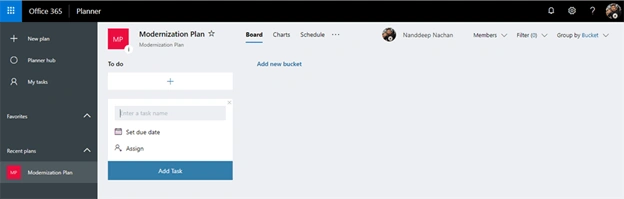
Microsoft planner is a simple and visual way to organize the work. It helps to easily create new plans, task management, share files, chat, and get progress on work status. The planner can be accessed from here.
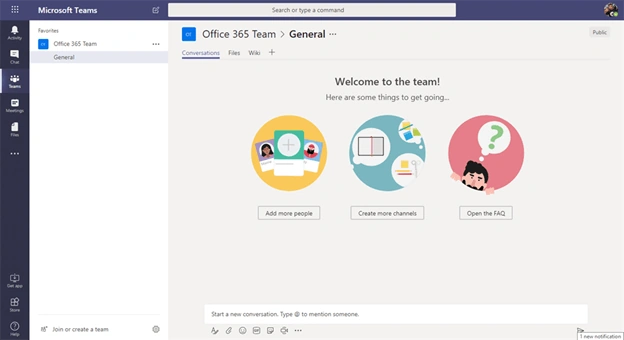
Microsoft Teams is a hub for team collaboration in Office 365. It helps to collaborate with people, tasks, and files. Teams brings everything together in a shared workspace. Microsoft Teams can be accessed from here.
What happens in the background while connecting a SharePoint site to an Office 365 Group?
Connecting a classic SharePoint site to an Office 365 group brings the below changes,
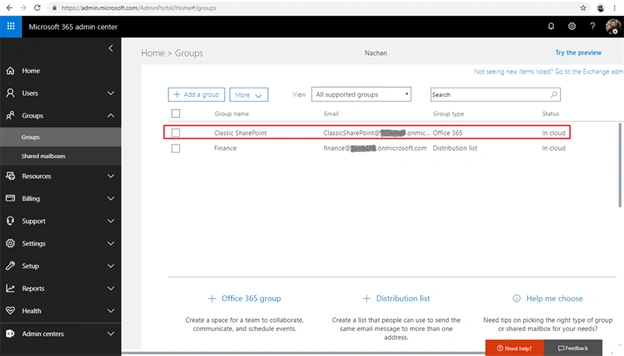
- New office 365 group is created and is connected to the SharePoint site
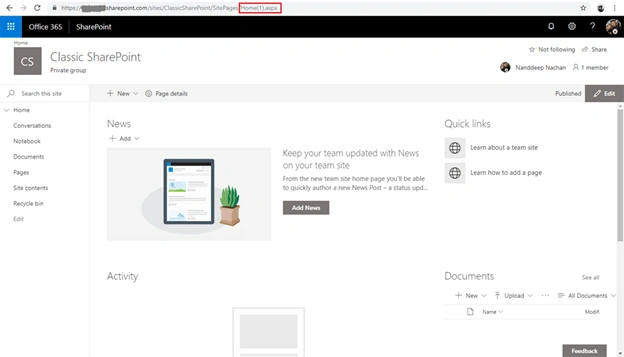
- A new modern page is created on the SharePoint site and is set as home page
- Owners specified in group creation become the site collection administrators on the SharePoint site
- Owners specified in group creation are added to the Owners group on the SharePoint site
- Members specified in group creation are added to the Members group on the SharePoint site
Once the SharePoint site is connected to the Office 365 group, it works like a modern group-connected SharePoint site. Users can be added to the SharePoint site from Office 365 groups.
Connecting SharePoint sites to Office 365 Groups from UI
User Interface is the simplest option to connect classic a SharePoint site to an Office 365 group.
- Open classic SharePoint site.
- Click gear icon, select “Connect to new Office 365 Group”.
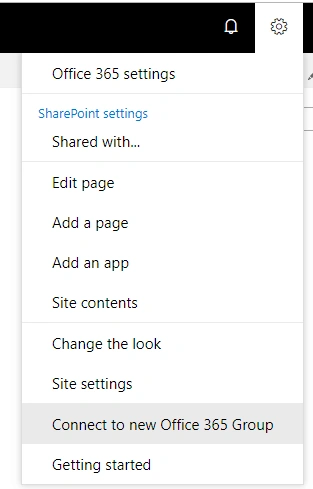
This opens a wizard to walk through the process of Office 365 group creation and connecting it to the SharePoint site. Please note that this option is only available on non-publishing SharePoint sites. - Click “Let’s get started”.
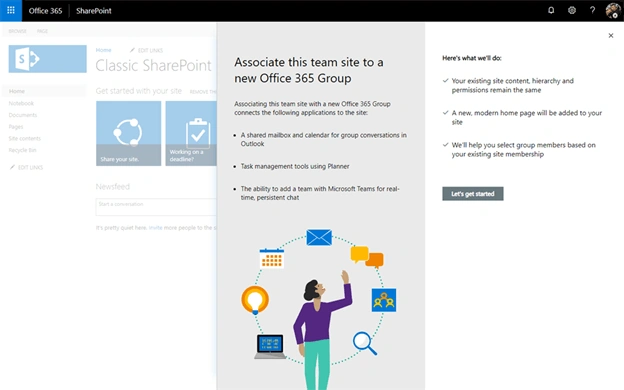
- Specify the group name. By default, the SharePoint site title is taken as the group name (if available). You may change the group name if needed. Specify the optional site description. Choose the privacy settings for Office 365 group as public or private.
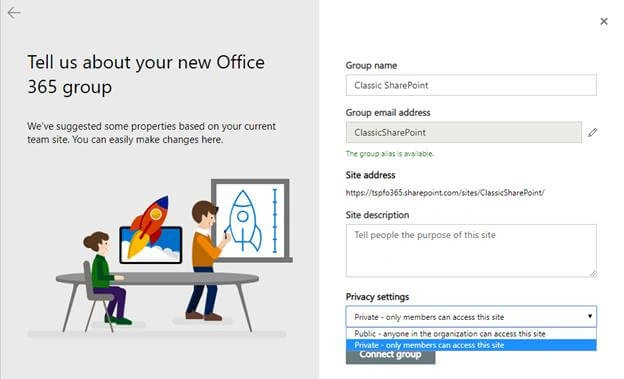
- Click “Connect group”.
- Specify additional owners and members. These owners and members will also be added to the SharePoint site as owners and members respectively.
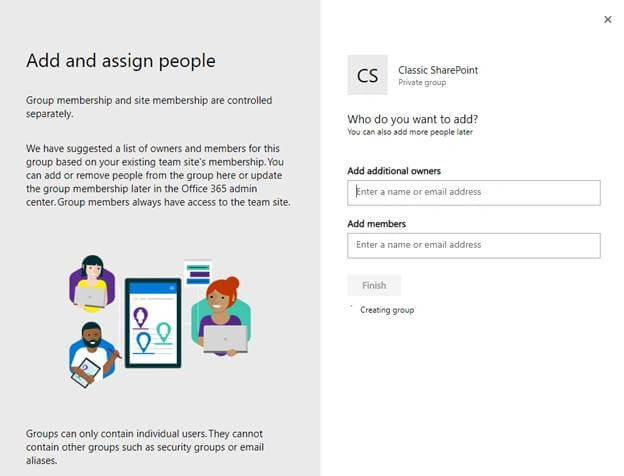
- Click "Finish".
edwer fweePosted Jan 27, 2022, 12:38 PM
Hi Nanddeep, after I run your PowerShell successfully I realized that I lost the PWA SPO's default Document library, however the PWA default has been replaced with new Team's group library. As a result I have lost the default Document library. This is SPO PWA site. url xxxx.sharepoint.com/sites/pwa/ , can you please advice, thanks
Chris CundyPosted Dec 4, 2020, 8:37 AM
HI Nanddeep, I previously created a Modern team site without an Office 365 group. There is now a need to connect to a group - as there is no option in the settings menu of the site, will this PowerShell help me achieve this?
Purna ChanderPosted Oct 28, 2020, 11:14 PM
Hi Nanddeep, The command "Set-SPOSiteOffice365Group -Site $ClassicSPOSite -DisplayName $GroupDisplayName -Alias $GroupAlias -IsPublic $true " is giving access denied since this morning. Do you see any issues in using this command now.? Thank you, -Purna
Imran AliPosted Oct 13, 2020, 7:48 AM
Thank you!
Imran AliPosted Oct 9, 2020, 8:42 AM
Thank you for reply, I have 3 Teams and 1 SP project site, 3 Teams have their own SPO modern site backend, so is there a way to link 3 Teams to one SP project site? Thank you Nanddeep!
Imran AliPosted Oct 8, 2020, 9:02 AM
Hi Nanddeep, is there a way to how we can link multiple Teams to one SPO modern site? Thank you
Guest UserPosted Jun 22, 2020, 8:08 AM
Hi Nanddeep, We've SharePoint online environment where SharePoint 2007 had been migrated 2-3 years back. Now we want to connect those sites to modern one. 'Connect to new office 365 Group' option is not available at UI. We also have tried with PowerShell, but no luck. can you please let me know what should I do? That sites are having custom master page applied and some custom webpart also added there (when online version was 2013).
jamil haddadinPosted Oct 24, 2019, 5:20 PM
For some reason i cannot find this link; every link is there except the "Connect to new office 365 Group"
Abenet BeyenePosted Oct 4, 2019, 1:32 PM
How would you retrieve office365 groups ad sync using pnpPowerSHell.
JeanPosted Jun 28, 2019, 10:30 AM
Hi Nanddeep, I have a modern site and for some reason, there is no group associated with it. The group was not deleted, looks like it did not get created when the site was created. Will this Powershell script help me in creating a new group and associate it with the modern site.