

In this article you will learn how to connect to SharePoint 2013 Online using CSOM with Console Application.
Create a Console Application using Visual Studio 2013:
- Open Visual Studio 2013.
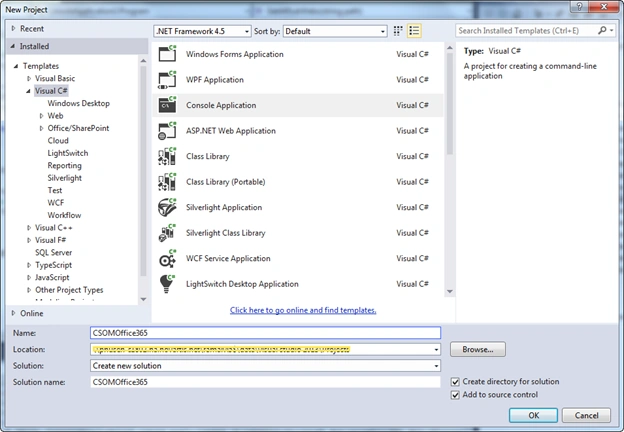
- Click on File, New, then Project.

- Select “Console Application” from installed templates, enter a name for the console and then click on Ok button.
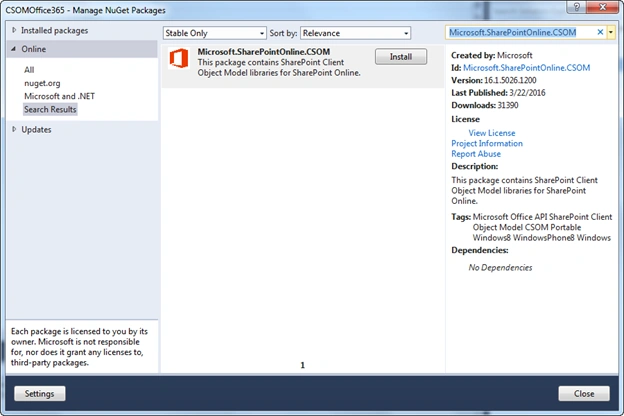
- Right click on References in the Solution Explorer and then click on Manage NuGet Packages.

- Search for Microsoft.SharePointOnline.CSOM and then click on Install.
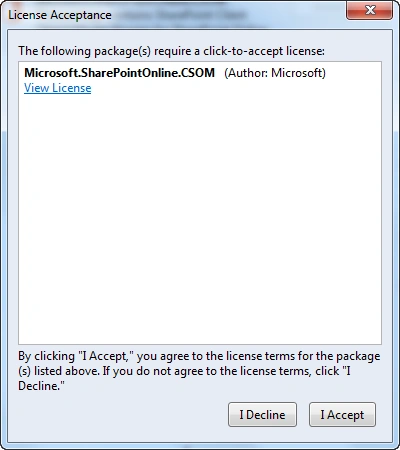
- This package requires a click-to-accept license.
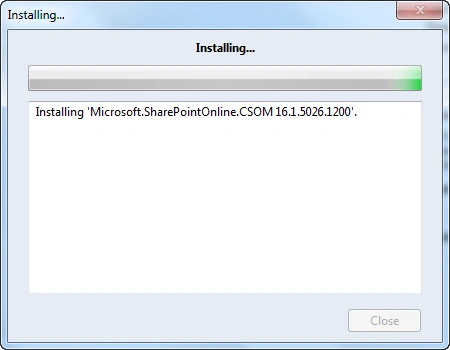
- Installing the package.
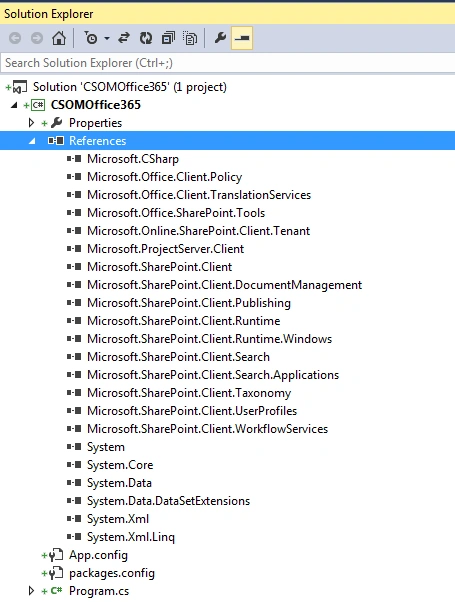
- Package is installed successfully as shown below.
- Program.cs
- using System;
- using System.Collections.Generic;
- using System.Linq;
- using System.Net;
- using System.Security;
- using System.Text;
- using System.Threading.Tasks;
- using Microsoft.SharePoint.Client;
- namespace CSOMOffice365
- {
- class Program
- {
- static void Main(string[] args)
- {
- string userName = "[email protected]";
- Console.WriteLine("Enter your password.");
- SecureString password = GetPassword();
- // ClienContext - Get the context for the SharePoint Online Site
- // SharePoint site URL - https://c986.sharepoint.com
- using(var clientContext = new ClientContext("https://c986.sharepoint.com"))
- {
- // SharePoint Online Credentials
- clientContext.Credentials = new SharePointOnlineCredentials(userName, password);
- // Get the SharePoint web
- Web web = clientContext.Web;
- // Load the Web properties
- clientContext.Load(web);
- // Execute the query to the server.
- clientContext.ExecuteQuery();
- // Web properties - Display the Title and URL for the web
- Console.WriteLine("Title: " + web.Title + "; URL: " + web.Url);
- Console.ReadLine();
- }
- }
- private static SecureString GetPassword()
- {
- ConsoleKeyInfo info;
- //Get the user's password as a SecureString
- SecureString securePassword = new SecureString();
- do
- {
- info = Console.ReadKey(true);
- if (info.Key != ConsoleKey.Enter)
- {
- securePassword.AppendChar(info.KeyChar);
- }
- }
- while (info.Key != ConsoleKey.Enter);
- return securePassword;
- }
- }
- }
Test the console application:
- Hit F5 to run the application.
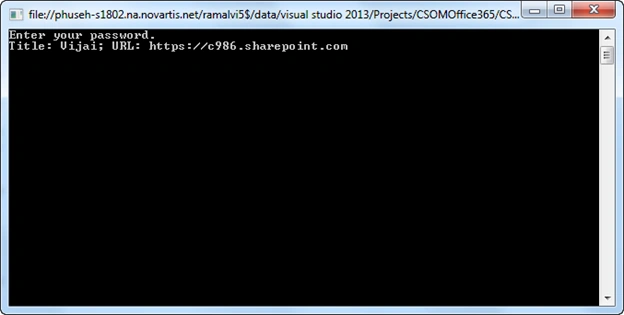
- Enter the password and then click on Enter button.
- You are successfully connected to SharePoint Online using CSOM.
Summary:
Thus in this article you have seen how to connect to SharePoint 2013 Online using CSOM with a console application.
Vijay BalkawadePosted Apr 5, 2021, 6:20 AM
I tried this. However getting an error as, 401, unauthorized. I can login to SharePoint using the same credentials though.
Prem PremPosted Jun 26, 2020, 7:38 AM
Thanks for Sharing :)
Prashant PrakashPosted Sep 18, 2018, 5:40 AM
Nice post..
Santhakumar MunuswamyPosted May 9, 2016, 11:26 PM
Thank you for nice share
Sr KarthigaPosted May 6, 2016, 3:48 AM
good one
Bhushan GawalePosted May 6, 2016, 12:56 AM
Cool, this used to be a hectic task back in old days.
Prasham SabadraPosted May 6, 2016, 12:48 AM
Thanks for Sharing!!!
Kuppurasu NagarajPosted May 5, 2016, 1:29 PM
Nice Sharing..
NitinPosted May 5, 2016, 3:14 AM
Good one
Humayun Kabir MamunPosted May 4, 2016, 11:46 PM
Nice...
Vignesh ManiPosted May 4, 2016, 4:23 PM
Nice