

Introduction
This article describes Stored Procedures and the execution of Stored Procedures in a QlikView application.
What is Stored Procedure
A Stored Procedure is a collection of SQL statements that have been created and stored in a database. A Stored Procedure is compiled into a single execution. A Stored Procedure accesses a Relational Database System. Stored Procedure will accept only input parameters.
The following are advantages of using Stored Procedures:
- Generally Stored Procedures are non portable, that means they are specific to a specific RDBMS.
- Stored Procedure are pre-compiled, that means they can be reused without recompiling.
- Stored Procedures support a procedural programming language that consists of conditional statements and loops.
- Stored Procedures increase reliability.
- The database or DBA developer must have database rights that Stored Procedure require.
- Stored Procedures allow faster execution time.
Syntax of executing Stored Procedure
The following is the basic syntax of a Stored Procedure.
EXEC proc_name 'paramValue1' 'paramValue2'
Stored Procedure in QlikView
QlikView applications support business environments and almost all business environments support complex business logic. So this business logic is implemented in a QlikView application.
A Stored Procedure is generally used in a QlikView application when the source system has a large transactional database system and a data warehouse is not supported.
Let's start with the connectivity of a Stored Procedure.
Step 1: Create Stored Procedure in SQL Server.
The first and major step is first we need to create a Stored Procedure in SQL Server.
@City varchar(50), @Address varchar(50)
AS
BEGIN
Select * from Person where [City]= @City
Select * from Person where [Address]= @Address
END
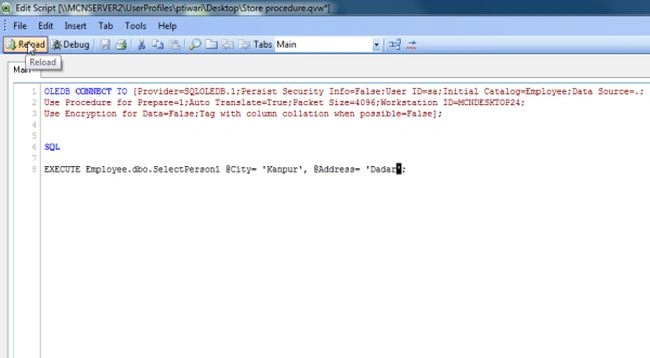
exec SelectPerson1 'Kanpur', 'Dadar'
Step 2: Open the QlikView application
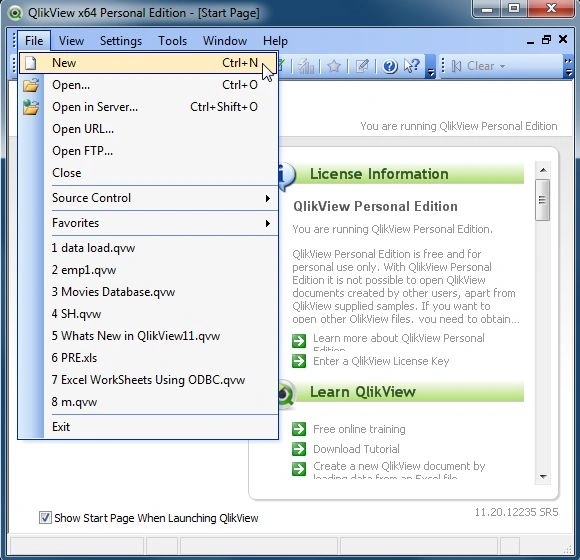
It is the first step, in this step you need to open the QlikView application then go to File-> New then this window will be opened.
Step 3: Open Edit Script
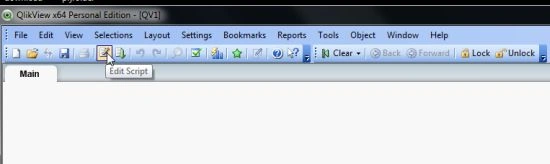
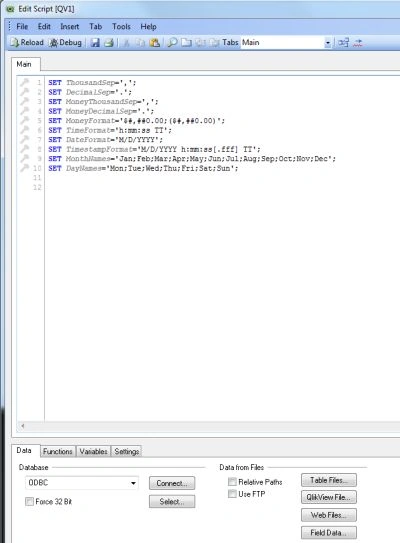
The second step is to open the edit script window from File-> Edit Script.
- Then this window will be opened.
Step 4: Select Database
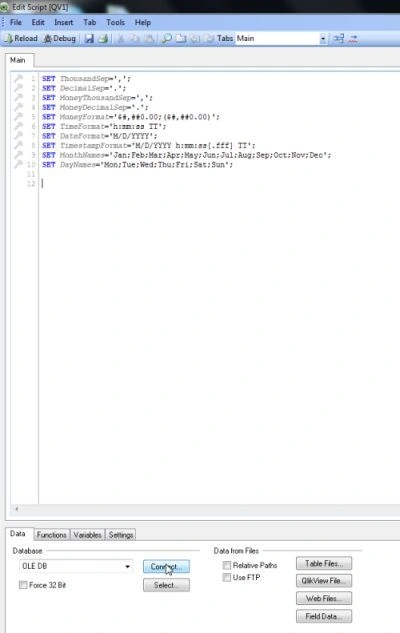
The third step is to select the database from the data tab and click on the Connect Button.
Step 5: Data link property window
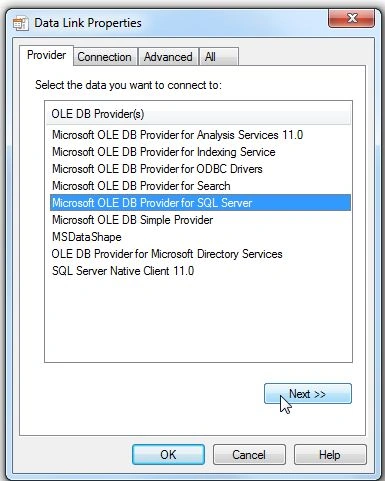
In this window we select SQL Server and click on the Next Button.
Step 6: Connection tab
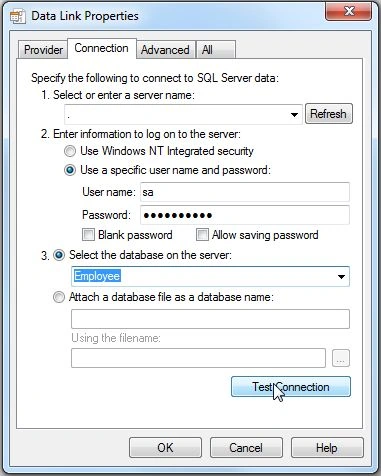
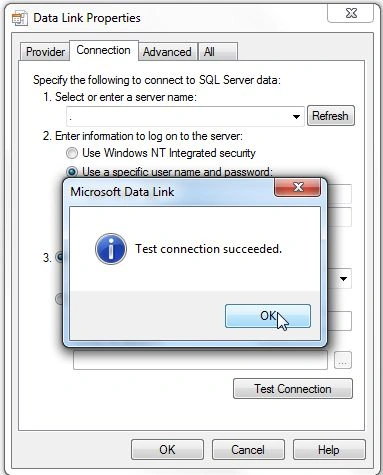
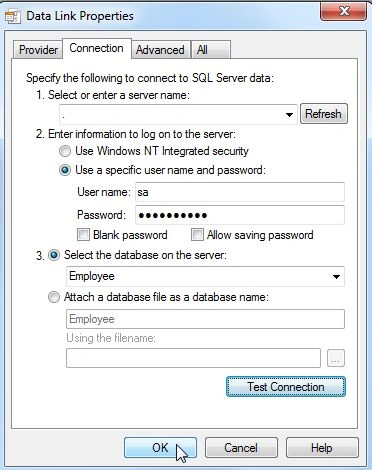
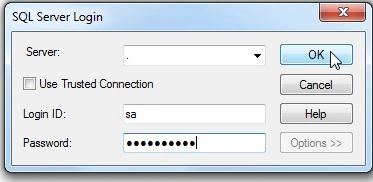
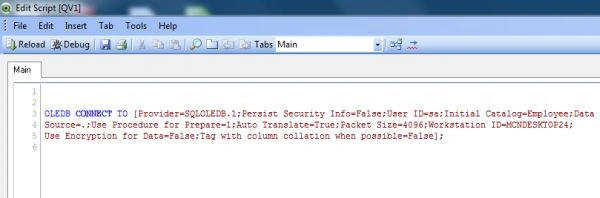
In connection tab, you entered the server name and user name and password and select the database from your server and click on Test Connection.
Edgardo CervantesPosted Nov 12, 2018, 3:43 PM
Awesome and very detailed tutorial. Thanks a lot Prerana!
Yogesh RadePosted Oct 4, 2017, 5:43 AM
Thanks for sharing this useful information.....
Arindam RoyPosted Sep 1, 2014, 3:33 AM
Hi Prerana Nice post thanks. 2 things 1. As the stored proc is parametrized can we have the values feed in runtime. Well answer is Yes, but when I deploy my solution it is not working. In desktop I need to reload to get the new values feed into stored proc, is there any way out of this. 2. The possible way out is EDX, do you have any other apporach to handle. Even if it EDX or any other can you please help to have step by step approach. Thanks Arindam
Arvind PradhanPosted May 9, 2014, 4:49 AM
good......
Ravi KumarPosted May 9, 2014, 1:45 AM
Really Good job nimit..