

Introduction
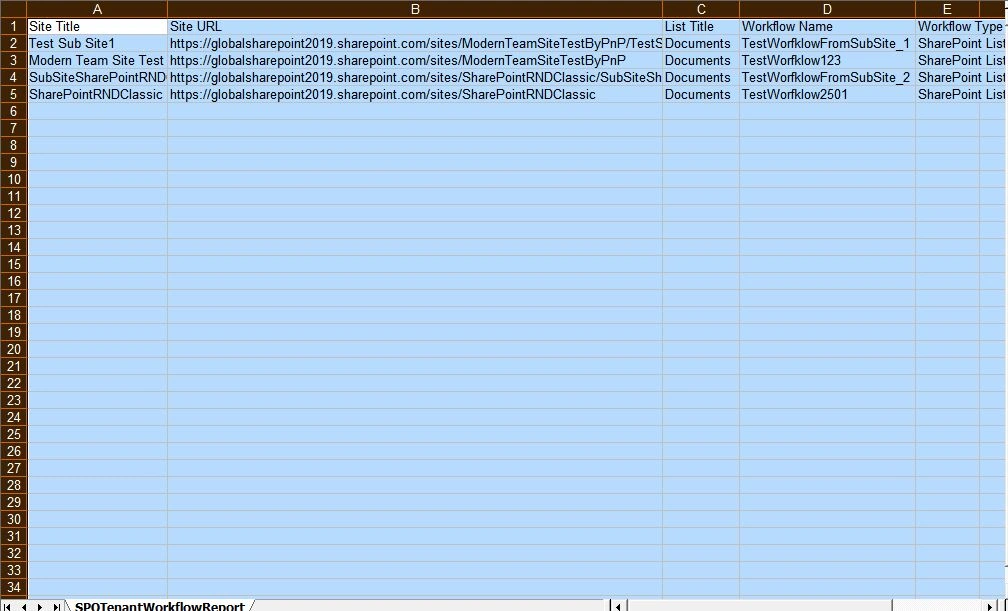
In this tutorial, we will learn about how we can get consolidated workflow reports from the SharePoint Online tenant using PowerShell CSOM and PnP PowerShell. This script will scan through all the sites in a tenant and will export all workflows associated with the lists into a CSV file.
Workflows report from SharePoint Online using PowerShell CSOM & PnP
Using the below PowerShell CSOM & PnP code, we can get all workflows from the SharePoint Online tenant,
- Import-Module Microsoft.Online.SharePoint.PowerShell -DisableNameChecking
- #Load SharePoint CSOM Assemblies
- #Add-Type -Path "C:\Program Files\Common Files\Microsoft Shared\Web Server Extensions\16\ISAPI\Microsoft.SharePoint.Client.dll"
- #Add-Type -Path "C:\Program Files\Common Files\Microsoft Shared\Web Server Extensions\16\ISAPI\Microsoft.SharePoint.Client.Runtime.dll"
- cls
- $fileName = "Tenant_workflow_Report" #'yyyyMMddhhmm yyyyMMdd
- $enddate = (Get-Date).tostring("yyyyMMddhhmmss")
- #$filename = $enddate + '_VMReport.doc'
- $logFileName = $fileName +"_"+ $enddate+"_Log.txt"
- $invocation = (Get-Variable MyInvocation).Value
- $directoryPath = Split-Path $invocation.MyCommand.Path
- $directoryPathForLog=$directoryPath+"\"+"LogFiles"
- if(!(Test-Path -path $directoryPathForLog))
- {
- New-Item -ItemType directory -Path $directoryPathForLog
- #Write-Host "Please Provide Proper Log Path" -ForegroundColor Red
- }
- #$logPath = $directoryPath + "\" + $logFileName
- $logPath = $directoryPathForLog + "\" + $logFileName
- $isLogFileCreated = $False
- #DLL location
- $directoryPathForDLL=$directoryPath+"\"+"Dependency Files"
- if(!(Test-Path -path $directoryPathForDLL))
- {
- New-Item -ItemType directory -Path $directoryPathForDLL
- #Write-Host "Please Provide Proper Log Path" -ForegroundColor Red
- }
- #DLL location
- $clientDLL=$directoryPathForDLL+"\"+"Microsoft.SharePoint.Client.dll"
- $clientDLLRuntime=$directoryPathForDLL+"\"+"Microsoft.SharePoint.Client.dll"
- Add-Type -Path $clientDLL
- Add-Type -Path $clientDLLRuntime
- #File Download location
- $directoryPathForFileDownloadLocation=$directoryPath+"\"+"Download Workflow Details"
- if(!(Test-Path -path $directoryPathForFileDownloadLocation))
- {
- New-Item -ItemType directory -Path $directoryPathForFileDownloadLocation
- #Write-Host "Please Provide Proper Log Path" -ForegroundColor Red
- }
- #File Download location
- function Write-Log([string]$logMsg)
- {
- if(!$isLogFileCreated){
- Write-Host "Creating Log File..."
- if(!(Test-Path -path $directoryPath))
- {
- Write-Host "Please Provide Proper Log Path" -ForegroundColor Red
- }
- else
- {
- $script:isLogFileCreated = $True
- Write-Host "Log File ($logFileName) Created..."
- [string]$logMessage = [System.String]::Format("[$(Get-Date)] - {0}", $logMsg)
- Add-Content -Path $logPath -Value $logMessage
- }
- }
- else
- {
- [string]$logMessage = [System.String]::Format("[$(Get-Date)] - {0}", $logMsg)
- Add-Content -Path $logPath -Value $logMessage
- }
- }
- #Object array to hold workflow details.
- $WorkflowDetailsForSPOSite=@()
- #The below function will read all workflows from a site and return the array output.
- Function Get-WorkflowAssociationsDeatilsForEachSiteInTenant()
- {
- param
- (
- [Parameter(Mandatory=$true)] [string] $SPOSiteURL,
- [Parameter(Mandatory=$true)] [string] $UserName,
- [Parameter(Mandatory=$true)] [string] $Password
- )
- Try
- {
- $securePassword= $Password | ConvertTo-SecureString -AsPlainText -Force
- #Setup the Context
- $context = New-Object Microsoft.SharePoint.Client.ClientContext($SPOSiteURL)
- $context.Credentials = New-Object Microsoft.SharePoint.Client.SharePointOnlineCredentials($UserName, $securePassword)
- $web = $context.Web
- $context.Load($web)
- $context.Load($web.Webs)
- $context.executeQuery()
- #Check if any subsite is available on the site.
- if ($web.Webs.Count -ne 0)
- {
- foreach ($subweb in $web.Webs)
- {
- Get-WorkflowAssociationsDeatilsForEachSiteInTenant -SPOSiteURL $subweb.url -UserName $userName -Password $password
- }
- }
- #Loading all lists for the particular site.
- $context.Load($web.Lists)
- $context.ExecuteQuery()
- foreach($list in $web.Lists)
- {
- $context.Load($list.WorkflowAssociations)
- $context.ExecuteQuery()
- foreach($wfAssociation in $list.WorkflowAssociations)
- {
- if($wfAssociation.name -notlike "*Previous Version*")
- {
- $row=new-object PSObject
- add-Member -inputObject $row -memberType NoteProperty -name "Site Title" -Value $web.Title
- add-Member -inputObject $row -memberType NoteProperty -name "Site URL" -Value $web.Url
- add-Member -inputObject $row -memberType NoteProperty -name "List Title" -Value $list.Title
- add-Member -inputObject $row -memberType NoteProperty -name "Workflow Name" -Value $wfAssociation.Name
- add-Member -inputObject $row -memberType NoteProperty -name "Workflow Type" -Value "SharePoint List"
- $WorkflowDetailsForSPOSite+=$row
- }
- }
- }
- return $WorkflowDetailsForSPOSite
- }
- catch
- {
- write-host "Error: $($_.Exception.Message)" -foregroundcolor Red
- $ErrorMessage = $_.Exception.Message +"in exporting workflow details!:"
- Write-Host $ErrorMessage -BackgroundColor Red
- Write-Log $ErrorMessage
- }
- }
- #Parameters
- #$siteURL="https://globalsharepoint2019.sharepoint.com/sites/ModernTeamSiteTestByPnP"
- $adminUrl = "https://globalsharepoint2019-admin.sharepoint.com/"
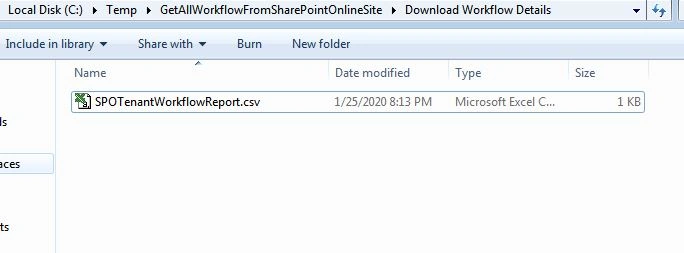
- $downloadLocation=$directoryPathForFileDownloadLocation +"\"+ "SPOTenantWorkflowReport.csv"
- $userName = "YourSPOUserName"
- $password = "YourSPOPassWord"
- $securePassword= $password | ConvertTo-SecureString -AsPlainText -Force
- #Parameters ends here.
- $SecurePassword = $Password | ConvertTo-SecureString -AsPlainText -Force
- $Credentials = New-Object -TypeName System.Management.Automation.PSCredential -argumentlist $userName, $SecurePassword
- #Import-Module Microsoft.Online.SharePoint.PowerShell -DisableNameChecking
- #Retrieve all site collection infos
- #Connect-SPOService -Url $AdminUrl -Credential $Credentials
- #$sites = Get-SPOSite
- Connect-PnPOnline -Url $adminUrl -Credentials $Credentials
- $allTenantSites=Get-PnPTenantSite
- #Get-WorkflowAssociationsDeatilsForEachSiteInTenant -SPOSiteURL $siteURL -UserName $userName -Password $password | Export-Csv $downloadLocation
- if($allTenantSites.Count -gt 0)
- {
- $finalWorkflowReport =foreach($oneSite in $allTenantSites)
- {
- Get-WorkflowAssociationsDeatilsForEachSiteInTenant -SPOSiteURL $oneSite.URL -UserName $userName -Password $password
- }
- $finalWorkflowReport | Export-Csv $downloadLocation -NoTypeInformation
- }
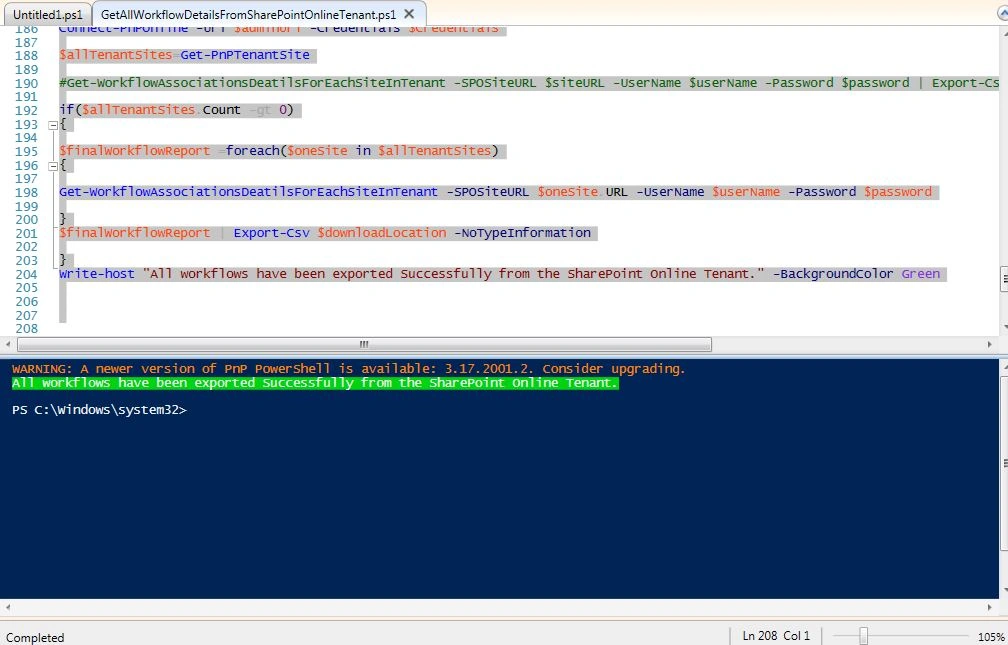
- Write-host "All workflows have been exported Successfully from the SharePoint Online Tenant." -BackgroundColor Green


Dipa MehtaPosted Feb 17, 2020, 12:57 PM
Deep detailing on workflow.