

Introduction
Constructor is based on 2D game creation, without using coding. Now in this article, I will explain how to design the game start page using constructor. Constructor 2 is a powerful HTML 5 game creator, designed especially for 2D game creators.
Prerequisites
- 64 bit windows 7 & windows 10
- 4GB RAM
- AMD graphics card with latest drivers
Multiplatform support
We can easily export it on Chrome Web Store, & Firefox Marketplace or use our Scirra Arcade to share your creations.
You will need,
- PC (or) a laptop with the ability to work on constructor 2
- Constructor 2 game engine
- HTML 5 compatible Browser
Step 1
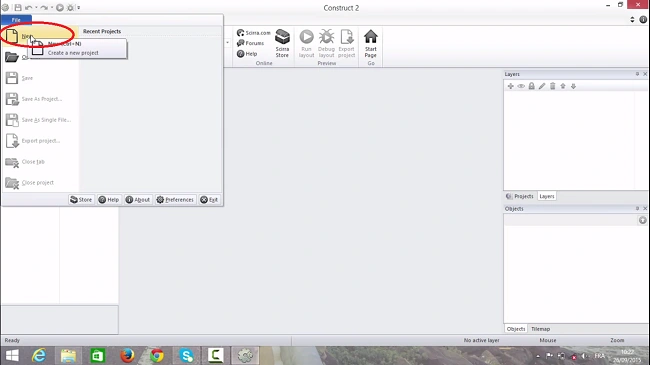
Click the File->New->New empty project.
Step 2
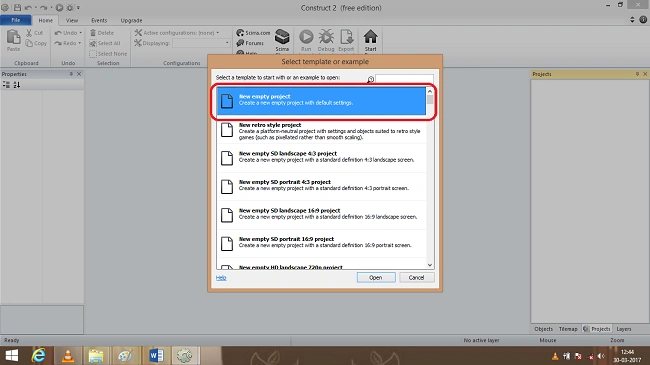
After creating a new project, which creates a new empty project, you will see that following template, shown below
Step 3
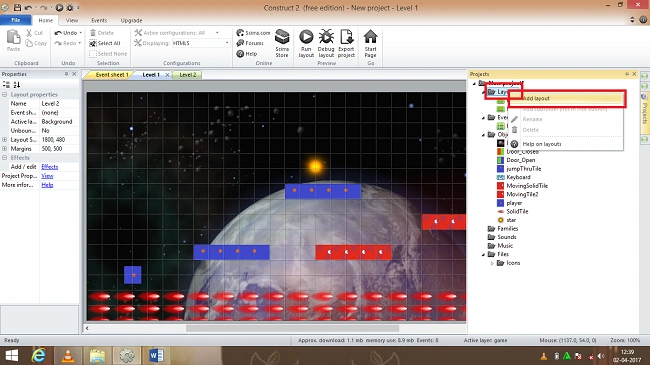
On the right hand side we can see the properties we want to select -> add layout sheet in the properties. You will see the layout dialog box as below
Step 4
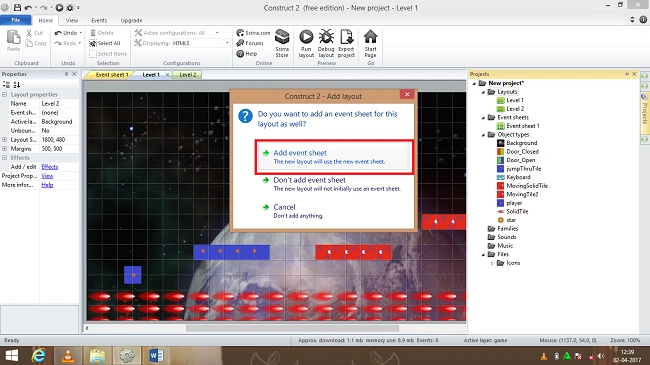
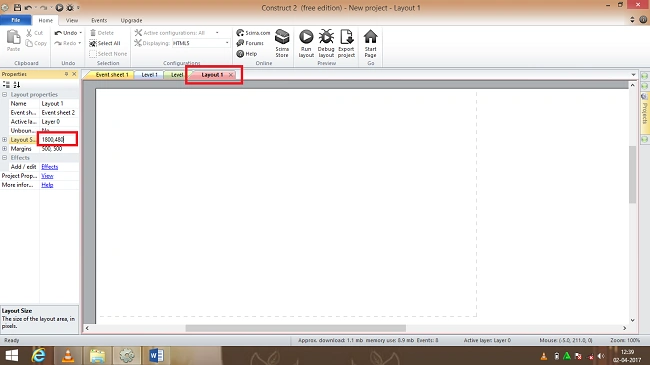
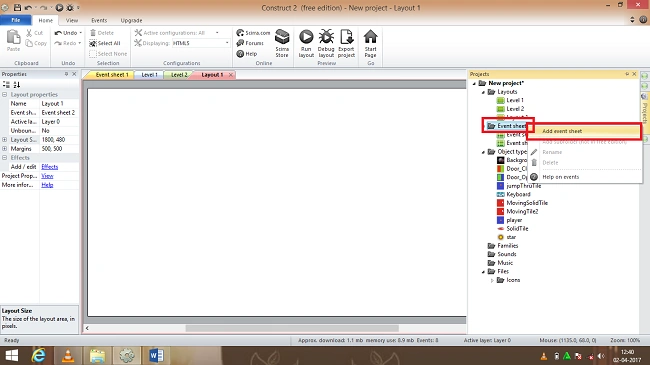
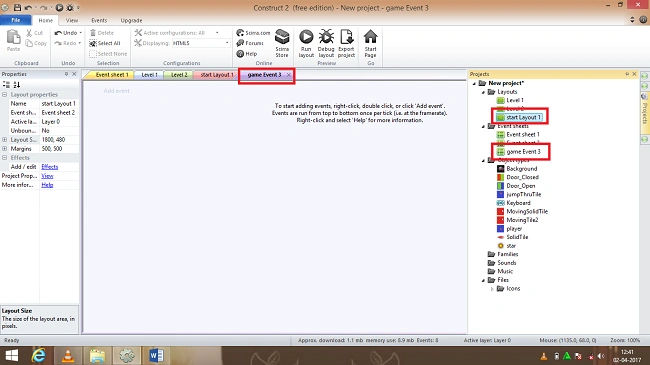
An empty layout will be displayed and now we need to change the size of the layout in layout properties and the layout size must be (1800,480 ) and a new layout sheet must be again added and named as game event.
Adding Text object
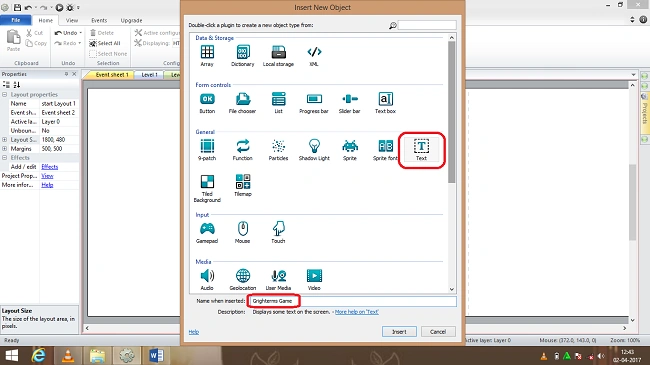
For adding the text object, double click->in layout sheet and insert a new object dialog box and now we can select the text object.
Step 5
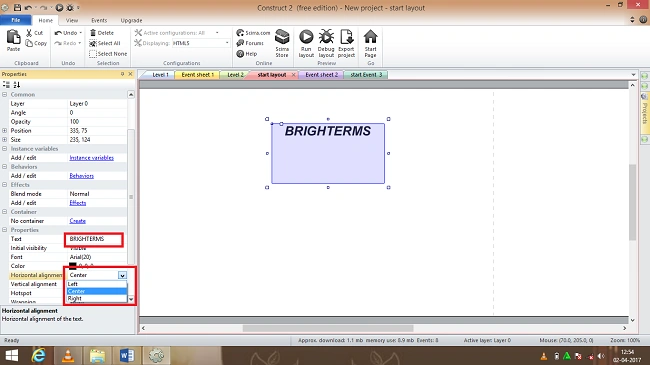
In the left hand side properties window, we need to change the following conditions' names,
- Text(BRIGHTERMS)
- Font
- Horizontal alignment
- Color
Step 6
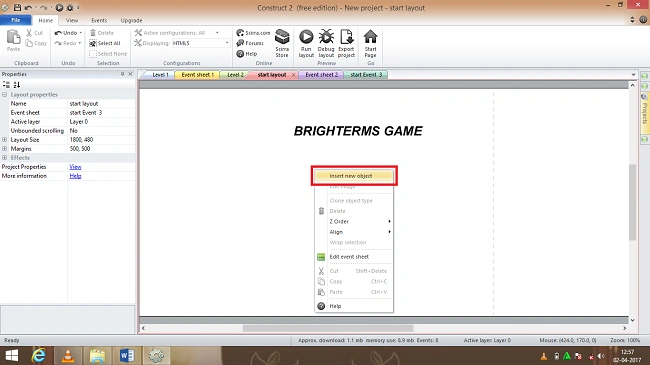
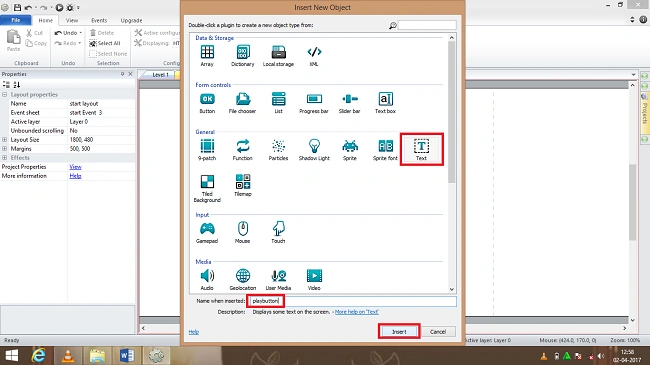
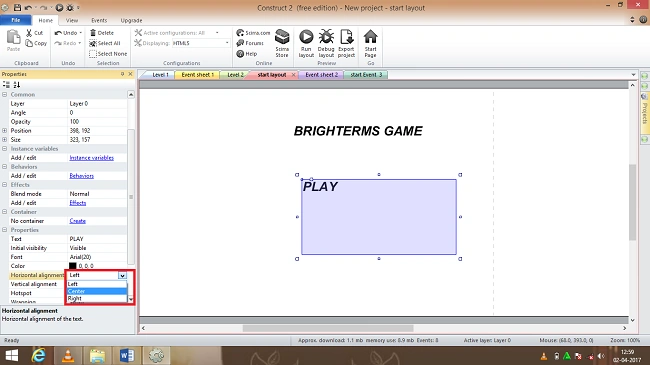
Now again in the same layout sheet we need to insert the text object, double click->layout sheet and text object dialog box will appear and select the object.
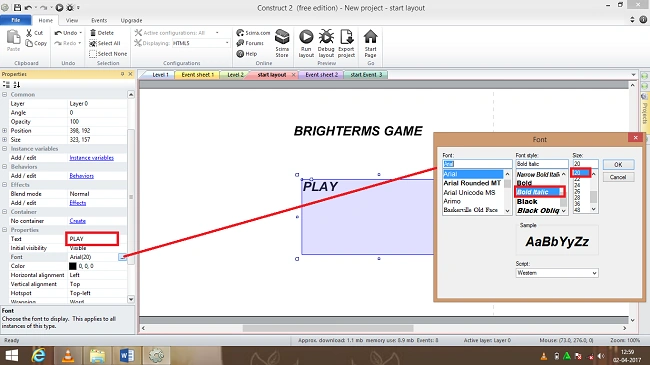
In the left hand side properties window, we need to change the following conditions names,
- Text(PLAY)
- Font
- Color
- Horizontal alignment
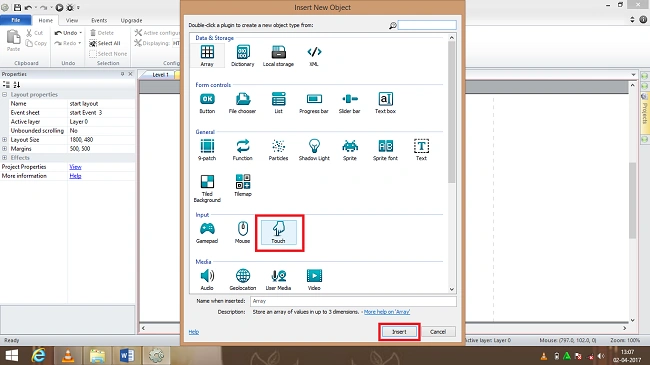
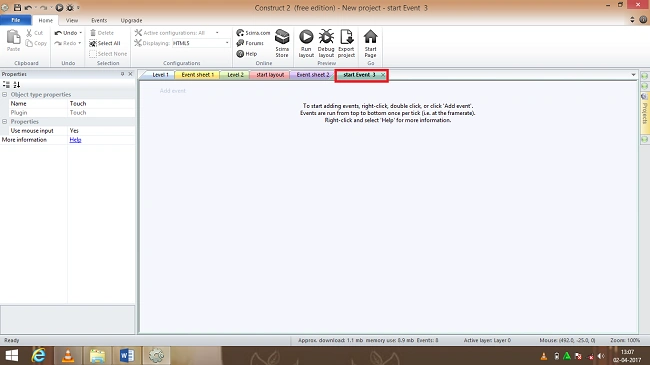
Double click in layout sheet and dialog box will appear and now we need to add touch object to the event sheet, so that it will lead to the creation of an empty event sheet.
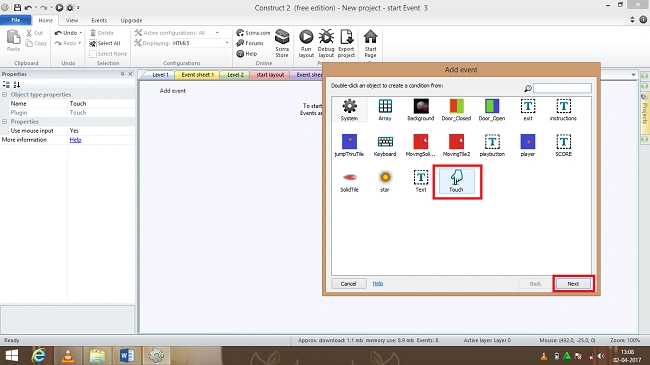
Now again double click->event sheet and a window box will appear and select touch object, after inserting on touch object and click->next
Insert Touch object
I will show just the text behavior here, using insert a Touch object,
- Touch(object)
- On Touch Object
- Select(play button)
- After, Done.
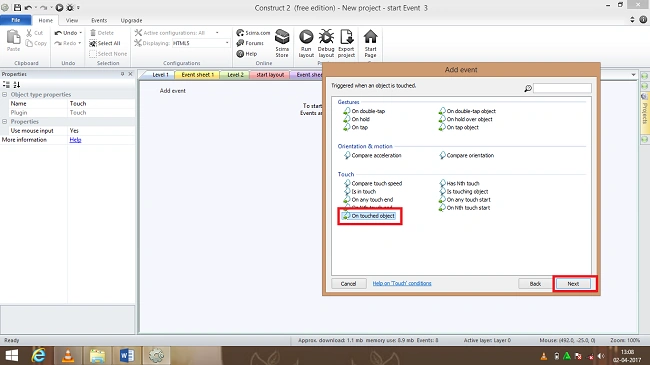
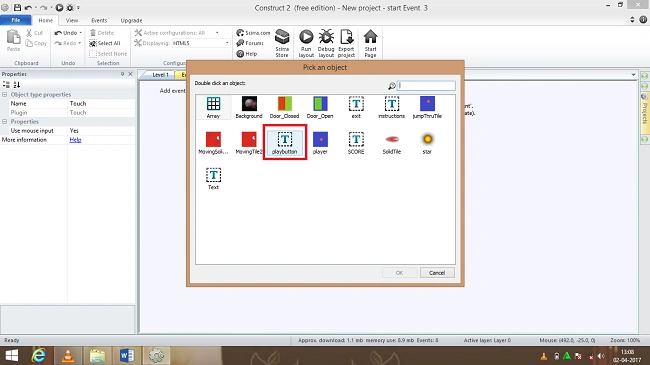
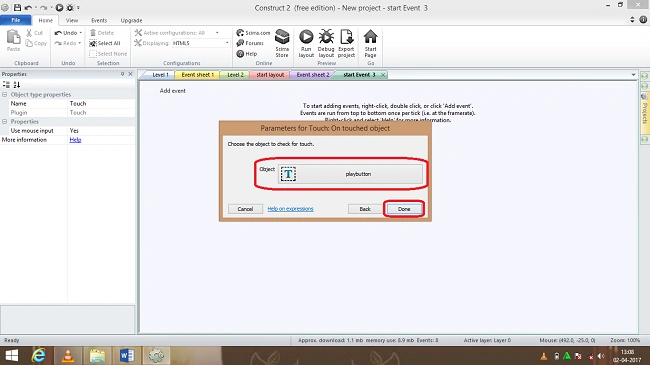
Step 9
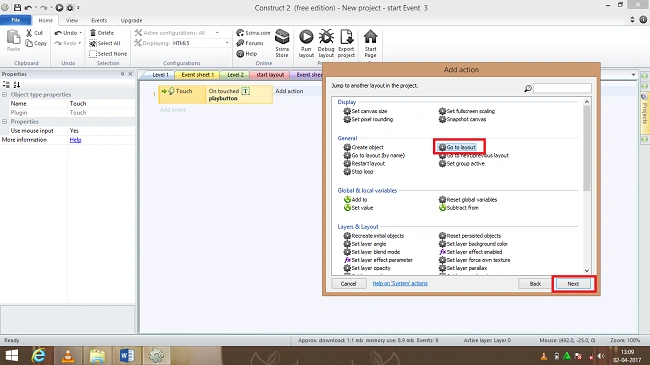
Now we are in event sheet, click->add action and add action dialog box will appear and select ->system (object).
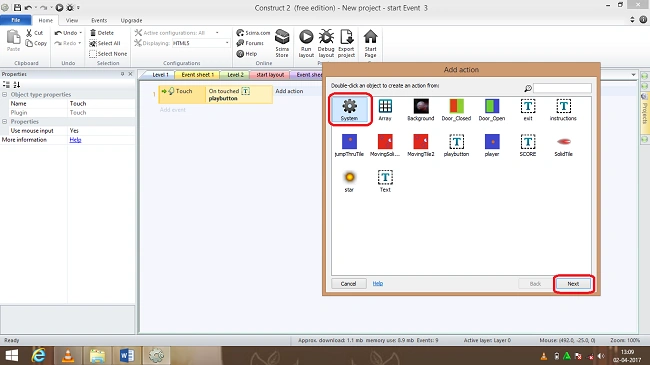
After clicking system a dialog box will appear and select->go to layout and click->next.
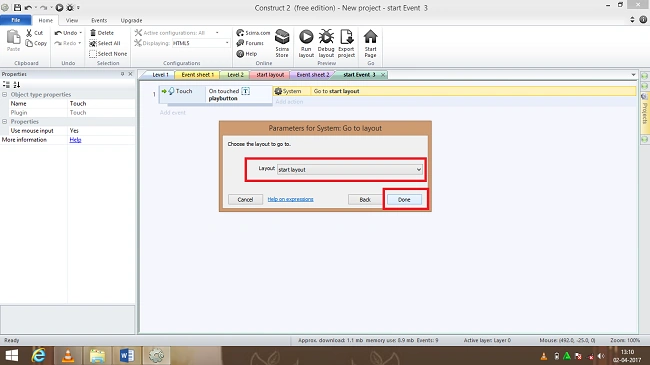
Now again a dialog box will appear named as start layout and click->Done.
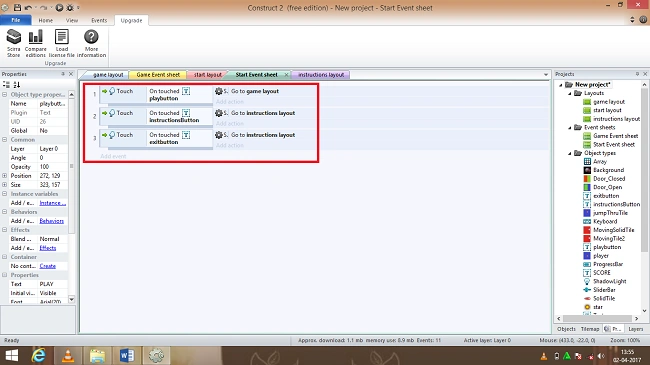
This is how the event sheet will look, after the event is complete.
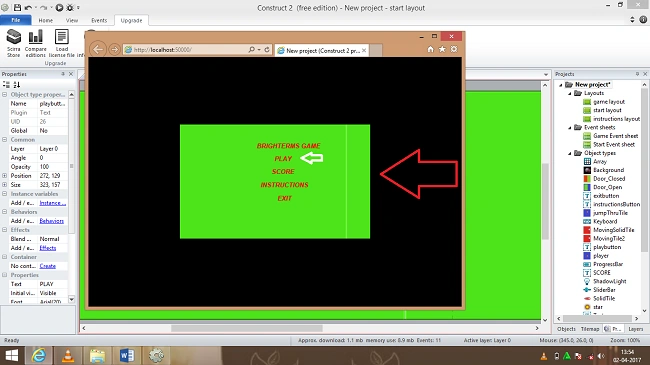
Output
After, press F5 to run layout and Browser will display the following output.
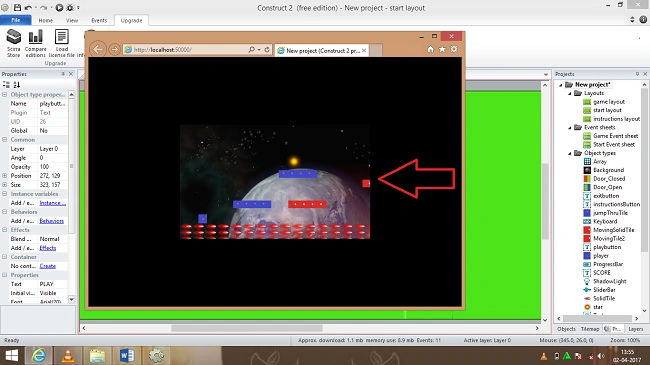
Finally, we created a start screen page with game, building a constructor 2. We will see advanced game development concepts in the upcoming articles.
I hope this article will be useful. Thank you
Hadshana KamalanathanPosted Jul 22, 2018, 4:19 AM
Super...good post...
Sagar Pandurang KapPosted Nov 30, 2017, 12:51 AM
Awesome Yaar...Nice One
Gayathri AnbazhaganPosted Jun 9, 2017, 10:20 PM
Nice one..... thanks for sharing