

Introduction:
Yahoo Web Services are made available to developers through Yahoo's Developer Network, a variety of services are available but this article is specifically interested in using Yahoo's Local Search Service. This service will return a list of business based upon a zip code based search for a business name or product. The service returns the following information:
- Title (the name of the business)
- Street Address
- City
- State
- Phone Number
- Latitude and Longitude
- The distance from the center of the zip code supplied by the user
- URLs for maps and details about the business
- URL of the business web site (if available)
This article will demonstrate the basics of submitting Local Search Service request, displaying the results, and accessing the available links returned in the search results. Naturally there are a number of ways in which could present the search results and this demonstration application only illustrates one such possibility. For more information regarding the program refer directly the Yahoo Developer Network website located at http://developer.yahoo.com/dotnet/.
The service may be accessed up to 50,000 times a day; participation in the program is free and is contingent upon signing up for the Yahoo! Developers Network and obtaining an application ID from Yahoo.
When visiting the Yahoo! site, take a look at the different programs available and take a look at some of the many services made available through Yahoo.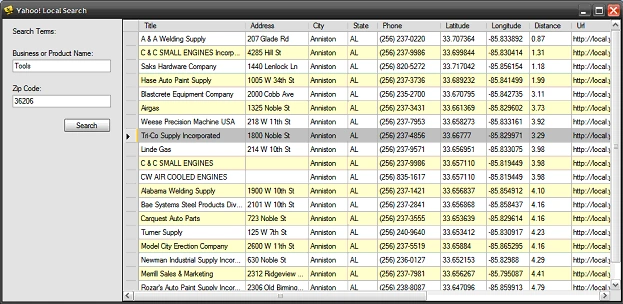
Figure 1: The demonstration application running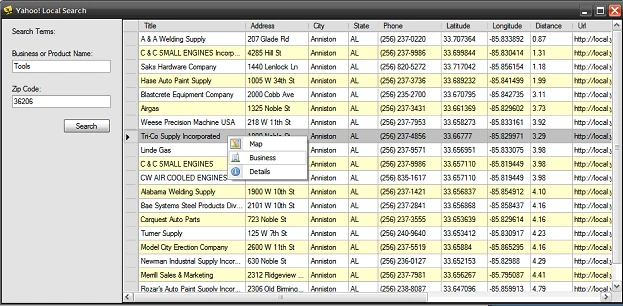
Figure 2: Providing Context Menu Access to the Map, Business, and Business details URLs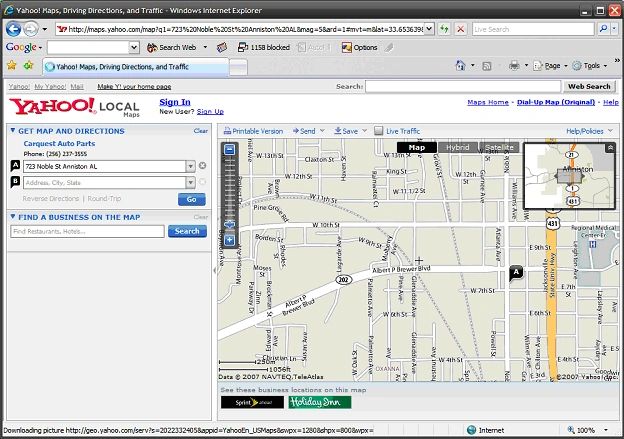
Figure 3: Displaying the Map to the Business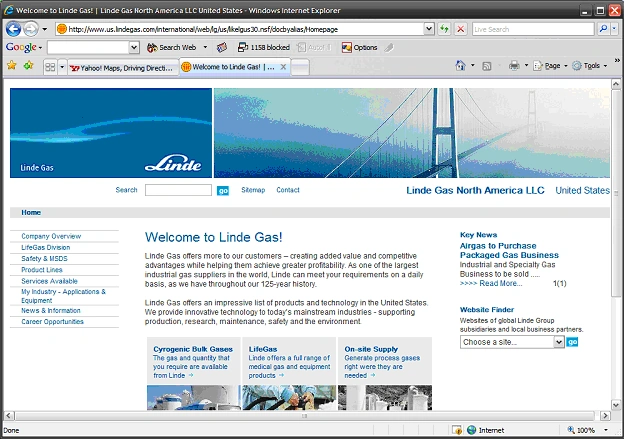
Figure 4: Displaying the Business Website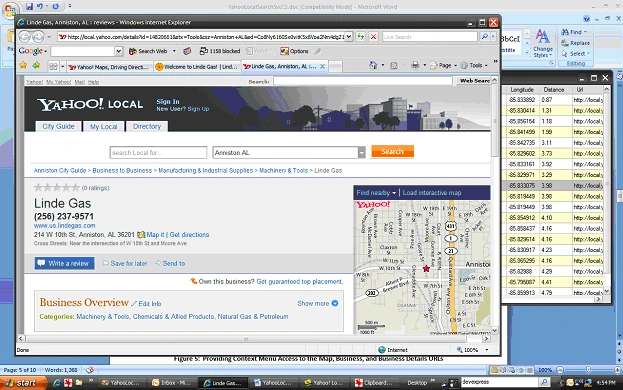
Figure 5: Displaying the Yahoo Business Details
Getting Started:
In order to get started, unzip the included project and open the solution in the Visual Studio 2005 environment. In the solution explorer, you should note these files: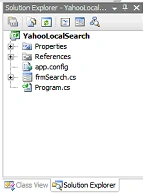
Figure 6: Solution Explorer
The Main Form (frmSearch.cs).
The main form (frmSearch.cs) is the only form contained in the application; all of the application specific code required to access the service, return the results of an local search, and to display those results in a datagridview control or as a web page are included in this class.
The code is pretty simple, if you'd care to open the code view up in the IDE you will see that the code file begins as follows:
using System;
using System.Collections.Generic;
using System.ComponentModel;
using System.Data;
using System.Drawing;
using System.Text;
using System.Windows.Forms;
using System.Net;
The imports are primarily per the default configuration for a Windows application; the System.Net library import is the only departure from the default.
Following the imports, the namespace and class are defined and a default constructor added. Note that in the constructor; the zip code text box is populated using a stored user setting. This code an all remaining code is annotated to describe the purpose of each section of code.
namespace YahooLocalSearch
{
/// <summary>
/// Consume the Yahoo! Local Search Service
/// in a C# Win Forms application
/// </summary>
public partial class frmSearch : Form
{
/// <summary>
/// default constructor
/// </summary>
public frmSearch()
{
InitializeComponent();
// the user's zip code likely won't change so
// set the zip code to user last entered zip code
txtZipCode.Text = Properties.Settings.Default.MyZipCode;
}
Next section of code is the button click event handler for the search button. When this button is clicked, the method will verify that the user has entered a search term and zip code, will store the current zip code into the user setting (in case the user changed it) and then will call a separate method called LocalSearch which accepts two arguments: the title of the business or product name, and the zip code.
/// <summary>
/// Search for matches based upon user supplied
/// business/product name and zip code
/// </summary>
/// <param name="sender"></param>
/// <param name="e"></param>
private void btnSearch_Click(object sender, EventArgs e)
{
// validate that search terms were entered
// by making sure that the business/product
// and the zip code textboxes contain something
if (txtBusinessOrProduct.Text != string.Empty || txtZipCode.Text != string.Empty)
{
// save last entered zip code in user setting
// so that the next time the application is used
// we can retrieve this zip code and reuse it
Properties.Settings.Default.MyZipCode = txtZipCode.Text;
Properties.Settings.Default.Save();
// call the search with the product and zip code arguments
// this function will populate the datagrid with the
// values returned from the product search
LocalSearch(txtBusinessOrProduct.Text, txtZipCode.Text);
}
else
{
// tell the user that the search requested is invalid
// if they failed to fill in both the product/business and
// zip code textboxes
MessageBox.Show("You must supply both a zip code and product or business name.", "Search Invalid");
}
}
The next section of the code is used to execute the local search. The first part of the code stores the business or product name into a string variable and then trims the zip code string to prevent a zip+4 entry; the textbox that accepts the zip code is limited to only five characters in length so this is not really necessary. An Http web request is then formatted to execute the search against the Yahoo! Local Search service; this request uses the supplied business or product name along with the supplied zip code to limit the number of results returned. The service limits the results to a maximum of 20 entries.
The derived response stream is used to populate a dataset; the dataset's second table is then bound to the datagridview. The second table contains the results of the search; a total of three tables are returned by the service and contain information regarding the business rating and the total number of hits returned by the search.
/// <summary>
/// Conduct a search for products or business names
/// within a specified zip code using the Yahoo!
/// Local Search Service
/// </summary>
/// <param name="business"></param>
Join the conversation! Your thoughts help the community grow.