

Previous versions of Microsoft Office Applications were able to access web services using Microsoft Office Web Service Toolkit. But the Web Services Toolkit is not a Microsoft supported product.
Microsoft Visual Studio 2008 / 2010 provides support for creating Office 2007 / 2010 application.
And easily make calls to Web Services.
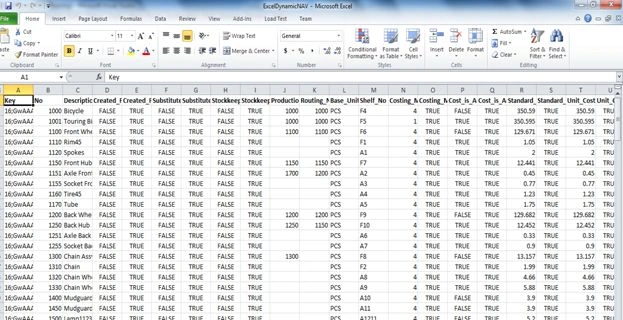
Using this article you can learn how to consume a web service and create an add-on for Excel.
Step 1: Creating an Excel 2010 workbook solution in Visual Studio 2010.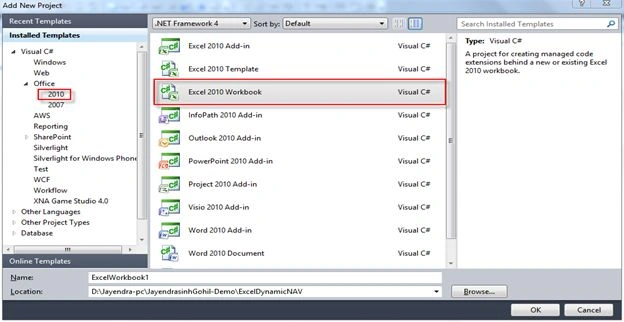
Step 2: Open Sheet1.cs for viewing the code:
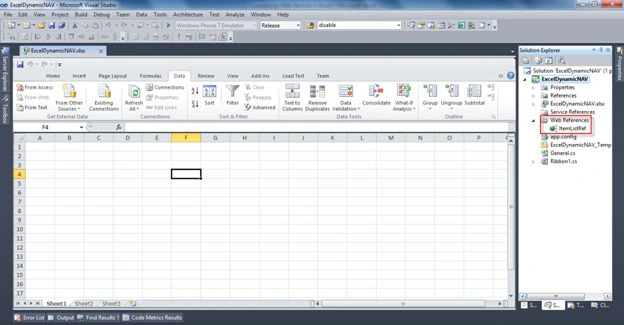
Step 3: Add a Service reference:
public static void BindWorkSheet()
{
List<ItemList> itemlist = new List<ItemList>();
ItemList_Filter[] filters = null;
ItemList_Service service = new ItemList_Service();
ICredentials credntial = new System.Net.NetworkCredential(ConfigurationSettings.AppSettings["username"].ToString(), ConfigurationSettings.AppSettings["password"].ToString(), ConfigurationSettings.AppSettings["domain"].ToString());
service.Credentials = credntial;
itemlist = service.ReadMultiple(filters, string.Empty, 0).ToList();
if (itemlist != null)
{
if (itemlist.Count() > 0)
{
Excel.Worksheet sheet = Globals.ThisWorkbook.Worksheets[1];
sheet.ClearArrows();
General general = new General();
DataTable dt = general.ToDataTable(itemlist);
if (dt != null)
{
if (dt.Rows.Count > 0)
{
for (int j = 1; j <= dt.Columns.Count; j++)
{
if (dt.Columns[j - 1].ColumnName != null)
{
((Microsoft.Office.Interop.Excel.Range)sheet.Cells[1, j]).Value2 =
dt.Columns[j - 1].ColumnName.ToString();
((Microsoft.Office.Interop.Excel.Range)sheet.Cells[1, j]).Font.Bold
= "true";
((Microsoft.Office.Interop.Excel.Range)sheet.Cells[1, j]).Font.Color
= System.Drawing.Color.Black;
}
}
for (int i = 1; i <= dt.Rows.Count; i++)
{
for (int j = 1; j <= dt.Columns.Count; j++)
{
if (dt.Rows[i - 1][j - 1] != null)
{
((Microsoft.Office.Interop.Excel.Range)sheet.Cells[i+1, j]).Value2 = dt.Rows[i - 1][j - 1].ToString();
((Microsoft.Office.Interop.Excel.Range)sheet.Cells[i+1, j]).Font.Color = System.Drawing.Color.Black;
}
}
}
}
}
}
}
}

AbhishekPosted Aug 29, 2013, 8:56 AM
I need help in getting the data from webservice to excel.. I am able to connect to the webservice successfully but I am not able to display that data in excel. Pelase help
Tushar dasPosted May 9, 2013, 3:07 PM
Where do we write the code? public static void BindWorkSheet().
Ramesh KumarPosted Apr 25, 2013, 8:24 AM
After download the code how I can use/run it. I have VS2008.