

Introduction
This article explains the Content Validation in the Web API. Here we need to install the Test Client for ASP.NET Web API. We install this package from the NuGet Package Manager.
Use the following procedure to create a sample application.
Step 1
First we create an Web API application as in the following:
- Start Visual Studio 2012.
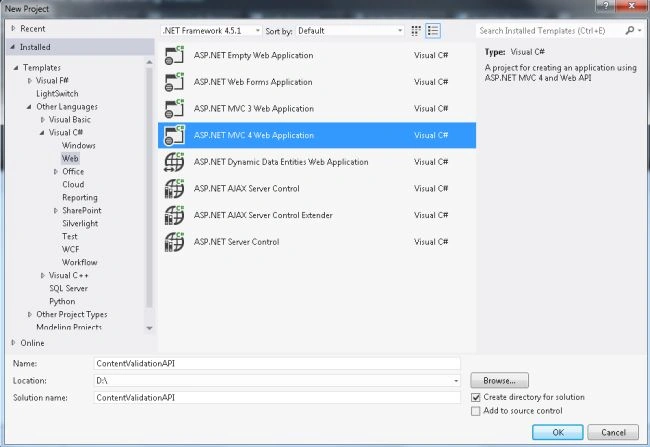
- From the Start window select "Installed" -> "Visual C#" -> "Web".
- Select "ASP.NET MVC4 Web Application" and click on the "OK" button.
- From the MVC4 Project window select "Web API".
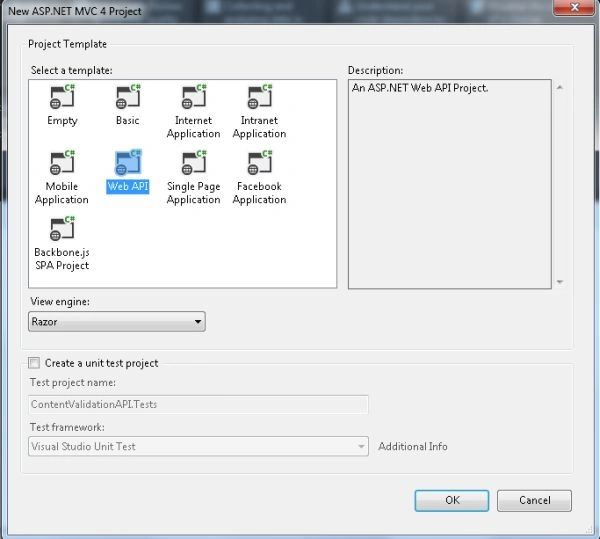
- Click on the "OK" button.
Step 2
Create a Model class:
- In the "Solution Explorer".
- Right-click on the "Model" -> "Add" -> "Class".
- Select "Installed" -> "Visual C#".
- And then select "Class" and click on the "OK' button.
Add the following code:
- using System;
- using System.Collections.Generic;
- using System.ComponentModel.DataAnnotations;
- using System.Linq;
- using System.Web;
- namespace ContentValidationAPI.Models
- {
- public class Product
- {
- [Key]
- public int Prd_Id { get; set; }
- [Required]
- public string Prd_Name { get; set; }
- public string Prd_Description { get; set; }
- [Range(1, 1000)]
- public int Prd_Key { get; set; }
- public bool Prd_IsObsolete { get; set; }
- }
- }
Step 3
Now we add a Scaffold Web API controller as in the following:
- In the Solution Explorer.
- Right-click on the "Controller" -> "Add" -> "Controller".
- From the Dialog box, Select "API controller with read/write, using Entity Framework" from the Template.
- And select the Model class.
- Then Select the Data Context class.
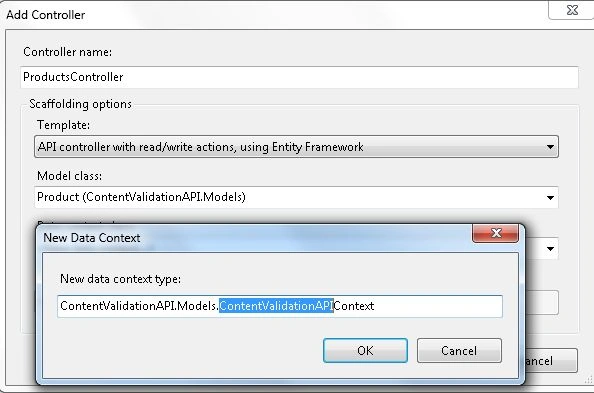
- Click on the "Ok" button.
That will create two files in your project.
- ProductsController.cs in the Controller folder with the default code. We do not need to change this code.
- The second is "ContentValidationAPIContext.cs" in the Model Folder.
Step 4
Now install the Test Client for ASP.NET Web API.
- Go to Tools menu.
- Select "Library Package Manager" -> "NuGet Package Manager".
- In the Search box type "TestClient".
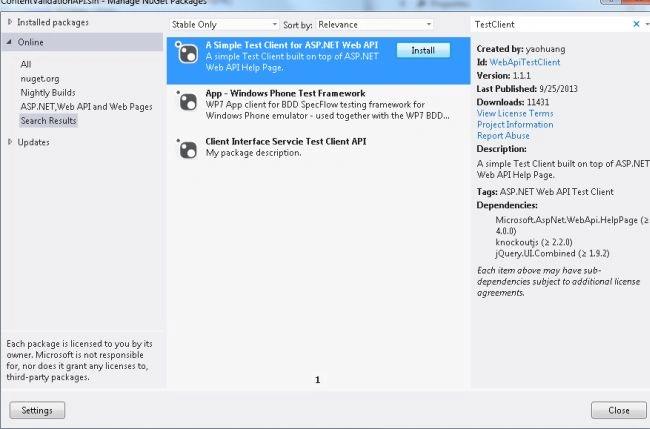
- Select "A Simple Test Client for ASP.NET Web API" and click on the "Install" button.
After installing this package we can see in the "HelpPage/Views/Help/DisplayTemplate/" path theree files added "TestClientDialogs.cshtml", "TestClientReferences.cshtml", and "TextSample.cshtml".
Step 5
Execute the application as in the following:
image..
Click on "API"; it will then display the Products API.
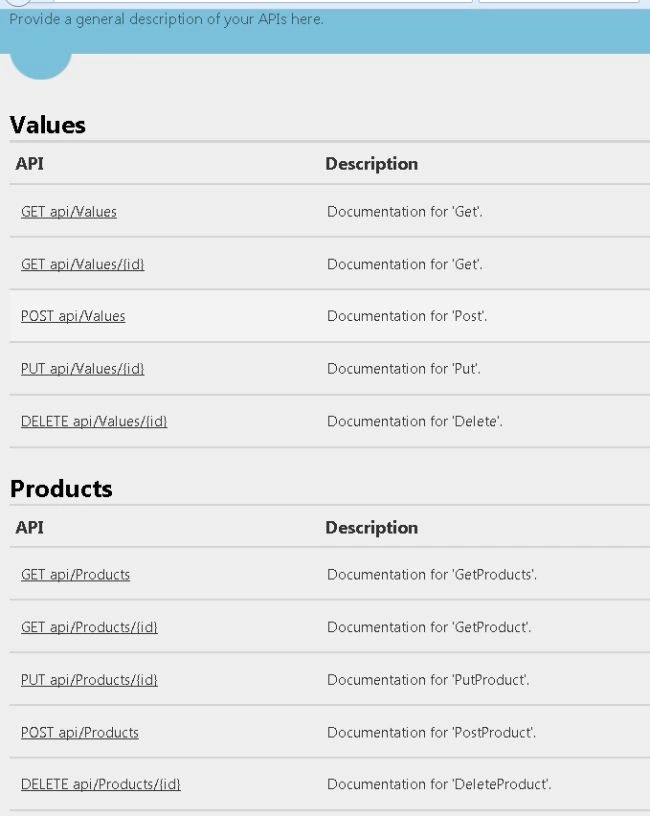
Now click on the "Post API/Products"
and then click on the "TestAPI" button that is displayed in the lower-right corner.
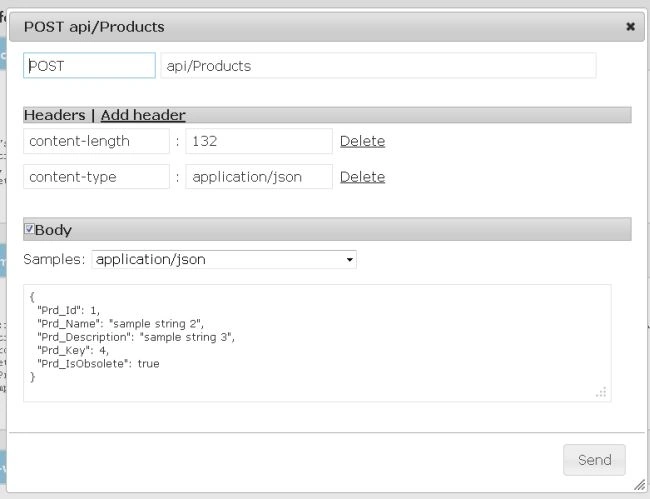
Now change the Body code as in the following:
{
"Prd_Id": 1,
"Prd_Description": "sample string 3",
"Prd_Key":-4,
"Prd_IsObsolete": false
}
And click on the "Send" button, it will then display an error message with validation.
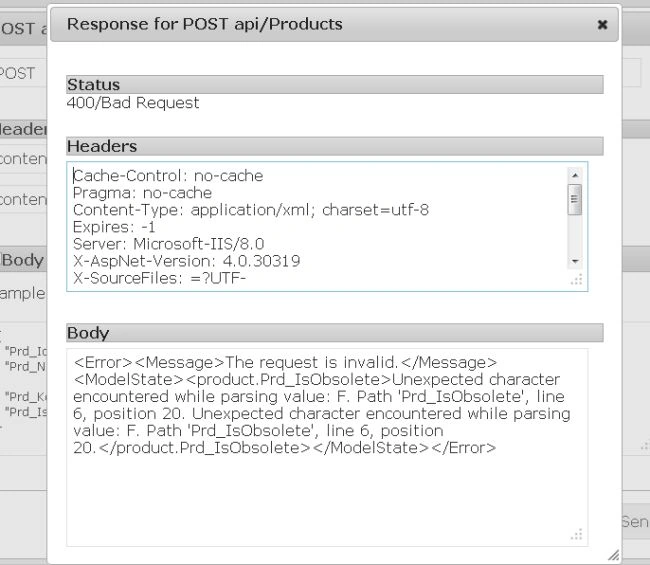
If we again change the code depend on the validation such as:
{
"Prd_Id": 1,
"Prd_Name": "Product 1",
"Prd_Description": "Description of Product 1",
"Prd_Key": 4,
"Prd_IsObsolete": true
}
Then it displays the "Ok" message.
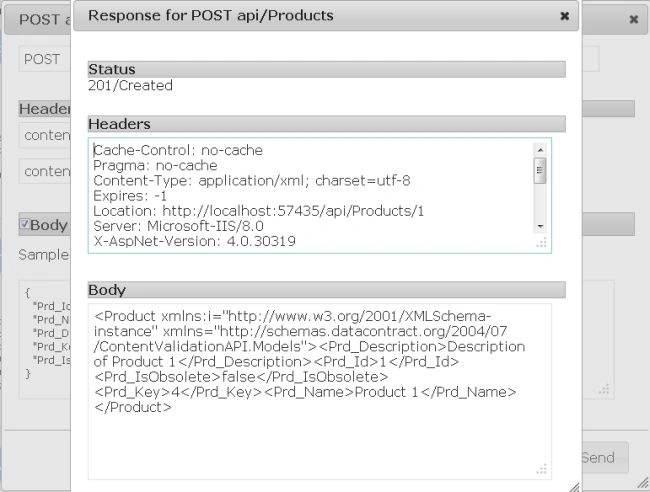
Now click on the "PUT API/Products/{id}"; it will then display like this:
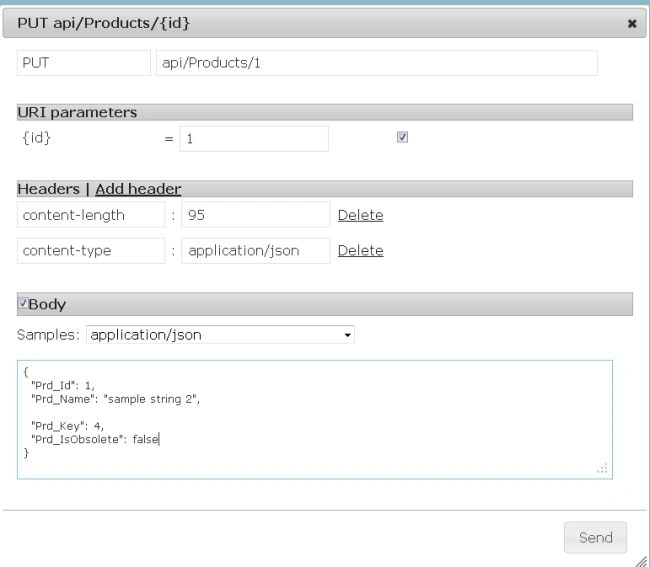
Now again click on the "TestAPI" button and enter the id and change the code like this:
{
"Prd_Id": 1,
"Prd_Name": "sample string 2",
"Prd_Key": 4,
"Prd_IsObsolete": false
}
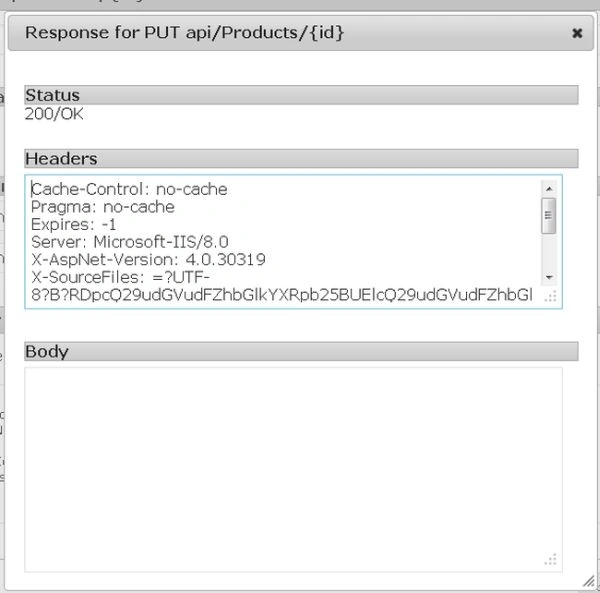
Now click on the "Send" button; it will display an "Ok" message:
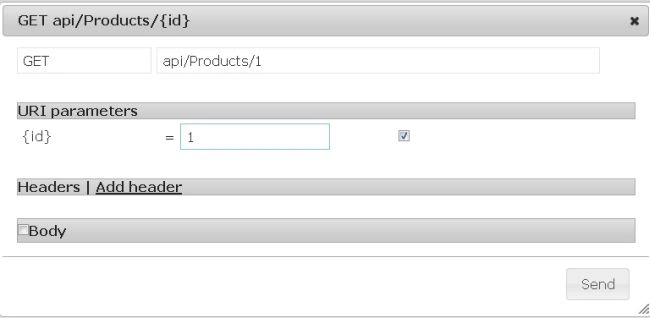
Now click on the Get API/Product/{id}; it will display like this:
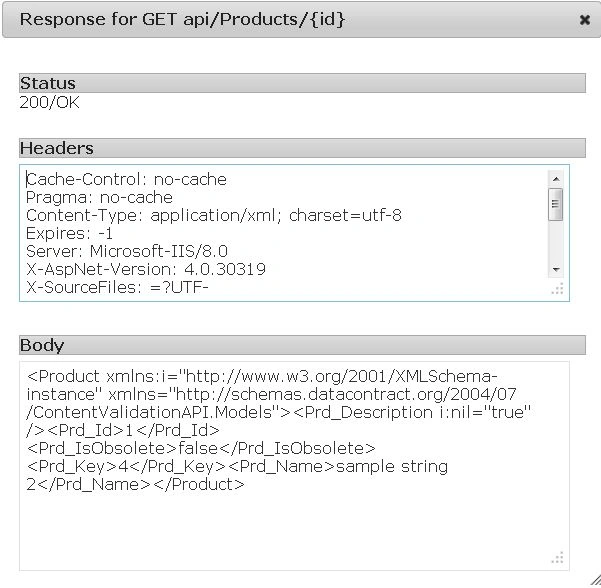
Click on the "Send" button; it will display an "Ok" message as in the following:
Join the conversation! Your thoughts help the community grow.