

Introduction:
This article describes an easy approach to converting a DataGridView control into a Bitmap. At face value that might seem too interesting, however, I have found myself in situations where I was extending a third-party document model (for CAD work) and it was not possible to embed a grid control of any type into that proprietary document format; however, that document type would permit bitmaps to be added to its content.
In one particular application, the intent was to dynamically produce engineering drawings within a batch process and each of those drawing was to contain a bill of materials. The bill of materials changed as each drawing in the batch job was produced and for that reason it was not possible to predetermine what would be contained within the Bill of Materials. Given it was not possible to add a grid control nor was it possible to predetermine what would be contained in the grid control, I opted to dynamically generate the bill of materials using a grid control, export the grid control's content to a bitmap, and then embed the bitmap in the correct location within the drawing.
This document will address the approach used to convert the grid control into a bitmap. Even though this document is focused on the use of a DataGridView control, the same approach may be applied to any control, even containers such that you could export a panel with its contained controls to a bitmap using the technique applied to the DataGridView control in this example. The approach is based upon the use of the gdi32.dll BitBlt function and some of the GDI+ functionality supplied within .NET and is really very simple.
Getting Started.
To get started, unzip the sample code and project supplied with this article. Open the solution up in Visual 2005 and you should note that the application contains two significant files: frmMain.vb and DataGrid2Bitmap.vb. There are a couple of other files in the solution but they are not particularly important to this discussion. The frmMain.vb class does use a connection to my local copy of SQL Server, you may wish to update this connection string or just add a new connection to the project and bind the grid to that connection. You may also wish to take a look at the properties set on the grid, it is configured to not display selections (this is accomplished by changing the Default Cell Style such that the selected cell background color property matches the normal grid and the selected cell foreground color property matches the normal grid. The Rows Visible Headers property is also set to false to remove the left hand columns row selection and row pointer column. The scroll bars property is also set to 'None'. These appearance related settings are merely intended to make the grid look more like a static table than a control when it is converted to a bitmap.
The Code.
Open DataGrid2Bitmap.vb in the code window; the file is a code module and therefore it does not need to be instanced in order to use it. The DataGrid2Bitmap.vb file contains an import statement, it is:
Imports System.Drawing.Imaging
This import is needed to process the bitmap and is required for this demonstration. After the module declaration, you should see this code:
Private Declare Auto Function BitBlt Lib "gdi32.dll" _
(ByVal pHdc As IntPtr, ByVal iX As Integer, _
ByVal iY As Integer, ByVal iWidth As Integer, _
ByVal iHeight As Integer, ByVal pHdcSource As IntPtr, _
ByVal iXSource As Integer, ByVal iYSource As Integer, _
ByVal dw As System.Int32) As Boolean
Private Const SRC As Integer = &HCC0020
The declaration is used to supply the application with direct access to the gdi32.dll's BitBlt function. Without this code block in place, it will not be possible to call BitBlt within the application. Following the BitBlt declaration, a single interger constant is defined and set; this is subsequently used in support of the BitBlt function.
Following the constant declartion, you should see the following code:
Public Sub ConvertDG2BMP(ByVal dg As DataGridView, ByVal sFilePath As
String)
dg.Refresh()
dg.Select()
Dim g As Graphics = dg.CreateGraphics
Dim ibitMap As New Bitmap(dg.ClientSize.Width, _
dg.ClientSize.Height, g)
Dim iBitMap_gr As Graphics = Graphics.FromImage(ibitMap)
Dim iBitMap_hdc As IntPtr = iBitMap_gr.GetHdc
Dim me_hdc As IntPtr = g.GetHdc
BitBlt(iBitMap_hdc, 0, 0, dg.ClientSize.Width, _
dg.ClientSize.Height, me_hdc, 0, 0, SRC)
g.ReleaseHdc(me_hdc)
iBitMap_gr.ReleaseHdc(iBitMap_hdc)
If sFilePath = "" Then Exit Sub
ibitMap.Save(sFilePath, ImageFormat.Bmp)
End Sub
This function accepts two arguments, the first is the DataGridView control that will be saved to bitmap. The second argument is used to provide a file path which is subequently used to define the storage location and file name applied to the current save request.
The rest of the code obtains a graphic context for the for the grid, creates a bitmap sized to match the grid, sets up for and executes the BitBlt call, and then saves the image to the file path provided in bitmap format. That wraps it up for this module.
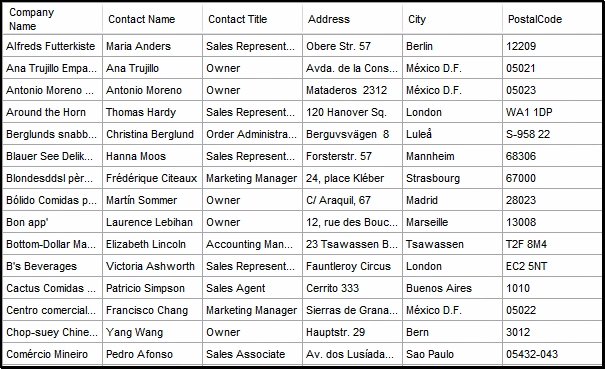
Figure 1: Example Output - A bitmap from a grid
The frmMain.vb class is used as a test harness for the module previously discussed. The frmMain.vb class has a menu with a save menu option. If you open up the save menu option's handler, you will see this code:
Try
'Open a file dialog for saving map documents
SaveFileDialog1.Title = "Save As BMP File"
SaveFileDialog1.Filter = "Bitmap File (*.bmp)|*.bmp"
If SaveFileDialog1.ShowDialog() = _
Windows.Forms.DialogResult.Cancel Then
Exit Sub
End If
Catch ex As Exception
Exit Sub
End Try
'Exit if no map document is selected
Dim sFilePath As String
sFilePath = SaveFileDialog1.FileName
If sFilePath = "" Then
Exit Sub
Else
DataGrid2Bitmap.ConvertDG2BMP(DataGridView1, sFilePath)
End If
The save menu item handler's code opens up a standard save file dialog box after setting it to use the bitmap file extension. The path collected by this function is subsequently used to call the DataGrid2Bitmap's ConvertDG2BMP subroutine; it also passes in the form's DataGridView control and the file path used to store the file.
Summary.
This is a simple project; the only intent was to demonstrate a workable approach to converting a DataGridView control into a bitmap that might be useful in situations where you might need a dynamically generated grid but need it is the form of a bitmap. While this project only described the conversion of a DataGridView into a bitmap; the approach could be applied any other control or container object.
Join the conversation! Your thoughts help the community grow.