

Introduction
In this article, we will create an application that will get all data from XML files from a specific directory and convert it to a C# object.
To get all XML files from a specific location we can use the Directory library provided by 'System.IO'. The other namespaces are 'System.Xml.Serialization' to serialize the XML.
I have an XML file below:
- <?xml version="1.0" encoding="UTF-8"?>
- <entry id="99" binderId="vg" definitionId="qwe" definitionName="asd" title="this is Title" exportVersion="3" docNumber="1" docLevel="1" href="google.com">
- <attribute name="_zone" type="text">abc</attribute>
- <signature>
- <creation date="2013-09-24T07:20:47">
- <principal id="1" name="admin" title="admin" emailAddress="[email protected]">admin</principal>
- </creation>
- <modification date="2013-09-24T07:24:29">
- <principal id="1" name="admin" title="admin" emailAddress="[email protected]">admin</principal>
- </modification>
- </signature>
- <attribute name="title" type="title">This is Title</attribute>
- <attribute name="description" type="description" format="1" zoneUUID="ff">This is desc.</attribute>
- <attribute name="attachFile" type="attachFiles">
- <file href="ar1.jpg" numVersions="1">ar1.jpg</file>
- <file href="ar2.jpg" numVersions="1">ar2.jpg</file>
- <file href="ar3.jpg" numVersions="1">ar3.jpg</file>
- <file href="ar4.jpg" numVersions="1">ar4.jpg</file>
- <file href="ar5.jpg" numVersions="1">ar5.jpg</file>
- </attribute>
- <workflows/>
- <settings>
- <accessControls/>
- </settings>
- </entry>
Now, we start to create a console application for transferring all data from XML files to C# objects.
Step 1 - Create a Project
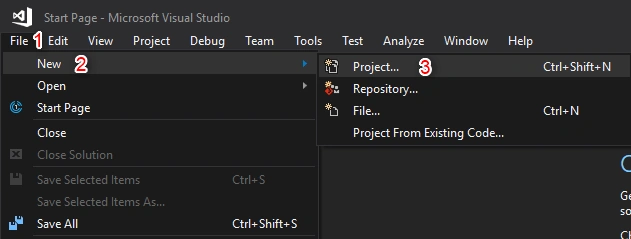
After opening Visual Studio, next, we need to create an ASP.NET MVC project. For doing that, just click File - New - Project.
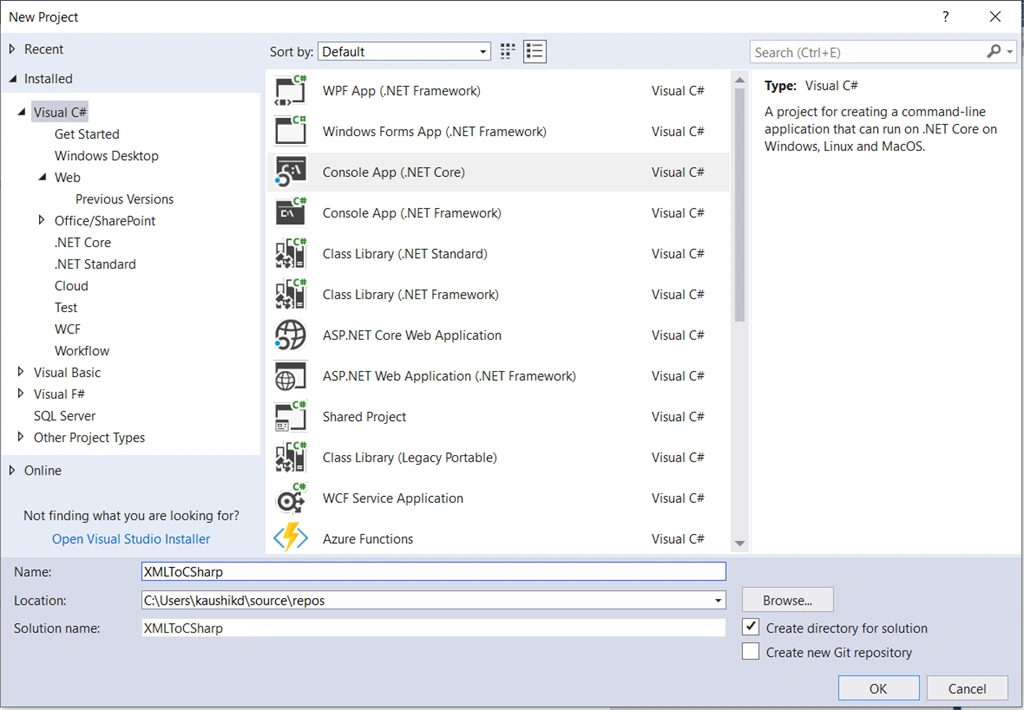
After choosing a project, a new dialog will pop up. In that, select Console Application and give your project the location and a name. Then, click the "Ok" button.
I create a class file like below to map all tags data to c# objects.
- namespace Entry
- {
- [XmlRoot(ElementName="attribute")]
- public class Attribute {
- [XmlAttribute(AttributeName="name")]
- public string Name { get; set; }
- [XmlAttribute(AttributeName="type")]
- public string Type { get; set; }
- [XmlText]
- public string Text { get; set; }
- [XmlAttribute(AttributeName="format")]
- public string Format { get; set; }
- [XmlAttribute(AttributeName="zoneUUID")]
- public string ZoneUUID { get; set; }
- [XmlElement(ElementName="file")]
- public List<File> File { get; set; }
- }
- [XmlRoot(ElementName="principal")]
- public class Principal {
- [XmlAttribute(AttributeName="id")]
- public string Id { get; set; }
- [XmlAttribute(AttributeName="name")]
- public string Name { get; set; }
- [XmlAttribute(AttributeName="title")]
- public string Title { get; set; }
- [XmlAttribute(AttributeName="emailAddress")]
- public string EmailAddress { get; set; }
- [XmlText]
- public string Text { get; set; }
- }
- [XmlRoot(ElementName="creation")]
- public class Creation {
- [XmlElement(ElementName="principal")]
- public Principal Principal { get; set; }
- [XmlAttribute(AttributeName="date")]
- public string Date { get; set; }
- }
- [XmlRoot(ElementName="modification")]
- public class Modification {
- [XmlElement(ElementName="principal")]
- public Principal Principal { get; set; }
- [XmlAttribute(AttributeName="date")]
- public string Date { get; set; }
- }
- [XmlRoot(ElementName="signature")]
- public class Signature {
- [XmlElement(ElementName="creation")]
- public Creation Creation { get; set; }
- [XmlElement(ElementName="modification")]
- public Modification Modification { get; set; }
- }
- [XmlRoot(ElementName="file")]
- public class File {
- [XmlAttribute(AttributeName="href")]
- public string Href { get; set; }
- [XmlAttribute(AttributeName="numVersions")]
- public string NumVersions { get; set; }
- [XmlText]
- public string Text { get; set; }
- }
- [XmlRoot(ElementName="settings")]
- public class Settings {
- [XmlElement(ElementName="accessControls")]
- public string AccessControls { get; set; }
- }
- [XmlRoot(ElementName="entry")]
- public class Entry {
- [XmlElement(ElementName="attribute")]
- public List<Attribute> Attribute { get; set; }
- [XmlElement(ElementName="signature")]
- public Signature Signature { get; set; }
- [XmlElement(ElementName="workflows")]
- public string Workflows { get; set; }
- [XmlElement(ElementName="settings")]
- public Settings Settings { get; set; }
- [XmlAttribute(AttributeName="id")]
- public string Id { get; set; }
- [XmlAttribute(AttributeName="binderId")]
- public string BinderId { get; set; }
- [XmlAttribute(AttributeName="definitionId")]
- public string DefinitionId { get; set; }
- [XmlAttribute(AttributeName="definitionName")]
- public string DefinitionName { get; set; }
- [XmlAttribute(AttributeName="title")]
- public string Title { get; set; }
- [XmlAttribute(AttributeName="exportVersion")]
- public string ExportVersion { get; set; }
- [XmlAttribute(AttributeName="docNumber")]
- public string DocNumber { get; set; }
- [XmlAttribute(AttributeName="docLevel")]
- public string DocLevel { get; set; }
- [XmlAttribute(AttributeName="href")]
- public string Href { get; set; }
- }
- }
If you don't want to create all properties manually then you can use the below link to generate C# class property from XML.
https://xmltocsharp.azurewebsites.net.
Step 3 - Create Method for Convert data from XML to C# object
Copy and paste the below code into your main method.
- string sourceFolderPath ="D:\Kaushik\AllFiles"
- if (Directory.Exists(sourceFolderPath))
- {
- DirectoryInfo dirSource = new DirectoryInfo(sourceFolderPath);
- var allXMLFiles = dirSource.GetFiles("*.xml", SearchOption.AllDirectories).ToList();
- List<Entry> listAllEntries = new List<Entry>();
- foreach (var nextFile in allXMLFiles)
- {
- try
- {
- XmlSerializer serializer = new XmlSerializer(typeof(Entry));
- using (TextReader reader = new StringReader(System.IO.File.ReadAllText(nextFile.FullName)))
- {
- Entry result = (Entry)serializer.Deserialize(reader);
- listAllEntries.Add(result);
- }
- }
- catch (Exception ex)
- {
- }
- }
- }
Please don't forget to change the path of your XML files' directory in variable "sourceFolderPath".
In the above code:
- var allXMLFiles = dirSource.GetFiles("*.xml", SearchOption.AllDirectories).ToList();
Using this line we can get all XML files from a specific directory.
In this case, I get file content using "new StringReader(System.IO.File.ReadAllText(FileName))".
Using "(Entry)serializer.Deserialize(reader)" convert the specific file data to C# object according to created Entry class.
And after completing the foreach loop, you get the whole XML files data into listAllEntries object.
Join the conversation! Your thoughts help the community grow.